

To enable your laptop’s touchpad on Windows 11, open Start > Settings > Bluetooth & devices > Touchpad, then turn on Touchpad. This switch requires a recognized touchpad and a driver that exposes the setting, including on compatible Surface devices.
The short version
- Start in Settings: Turn on Touchpad using the switch or keyboard navigation.
- Check the laptop shortcut: Use the key marked with a touchpad symbol, with Fn when your model requires it.
- Check connected mice: A wireless receiver can disable the touchpad when your laptop is configured to turn it off with a mouse connected.
- Repair drivers last: Update or reinstall the touchpad driver when enabling the controls does not restore it.
| Method | When it applies |
|---|---|
| Windows touchpad switch | Your hardware and driver expose the setting |
| Keyboard search | You need to operate the switch without a mouse |
| Settings command | You want to open the Windows 11 touchpad page directly |
| External mouse setting | You want the touchpad to stay active with a mouse connected |
| Disconnect the mouse receiver | A connected mouse automatically disables the touchpad |
| ASUS hotkey | Your notebook has a touchpad shortcut |
| Open MyASUS | Your ASUS notebook exposes the touchpad control |
| Acer hotkey | Your supported model has the touchpad symbol on F10 |
| Samsung shortcut | Your model supports the touchpad lock shortcut |
| MSI shortcut | Your keyboard has a documented touchpad shortcut layout |
| Lenovo shortcut | Your model supports a touchpad hotkey or Fn + M |
| HP corner toggle | Your touchpad has the upper-left on/off area |
| HP x360 position | Your model disables its keyboard area in certain positions |
| Surface keyboard connection | You have a compatible Surface Pro 12-inch keyboard and device |
| ASUS ScreenPad mode | You have ScreenPad 2.0 with the corresponding ScreenXpert interface |
| Enable the ASUS touchpad device | The named device entry offers Enable device |
| Enable the Intel controller | You have an applicable Intel-based ASUS notebook |
| Windows Update driver | Windows 11 offers an applicable optional driver |
| Device Manager driver update | The touchpad remains unresponsive or needs a driver update |
| Driver reinstallation | Updating the touchpad driver fails |
| Lenovo driver rollback | Your compatible laptop has a previous driver available |
| ASUS driver download | You need a package matching your model and operating system |
| ASUS BIOS defaults | You need further recovery on an applicable ASUS notebook |
| Voice access | Voice access is configured and running on Windows 11 |
| Administrator restores page access | A supported management policy hides the touchpad page |
| Virtual touchpad | You need alternative pointer control on a Windows 11 touchscreen |
Turn on the Windows touchpad switch
Without a working mouse or touchscreen, use keyboard search on Windows 11 or Windows 10. Press Windows + S, type Touchpad settings, and press Enter. Press Tab until the Touchpad switch has focus, then press Spacebar if it is off.
On Windows 10, open Start > Settings > Devices > Touchpad, then set Touchpad to On. This path applies when your laptop exposes the setting. If the setting is missing or the touchpad remains unresponsive, check the matching hardware controls and driver fixes below.
Use your laptop’s touchpad shortcut
Check your keyboard for a key carrying a touchpad symbol. Match the symbol and your model’s manual before choosing a shortcut, because the key and whether it needs Fn vary by model.
- On ASUS notebooks with a touchpad hotkey, press the marked key, commonly F6 or F9, holding Fn when required by the function-key mode.
- On supported Acer notebooks, including Nitro models, press F10 when it carries the touchpad symbol; use Fn + F10 if necessary.
- On Samsung notebooks with the documented touchpad lock, press Fn + F5 to unlock it.
- On MSI notebooks with the matching layout, press Fn + F3; some Summit and Prestige models instead use Fn + F4.
- On selected Lenovo computers, use the marked touchpad hotkey or Fn + M when the model supports that combination.
If the shortcut does not restore input, check the Windows switch and the controls specific to your laptop below. For an ASUS hotkey that fails, ASUS also identifies the ASUS System Control Interface driver as relevant.
Keep the touchpad active with a mouse connected
If your laptop disables its touchpad when a mouse is connected, disconnect the external mouse, including its USB wireless receiver. Dell says a receiver can trigger this behavior even when the mouse itself is switched off. The touchpad’s main switch must still be enabled.
To keep both devices active on Windows 11, open Settings > Bluetooth & devices > Touchpad. Expand the Touchpad section beside its switch, then select Leave touchpad on when a mouse is connected. If your hardware does not expose this option, disconnect the mouse and receiver when using the touchpad.
Check controls specific to your laptop
On HP touchpads equipped with an upper-left on/off area, double-tap that corner to turn the touchpad back on. Use this method only if your touchpad has the corner toggle.
For HP x360 notebooks with position-dependent keyboard controls, put the laptop in clamshell or flat mode. HP disables the keyboard area, including the touchpad, in stand, tent, tablet, and book modes on these models.
On ASUS notebooks that expose the setting, open MyASUS, then select Device Settings. Under Input Device Settings, set Touchpad to Unlock. If your model does not expose this control, continue with its Windows setting and touchpad hotkey.
On ASUS ScreenPad 2.0 models with the corresponding ScreenXpert interface, select the TouchPad icon on ScreenPad to activate pointer control. Alternatively, press F6 and choose traditional touchpad mode from the mode selector. Use these controls only with that ScreenPad interface.
Restore a disabled device or update its driver
On ASUS Windows 11 notebooks using the named device entry, open Device Manager and expand Human Interface Devices. Right-click ASUS Precision Touchpad, then select Enable device when offered. If that option is absent, continue with driver updating.
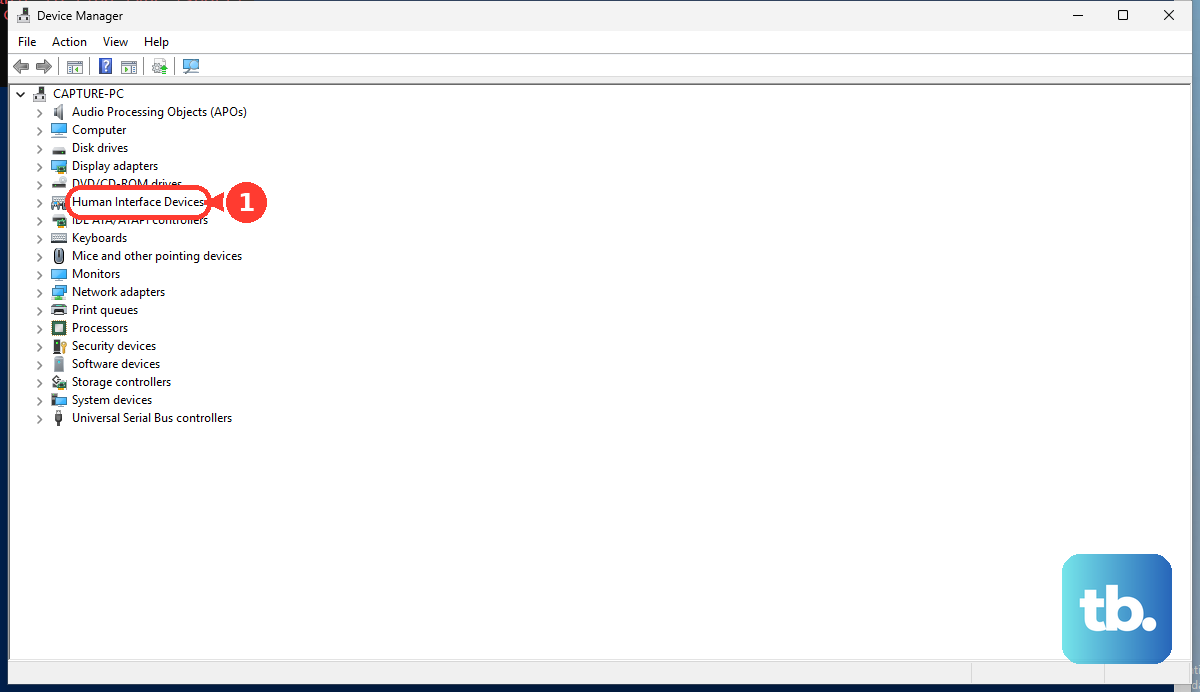
On applicable Intel-based ASUS notebooks, also open Device Manager > System devices. Right-click Intel(R) Serial IO I2C Host Controller and select Enable device when offered. Skip this Intel-controller procedure on AMD models.
For a missing or malfunctioning touchpad on Windows 11, open Start > Settings > Windows Update > Advanced options > Optional updates. Select the applicable touchpad or controller driver offered for your laptop, then select Download and install. After installation, restart your Windows computer.
If an applicable optional update is not offered, you can update through Device Manager on Windows 11 or Windows 10. Find the touchpad under Human Interface Devices or Mice and other pointing devices, right-click it, and select Update driver. Choose the automatic driver-search option.
For an ASUS laptop, you can also obtain compatible packages from the ASUS Download Center. Identify the exact model and match its operating system before downloading a touchpad, chipset/controller, or hotkey-support driver. Available packages depend on the model, including the ASUS System Control Interface package relevant to touchpad hotkey failures.
Recover the driver when updating fails
If updating fails on Windows 11 or Windows 10, open Device Manager. Locate the touchpad under Human Interface Devices or Mice and other pointing devices.
Uninstalling removes the touchpad device driver before Windows reinstalls it. Right-click the touchpad, select Uninstall device, then select Uninstall. Restart Windows so it can reinstall the driver.
On compatible Lenovo Windows laptops, including the documented ThinkPad P1 Gen 8 and T1g Gen 8 models, you can roll back a problematic driver when a previous version is available. Rolling back replaces the current driver with that previous version. Open Device Manager > Human Interface Devices, right-click the touchpad, and select Properties > Driver > Roll Back Driver. Complete the available prompts, or use the update and reinstall methods if rollback is unavailable.
Use ASUS BIOS recovery only when needed
ASUS includes restoring BIOS defaults as a touchpad recovery option for applicable notebooks. Choose the sequence that matches your laptop’s firmware interface.
Restoring BIOS defaults resets other firmware settings too. Enter your laptop’s BIOS setup, then, in the documented ASUS UEFI interface, press F9 or select Default, followed by Ok. Press F10 or select Save & Exit, then select Ok.
In the interface named MyASUS in UEFI, restoring defaults also resets other firmware settings. Open Advanced Settings, press F9, and select Confirm. Press F10, then select Confirm.
Use a virtual touchpad on a touchscreen
On a Windows 11 touchscreen device, right-click the taskbar and select Taskbar settings. On Windows 11, under Personalization > Taskbar > System tray icons, set Virtual Touchpad to On, then select its system tray icon. This provides separate on-screen pointer control without reactivating the physical touchpad.
Frequently Asked Questions
Can a command enable the touchpad directly?
On Windows 11, press Windows + R, enter ms-settings:devices-touchpad, and press Enter to open the touchpad settings page. This command opens the page but does not enable the device itself. Turn on Touchpad after the page opens.
Can you use Voice access to turn on the touchpad?
Yes, on Windows 11 with Voice access configured and already running, open Touchpad settings and say Show numbers. Use the numbered overlay to select the Touchpad switch. Say Click three only when that switch is numbered three.
How do you connect the keyboard that contains a Surface Pro touchpad?
For a Surface Pro 12-inch Keyboard and a compatible Surface Pro 12-inch model, bring the bottom edge of the Surface close to the keyboard’s top edge. Let the magnets click into place to connect them.
Why do older Lenovo instructions mention an UltraNav tab?
You may encounter older ThinkPad instructions that refer to an UltraNav or ThinkPad tab supplied by the installed vendor driver. Lenovo’s current Windows 11 instructions direct you to Settings.
What if your organization hides the Touchpad settings page?
On managed Windows devices supporting the relevant policy, your administrator can check Computer Configuration > Administrative Templates > Control Panel > Settings Page Visibility, or its User Configuration equivalent. The administrator can remove devices-touchpad from a hide: list or include it in an existing showonly: list. In Intune, the equivalent control is under Settings > Page Visibility List. This restores access to the page, after which you still need to turn on Touchpad in Windows Settings.