Facebook Active Status shows people when you are active or recently active. If you want to stop appearing online, turn it off in Facebook and Messenger because Meta controls those surfaces separately. Start with the exact place where you use Facebook most, then close the other open gaps.
Turn off Active Status in the Facebook app
Open the Facebook app and tap Menu in the top left of Facebook. The position is the same on iPhone, iPad, and Android.
Scroll down and tap Settings & privacy, then tap Settings.
Tap Active Status, then tap the toggle next to Show when you're active.
Tap Turn off when Facebook asks you to confirm.
If people still see you as active, turn off Active Status in Messenger and repeat the change anywhere else you use Facebook.
Turn off Active Status on Facebook desktop
On Facebook.com, click Messenger in the top right of Facebook.
At the top next to Chats, click Options.
Click Active Status: ON or Active Status: OFF, whichever Facebook shows, then click the toggle next to Active Status.
Click Save to keep the change.
Why you still appear active
The most common cause is that Active Status is still turned on somewhere else you use Facebook or Messenger.
Facebook and Messenger use separate Active Status controls. Turning it off in Messenger controls Messenger, and Facebook needs its own Active Status setting turned off too.
Use the Facebook app or Facebook desktop steps for Facebook, then use the Messenger steps below for Messenger.
Hide Active Status in Messenger
This method applies when you use the Messenger app on iPhone, iPad, or Android. It controls your Active Status in Messenger, not across all of Facebook.
Open Messenger and tap Menu, then tap Settings.
Tap Active status.
Tap the toggle next to Show when you're active to turn it off.
On Android, choose how long you want to turn Active Status off, then tap Pause. On iPhone and iPad, tap Turn off to confirm.
Deactivate Facebook for a stronger privacy reset
Use deactivation only when you want to hide your Facebook profile, not just your online status.
Click your profile picture in the top right of Facebook.
Select Settings & privacy.
Click Settings.
Click Accounts Center in the top left of your screen.
Click Personal details under Account Settings.
Click Account ownership and control.
Click Deactivation or deletion.
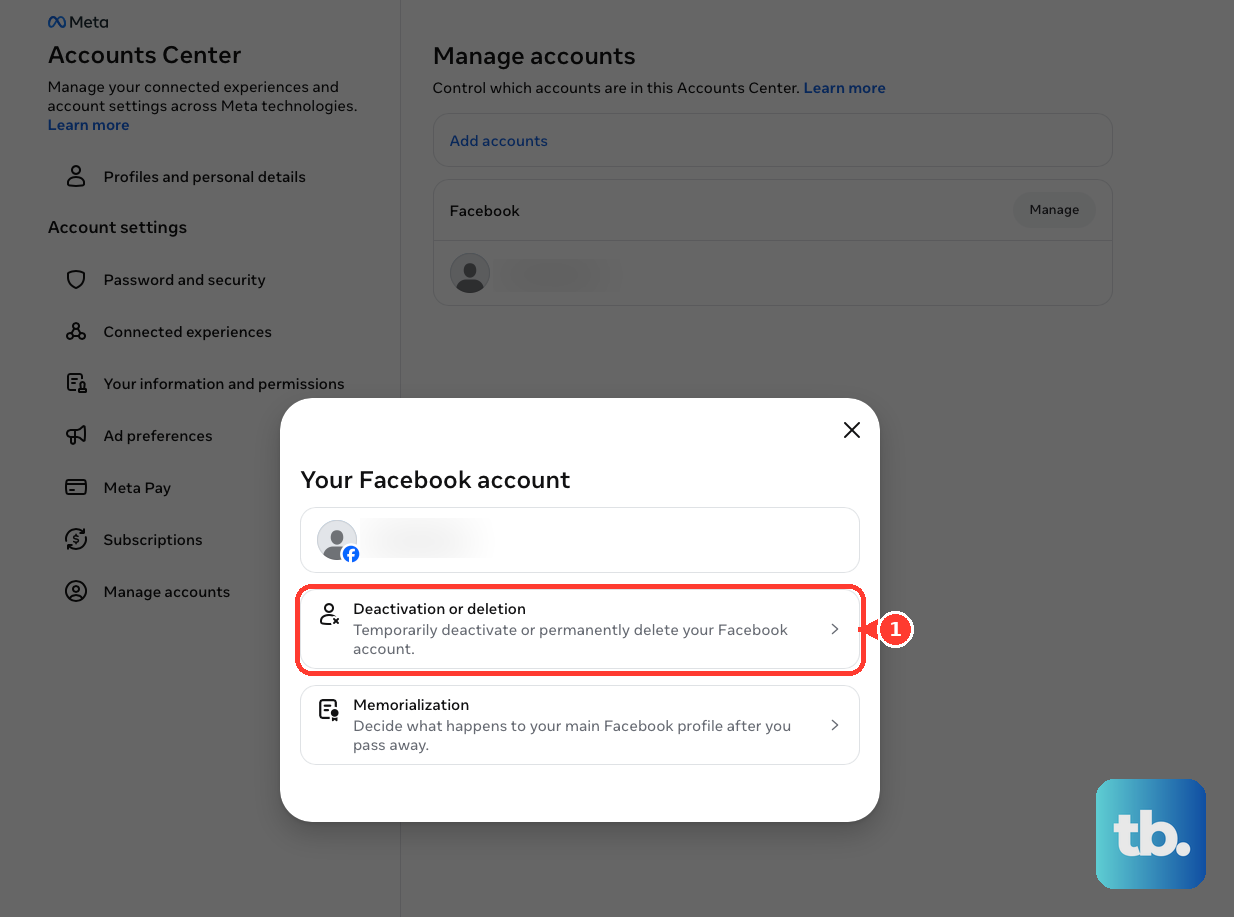
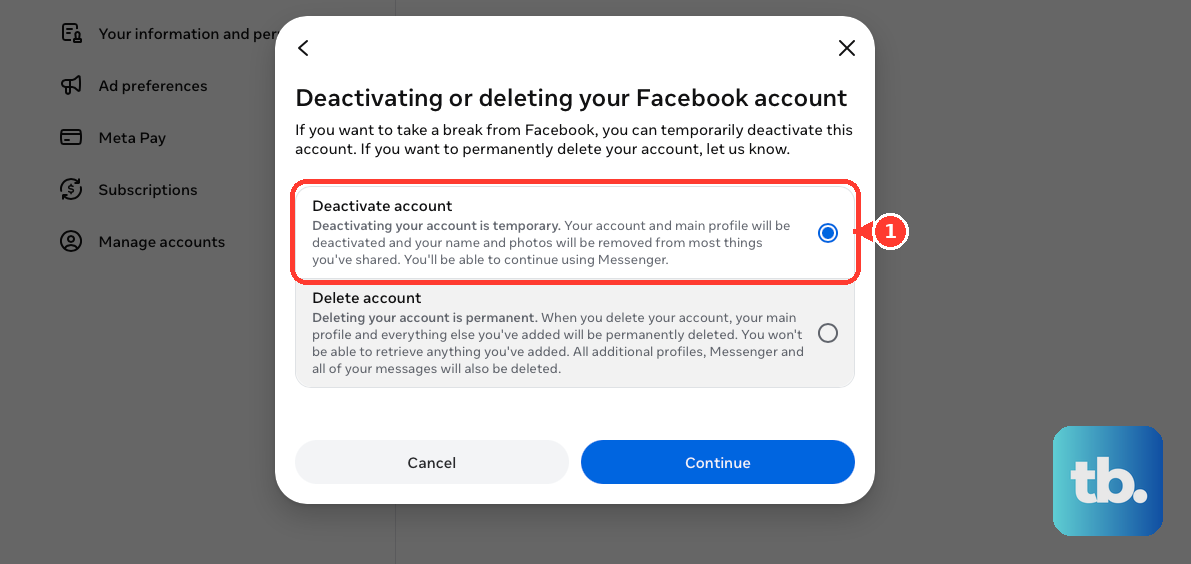
Choose your profile, select Deactivate account, and continue through confirmation.
Keep Messenger signed out or deactivate Messenger too when you do not want Messenger to remain active.
Deactivate Messenger after deactivating Facebook
Messenger deactivation works only after the associated Facebook account has already been deactivated.
From Chats, tap your profile picture in the corner.
Scroll down and tap Account settings, then tap Account ownership and control.
Tap Deactivation and deletion, then tap Continue to Facebook account deactivation and deletion.
Tap Continue to account deactivation.
Enter your password and tap Continue.
If Messenger still appears active, deactivate the Facebook account first and start the Messenger deactivation flow from the Messenger app.
Skip older Messenger desktop instructions
The most common cause is that those instructions were written for an older Messenger computer interface.
Older directions point to Messenger.com or the Messenger desktop app, then to a profile picture or three-dot menu, Preferences, Active Status, and Show Active Status. Do not use that as the current desktop fix.
Meta's current Messenger computer help says Active Status controls are not available there. Use Facebook.com instead: open Messenger, click Options next to Chats, open Active Status: ON or Active Status: OFF, turn off Active Status, and click Save.
Avoid deleting your account for Active Status
Facebook account deletion removes the profile. Use it only when you want to delete the Facebook profile itself, not when you only want to stop appearing online.
The deletion path is Settings & privacy > Settings > Accounts Center > Personal details > Account ownership and control > Deactivation or deletion. Choose the Facebook profile, select Delete account, and continue through confirmation.
For turning off Active Status, use Active Status in Facebook and Messenger instead.
Frequently Asked Questions
Can I turn off Active Status only in Messenger?
Yes. That affects Messenger, so turn it off in Facebook too when you do not want to appear active there.
Why do I still look active after turning the setting off?
Active Status has to be turned off anywhere you use Facebook or Messenger. Check both Facebook and Messenger.
Does deactivating Facebook turn off Messenger too?
No, not by itself. Messenger can remain active when you keep Messenger active or stay logged into Messenger.
Should I delete my Facebook account to hide Active Status?
No. Deletion removes the profile and is excessive when you only want to hide whether you are online.











