Your Facebook password reset fails when the account search misses your profile, the code never arrives, the reset page loops, or two-factor authentication stops you after the password change. Start with Facebook’s official recovery tools, then clear the exact blocker in front of you. The steps below use current Facebook recovery options verified in the supplied 2026 research.
1. Open Facebook’s official recovery page first
Use facebook.com/login/identify before changing anything else. That is Facebook’s main account recovery path when the app reset screen stalls or sends you in circles.
- 1.Open facebook.com/login/identify in a browser.
- 2.Enter an email address or mobile number linked to your Facebook account.
- 3.Follow the prompts for the reset code or reset link.
- 4.Create the new password when Facebook opens the reset screen.
There is a second direct path too. Open facebook.com/recover/initiate, then enter your mobile number. Or select Search by email instead. Continue through Facebook’s code or link flow.
2. Search every detail Facebook recognizes
Enter each email address you used with Facebook, then enter each mobile number linked to the account. Try variations of your full name, and use your Facebook username or profile URL. When Facebook says it cannot find the account, the recovery form did not match the detail you entered, so work through the account identifiers one by one.
On the Facebook app, go back to the login screen and tap Forgot password?. Enter your email address, mobile number, full name, or username, then tap Search. Follow the recovery option Facebook shows, then set the new password.
3. Fix missing reset codes
Check delivery first, then request only one new code. Open every email account linked to Facebook, and check Spam and Junk. Request the reset email or code again. When Facebook says you requested too many codes or tried too often, wait 24 hours, then try once more.
Reset codes get blocked by inbox filtering and rate limits. Facebook also offers an email-login recovery path for some accounts. When you see that option, select it, sign in to the email account shown by Facebook, and follow the prompts to create the new password.
4. Clear the broken page or app flow
A looping reset page points to the browser, app, device, connection, or a temporary service issue. In your browser, open Settings or Preferences, clear Cache and Temporary data, close the browser, and reopen it. Retry facebook.com/login/identify. If the account search or code entry screen still fails, use a different browser, a different device, and a working internet connection.
In the Facebook app, update it from the App Store or Google Play. On iPhone or iPad, delete Facebook, open the App Store, and download it again. On Android, open Settings, tap Apps or Applications, choose Facebook, open Storage, and tap Clear cache. When the app still fails, uninstall Facebook, then reinstall Facebook from Google Play.
5. Recover access without the old email or phone
Use a device and browser you used with Facebook before, then open facebook.com/login/identify. Enter an email address or phone number that was previously on the account. Follow Facebook’s recovery prompts. When the recovery path sends you to hacked-account help, continue through facebook.com/hacked.
Facebook shows recovery options based on account signals, device history, location, and previous setup.
6. Get through two-factor authentication
A new password does not remove the second login check. Use one of the methods already set up on your account at the two-factor prompt. Enter the six-digit SMS code, enter a code from your Authentication app, enter a saved Recovery login code, or use your Security key on a compatible device.
On a computer, click Need another way to authenticate?. Choose Other Options, then choose Get more help. Follow Facebook’s prompts to confirm your identity and regain access.
7. Secure a hacked account fast
Use facebook.com/hacked when someone changed your password, email address, phone number, or other recovery details. Open it from a device you used with Facebook before. Follow the guided steps to secure the account and reset the password.
If Facebook asks you to prove your identity, complete the exact check on screen. Upload the accepted ID Facebook requests, or submit the Video selfie when Facebook asks for one. Wait for Facebook’s review. Follow the recovery instructions Facebook sends afterward.
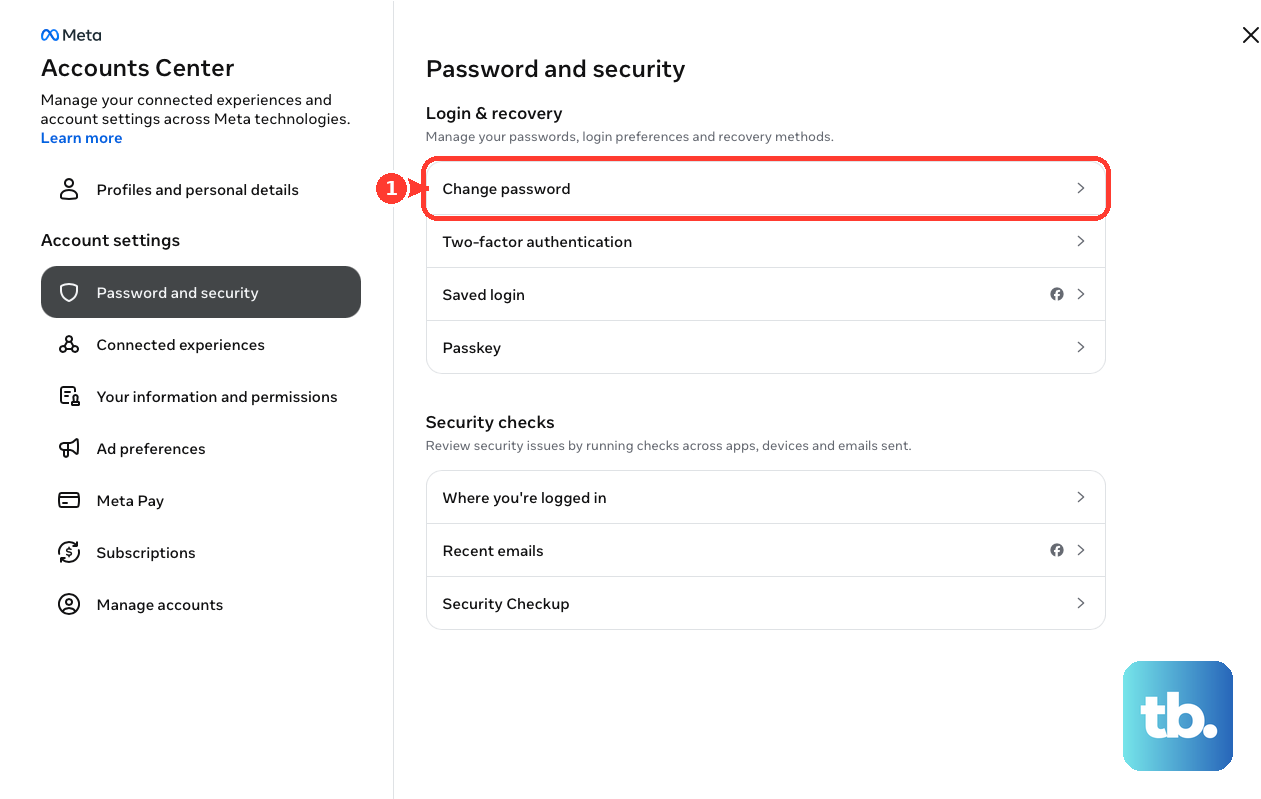
Still logged in somewhere? Change the password from inside the account. Open Settings & privacy, open Settings, open Accounts Center, open Password and security, open Change password, and choose the Facebook account. Enter the current password and new password, then save it.
8. Choose the right support path
For a personal account, open Facebook Help Center. Go to Login, Recovery and Security or Account Recovery. Choose the issue that matches your lockout, then follow the guided path.
Where available, choose Chat with Meta AI support assistant in the Help Center or in-app support hub. Ask for password-reset or account-access help. Meta Verified subscribers should use Meta Verified support for account-access or hacked-account issues. If a hacked admin caused Page access loss, submit Facebook’s Page recovery form.
For business portfolios, open Meta Business Help Center. Select Get Support. Work-managed Meta accounts use their own reset flow. On the managed Meta account login page, choose Forgotten your password?.
Send the reset email to your work email address. If your organization enables it, choose Log in without a password. Skip old recovery advice that tells you to use Reveal My Trusted Contacts. Facebook no longer offers Trusted Contacts as a current recovery method.
Do not call unofficial “Facebook support” phone numbers from forums, groups, or search snippets. Use Facebook Help Center, facebook.com/login/identify, facebook.com/hacked, Meta Verified support, or Meta Business Help Center.
Frequently Asked Questions
Why does Facebook keep saying I requested too many reset codes?
Facebook limits repeated reset attempts. Wait 24 hours, then request one new code and check Spam and Junk in every email account linked to Facebook.
Can I reset my Facebook password if I am still logged in on another device?
Yes. Open Settings & privacy, then Settings, then Accounts Center, then Password and security, then Change password. Choose the Facebook account and set a new password.
Can I use a one-time password instead of the normal reset link?
Yes, if your mobile number is linked and two-factor authentication is not turned on. Text otp to 32665, enter the temporary password in the Password field, then change your password in Accounts Center.
What should I do if someone changed my Facebook email or phone number?
Use facebook.com/hacked from a device you used with Facebook before. Follow Facebook’s hacked-account recovery steps to secure the account and reset the password.
Do Trusted Contacts still work for Facebook password recovery?
No. Trusted Contacts is not a current Facebook recovery method. Use Facebook’s official account recovery page, hacked-account recovery, identity checks, or the relevant Meta support path.