

Facebook alerts do not all come from one switch. They can come from the Facebook app, your phone or tablet, a browser, email, SMS, Groups, Marketplace, Pages, and Messenger.
Start inside Facebook to cut down the categories, then use device and browser settings when you want a harder block. Facebook does not provide one in-app switch that turns off every Facebook notification, but you can control what you receive and whether it arrives by Push, Email, or SMS.
Start inside Facebook settings
Open the Facebook app and go to Menu > Settings & privacy > Settings > Notifications. Under Preferences, tap each notification type and choose what Facebook can notify you about.
Inside each category, turn off the delivery switches you do not want: Push, Email, or SMS. This is the cleanest place to stop everyday alerts without removing the app.
On Facebook.com, go to Settings & privacy > Settings > Notifications. Work through the same categories there if you also use Facebook in a browser.
Silence Facebook push alerts on iPhone or iPad
Use iPhone or iPad settings when Facebook keeps lighting up that device even after you changed Facebook's own categories. Open Settings > Apps > Facebook > Notifications, then turn Allow Notifications off.
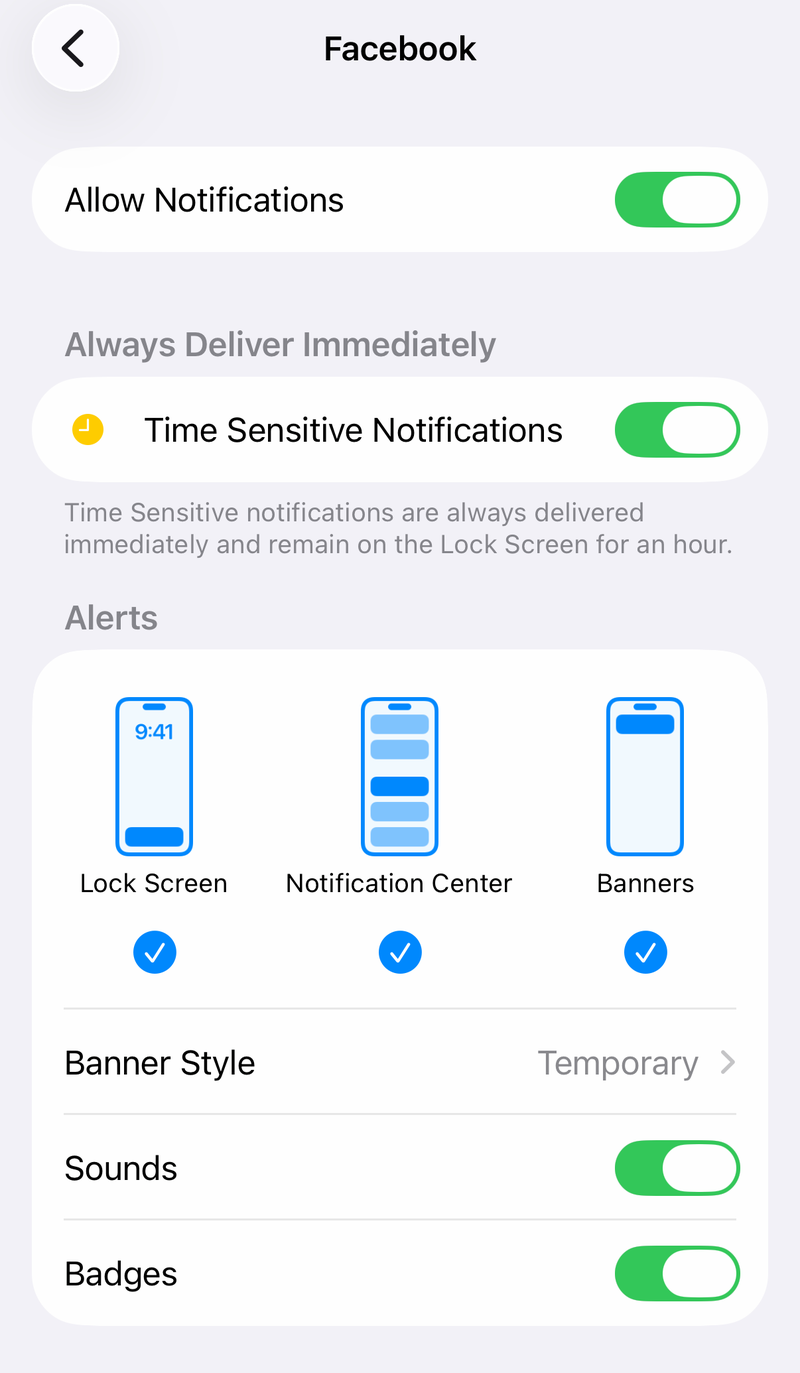
You can also go to Settings > Notifications > Facebook and turn Allow Notifications off. From the Lock Screen or Notification Center, swipe left over a Facebook alert, tap Options, then choose Turn Off.
For a short break instead of a full block, swipe left over the alert, tap Options, then choose Mute for 1 Hour or Mute for Today. To silence sound only, use the Ring/Silent switch, use Action button silent mode, or turn the volume all the way down.
If alerts keep arriving after this, turn off Facebook Email and SMS settings, then check browser notification permissions on every device where you use Facebook.
Stop Facebook alerts on Android
This fixes Facebook app alerts in Android's notification shade, on the lock screen, and in app notification categories.
Open Settings > Notifications > App notifications.
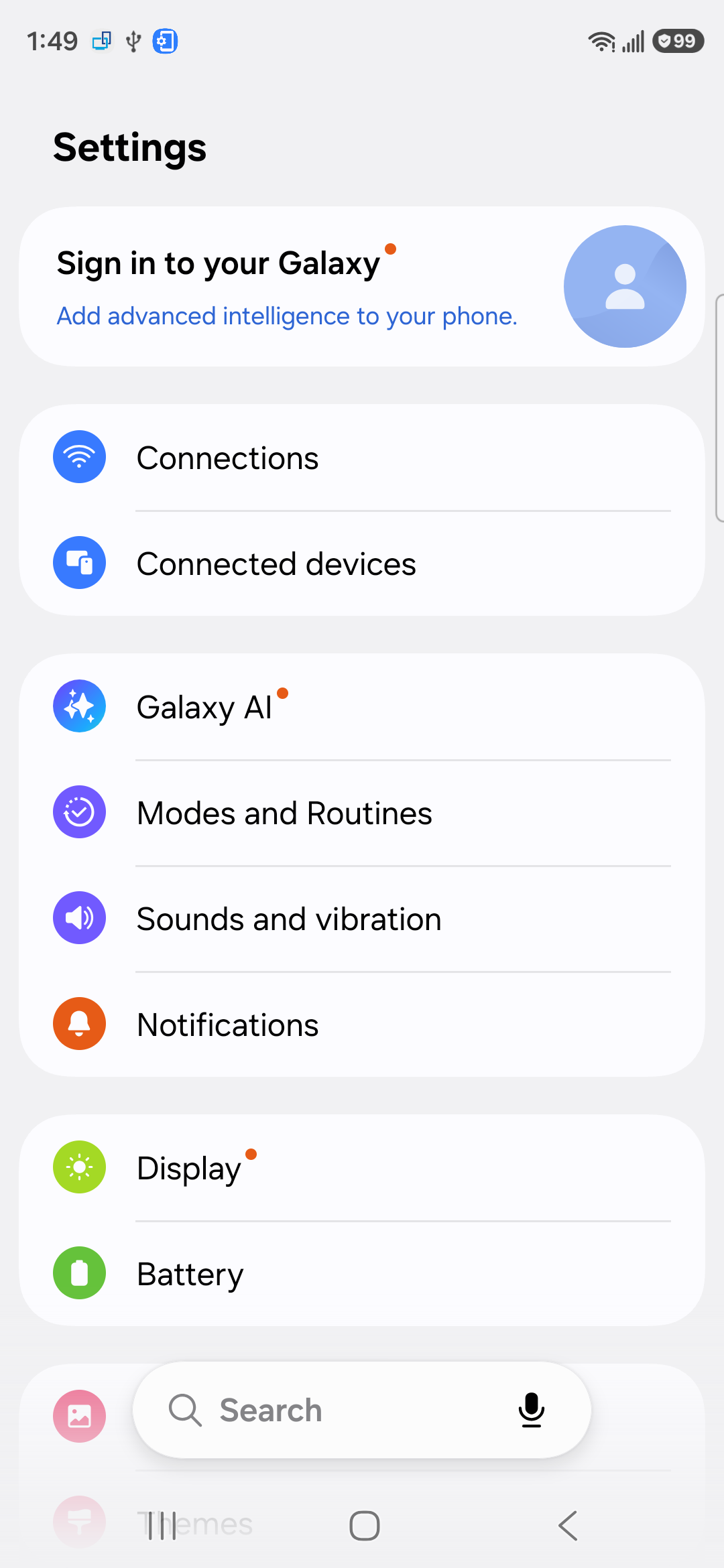
Find Facebook under Most recent.
If Facebook is not shown, use the dropdown, tap All apps, then choose Facebook.
Turn Facebook notifications off, or turn off only the categories you no longer want.
From an existing Facebook alert, swipe down, touch and hold the notification, tap Settings, then turn off All notifications or the categories you want to block.
To remove the dot on the Facebook icon, open Settings > Notifications and turn Notification dot on app icon off.
Block Facebook website alerts in browsers
In Chrome on desktop, open More > Settings > Privacy and security > Site Settings > Notifications.
Next to Not allowed to send notifications, select Add.
Enter https://www.facebook.com or https://m.facebook.com, then select Add again.
In Chrome on Android, open More > Settings > Site settings > Notifications and turn the setting off to block all sites.
For Facebook only in Chrome on Android, open facebook.com or m.facebook.com, tap Page info > Permissions > Notifications, then turn Notifications off or choose the blocking setting.
In Firefox on desktop, open Settings or Preferences > Privacy & Security > Permissions > Notifications > Settings....
Select facebook.com, set the Status dropdown to Block, then select Save Changes.
In Microsoft Edge, open Settings and more > Settings > Privacy, search, and services > Site permissions > All sites, select facebook.com, then set Notifications to Block.
In Safari on Mac, open Safari > Settings > Websites > Notifications, then set facebook.com to Deny or remove and deny the site.
After blocking the browser permission, check Windows or macOS notification settings if Facebook alerts still appear outside the browser window.
Reduce Facebook email and text messages
Facebook email and SMS settings are separate from phone push alerts. Open Settings & privacy > Settings > Notifications > Email, then choose Only notifications about your account, security and privacy or turn off individual email notification types where switches appear.
For texts, open the Facebook app and go to Menu > Settings & privacy > Settings > Preferences > Notifications > SMS. Turn SMS off, or open individual notification categories and turn SMS off for each one.
Security, privacy, and account emails may still be sent. If email or texts keep arriving, return to the individual notification categories and turn off Email or SMS inside the category that is still sending them.
Quiet noisy Facebook categories
For a Facebook Group, go to facebook.com/groups, select the group, open the More menu in the top right below the group cover photo, then choose Manage notifications. Under In-app notifications, select Off, then review Push notifications, Member request notifications, and Batch mentions.
To leave a group from the app, open Menu > Groups, select the group, choose Options, tap Leave Group, then confirm with Leave Group. Leaving only stops notifications tied to that group.
For a Page you manage, switch to the Page profile, open the top-right Page photo, then go to Settings & Privacy > Settings > Notifications in the left menu and choose which notifications to receive.
For people or Pages you follow, use Settings & privacy > Settings > Notifications, or open the followed profile or Page's Following notification control and turn notifications off.
Remove dots, Marketplace, tags, videos, and Messenger alerts
Use these controls for alerts that look like Facebook notifications but sit in their own smaller corners.
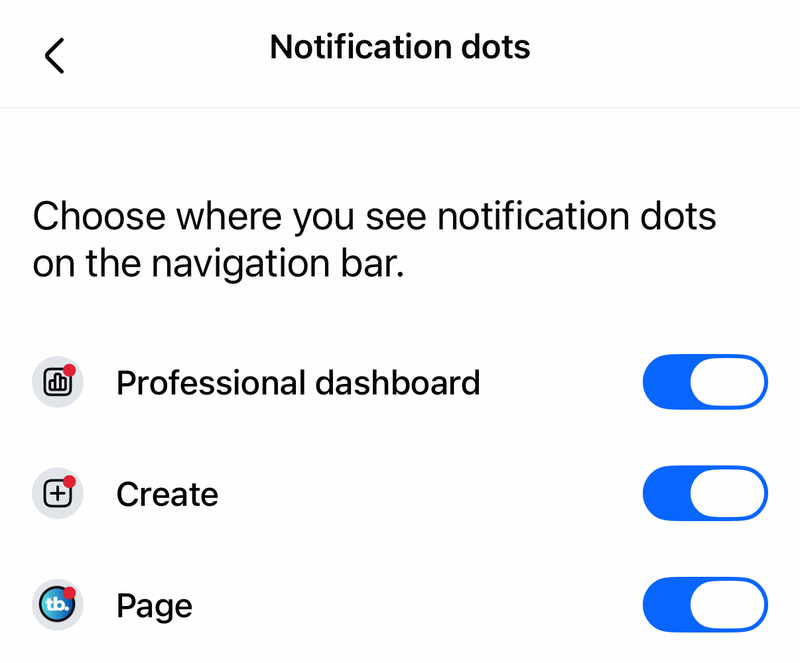
- 1.To hide red dots on the Facebook app shortcut bar, open Menu > Settings & privacy > Settings > Tab bar > Manage notification dots, then turn off the shortcuts whose dots you do not want.
- 2.For Marketplace, open Menu > Settings & privacy > Settings > Notifications > Marketplace, then tap the Toggle next to each Marketplace notification type you want off.
- 3.For tags, open Menu > Settings & privacy > Settings > Preferences > Notifications > Tags, then turn off Push, Email, or SMS.
- 4.For videos or live videos, open Settings & privacy > Settings > Notifications > Video or Live videos, then turn off the relevant delivery options.
- 5.For one noisy post, open the post or notification context menu, use the three-dot menu, then choose Turn off notifications for this post or Turn off these notifications when Facebook shows it.
- 6.For Messenger alerts, open Messenger and go to Menu > Settings > Notifications & sounds, then toggle On off, or open a conversation and use its notification or mute controls.
Fix Facebook alerts still showing on desktop
The most common cause is that Facebook web notifications are still allowed through Windows, macOS, or your browser after you changed settings in the Facebook app.
On Windows, open Start > Settings > System > Notifications.
Select the sender under Notifications from apps and other senders, such as Facebook, Edge, Chrome, or a Facebook web app.
Turn notifications off for that sender.
To stop all Windows notifications, use Start > Settings > System > Notifications and turn Notifications off.
For a temporary Windows break, open notification center and select the bell icon with zZ to turn on Do not disturb.
To automate Do not disturb, open Start > Settings > System > Notifications, expand Turn on do not disturb automatically, then configure the conditions.
On Mac, open Apple menu > System Settings > Notifications, choose the Facebook website, browser, app, or installed web app sender under Application Notifications, then turn off Allow Notifications.
Delete the app or handle locked settings
Use this when notification controls are not enough, when you want to stop using Facebook on one device, or when a managed device keeps changing the settings back. Removing the app stops Facebook app push notifications on that device, but it does not stop email, SMS, browser notifications, Messenger, or alerts on another phone, tablet, or computer.
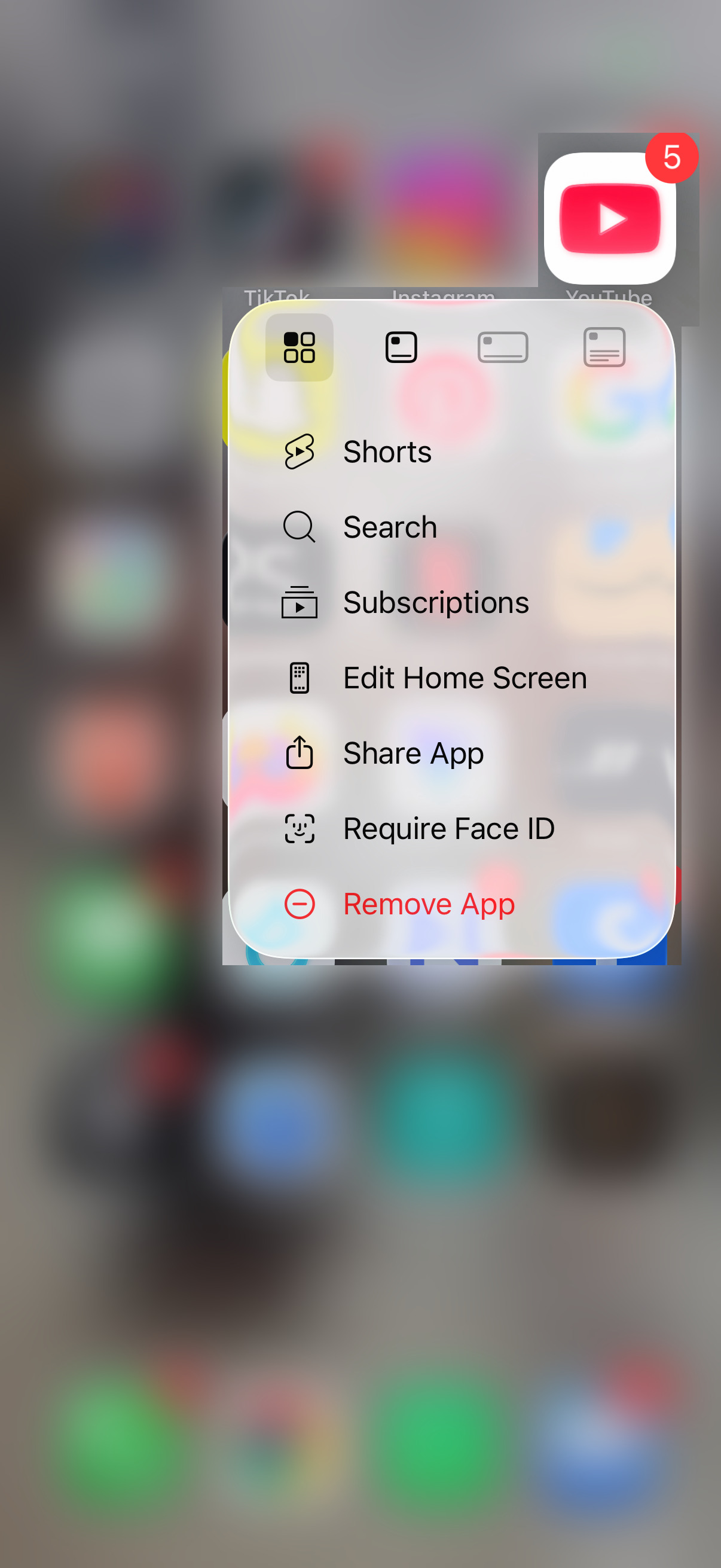
On iPhone or iPad, touch and hold Facebook, tap Remove App, choose Delete App, then confirm with Delete. If icons jiggle, tap the Remove icon on Facebook, choose Delete App, tap Delete, then tap Done.
On Android, open Google Play Store, tap the Profile icon, then go to Manage apps & devices > Manage > Facebook > Uninstall. If Facebook was preinstalled, some devices may only allow disabling the app or uninstalling updates.
On Mac, quit the Facebook app, installed web app, or related app, then open Finder > Applications and locate it. If it has Uninstall or Uninstaller, run that; otherwise drag it to Trash or choose File > Move to Trash, then use Finder > Empty Trash.
To deactivate the Facebook profile, open Settings & privacy > Settings > See more in Accounts Center > Personal details > Account ownership and control > Deactivation or deletion, choose the Facebook profile, select Deactivate profile, then continue and confirm. Deactivation is not a notification setting, and account or security emails may still be sent.
To permanently delete the profile, use the same path and choose Delete profile instead of Deactivate profile, then continue and confirm. This is account removal, not a notification preference, and Facebook may provide a cancellation period.
On a workplace, school, or family-managed device, managed Chrome and Microsoft Edge policies can enforce notification rules, and Apple's Notifications payload can do the same on a supervised iPhone, iPad, Shared iPad, or Mac that is enrolled in a device management service. If Notifications, Allow Notifications, or a browser permission setting is locked, missing, or keeps changing back, ask the administrator to block Facebook notifications or adjust the notification policy for your account or device.
Frequently Asked Questions
Can I turn off all Facebook notifications inside Facebook?
No. Meta says Facebook notifications cannot be turned off entirely inside Facebook, but you can control notification categories and delivery by Push, Email, and SMS.
Why do I still get Facebook emails after turning off phone notifications?
Phone notification settings only affect app push alerts on that device. Open Facebook notification settings and change the Email options. Account, security, and privacy emails may still be sent.
Are Messenger notifications controlled by Facebook notification settings?
No. Messenger alerts are controlled separately in Messenger under Menu, Settings, Notifications & sounds, or inside an individual conversation's mute controls.
Does deleting the Facebook app stop every Facebook notification?
Deleting the app stops app push notifications on that device. It does not stop Facebook email, SMS, browser notifications, Messenger alerts, or notifications on another phone, tablet, or computer.