

To link your iPhone to Windows 11, open Phone Link on your PC, select iPhone®, scan its QR code with your iPhone camera, and complete Bluetooth pairing. Then enable the iPhone permissions for messages, contacts, and notifications. These steps use Windows 11 menus.
The short version
- Requirements: Use a PC with Bluetooth Low Energy and an iPhone running iOS 16.6 or later for compatibility with the current companion app.
- Camera setup: Select iPhone® in Phone Link and scan the QR code with your iPhone camera.
- Optional app: Link to Windows is optional for basic camera-based pairing.
- Permissions: Enable message, contact, and notification sharing in your iPhone’s Bluetooth settings after pairing.
| Option | Where to begin | What it does |
|---|---|---|
| Camera pairing | Phone Link on your PC | Connect using a QR code |
| Manual web pairing | Phone Link’s manual option | Connect without scanning |
| Manual app pairing | Link to Windows on iPhone | Follow companion app instructions |
| Start menu pairing | Mobile-device pane in Start | Connect when the pane is available |
| Windows installation toggle | Mobile devices in Windows Settings | Enable or install Phone Link |
| Windows app download | Microsoft Store | Get Phone Link |
| iPhone app download | App Store | Get the optional companion app |
| Bluetooth controls | Bluetooth & devices | Enable or restart the connection |
| Message and contact permissions | iPhone Bluetooth settings | Allow message and contact access |
| Notification sharing | Phone Link’s Notifications | Begin notification setup |
| Feature controls | Phone Link’s Features | Choose what syncs |
| Additional iPhone | Phone Link’s Link new device | Pair another phone |
| Keyboard and screen reader | Windows keyboard controls and iPhone VoiceOver | Operate the standard setup flow |
| Phone Link device removal | Phone Link’s device settings | Remove the iPhone and reset Phone Link |
| Bluetooth device removal | iPhone Bluetooth settings | Forget the paired PC |
| App update | Phone Link’s Updates | Update before retrying |
| Administrative policy | Group Policy or MDM | Control permission to link devices |
| File sharing | Send Files in the connected phone’s pane | Access sharing after connection |
Get both devices ready
Keep your iPhone and PC nearby, with Bluetooth enabled on both. Your PC needs Bluetooth Low Energy, also called Bluetooth LE. Microsoft lists iOS 16 or later for basic setup, while installing the current Link to Windows app requires iOS 16.6 or later. Use iOS 16.6 or later to cover both routes; work or school accounts are unsupported.
On your PC, open Start > Settings > Bluetooth & devices, then turn on Bluetooth. You can also enable Bluetooth in Windows 11 through taskbar Quick Settings. On your iPhone, open Settings > Bluetooth and turn on Bluetooth.
Open or install Phone Link
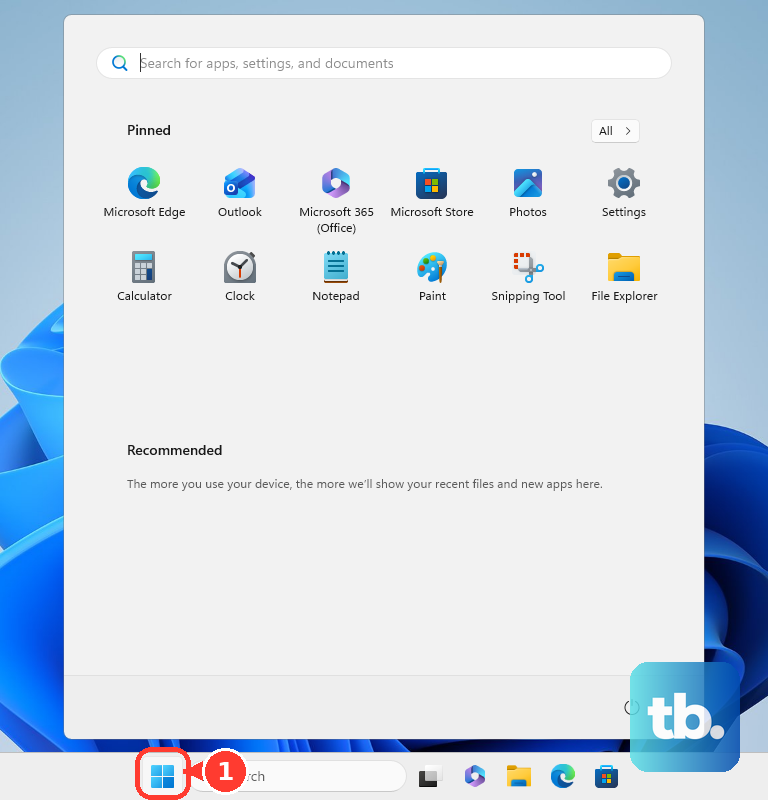
Open Start or taskbar search, type Phone Link, and open the app. Under Pick your phone, select iPhone® to start the connection flow.
If Phone Link is missing or disabled, open Settings, search for Phone Link, and select Enable or disable Phone Link. Turn on Phone Link, then select Install if Windows offers installation. The setting is under Settings > Bluetooth & devices > Mobile devices.
You can also get the Windows app from the official Phone Link Microsoft Store listing. Once installed, open Phone Link and select iPhone® to begin pairing.
Scan the code and complete pairing
With the QR code displayed in Phone Link, open your iPhone camera and scan it. Follow the pairing instructions on your devices to complete the Bluetooth connection. Installing Link to Windows on your iPhone is optional for this camera-based route.
If your camera has trouble recognizing the code, follow the steps to scan a QR code on iPhone. If scanning still prevents you from continuing, use a manual pairing option below. After pairing succeeds, enable the permissions for the information you want to share.
Use manual pairing without scanning
For the PC-led alternative, open Phone Link, select iPhone, then select Continue manually without a QR code. Open the hyperlink supplied by that setup flow on your iPhone. Follow its web-based pairing instructions to finish connecting the devices.
For the companion app route, open Microsoft’s iPhone pairing link, https://aka.ms/pairyourphone, in your iPhone browser, select Get, then select Open. You can also install Link to Windows from Microsoft’s listing in the App Store. The current app requires iOS 16.6 or later.
In Link to Windows, choose the option to continue without scanning a QR code and follow its instructions. On your PC, select Pair, then select Continue and finish setup. Keep Bluetooth enabled and your devices nearby for either manual route.
Allow messages contacts and notifications
Once your iPhone is paired, open its Settings > Bluetooth. Find your PC and tap the (i) information icon beside it. Turn on Show Notifications and Sync Contacts to enable message access and contact information.
For notification sharing, return to Phone Link on your PC, select Notifications, then select Get Started. On your iPhone, open Settings > Bluetooth, locate the linked PC, and turn on Share System Notifications. Keep the paired devices within Bluetooth range.
Choose what Phone Link syncs
In Phone Link, open Settings > Features. Enable or disable the feature switches shown for your connected iPhone. The available switches depend on the connected device.
Removing an iPhone permission also disables the Phone Link features that depend on it, and one permission can cover several features. For example, Sync Contacts gives access to messages, contacts, and call history, so turning it off can affect all three. These controls let you adjust sharing while keeping the devices paired.
Connect through the Start menu pane
You can also begin connecting your iPhone from the mobile-device pane in Start. Microsoft lists Phone Link version 1.25032.82.0, Bluetooth LE, and a Microsoft account for this feature. The pane is rolling out gradually, so use the Phone Link app if it is missing.
When the pane is present, open Start, select iPhone® in the mobile-device pane, and complete the connection instructions. To show or hide the pane, open Settings > Personalization > Start and turn Show mobile device in Start on or off. After your iPhone is connected, select Send Files in its pane to access file sharing.
Fix pairing and connection problems
First, bring the devices nearby and confirm that Bluetooth is enabled on both. On your PC, open Settings > Bluetooth & devices, switch Bluetooth off, then turn it back on to reset a failing connection. If Windows Bluetooth itself is not working, follow the steps to fix Bluetooth on Windows 11 before retrying pairing.
Next, check for a Phone Link update by opening the app’s Settings > About > Updates. If an update is offered, select Update, then retry setup. Use manual pairing if the QR code remains the point where setup stops.
If pairing succeeded but messages, contacts, or notifications are missing, check the iPhone permissions before repeating setup. Open Settings > Bluetooth on your iPhone, tap your PC’s (i) icon, and review Show Notifications, Sync Contacts, and Share System Notifications. Keep both devices within Bluetooth range while using the connection.
On a managed PC, ask your administrator to check the phone linking policy if setup is blocked. Microsoft lists this policy for Windows 11 21H2 and later in Pro, Enterprise, Education, and IoT Enterprise editions. Treat it as an administrative troubleshooting check, rather than a guaranteed fix for iPhone pairing.
An administrator can open Computer Configuration > Administrative Templates > System > Group Policy > Phone-PC linking on this device. Enabling the policy permits enrollment, while disabling it blocks linking; restart after changes. The corresponding MDM policy is ./Device/Vendor/MSFT/Policy/Config/ADMX_GroupPolicy/EnableMMX.
Disconnect your iPhone when needed
Removing your iPhone resets Phone Link on this PC and removes the device connection. In Phone Link, open Settings, select My Devices, and choose your iPhone’s removal action. If your app shows Devices instead, select Devices, then select More options > Remove.
Confirm the removal in the dialog that appears. If it shows a checkbox that reads "I understand removing this device means I'm resetting Phone Link on this PC", select it first, then activate the final device-removal button to complete removal.
Forgetting your PC on the iPhone removes the Bluetooth relationship used by Phone Link. To do that, open Settings > Bluetooth on your iPhone, select your PC’s information icon, then select Forget This Device.
Frequently Asked Questions
Can you add another iPhone to Phone Link?
Yes, you can pair an additional iPhone from your existing Phone Link setup. Open Settings, select My Devices, then select Link new device and scan the newly generated QR code with the additional iPhone.
Can you set up Phone Link with a keyboard or screen reader?
Yes, you can operate the standard pairing flow with a keyboard or screen reader. Press Windows, type Phone Link, and press Enter, then use Tab and Enter to move through and activate the iPhone option and subsequent controls. On your iPhone, VoiceOver supports scanning from Control Center, with flick gestures for navigation and double-tapping to activate controls.
Can you uninstall Phone Link instead of disconnecting your iPhone?
Microsoft says Phone Link cannot be uninstalled. To turn it off on Windows 11, open Settings > Bluetooth & devices > Mobile devices and turn off Phone Link.
Can you install the iPhone companion app on an iPad or Mac?
Microsoft’s Link to Windows app listing is for iPhone, not iPad or macOS. To install that companion app, use an iPhone running iOS 16.6 or later.