
Your Samsung Galaxy Z Flip 7 stores temporary files and cached data that builds up over time. When storage gets low or apps act sluggish, clearing the cache can free up space and fix performance issues. Here's how to do it across different parts of your phone.
Clear App Cache One at a Time
Open Settings and tap Apps. Pick any app from the list to see its info page. Tap Storage, then tap Clear cache. This removes temporary files without touching your login info or personal data inside the app.
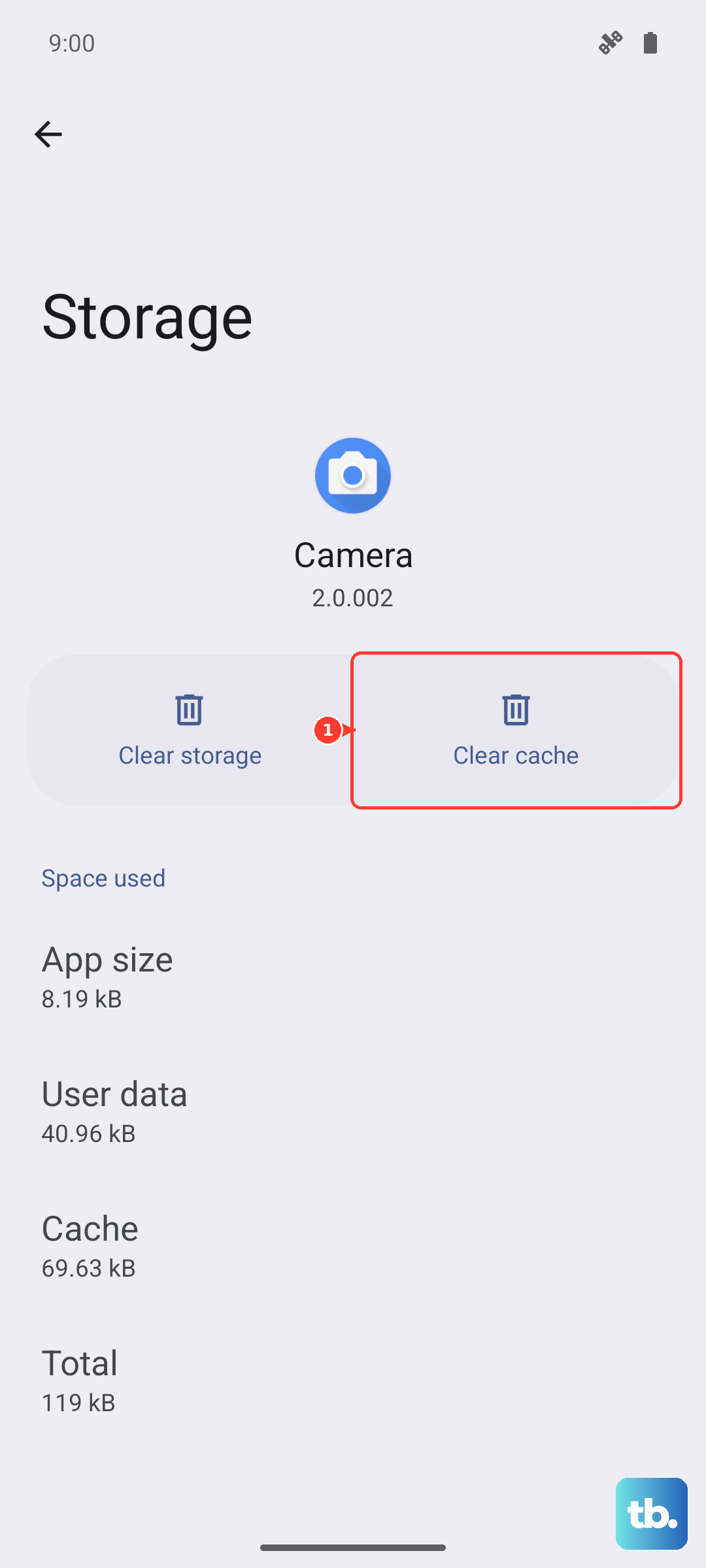
Focus on apps that use the most storage. Social media apps, browsers, streaming services, and games tend to build up the largest caches.
Clean All App Cache with Device Care
Samsung's built-in optimization tool makes this quick. Go to Settings > Battery and device care > Storage. Tap Clean now to automatically clear cached data and temporary files across every app. It's the fastest way to reclaim space without clearing each app manually.
You can also tap Apps under Storage to see which apps are hogging space and manage them individually. I'd check this after a big software update, since system files can leave leftovers behind.
Clear Browser Cache on the Z Flip 7
If you use Samsung Internet, open the browser and tap the menu (three lines). Go to Settings > Personal browsing data > Delete browsing data. Select Cached images and files and tap Delete data. For Chrome, it's Menu > Settings > Privacy and security > Clear browsing data.
Browsers are usually the biggest cache hogs, especially if you watch a lot of video or visit media-heavy sites.
Wipe the System Cache Partition
This clears system-level cached data without removing any of your personal files or settings. Start by turning your Z Flip 7 off completely. Press and hold Volume Up + Side key until the Samsung logo appears, then let go. In recovery mode, use the volume buttons to scroll to Wipe cache partition and press the Side key to select it. Confirm, then reboot.
This is especially useful after a major Android update or if your phone feels sluggish for no clear reason. It won't delete your photos, contacts, or app data, so it's completely safe to try.
Clear Messages and Media Storage
Text conversations with photos and videos can eat up multiple gigabytes. Open the Messages app, tap the menu, and go to Settings > More settings > Delete old messages. You can also scroll through your conversations and manually remove media-heavy threads.
If you use WhatsApp or Telegram, check those too. Go to Settings > Storage and data > Manage storage to see what's taking up space and clear forwarded files.
Use Device Care on a Schedule
Go to Settings > Battery and device care and tap Optimize now. This closes background apps, clears cached files, and scans for system issues in one tap. Make it a weekly habit while you're charging your phone.
The Z Flip 7's foldable form factor means you're probably opening and closing it dozens of times a day, so performance maintenance matters more. A quick optimize each week keeps things snappy.
Set Up Auto Cleanup
Under Settings > Battery and device care > Storage, look for Auto delete options. Enable them if available. You can also use Samsung Cloud to automatically back up photos and videos to the cloud, keeping only thumbnails on your device.
With the Z Flip 7's camera, those photo files add up fast. Auto cleanup prevents storage panic down the road.
Restart Regularly
A simple restart clears temporary system caches and frees up RAM. Press and hold the Side key, tap Restart, and wait for it to boot back up. Do this once a week to keep things running smoothly.
If your phone ever stops charging or acts funky, a soft reset works too. Just press and hold Volume Down + Side key for about 10 seconds until the phone restarts. This is a known workaround for the intermittent charging issue some Z Flip 7 units have reported.