
If your Galaxy S23 is feeling sluggish, apps are crashing, or you're seeing strange glitches after an update, wiping the cache partition is a great next step. It clears out old temporary system files that can sometimes get corrupted, and it doesn't touch any of your personal photos, messages, or app data.
How to Enter Recovery Mode on Your S23
First, you'll need to power down your phone completely. Press and hold the Side key and Volume Down button together for about ten seconds to force a shutdown if it's unresponsive. Once the screen is off, connect it to your computer using a USB-C cable.
Now, press and hold the Volume Up button and the Side key at the same time. Keep holding them both down until you see the Samsung logo appear, then let go. You'll soon see the Android Recovery screen.
Navigate and Wipe the Cache Partition
You'll use the Volume Down button to scroll through the menu options. Highlight Wipe cache partition by pressing Volume Down. To select it, press the Side key.
The next screen will ask you to confirm. Use the Volume Down button again to highlight Yes, then press the Side key to confirm. The process only takes a few seconds. Once it's done, Reboot system now should be highlighted. Press the Side key one more time to restart your phone normally.
When to Wipe the Cache Partition
I'd recommend this after a major software update, like moving to One UI 6 or a new Android version. It helps clear out any leftover files from the old system that might conflict with the new one. If your phone is experiencing general lag, battery drain issues, or apps freezing, this is a safe and effective troubleshooting step to try before anything more drastic.
It's also useful if you're encountering specific errors that don't seem tied to a single app. Think of it as giving your phone's operating system a fresh start without resetting your entire device.
Clear App Caches for Specific Issues
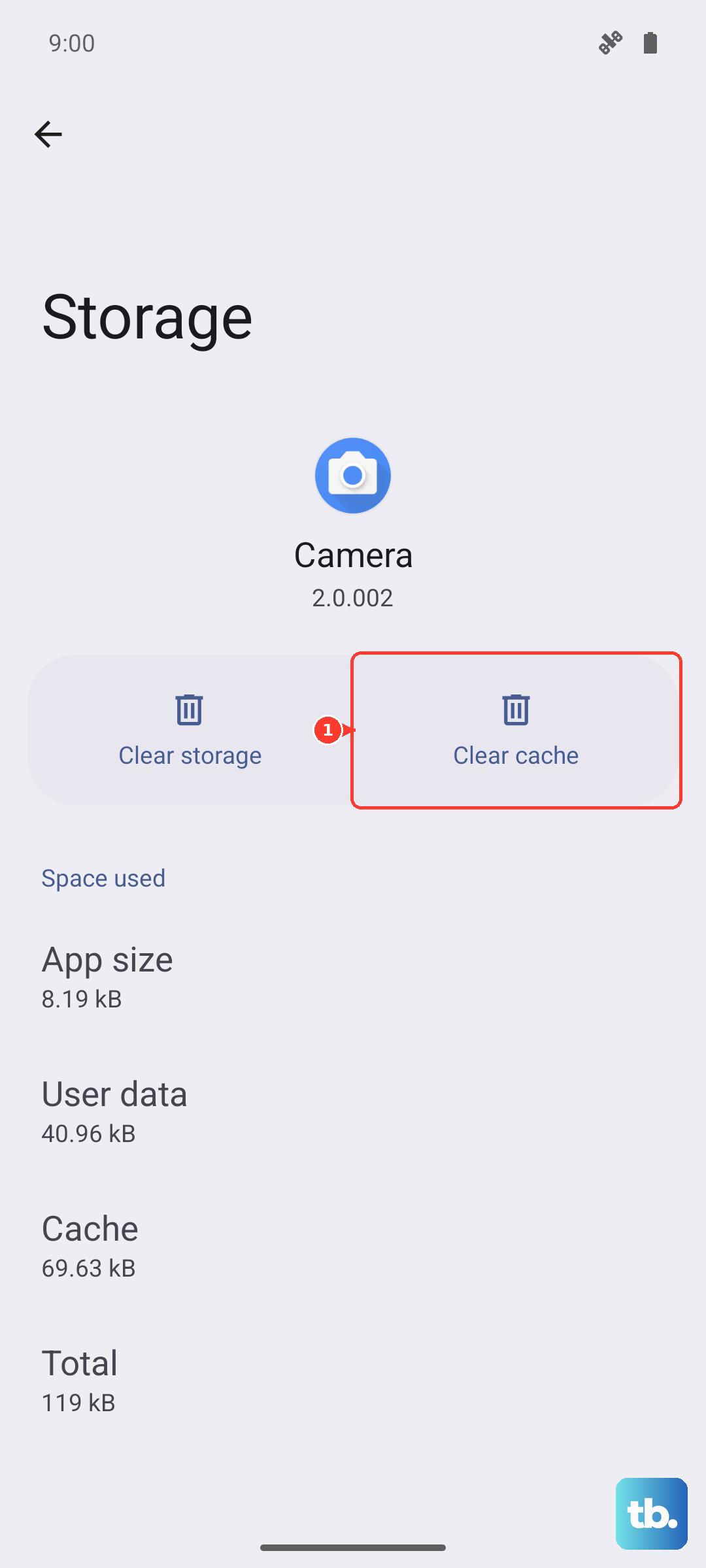
If only one app is misbehaving, you can clear its cache individually. Go to Settings > Apps, select the problematic app, and tap Storage. Tap Clear cache here. This removes the app's temporary files and can fix loading or crashing problems without deleting your login information or saved data within the app.
For a broader cleanup, use Samsung's Device Care. Go to Settings > Battery and device care > Memory and tap Clean now to close background apps and free up RAM. To free up storage space instead, tap Storage and delete large, duplicate, or unused files, as One UI no longer clears every app's cache with a single button.
Try Safe Mode for App Conflicts
If problems persist after wiping the system cache, a third-party app might be the culprit. Boot into Safe Mode to check. Turn off your phone, then turn it back on by pressing and holding the Side key. When you see the Samsung logo, release the Side key and immediately press and hold the Volume Down button. Keep holding it until the phone finishes restarting; you'll see "Safe mode" in the bottom corner.
In Safe Mode, all downloaded apps are disabled. If your phone runs smoothly here, you know a recently installed app is causing the issue. You can then restart normally and uninstall apps one by one to find the offender.
Keep Your S23 Updated
Samsung frequently releases updates that include performance improvements and bug fixes. After wiping your cache partition, it's a good idea to check for the latest software. Go to Settings > Software update > Download and install. Keeping your S23 updated ensures you have the latest stability patches, which can prevent many common issues from recurring.











