
You grab your Samsung Galaxy Z Flip 7, plug it in, and nothing happens. No charging animation, no vibration, no sign that it's pulling any power at all. It's a stressful moment, especially when you need that battery for the rest of the day.
The good news is that charging problems on the Z Flip 7 are usually fixable at home. Some are related to the USB-C port, others are software bugs, and a few are quirks specific to this foldable. Let's go through the fixes from quickest to most involved.
Force Restart the Z Flip 7
Start here. A force restart clears out any temporary software glitches that could be interfering with the charging circuit. It won't erase any of your data, and it takes about 15 seconds.
Press and hold the Volume Down button and the Side key together for 10 to 15 seconds. Keep holding even after the screen goes black. The Samsung logo will appear, and the phone will boot back up normally.
Once it's back on, plug it in and check for the charging animation. This fixes the issue more often than you'd expect, especially if the phone was working fine and suddenly stopped charging.
Clean the USB-C Port
The Z Flip 7 has a USB-C port just like most modern phones, but because it folds, pocket lint and debris can get trapped in there pretty easily. Over time, that gunk prevents the cable from making a solid connection.
Grab a flashlight and look inside the port. If you see anything packed in there, turn the phone off and gently clean it out with a wooden or plastic toothpick. Don't use anything metal, you can short out the pins or scratch the contacts. Compressed air from a safe distance can also help blow out loose dust.
After cleaning, try charging again. A surprisingly large number of "phone won't charge" cases are just a dirty port.
Try a Different Cable and Charger
Sometimes the issue isn't the phone, it's the cable or the wall adapter. The Z Flip 7 supports up to 25W wired charging with USB Power Delivery, but if your charger isn't outputting enough power or the cable is frayed, you'll get nothing.
Swap in a different USB-C cable and a different wall adapter. Try plugging into a different outlet entirely. If the phone starts charging with a different setup, you've found the culprit.
Also, remove your phone case before charging. Some thick cases or cases with magnetic accessories can interfere with the connection, especially if the cable doesn't seat all the way into the port.
Check Wireless Charging (Quick Diagnostic)
The Z Flip 7 supports Qi wireless charging up to 15W. If your phone won't charge over USB-C, try placing it on a wireless charging pad. This tells you immediately whether the battery and charging circuitry are working.
If it charges wirelessly just fine, the problem is likely with the USB-C port itself. If it doesn't charge wirelessly either, you're dealing with a different issue, possibly software or battery related.
One thing to keep in mind: the Z Flip 7's wireless charging coil is in the bottom half of the phone. You need to center that half on the charging pad. If you center the whole phone, you'll miss the coil and get nothing. Samsung's official wireless charger is your best bet for reliable 15W speeds, but any Qi-compatible pad should work.
That said, some users have reported that the Z Flip 7 is picky about third-party wireless chargers. If it's not working on a non-Samsung pad, try a different one before assuming the phone is broken.
Let the Battery Wake Up
If your Z Flip 7's battery drained completely to zero, it might not show any signs of life when you first plug it in. This is normal, and it's not broken.
Leave it connected to a wall charger (not a computer or laptop USB port, those deliver too little power) for at least 15 to 30 minutes. Eventually the charging icon should appear. If it's still completely dark after half an hour, try a force restart while it's still plugged in.
Update Your Software
Samsung has acknowledged a bug where the Z Flip 7 stops charging intermittently. They've said a fix is coming, and in some cases, a software update has already resolved it for users.
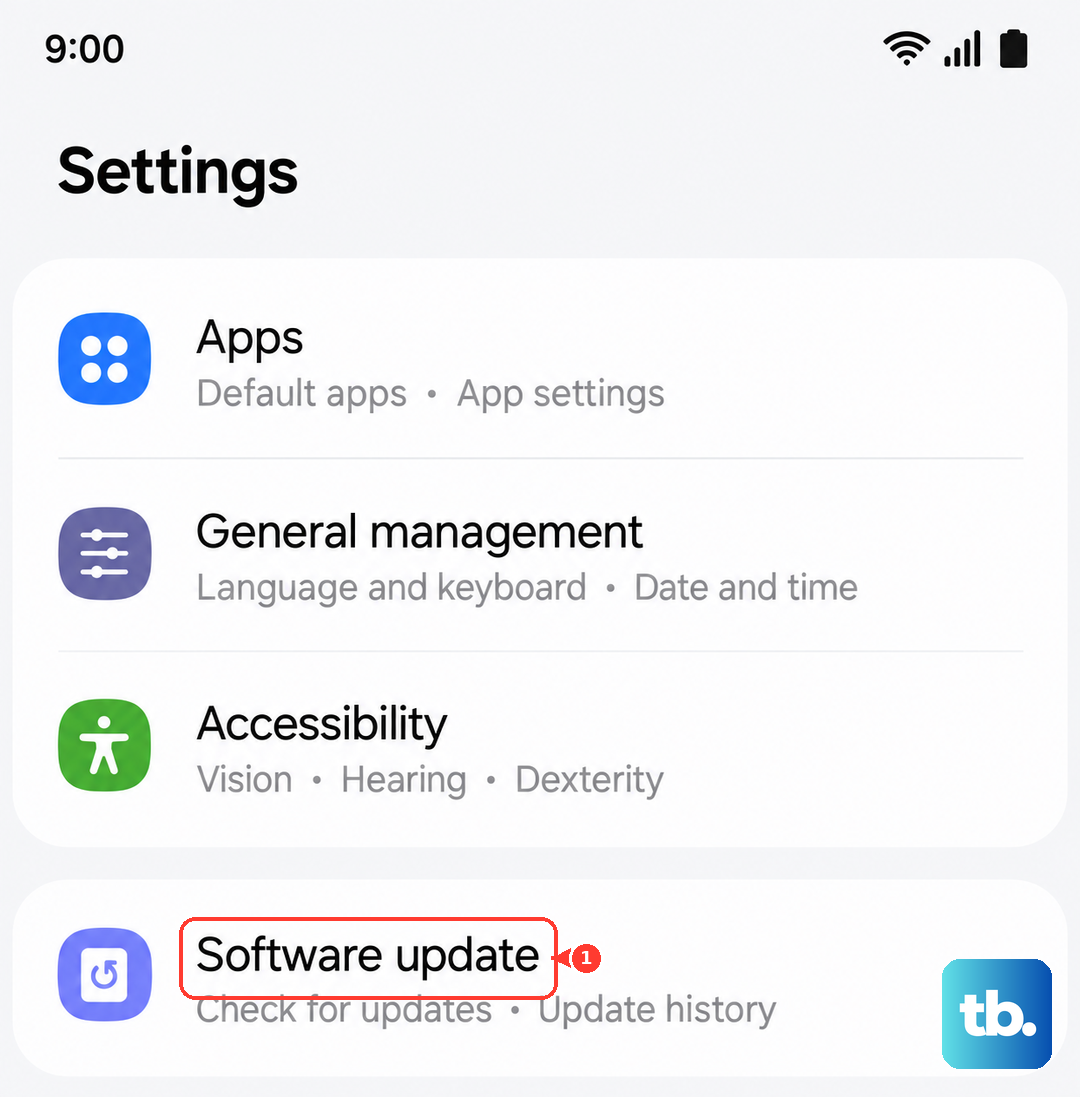
Go to Settings > Software Update > Download and Install. If there's a pending update, install it right away. These charging-related patches are usually small and quick to apply.
There's also a known quirk where the phone won't charge to 100% after a pre-order software version. You may need to unplug and replug it to top off that last bit. An update should sort this out permanently.
Charge With the Phone Turned Off
A rogue app or background process can sometimes interfere with charging. Power your Z Flip 7 down completely, then plug it in. If it charges normally while off, you know the hardware is fine and something in the software was causing the issue.
This is also the fastest way to charge if you're in a hurry. No screen, no background syncing, just the battery pulling power.
Try a Soft Reset (Different From Force Restart)
Samsung recommends a specific soft reset method if charging stops working. Press and hold the Volume Down button and the Power button together until the phone vibrates and restarts. This is slightly different from the force restart, and some users have reported it works when the force restart didn't.
Think of it as a middle ground between a simple reboot and a full factory reset. It clears out more system-level caches without touching your data.
Factory Reset as a Last Resort
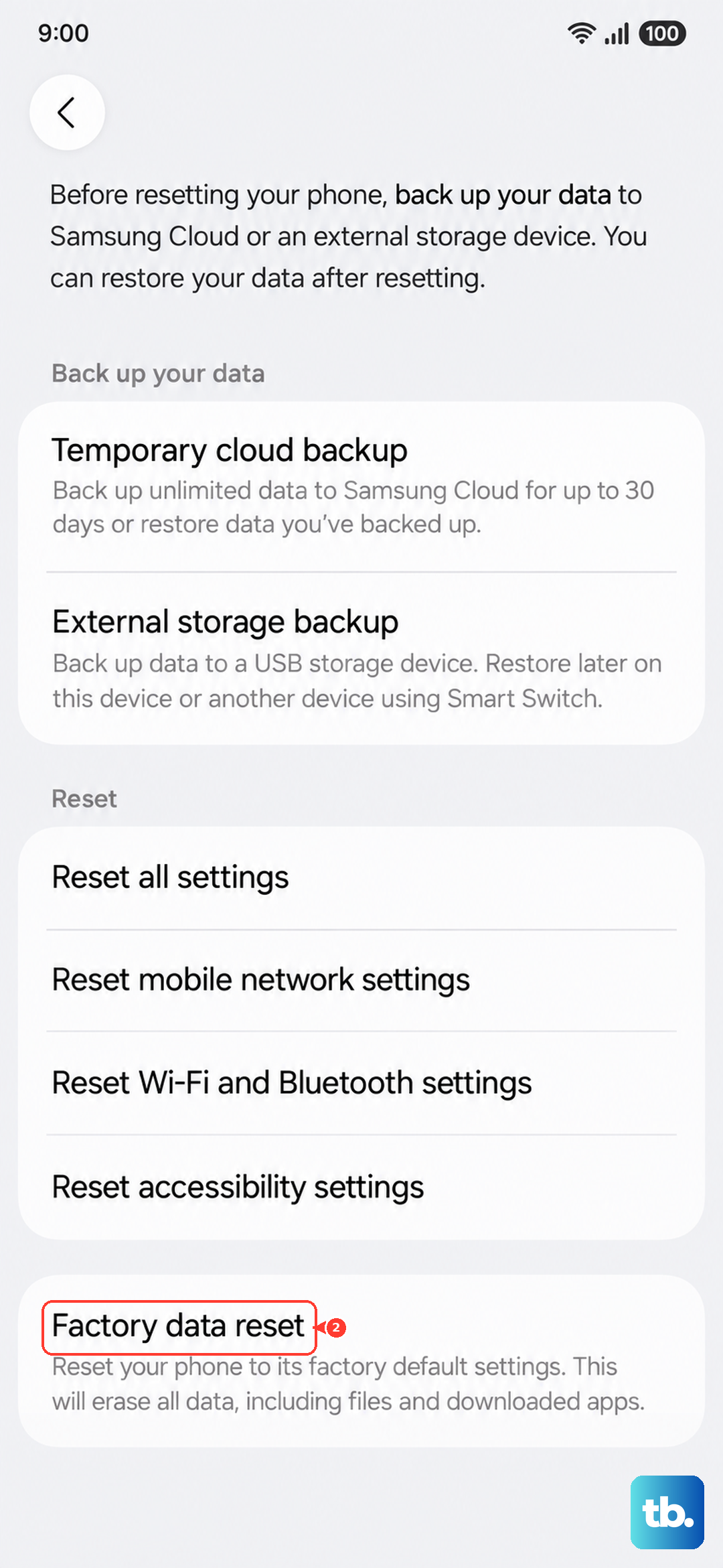
If you've tried everything and the Z Flip 7 still won't charge, a factory reset can wipe out deep software corruption. This will erase everything on your phone, so back up your photos, contacts, and anything else you care about first.
Go to Settings > General Management > Reset > Factory Data Reset. Follow the prompts, and give the phone time to finish the process.
After the reset, test charging without restoring any backup yet. If it works, the issue was software-related and you can restore your data. If it still doesn't work, the problem is likely hardware, and you'll want to get it checked by a technician.











