

To check if your computer can run a game, compare your processor, graphics hardware, RAM, Windows version, DirectX support and available storage with the game’s published system requirements. Use the requirements for the exact game edition and operating system you intend to play on. These steps use Windows 11 menus, with Windows 10 coverage noted where applicable.
The short version
- Start with the game: Find its minimum and recommended requirements, including any storage or graphics-setting notes.
- Identify your hardware: Use Windows Settings, Task Manager and System Information to collect your specifications.
- Check the details: Compare free installation space, DirectX and any special compatibility requirements.
- Assess performance: Use a requirements checker for comparison and a benchmark or running game for performance measurements.
| Method | What to check | When it helps |
|---|---|---|
| Steam store page | Minimum, recommended and additional requirements | Checking a game listed on Steam |
| Epic Games Store page | Published hardware and software requirements | Checking a game listed on Epic |
| Windows Settings | Processor, RAM, system type and Windows version | Collecting basic specifications |
| Task Manager | CPU, memory, disk and GPU details | Identifying installed hardware |
| System Information | System summary and graphics hardware | Collecting a fuller inventory |
| DirectX Diagnostic Tool | DirectX version, graphics memory and driver | Comparing graphics requirements |
| Device Manager | Graphics device and driver details | Identifying a component or driver |
| File Explorer | Available space on the installation drive | Comparing storage requirements |
| Can You RUN It | Detected hardware against game requirements | Getting an automated comparison |
| PCGameBenchmark manual form | Requirements against hardware you enter | Comparing without a detector |
| Publisher support and Works on WoA | Windows on Arm compatibility | Checking a Windows 11 Arm PC |
| System Information security checks | BIOS mode and Secure Boot state | Checking applicable anti-cheat requirements |
| Black Myth Wukong Benchmark Tool | Performance at different graphics settings | Assessing that game’s benchmark sequence |
| Steam performance monitor | FPS, CPU, GPU and memory information | Measuring a running game |
| Windows Game Bar | FPS and available real-time statistics | Measuring gameplay on Windows 11 |
Find the requirements for your exact game
Open the game’s Steam store page in your browser or Steam, then scroll to System Requirements. Compare both Minimum and Recommended, using the requirements for the exact edition and operating system you intend to use. Keep those details open while you collect your computer’s specifications.
Read Additional Notes alongside the main hardware list. These can include an SSD requirement or assumptions about graphics settings, so include them in your comparison. Check the listed OS, processor, RAM, graphics hardware, DirectX support and storage requirements.
For an Epic Games Store game, open its store page and scroll to System Requirements. You can do this through the browser storefront. Compare the listed hardware and software with your computer’s specifications.
Check your processor and RAM
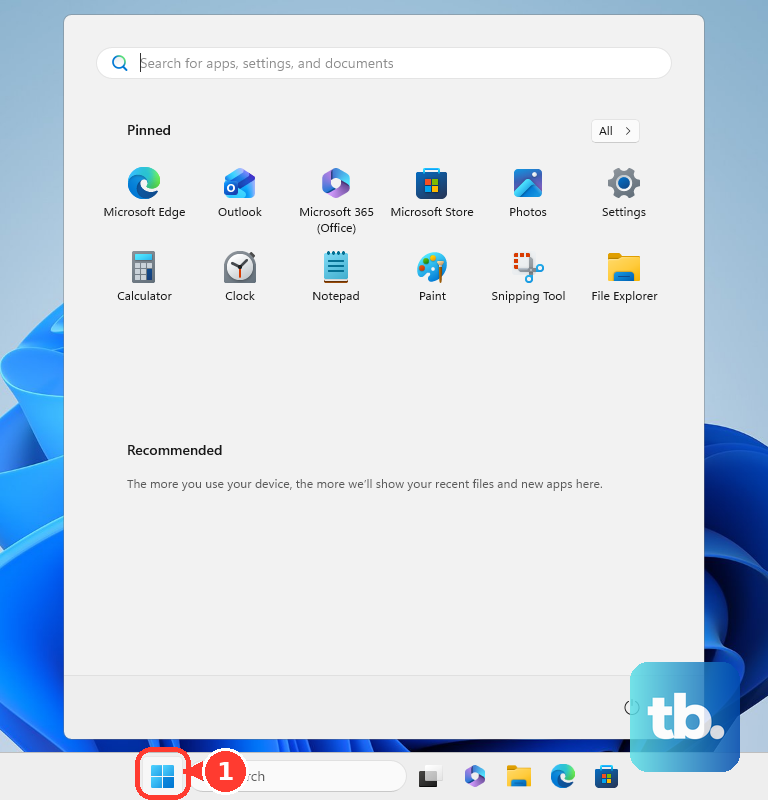
On Windows 11, open Start > Settings > System > About. Under Device specifications, read the processor, installed RAM and system type. Under Windows specifications, check your Windows edition and version, then compare these entries with the game’s requirements.
On Windows 11, you can also check RAM on your computer through Task Manager. Press Ctrl + Shift + Esc, select Performance, then select Memory. Select CPU in the same view to inspect the processor, or Disk to inspect disk hardware.
For a fuller inventory, open Start, type System Information and press Enter. Read System Summary for the operating system, processor and memory. Compare those details with the game’s requirements.
Identify your graphics hardware
On Windows 11, open Task Manager, select Performance, then inspect GPU for your graphics hardware. The graphics information available depends on your hardware and driver. If that view does not give you the details you need, open System Information, expand Components and select Display.
Another option on Windows 11 is the DirectX Diagnostic Tool, which shows the graphics-card name, display memory and driver. Press Windows + R, type the following command, then press Enter.
dxdiagIf prompted about checking digitally signed drivers, select Yes. Open Display and compare the graphics details with the game’s requirements. On a computer with multiple GPUs, check the additional graphics tabs too, since their arrangement varies with the installed hardware.
On Windows 11, to find your graphics card driver, right-click Start, select Device Manager and expand Display adapters. Double-click your graphics device, then select Driver for its driver details. Device Manager supplies identification information for your manual comparison.
Compare DirectX and available storage
In the DirectX Diagnostic Tool, select System and read DirectX Version under System Information. Compare that version with the game’s DirectX requirement. This number is the DirectX version installed in Windows, so also check that your graphics card and driver support the DirectX version and any feature level the game lists. Select Save All Information... if you need a report to share with support.
On Windows 10, search Windows for dxdiag and open the result. If prompted about checking digitally signed drivers, select Yes, then open System and read DirectX Version under System Information. You can also select Save All Information... to save a report.
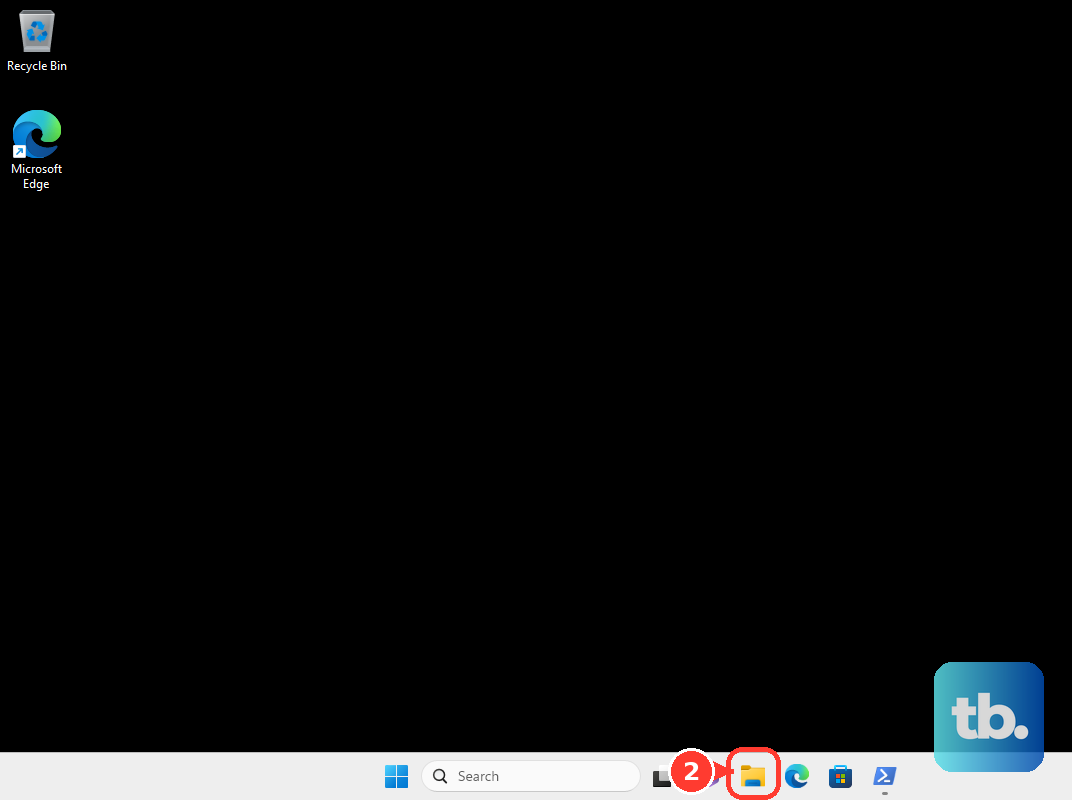
For installation space on Windows 11 or Windows 10, open File Explorer > This PC. Under Devices and drives, read the available space on the drive where you intend to install the game. Compare that free space with the storage requirement, and check any SSD requirement separately.
Use a requirements checker for another comparison
For an automated comparison on Windows 11 or Windows 10, open Can You RUN It and choose the game’s requirements page. Use its Windows detection application to scan your computer, then review the Minimum and Recommended assessments. Compare those results with the game’s published requirements.
If you prefer to enter your specifications yourself, open PCGameBenchmark and use its manual specifications form. Choose matching entries in Processor... and Graphics Card..., choose your RAM amount, then select Submit. Search for your game and inspect the requirements comparison.
The manual form depends on your hardware being represented in its database. If you cannot select matching components, compare the exact component names from Windows with the game’s published requirements instead.
Check Arm and game security requirements
On a Windows 11 Arm-based PC, including a Snapdragon-based model, check the publisher’s support information for Windows on Arm compatibility. From Microsoft’s Windows Arm-based PCs FAQ, follow the link to Works on WoA and look up your exact game. Ordinary minimum requirements for an x64 game alone do not establish Arm compatibility, so check required drivers and anti-cheat components as well as processor and graphics performance.
Some games also require Secure Boot, including applicable Riot Vanguard configurations. To inspect this requirement, press Windows + R, type the following command, then press Enter.
msinfo32Read BIOS Mode and Secure Boot State. Riot specifies UEFI and On for the configurations covered by its Secure Boot requirement. If the game still refuses to launch, consult its specific restriction guidance.
Run a benchmark for the game
For Black Myth: Wukong, download the official benchmark tool from Steam. First compare your Windows PC with the benchmark tool’s own requirements. Then run it and compare the results at different graphics settings.
Game Science says the tool renders a game sequence to evaluate compatibility and performance. Its results do not fully represent every gameplay scenario. You can also inspect performance during the game itself with a performance monitor.
Measure performance while you play
In the current Steam client on Windows, open Settings > In Game. Locate Performance Monitor and choose a display position and detail level. Run the game and inspect its FPS, CPU, GPU and memory information, distinguishing generated frames from the underlying frame rate where that information is available.
For another option on Windows 11 with Game Bar installed, press Windows + G while the game is running. Open Performance to inspect FPS and the available real-time statistics. Use these measurements to assess performance during play alongside your requirements comparison.
Frequently Asked Questions
Can you check a computer before buying it?
Yes, you can enter a prospective PC’s processor, graphics card and RAM in PCGameBenchmark’s manual specifications form. The components must be represented in its database for that comparison.
Can you check lots of games with one hardware scan?
Yes, open System Requirements Lab’s CYRI Score page, select How many games will it run? and complete the hardware-detection workflow. You can then review games in its database that meet minimum or recommended requirements.
Can Dell show you the components your computer shipped with?
Yes, for supported Dell and Alienware models, visit Dell.com/support, enter your Service Tag and select Search. Open Quick links > Product Specifications > Original Configuration. Account for later upgrades when comparing those shipped components with a game’s requirements.
What should you use instead of an old WMIC command?
On current Windows 11 releases, use System Information, Settings or PowerShell instead, since Microsoft has removed WMIC from currently supported Windows 11 versions. In Windows PowerShell 5.1 or a supported PowerShell version on Windows, run Get-ComputerInfo to collect system and operating-system properties. Use the output for a requirements comparison; the command collects an inventory rather than measuring game performance.
Is there a shortcut to your basic PC specifications?
On Windows 11, press Windows + I, then select System > About. If your keyboard provides Pause/Break, press Windows + Pause/Break to open About directly.