


To change virtual memory in Windows 11, open Settings > System > About > Advanced system settings, select Advanced, select Settings under Performance, then select Advanced and Change under Virtual memory. These steps use Windows 11 menus, require administrative authorization, and should be followed by a restart.
You can let Windows manage the paging file or enter a custom size for a selected drive. System-managed allocation is the default. Microsoft says sizing depends on peak committed memory and crash-dump requirements, rather than a universal multiple of your installed RAM.
The short version
- Open the controls: Reach the virtual memory controls through the advanced performance settings.
- Keep automatic sizing: Check Automatically manage paging file size for all drives to return allocation control to Windows.
- Enter a custom size: Select a drive, choose Custom size, enter both values in megabytes, and select Set.
- Apply the change: Close the dialogs with OK and restart your PC.
| Method or option | What you can do |
|---|---|
| Settings | Reach the controls through System > About |
| Advanced system settings search | Open the system dialog from Start |
SystemPropertiesAdvanced | Open advanced system settings through Run |
sysdm.cpl | Open System Properties through Run |
| Windows + Pause | Open System > About |
| Automatically manage paging file size for all drives | Restore Windows-controlled allocation across drives |
| Custom size | Enter initial and maximum sizes in megabytes |
| System managed size | Let Windows size the allocation on a selected drive |
| Additional drives | Add paging files on other drives |
| PowerShell automatic management | Enable automatic management or switch to manual configuration |
| PowerShell paging-file settings | Inspect, resize, or remove configurations |
| Create a pagefile | Control permission to create or resize paging files |
| Shutdown: Clear virtual memory pagefile | Control whether Windows clears contents at shutdown |
| Command-line encryption | Query or change paging-file encryption |
| Encryption policy | Manage encryption through Group Policy or MDM |
Open the virtual memory controls
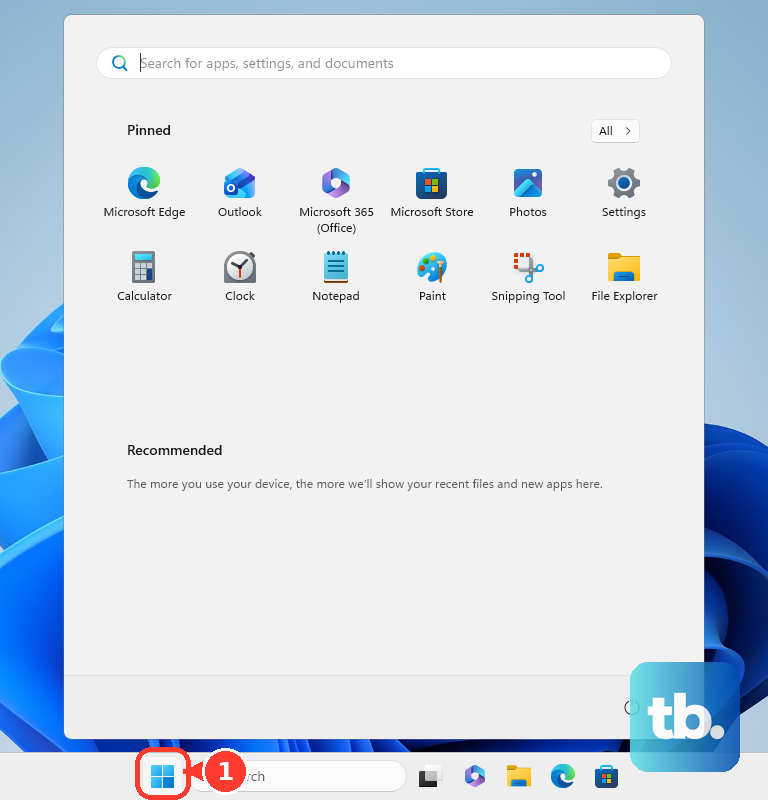
Open Start, select Settings, then choose System > About. Select Advanced system settings to open System Properties. Select the Advanced tab, then select Settings under Performance.
In Performance Options, select Advanced. Under Virtual memory, select Change. The allocation choices below share these controls.
Choose how Windows manages the paging file
For automatic allocation across drives, check Automatically manage paging file size for all drives. Select OK, then close the remaining dialogs with OK, using Apply where available. Restart your PC to apply the configuration.
To choose a drive while leaving its size to Windows, uncheck Automatically manage paging file size for all drives. Select the drive, choose System managed size, and select Set. Select OK, close the remaining dialogs, and restart.
Enter a custom virtual memory size
Uncheck Automatically manage paging file size for all drives. Select the drive you want to configure, then select Custom size. Enter your values in Initial size (MB) and Maximum size (MB).
The maximum must be at least as large as the initial size. Enter equal values if you want a fixed-size allocation. Select Set after entering the numbers, then select OK, close the remaining dialogs, and restart.
A rule such as 1.5 to 3 times your RAM is not a universal sizing recommendation. You can check RAM on your computer to confirm the installed amount, but that amount alone does not determine the right paging-file size. Without a specific allocation based on your workload and crash-dump needs, keep automatic management enabled.
Add or remove paging files on your drives
To add a paging file on another suitable local drive, uncheck Automatically manage paging file size for all drives and select that drive. Choose System managed size or Custom size. For a custom allocation, enter Initial size (MB) and Maximum size (MB), then select Set.
Repeat the process for any additional drives you intend to configure. Keeping the original allocation gives you multiple paging files. Select OK, close the remaining dialogs, and restart after completing your changes.
Crash-dump requirements can constrain removing the system-drive allocation, so retain it unless those requirements are covered. To remove a drive's configured allocation, use the Remove-CimInstance steps in the PowerShell section below, then restart.
Disabling all paging files reduces the commit limit, can reduce application capacity, and can prevent crash-dump creation. If you simply want to stop using custom sizes, restore automatic management.
Apply the change with a restart
Selecting Set records a drive's configuration, but you still need to close the dialogs and restart to apply it. Do not treat the entered values as the active configuration before restarting. When your PC is not responding and you cannot restart normally, follow the steps to restart a computer that is unresponsive.
After Windows starts again, return to the virtual memory controls to review your configuration. To undo manual allocation, check Automatically manage paging file size for all drives, select OK, close the remaining dialogs using Apply where available, and restart again.
Use another route when you cannot find the dialog
Press Windows + R to open Run. Enter the following command, then press Enter:
SystemPropertiesAdvancedUnder Performance, select Settings, then select Advanced. Under Virtual memory, select Change.
You can also open Start, search for Advanced system settings, and open the matching system result. Select Advanced, select Settings under Performance, then select Advanced and Change under Virtual memory.
Another supported shortcut opens System Properties. Press Windows + R, enter the following command, and press Enter:
sysdm.cplSelect Advanced, then select Settings under Performance. Select Advanced again, then select Change under Virtual memory.
If your keyboard has a Pause key, press Windows + Pause to open Settings > System > About. Select Advanced system settings, then select Advanced and Settings under Performance. Select Advanced, then select Change under Virtual memory.
Configure paging files with PowerShell
Open Windows PowerShell with Run as administrator. To enable automatic management, run this command:
Get-CimInstance -ClassName Win32_ComputerSystem | Set-CimInstance -Property @{AutomaticManagedPagefile=$true}For manual configuration, replace $true with $false before running the command. After disabling automatic management, inspect configured entries with:
Get-CimInstance -ClassName Win32_PageFileSettingAutomatically managed configurations may not expose an existing entry. If an entry for C:\pagefile.sys exists, resize it with the following command, replacing the illustrative megabyte values with your chosen sizes:
Get-CimInstance -ClassName Win32_PageFileSetting | Where-Object Name -eq 'C:\pagefile.sys' | Set-CimInstance -Property @{InitialSize=4096;MaximumSize=8192}The example sizes are not recommendations. If no entry exists, set the size through Custom size in the Virtual memory dialog instead.
To remove a selected configuration, retrieve its instance and pipe that instance to Remove-CimInstance. These operations require administrative privileges and the SeCreatePagefilePrivilege permission. Restart after completing the configuration because these settings describe the allocation for the next startup.
Manage permissions and shutdown clearing
On Windows 11 Pro, Enterprise, Education, and applicable IoT editions, you can manage paging-file permissions through security policy. These controls govern permissions and shutdown behavior rather than allocation size.
Open secpol.msc, then select Local Policies > User Rights Assignment > Create a pagefile. Review or change the assigned accounts and select OK. This permission controls who can create or resize paging files; it does not choose their sizes.
Administrators can also configure Computer Configuration > Windows Settings > Security Settings > Local Policies > User Rights Assignment > Create a pagefile through Group Policy. For MDM management, use the UserRights/CreatePageFile Policy CSP.
To control clearing at shutdown, open secpol.msc and select Local Policies > Security Options > Shutdown: Clear virtual memory pagefile. Select Enabled or Disabled, then select OK. Enabling this setting can lengthen shutdown.
The corresponding Group Policy setting is under Computer Configuration > Windows Settings > Security Settings > Local Policies > Security Options. For MDM, configure ./Device/Vendor/MSFT/Policy/Config/LocalPoliciesSecurityOptions/Shutdown_ClearVirtualMemoryPageFile with integer 1 to enable clearing or 0 to disable it.
Control paging file encryption
Paging-file encryption changes how the allocation is protected, not its capacity. Open Command Prompt with Run as administrator, then check the setting with:
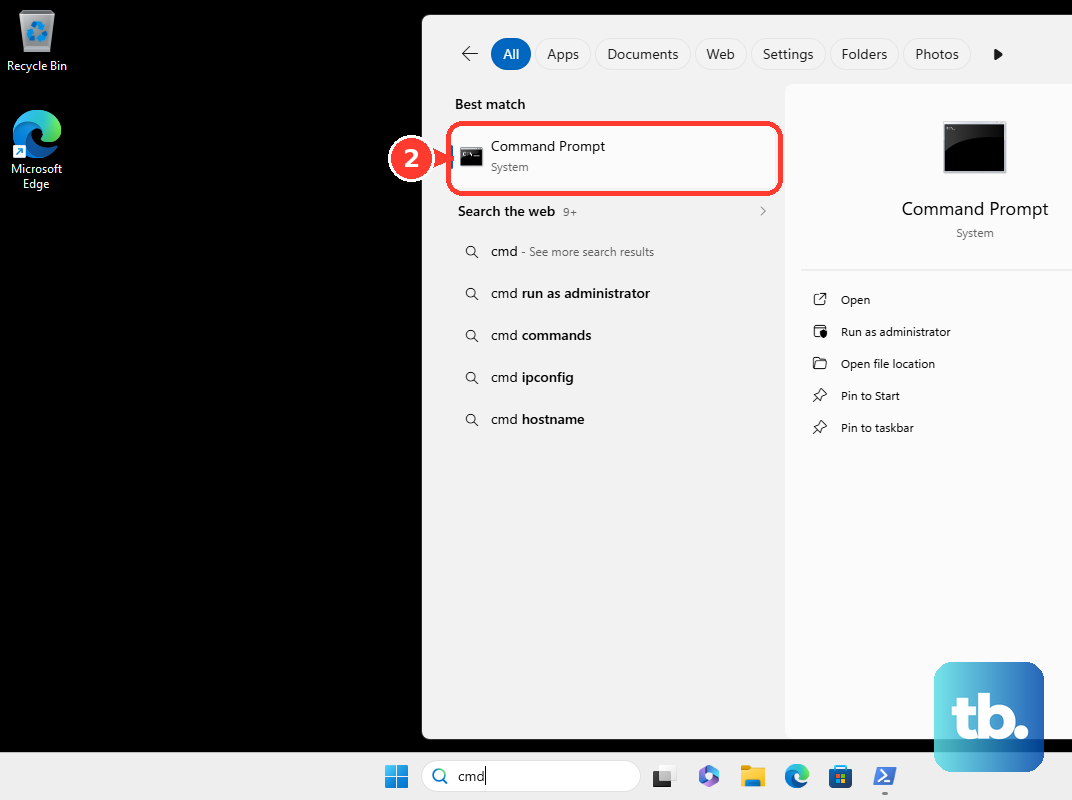
fsutil behavior query encryptpagingfileChoose the command that matches the setting you want. To enable encryption, run:
fsutil behavior set encryptpagingfile 1To disable encryption instead, use the command below. Restart your PC after changing the setting.
fsutil behavior set encryptpagingfile 0On Windows 11 Pro, Enterprise, Education, and applicable IoT editions, you can also manage encryption through Group Policy. Open gpedit.msc, then select Computer Configuration > Administrative Templates > System > Filesystem > NTFS > Enable NTFS pagefile encryption. Select Enabled or Disabled, then select Apply and OK.
For MDM, configure ./Device/Vendor/MSFT/Policy/Config/ADMX_FileSys/EnablePagefileEncryption. This policy requires the documented ADMX-backed SyncML format.
Frequently Asked Questions
Do you need to download a tool to change virtual memory?
No download, installation, or app removal is required. Windows includes the desktop configuration controls and Windows PowerShell.
Does changing virtual memory also change graphics memory or WSL limits?
No, the paging-file allocation is separate from graphics-memory allocation and VM or WSL memory limits. Browser memory-saving features and BIOS virtualization switches also configure different things.
Can you still follow older WMIC paging-file instructions?
Microsoft has removed WMIC from current supported Windows 11 versions, and it is no longer available as a Feature on Demand. WMI remains supported, so use PowerShell with CIM cmdlets or the desktop controls.
Should you use a Windows Server registry recipe to change the paging file?
Use the desktop controls or PowerShell for Windows 11. Microsoft's server and hardware-testing registry recipes do not establish a Windows 11 consumer procedure.