
When your Xiaomi 14T Pro won't send texts, it's incredibly frustrating. Messages might get stuck on "Sending," fail with an error, or just disappear into the void. The good news is, it's usually a quick fix.
Start With a Simple Restart
Before you try anything complicated, give your phone a fresh start. Press and hold the Power button for about 15 seconds until you feel a vibration and see the phone restart. This clears out any temporary software glitches that might be blocking your messages from going through.
Check Your Mobile Data and Signal
Texts (SMS) need a cellular signal, and picture messages (MMS) require mobile data to be on. Swipe down from the top of your screen to open the Quick Settings panel. Make sure mobile data is enabled and check your signal strength. If it's low, try moving to a different location.
A quick network refresh can also help. Tap the Airplane Mode icon to turn it on, wait 10 seconds, then tap it again to turn it off. This forces your phone to reconnect to the cellular network, which can clear up sending issues.
Verify Your Message Center Number
This is a critical setting that tells your phone where to send SMS messages. If it's wrong, nothing will go through. Open your Messages app, tap the three-dot menu, and go to Settings > Advanced settings.
Look for the "SMS center number" field. The correct number is provided by your carrier, so you may need to contact them or search their support site for "SMSC number." I've seen incorrect numbers here cause complete SMS failure.
Clear the Messages App Cache
Sometimes the messaging app's temporary data gets corrupted. Go to Settings > Apps > Manage apps and find your Messages app (it might be called "Messaging"). Tap on it, then select Clear cache.
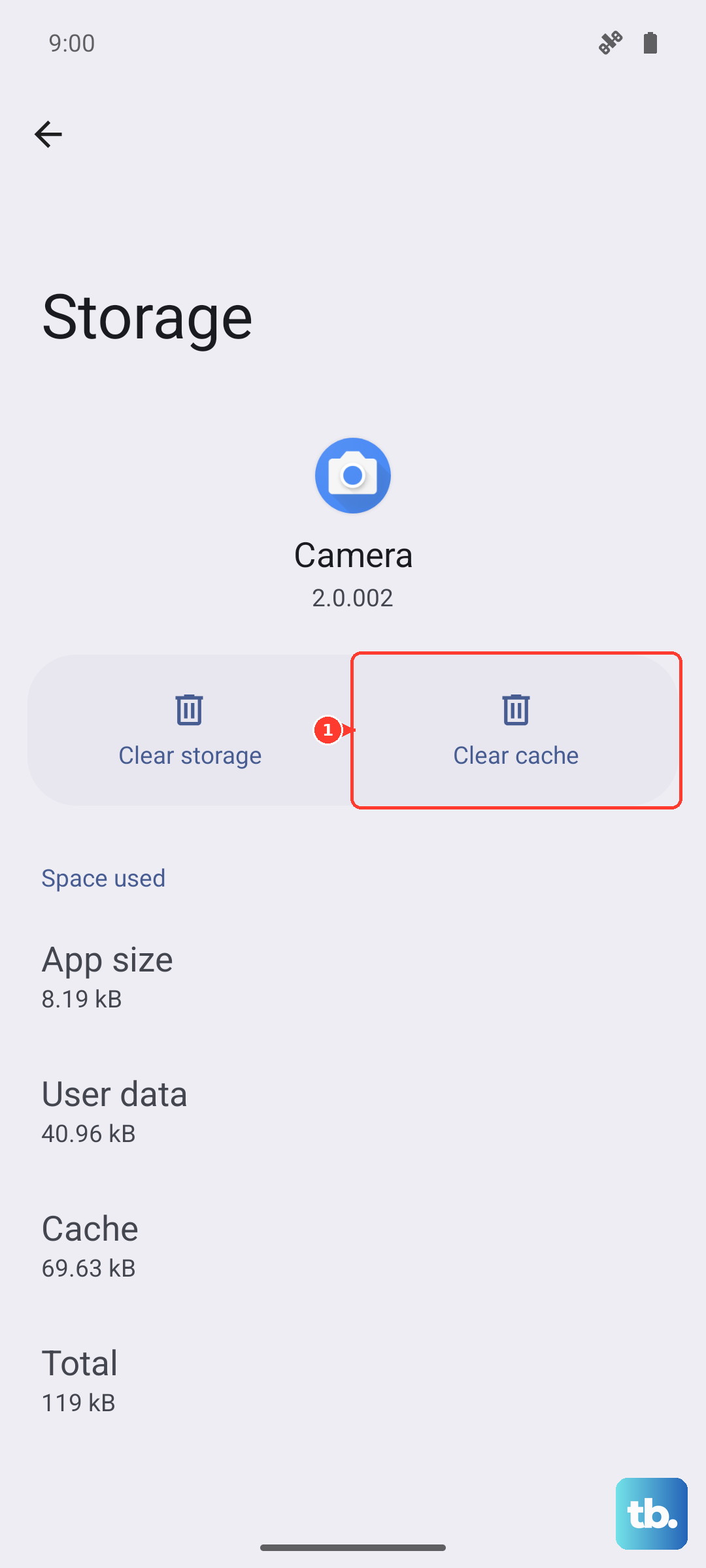
This doesn't delete your conversations, it just removes temporary files. After clearing, try sending a text again. If the problem persists, you can try Clear data, but be aware this will erase your message history within the app.
Check for App-Specific Permissions
HyperOS can be strict with permissions. Your messaging app needs the right access to function. Go to Settings > Apps > Manage apps, select your Messages app, and tap Permissions.
Ensure that "SMS" permission is set to "Allow." While you're there, it's a good idea to check that the app is not restricted in the background, as this can sometimes delay or block message sending.
Reset Your Network Settings
If messages are still failing, a network reset can solve deeper configuration problems. Navigate to Settings > Additional settings > Backup and reset > Reset phone.
Here, tap on Reset Wi-Fi, mobile & Bluetooth. This will erase all saved networks, Bluetooth pairings, and cellular settings. You'll need to reconnect to Wi-Fi networks afterward, but it often resolves persistent messaging and data issues.
Update Your Software and Carrier Services
Outdated software can have bugs that affect messaging. Go to Settings > About phone > MIUI version and tap "Check for updates." Install any available updates for HyperOS.
Also, open the Google Play Store, search for "Carrier Services," and see if an update is available. This app helps manage communication between your phone and your carrier's network for services like SMS and MMS.
Try a Different Messaging App
To rule out a problem with the default Xiaomi messaging app, install a alternative like Google Messages from the Play Store. Set it as your default app and see if you can send texts from there.
If the third-party app works, the issue is with your stock app. You can continue using the new app, or you may need to re-enable the original one after a software update.
Contact Your Mobile Carrier
If you've tried everything and texts still won't send, the problem might be on your carrier's end. There could be an outage in your area, a provisioning issue with your account, or SMS/MMS services might be blocked.
Give them a call or check their website for service status. They can also verify that your SMSC number is correct and resend the activation signal to your phone, which often does the trick.