
Seeing a "Not registered on network" or "Emergency calls only" message on your Xiaomi 14T Pro is incredibly frustrating. It means your phone can't make calls, send texts, or use mobile data, turning a powerful device into a Wi-Fi-only tablet. This error usually pops up when your phone fails to properly authenticate with your carrier's network.
Before you worry about complex fixes, the quickest thing to try is a network settings reset. This clears out any corrupted cellular configurations without deleting your personal data. Go to Settings > Connection & sharing > Reset Wi-Fi, mobile networks and Bluetooth. Tap to reset, let your phone restart, and it will attempt a fresh connection to your carrier. I've seen this resolve the issue in a lot of cases where a recent app update or setting change caused a conflict.
Perform a Force Restart
A simple reboot can clear temporary software glitches that block network registration. For the Xiaomi 14T Pro, press and hold the Power button for about 15 seconds. Keep holding it until you feel a vibration and see the HyperOS logo appear on the screen. This forces a full shutdown and restart, which often re-establishes the connection to cell towers as the phone boots.
Toggle Airplane Mode
This is a faster alternative to a full restart. Swipe down from the top of your screen to open the Quick Settings panel and tap the Airplane Mode icon. Wait for about 10 to 15 seconds, then tap it again to turn it off. This cycle forces your phone's modem to power down and reconnect to the network from scratch, which can bypass a temporary registration hang-up.
Check Your SIM Card
A loose, dirty, or damaged SIM card is a common culprit. Power off your Xiaomi 14T Pro and use the SIM ejector tool to pop out the tray. Carefully remove the SIM card and inspect the gold contacts for any dust, dirt, or scratches. Gently wipe the contacts with a soft, dry cloth and blow into the SIM tray slot to clear any debris. Reinsert the SIM, making sure it's seated firmly in the tray, and power your phone back on.
Verify Your Carrier Account Status
Sometimes the problem isn't your phone at all. An unpaid bill, an expired prepaid plan, or a carrier-side service outage will show the same error. Try using your carrier's official app on another device or a computer to check your account status. If you're traveling, ensure your roaming is enabled in Settings > SIM cards & mobile networks and that your plan includes coverage for your location.
Manually Select Your Network Operator
Your phone might be stuck trying to register on a network that's weak or unavailable. Go to Settings > SIM cards & mobile networks. Tap on your active SIM card and then select Network operators. Turn off the "Choose automatically" option. Your phone will search for available networks. Select your carrier's name from the list that appears. This manual selection can sometimes force a successful registration.
Change the Preferred Network Type
If you're in an area with spotty 5G coverage, your phone might struggle to register. Switching to a more stable network band like 4G LTE can help. In the same SIM cards & mobile networks menu, tap your SIM and look for Preferred network type. Try changing it from "5G/4G/3G/2G" to just "4G/3G/2G". After applying the change, give your phone a minute to reconnect on the LTE network.
Update Your Phone's Software
Xiaomi releases HyperOS updates that often include fixes for connectivity and modem issues. An outdated system could have a known bug that's already been patched. Connect to Wi-Fi and go to Settings > About phone > HyperOS version. Tap "Check for updates" and install any available firmware. The 120W charging can generate heat, so make sure your phone is cool before starting an update to prevent throttling.
Clear the Phone Services Cache
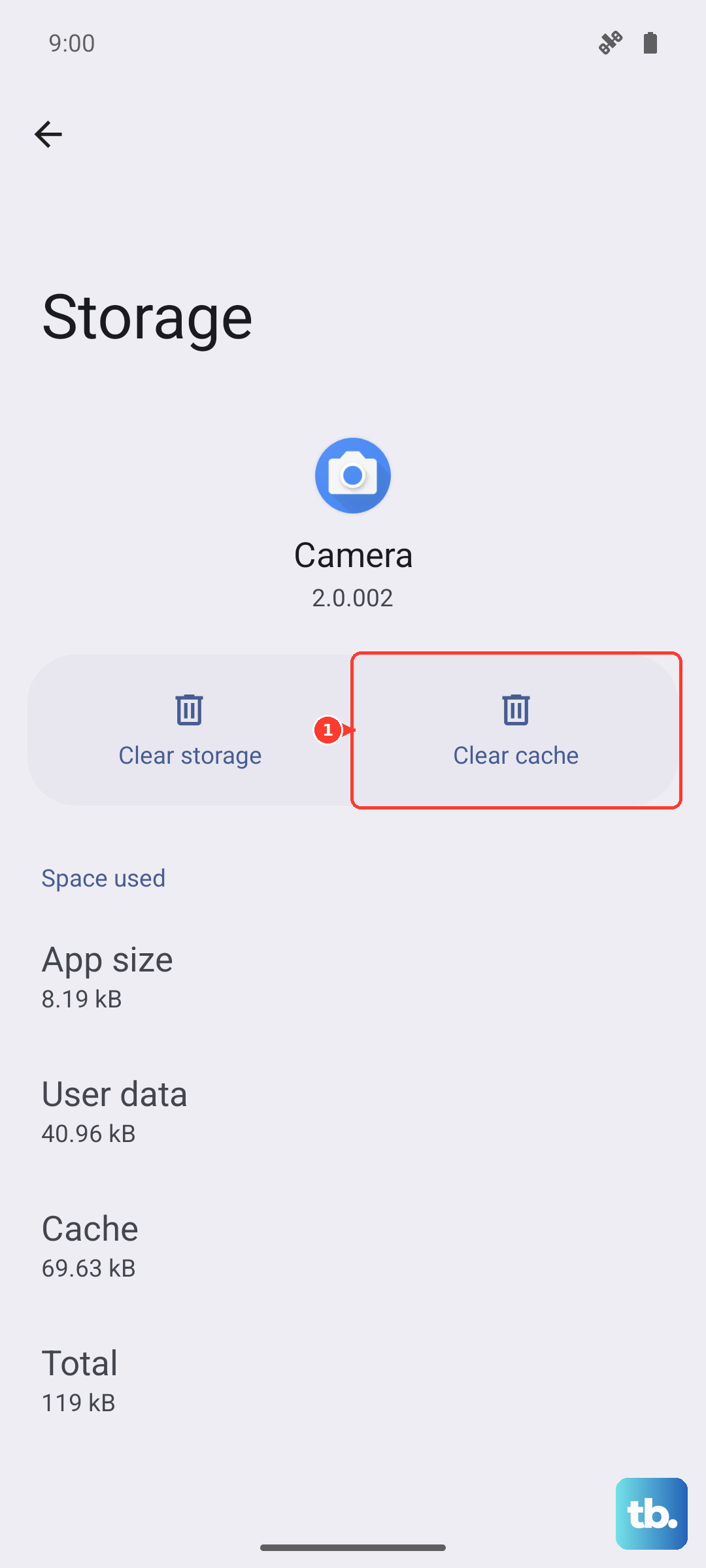
The system app that manages your cellular connection can accumulate corrupted temporary data. Go to Settings > Apps > Manage apps. Tap the three-dot menu in the top right and select "Show all apps". Find and tap on "Phone Services" (it might also be called "com.android.phone"). Go into its storage settings and tap Clear cache. This doesn't delete any personal information, but it can resolve underlying software conflicts.
Test with a Different SIM Card
This step helps you pinpoint the problem. If you can borrow a working SIM card from another phone on a different network, insert it into your Xiaomi 14T Pro. If the new SIM card registers on the network without any issues, then your original SIM is likely faulty or deactivated, and you'll need to contact your carrier for a replacement. If the borrowed SIM also fails, the issue is with your phone.
Perform a Factory Reset
This is your last resort before considering a hardware problem. A factory reset will erase all data, including apps, photos, and settings, so ensure everything is backed up. You can back up to your Mi Account or a computer. Once ready, go to Settings > About phone > Factory reset. Follow the prompts to erase all data. After the reset, set up the phone as new without restoring a backup immediately to see if the network connects. If the error remains after a clean reset, the issue may be with the phone's internal antenna or modem hardware.