
When your Xiaomi 14T Pro starts restarting on its own, it can be incredibly disruptive. This is often a software hiccup, but with the 120W charging and powerful Dimensity 9300+ chip, heat can sometimes play a role. Before you start, it's a good idea to ensure your photos and important files are backed up to Mi Cloud or your Google account.
Perform a Force Restart
This is almost always the first thing to try. A force restart clears the phone's temporary memory and can stop a restart loop caused by a minor system glitch. Just press and hold the power button for about 15 seconds. Keep holding it until you see the Xiaomi or HyperOS logo appear on the screen, then you can let go.
Check for Overheating
The 14T Pro's 120W wired charging is incredibly fast, but it generates significant heat. If the phone is restarting while charging, this could be the culprit. Try unplugging it and letting it cool down for a few minutes. Also, avoid using demanding apps or games while it's fast charging. For daily use, consider enabling the battery protection mode in settings, which caps charging at 80% to reduce heat and prolong battery health.
Update Your Apps and HyperOS
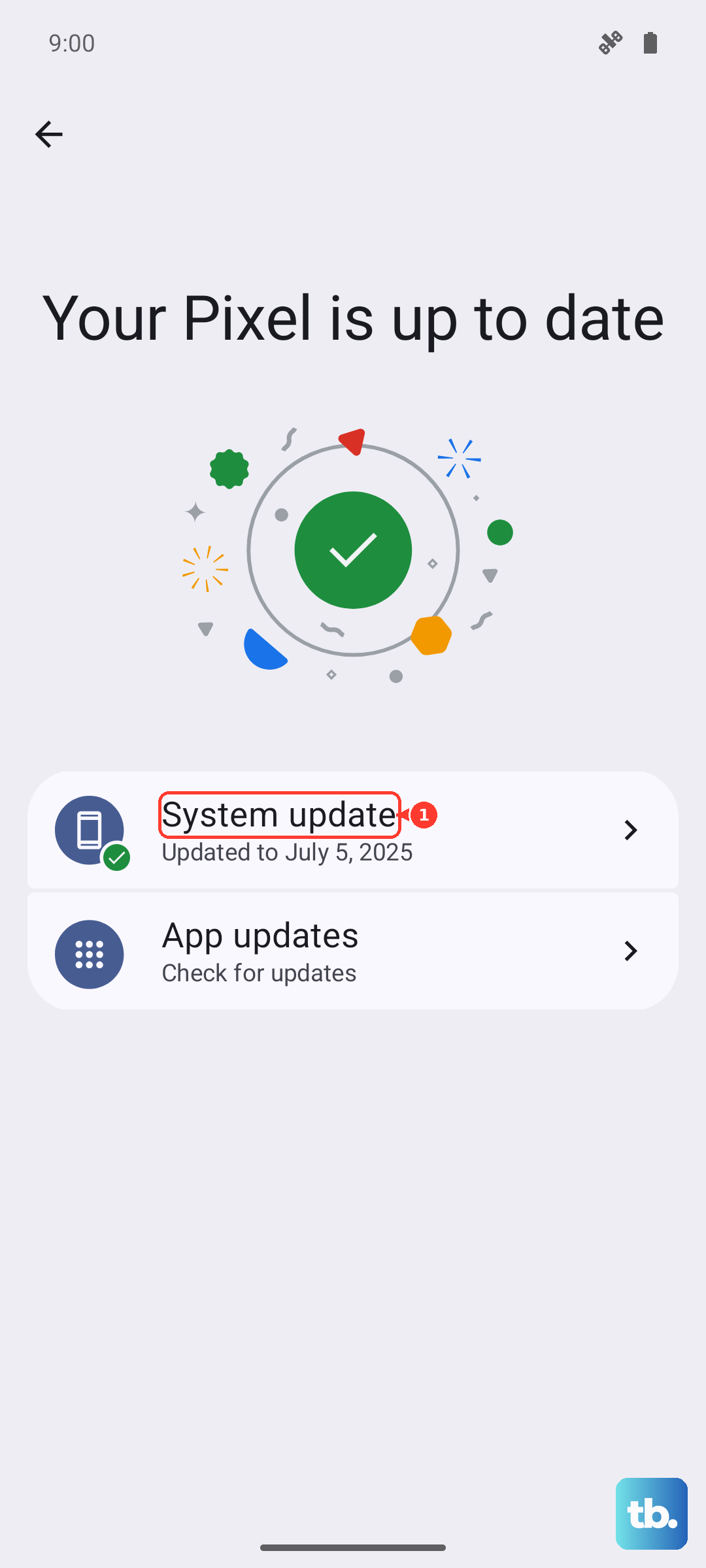
Outdated apps, especially ones that run in the background, can conflict with the system and cause instability. Open the Google Play Store, tap your profile icon, and go to Manage apps & device. From there, you can update everything. Next, check for a system update by going to Settings > About phone > HyperOS version. Tap "Check for updates" and install anything available. I've seen many random restart issues resolved by a simple OS update.
Investigate Problematic Apps
A newly installed or recently updated app is a common suspect. Try booting the phone into Safe Mode. Press and hold the power button, then when the power menu appears, long-press the "Power off" option. Tap "OK" to reboot into Safe Mode. If the phone runs fine without restarting in Safe Mode, you know a third-party app is to blame. You'll need to uninstall apps one by one, starting with the most recent, to find the offender.
Clear App Caches and Data
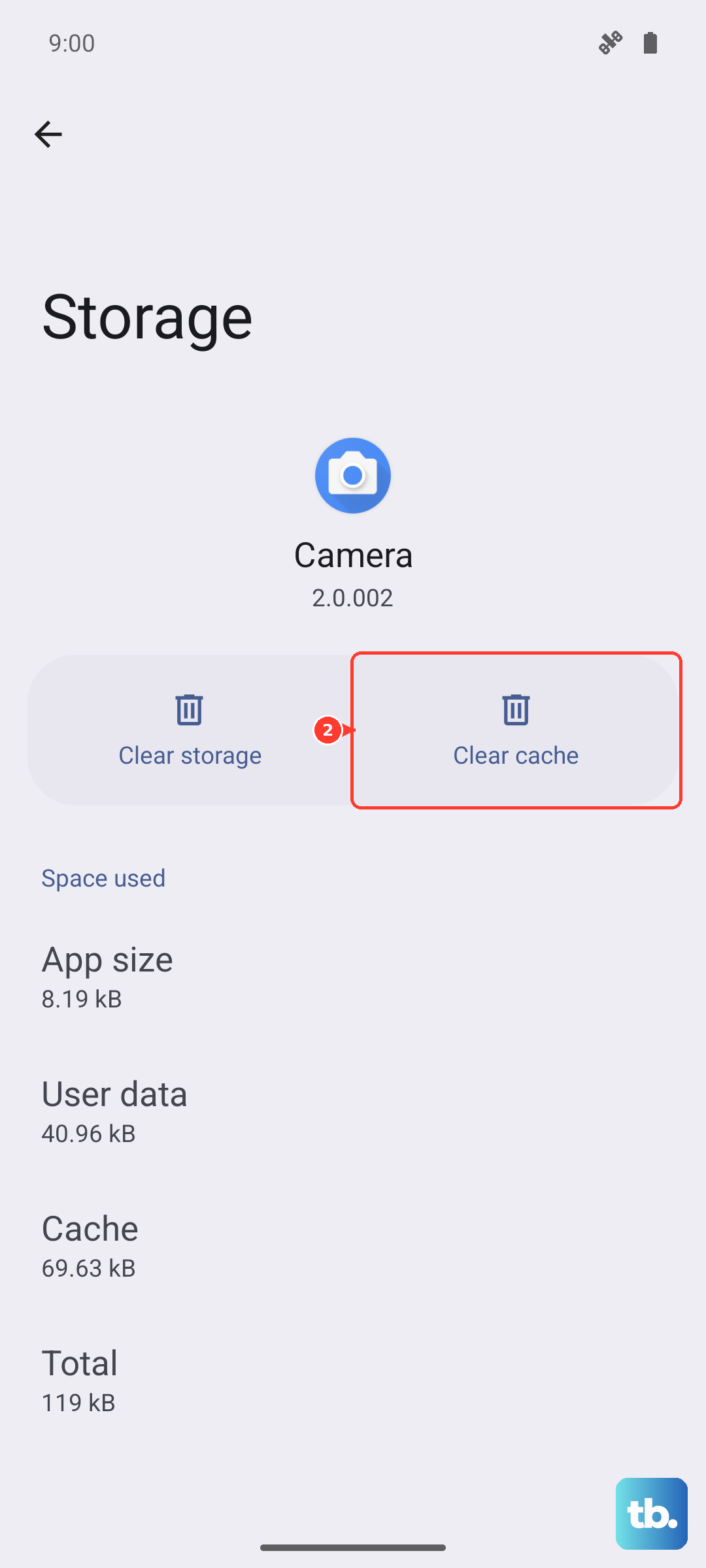
Sometimes an app's stored data gets corrupted. You can clear the cache for all apps or target specific ones. Go to Settings > Apps > Manage apps. Select an app you suspect, then tap Clear data. You'll see options to clear just the cache (safe, doesn't delete your login) or clear all data (which resets the app). Start with clearing the cache for a few apps like social media or games.
Free Up Storage Space
If your phone's storage is completely full, the system can struggle to operate, leading to crashes. Check your available space in Settings > About phone > Storage. The phone might offer cleanup suggestions. You can offload large videos to Google Photos or delete downloaded files you no longer need. Aim to keep at least 5-10GB free.
Remove Unnecessary Bloatware
Depending on your region, your 14T Pro may have come with pre-installed apps you don't use. These can sometimes cause background processes that interfere with the system. Go to Settings > Apps > Manage apps, find the app, and if the option is available, tap "Uninstall". If you can only "Disable", do that. This stops the app from running entirely.
Reset All Settings
This won't delete your personal data like photos or messages, but it will reset all your system settings to default. It's useful if a network, display, or sound setting has become corrupted. Navigate to Settings > About phone > Factory reset. Then, select Reset all settings (keep data). You'll need to re-enter Wi-Fi passwords and reconfigure things like ringtones afterward.
Perform a Factory Reset
This is the most comprehensive software fix. It will erase everything on the phone and return it to its out-of-the-box state. Before you do this, ensure your backup is complete. Go to Settings > About phone > Factory reset > Erase all data (factory reset). Follow the prompts. After the phone reboots, you can set it up as new or restore from your backup to see if the problem is gone.