
If your Xiaomi 14T Pro is refusing to send pictures or group texts, it's almost always a quick setting that's out of place. The most common culprit is your mobile data being off while you're on WiFi, as MMS needs an active cellular data connection to work, even if your WiFi is strong.
Start by swiping down from the top of your screen to open the Quick Settings panel. Make sure the mobile data icon is lit up. If you see a strong signal but messages still won't send, try toggling Airplane mode on for a few seconds and then off again to refresh your connection to the network.
Verify Your MMS App Settings
Open the Messages app that came with your phone. Tap the three-dot menu in the top right and go to Settings > Advanced settings. Here, you'll find the key options for multimedia messages.
Make sure Auto-download MMS is enabled. If you're traveling, you might also want to turn on Auto-download MMS when roaming, though be mindful of potential charges. I've found that on HyperOS, having these set to auto-download is crucial for reliable sending and receiving.
Check and Update Your APN Settings
Incorrect Access Point Name (APN) settings are a frequent cause of MMS headaches. These tell your phone exactly how to connect to your carrier's multimedia service. The path in HyperOS is Settings > Connections & sharing > Mobile network.
Tap on your SIM card, then select Access Point Names. Your carrier's correct APN should already be listed and selected. If MMS is failing, a good step is to tap the three-dot menu and choose Reset to default. This often clears up any corruption. If the problem persists, you'll need to get the exact MMS APN details from your carrier's support site.
Clear the Cache for Your Messaging App
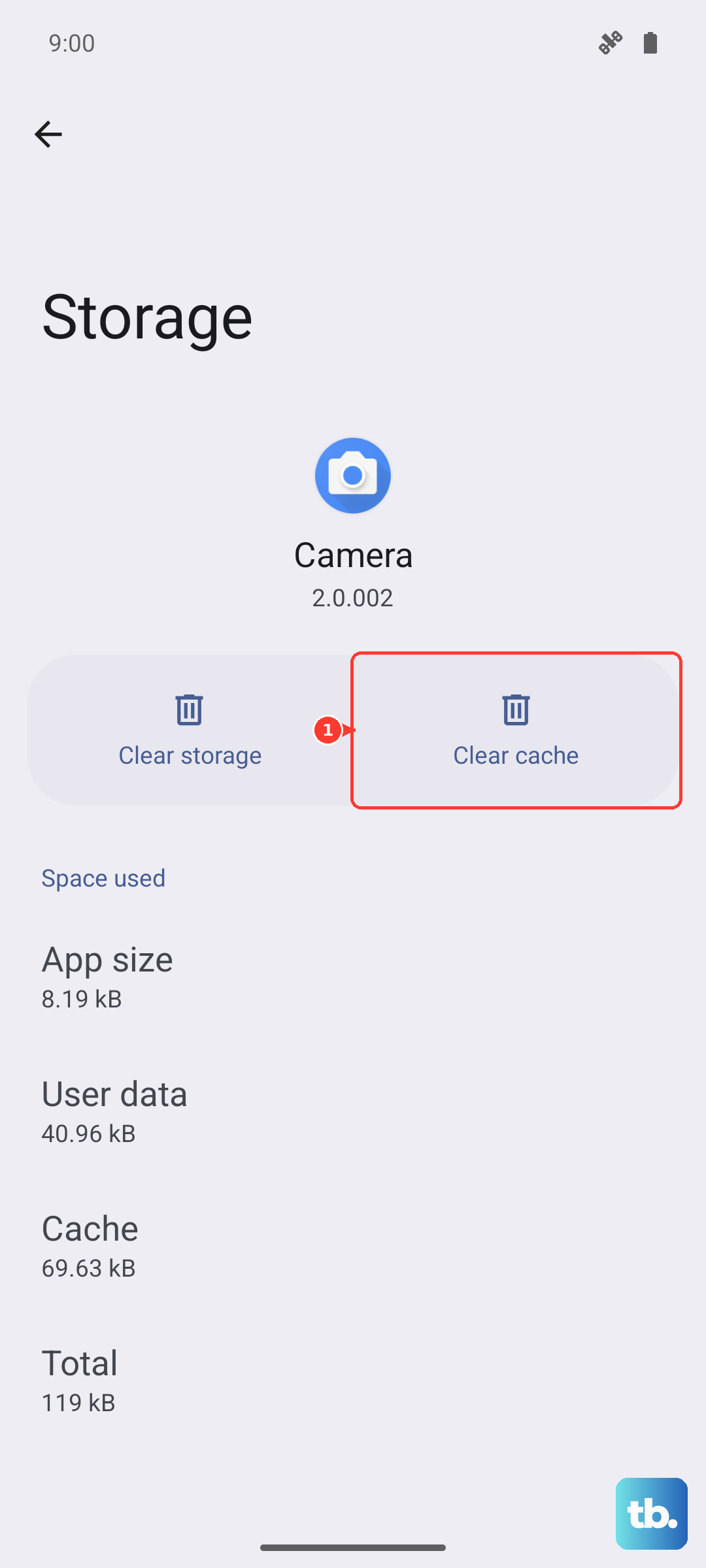
Temporary files can get corrupted and block the messaging process. Go to Settings > Apps > Manage apps. Find your messaging app in the list, it might be called "Messages" or "Messaging."
Tap on it, then select Storage usage. Tap Clear cache. This only deletes temporary data and won't touch your actual messages. If clearing the cache doesn't help, you can try Clear data, but be warned this will erase all your message history and restore the app to its default settings.
Perform a Force Restart
A simple reboot can clear out minor software glitches that might be hanging up the messaging service. For the Xiaomi 14T Pro, press and hold the Power button for about 15 seconds. Keep holding it until you feel a vibration and see the phone restart.
This is different from a normal restart and can resolve deeper system processes that are stuck. Wait for the phone to boot up completely, then try sending an MMS again.
Ensure You Have Enough Storage Space
Your phone needs a bit of free space to process and store incoming multimedia messages before you see them. If your storage is critically low, it can fail silently. Go to Settings > About phone > Storage to check.
If you're running low, consider cleaning out old downloads, app caches, or unused apps. The 14T Pro's powerful Dimensity chip is great, but it can't work around a completely full storage drive.
Update Your Phone's Software
An outdated version of HyperOS might have a bug that's interfering with MMS. Manufacturers regularly release patches for connectivity issues. Go to Settings > About phone > MIUI version.
Tap "Check for updates" and install any that are available. After the update finishes, your phone will restart. It's a good practice to check for updates periodically, as they often include important stability fixes.
Reset Your Network Settings
If you've tried everything else, resetting network settings is a strong next step. This will wipe all your saved WiFi passwords, Bluetooth pairings, and cellular network preferences, but it can fix persistent MMS problems.
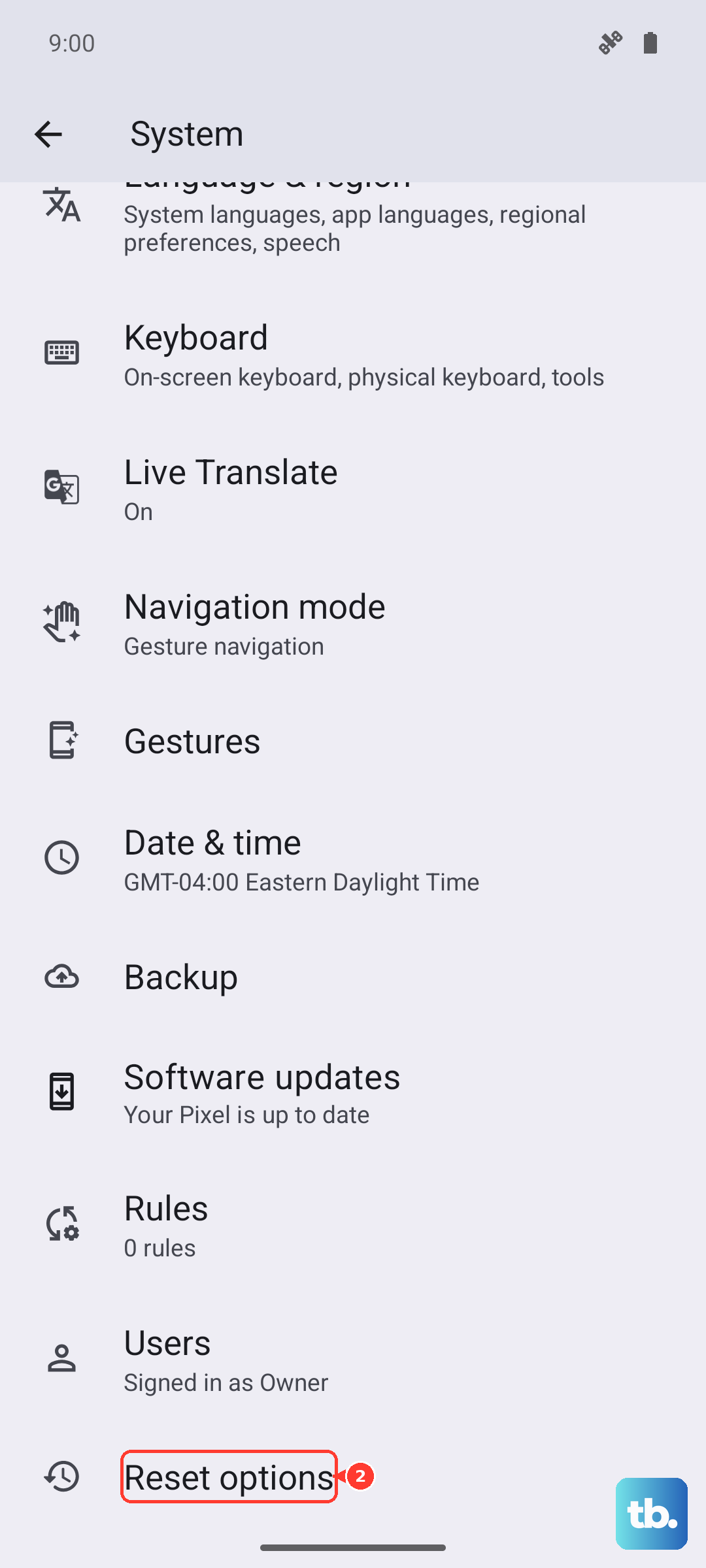
Navigate to Settings > System > Reset options. Tap Reset Wi-Fi, mobile & Bluetooth and confirm. After the phone resets, you'll need to reconnect to your WiFi and re-pair Bluetooth devices, but your APN should repopulate automatically.
Try a Different Messaging App
Sometimes the issue can be with the default messaging app itself. Installing a popular alternative like Google Messages can be a great diagnostic step. Download it from the Play Store, open it, and set it as your default app when prompted.
Google Messages often has more consistent MMS handling across different carriers. If your messages send immediately with the new app, you know the problem is software-related with the stock app, not your network or phone hardware.