Looking for the Start menu and not seeing it in the old corner? On current Windows 11 releases, Start is the Windows logo button on the taskbar, and it can sit in the center or on the left. Here is how to find it, open it fast, and bring it back into view when the taskbar is hiding.
1. Spot Start on the Windows 11 taskbar
The Start menu lives behind the Windows logo button on the taskbar.
Look for the Windows logo icon on the taskbar.
Check the center of the taskbar first. Windows 11 centers taskbar icons by default.
Select Start.
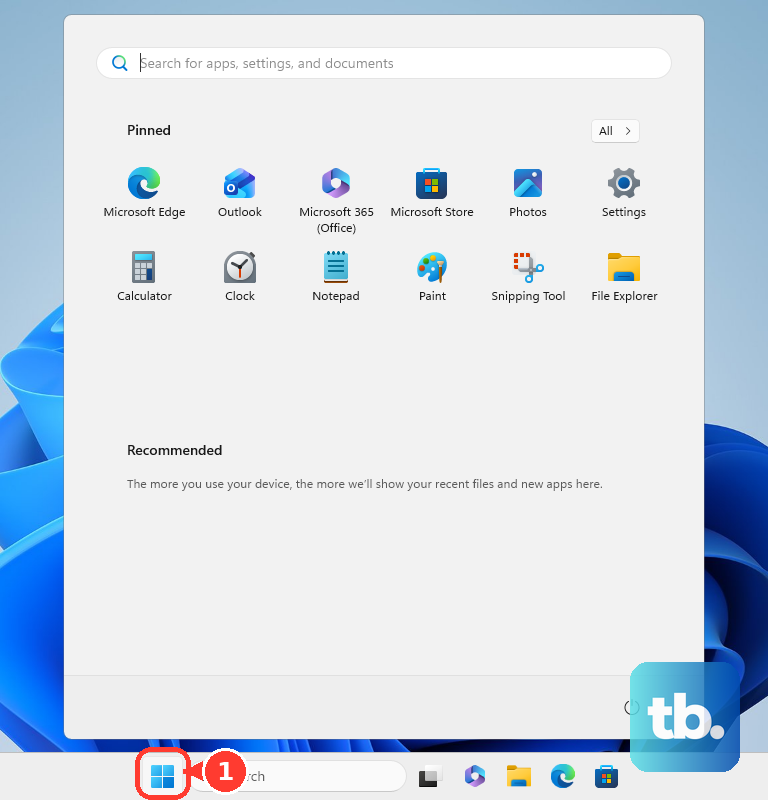
If your taskbar icons are left-aligned, the Windows logo Start button sits on the left side of the taskbar instead.
2. Open Start from the keyboard
Press the Windows logo key.
On a keyboard without a Windows logo key, press Ctrl + Esc.
On a Surface Keyboard or Type Cover, press the key marked with the Windows or Start icon.
Use the keyboard when the button is hard to spot or your taskbar is crowded. That opens Start without clicking the taskbar.
3. Reveal Start when the taskbar hides
If the whole taskbar disappears, Windows is using the automatic hide setting. Start is still there; reveal the taskbar first.
Move your mouse to the bottom edge of the screen, or touch the bottom edge on a touchscreen.
Wait for the taskbar to appear.
Select the Windows logo Start button.
This does not change where Start lives. It only brings the taskbar back long enough to open it.
4. Move Start to the left
- 1.Right-click the taskbar.
- 2.Select Taskbar settings.
- 3.Expand Taskbar behaviors.
- 4.Open Taskbar alignment.
- 5.Choose Left.
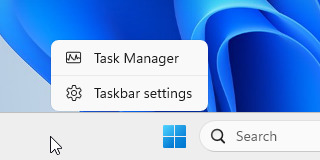
If you want Start closer to the classic Windows position, change the Windows 11 taskbar alignment. The Windows logo Start button now appears on the left side of the taskbar.
5. Tap Start on a 2-in-1 device
On a Windows 11 2-in-1, the tablet-optimized taskbar can collapse into a smaller touch layout.
Swipe up from the bottom of the screen.
Wait for the expanded taskbar to appear.
Tap the Windows logo Start button.
To change that tablet behavior, right-click the taskbar, select Taskbar settings, then check or uncheck Optimize taskbar for touch interactions when this device is used as a tablet.
6. Use accessibility controls to open Start
Windows gives you several supported ways to open Start without a standard mouse click. With a screen reader, move to the Windows icon on the taskbar, listen for Start, then press Enter. You can also press the Windows logo key to open it directly.
With voice access on Windows 11 version 22H2 and later, enable it from Start > Settings > Accessibility > Speech > Voice access. Say Voice access wake up, then say Press Windows. You can also say Show numbers on taskbar, then say Click followed by the number shown on the Start button.
7. Check admin settings on a work PC
On a work or school PC, your organization can manage what appears in Start and whether you can change Start and taskbar settings. That management can affect pinned apps, pinned folder shortcuts, the Start layout, Start size, and taskbar settings.
If those options are locked or keep changing back, contact your organization’s support team.
Skip old Windows 10 instructions that tell you to move the taskbar to the top, left, right, or bottom of the screen. For current Windows 11, Microsoft documents Taskbar alignment as the built-in way to place Start in the center or on the left.
Frequently Asked Questions
Is the Start menu the same as the Windows logo button?
Not quite. The Windows logo button on the taskbar is the Start button, and selecting it opens the Start menu.
Why did my Start button move to the center?
Windows 11 centers taskbar icons by default. Change it from Taskbar settings > Taskbar behaviors > Taskbar alignment > Left.
How do I open Start if the taskbar is hidden?
Move the pointer to the bottom edge of the screen, or touch the bottom edge, then select the Windows logo Start button when the taskbar appears.
Can I open Start by voice in Windows 11?
Yes. Turn on voice access from Start > Settings > Accessibility > Speech > Voice access, wake it up, then say Press Windows.