You press the Windows key, click the Start button, and nothing happens. Maybe the menu opens but freezes, or the search box ignores everything you type. A broken Start menu makes a Windows 11 PC feel almost unusable, since it is the gateway to your apps, settings, and power options. The fixes below use tools built into Windows, and you can work through them in order from the safest and simplest to the most involved.
Below are seven approaches, arranged so you start with low-risk basics and only reach the heavier repairs if the earlier ones do not stick. Try them one at a time, and test your Start menu after each before moving on.
Restart First, Then Catch Up on Windows Updates
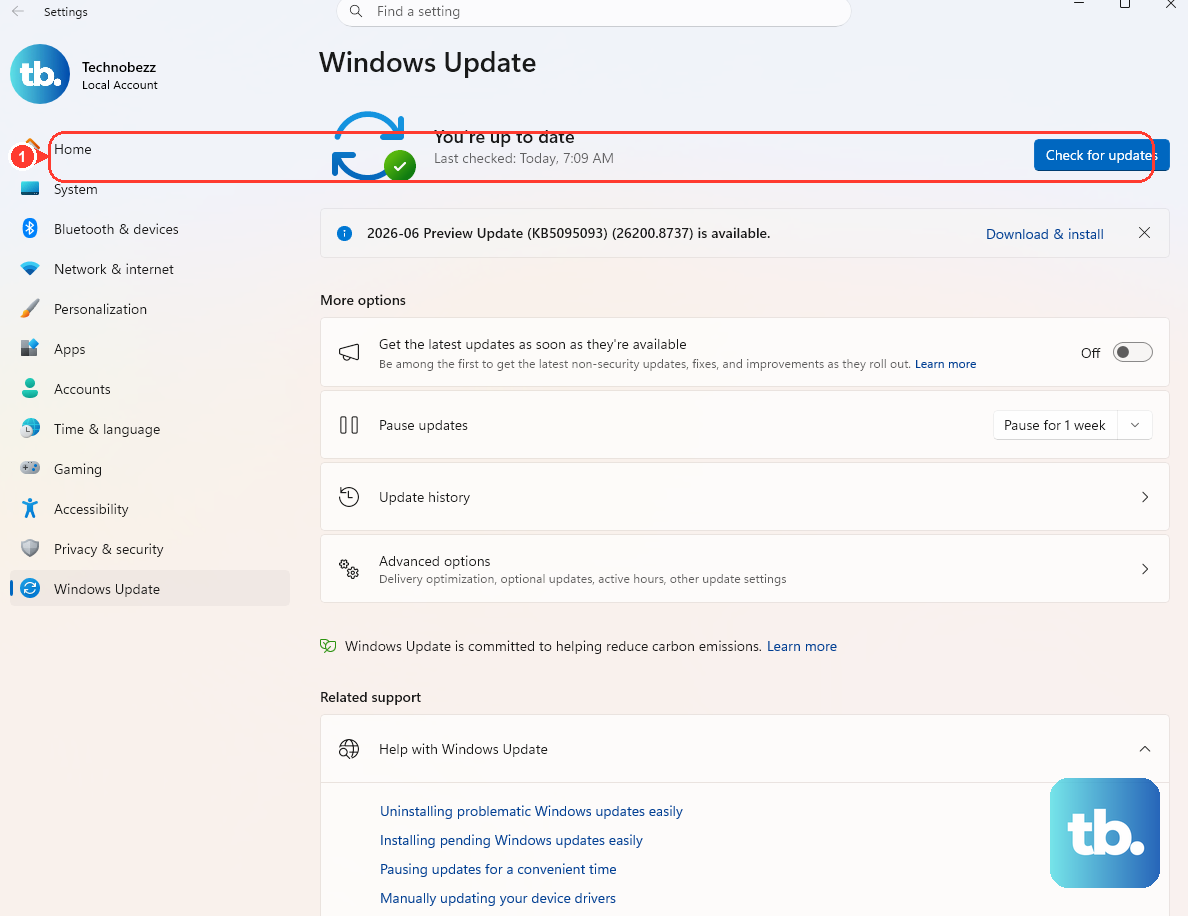
The simplest fix is also the one people skip: a full restart followed by installing any pending updates. Start menu and shell fixes often arrive through Windows Update, so getting current can clear the problem on its own.
In Windows 11, go to Start > Settings > Windows Update and select Check for Windows updates. If updates appear, select Download & install and restart when prompted.
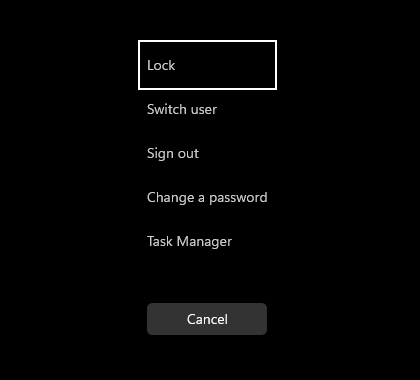
Cannot open Start at all? You can still restart from the secure screen. Press Ctrl + Alt + Delete, then choose Power and Restart. A clean reboot alone resolves a surprising number of temporary shell glitches.
Let the Windows Update Troubleshooter Do the Work
If updating manually does not help, run the automated Windows Update troubleshooter. In Windows 11 it runs through the built-in Get Help app, which performs diagnostics and attempts the fix for you with no commands to type.
You can also start it from Settings. Go to Start > Settings > System > Troubleshoot > Other troubleshooters, then under Most frequent select Run next to Windows Update.
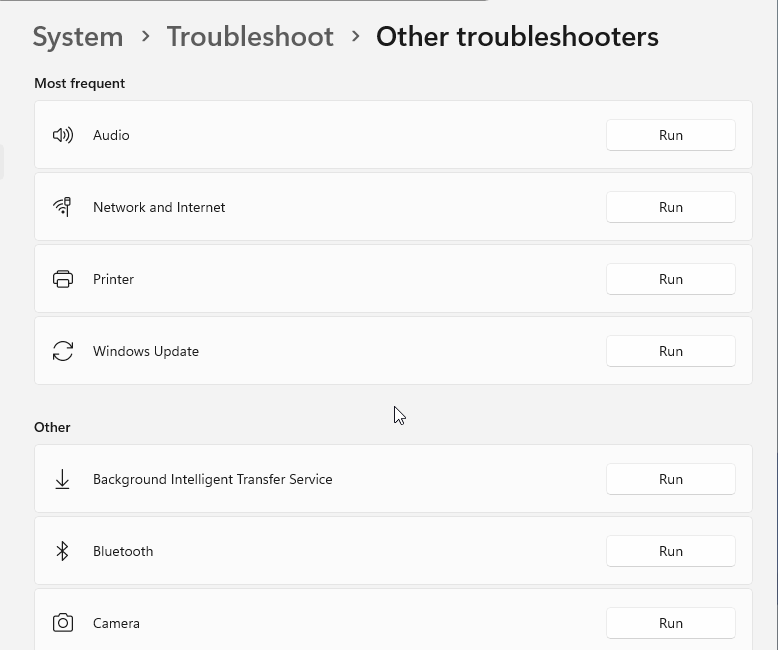
Because Start menu fixes often arrive through updates, repairing a stuck update pipeline can restore the menu indirectly. Let the troubleshooter finish, then test Start again.
Repair Damaged System Files With DISM and SFC
If the Start menu still misbehaves, the underlying Windows system files may be damaged. Two built-in tools repair them: DISM, which fixes the Windows component store, and System File Checker (SFC), which scans and repairs protected system files. Install the latest Windows updates and restart before you begin.
First, open Command Prompt with administrator rights. Type command prompt in the taskbar search box, right-click Command Prompt, select Run as administrator, then select Yes.
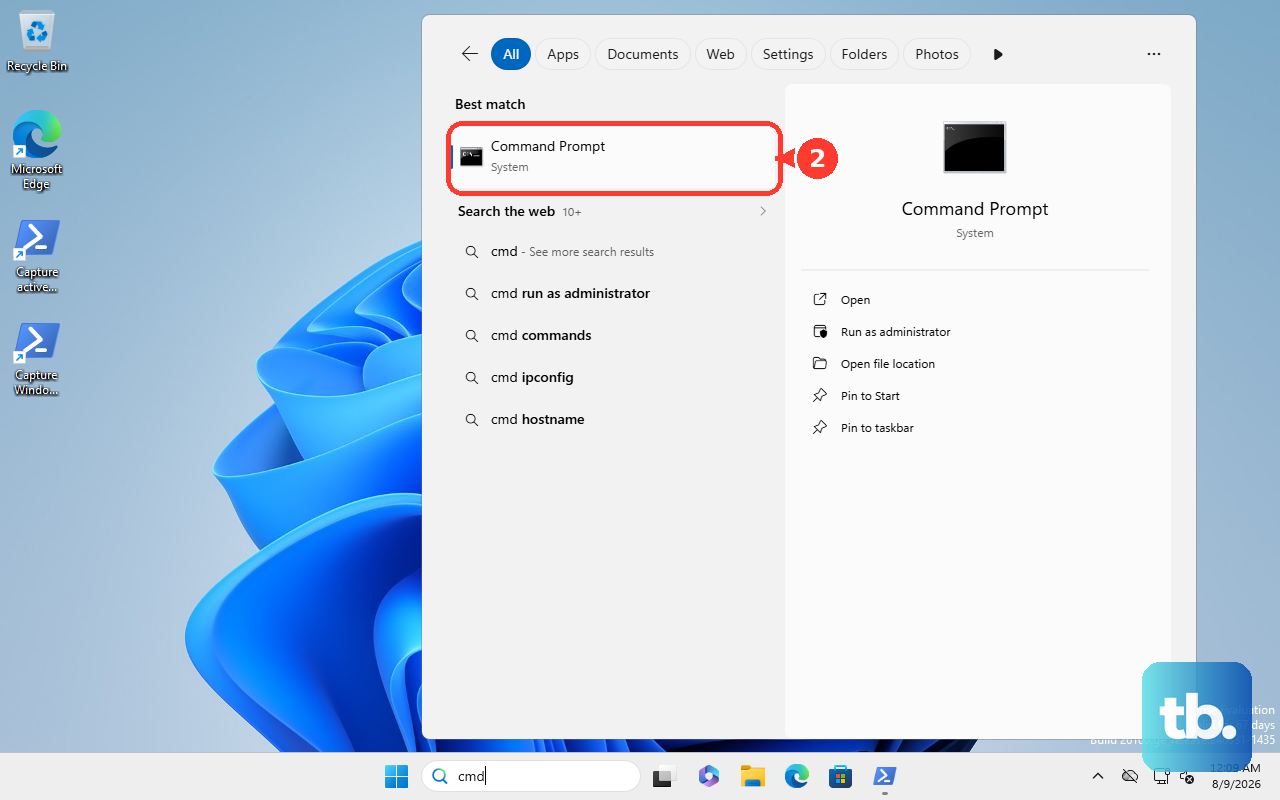
- 1.Run the component store repair first:
DISM.exe /Online /Cleanup-image /Restorehealth. It may take a few minutes to start and complete, so let it finish. - 2.After DISM reports success, run the file scan:
sfc /scannow. Note the space between sfc and the slash. - 3.Do not close the window until the scan reaches 100%.
- 4.When you are finished, type
exitand press Enter to close Command Prompt.
Running DISM before SFC matters, because a healthy component store gives SFC clean files to repair from. Once both finish, restart and check whether Start behaves normally.
Test the Problem With a Separate Administrator Account
Some Start menu problems are tied to a single damaged user profile rather than the whole system. Signing in with a different administrator account isolates the cause quickly. If you do not have a second administrator account, create a new account and make it an administrator.
To create a local account in Windows 11, go to Settings > Accounts > Other users. Under Add other user, select Add account, choose I don't have this person's sign-in information, then Add a user without a Microsoft account, and finish setup.
To give that account administrator rights, return to Other users, select the new account, and next to Account options select Change account type. Pick Administrator, then select OK. If Start works perfectly in the new account, your original profile is the culprit.
Recover Your Sign-In When You Are Locked Out
Sometimes the real blocker is not the Start menu at all, and you simply cannot sign in. The reset steps depend on your account type: a Microsoft account, which signs in with an email address, or a local account.
For a Microsoft account, at the Windows sign-in screen select I forgot my password. Alternatively, select Sign-in options, then Web sign-in, follow the prompts, and select Forgot my password. From any browser you can also open the Microsoft account Reset password page.
For a local account, at the sign-in screen select the password entry button, select OK, then Reset password, and answer the security questions you set when you created the account. Once you are back in, you can resume the earlier fixes if the Start menu still needs attention.
Reinstall the Current Version of Windows and Keep Your Files
If repairs do not hold, Windows 11 includes an in-place repair that keeps your apps, files, and settings while refreshing the Windows installation. This is gentler than a full reset and often resolves stubborn shell problems.
Microsoft says this option needs Windows 11 version 22H2 or later with the February 2024 optional update (or a newer update) installed. It is not available on devices managed by a work or school. Keep the PC plugged in and connected to the internet throughout.
Go to Start > Settings > System > Recovery, and under Fix problems using Windows Update select Reinstall now. Choose whether the PC can restart automatically 15 minutes after the installation completes, then select OK.
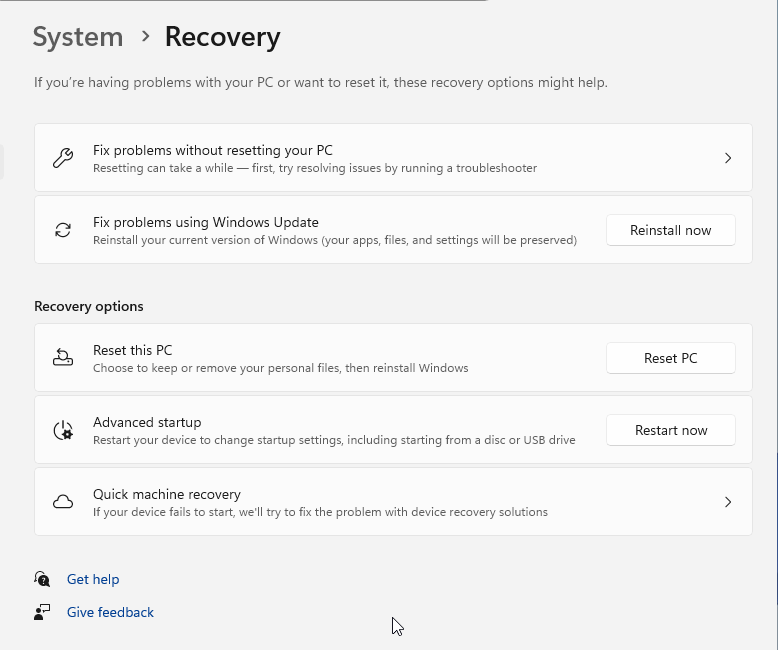
Windows downloads a repair version of the last successful update and reinstalls it over your current setup. If you did not allow the automatic restart, restart the PC yourself when it finishes. Because your apps and personal files are preserved, this is a strong option to try before the more drastic reset below.
Reset Windows as Your Last Resort
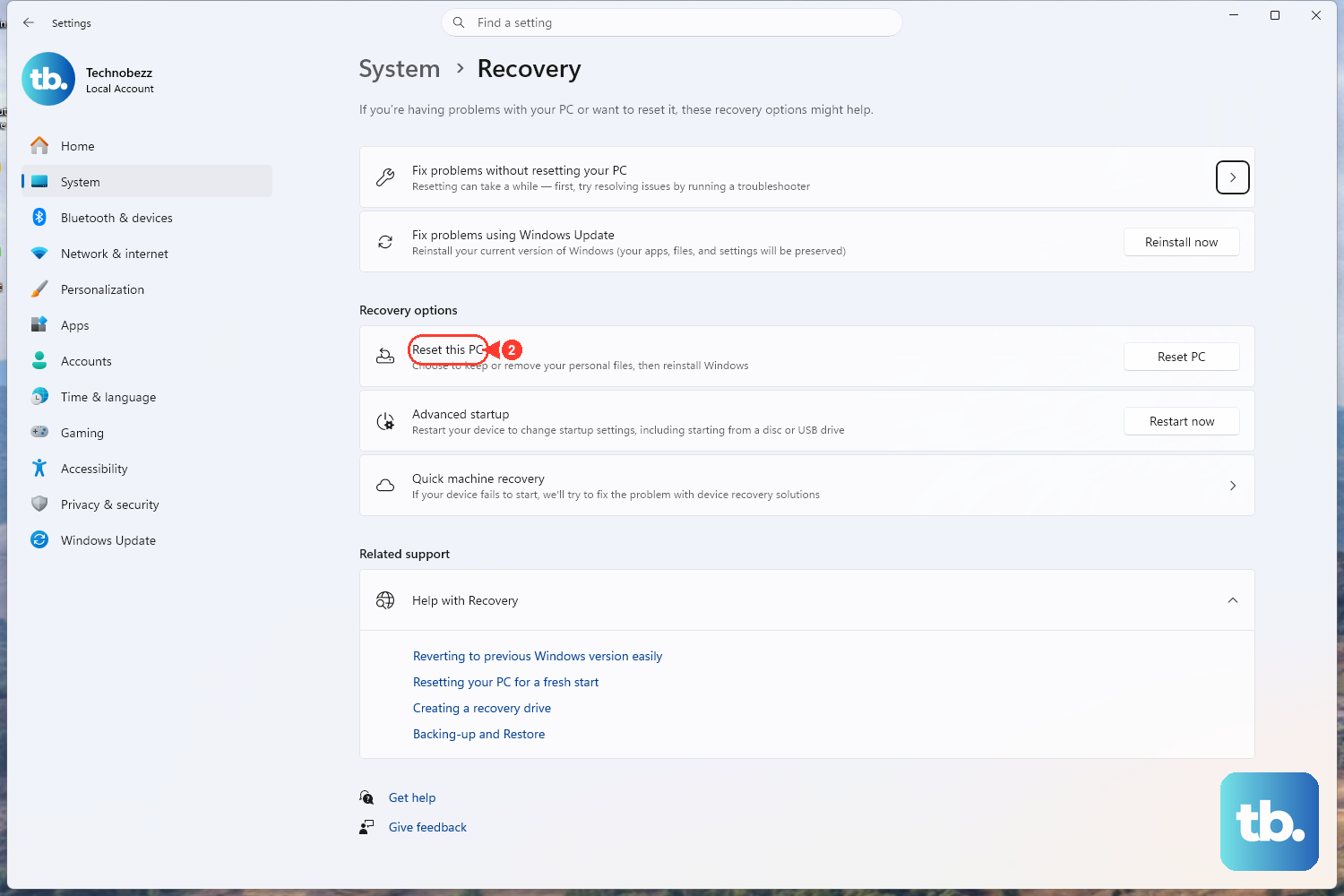
If nothing else works, resetting the PC rebuilds Windows from scratch. Treat this as the final step, since it removes installed apps and settings even in the gentlest mode. Back up your files first.
In Windows 11, go to Start > Settings > System > Recovery, and under Recovery options select Reset PC. Choose Keep my files, which preserves personal files but removes installed apps and settings, or Remove everything. Then choose Cloud download or Local reinstall and follow the on-screen instructions.
A few cautions before you commit. If your device is encrypted, make sure you have your BitLocker recovery key. The screen can also go black for a while (occasionally upwards of 15 minutes) and the PC may restart itself during the reset, so do not force a restart even if it looks stuck, since that can make the reset fail.
Frequently Asked Questions
What is the quickest thing to try when the Start menu stops working?
Start with a full restart, then check for updates. In Windows 11, go to Start > Settings > Windows Update and select Check for Windows updates. If you cannot open Start, press Ctrl + Alt + Delete, choose Power, and select Restart.
Do I have to run DISM and SFC in a specific order?
Yes. Run DISM.exe /Online /Cleanup-image /Restorehealth first and wait for it to report success, then run sfc /scannow. Keep the elevated Command Prompt open until the scan reaches 100%.
How do I know if the problem is just my user account?
Create a second account in Settings > Accounts > Other users, set it as an administrator, then sign in to it. If the Start menu works there, your original profile is damaged rather than the whole system.
Will reinstalling or resetting Windows delete my files?
The Reinstall now option under Settings > System > Recovery keeps your apps, files, and settings. A full reset is different. Keep my files preserves personal files but removes installed apps and settings, while Remove everything erases your data.
What should I prepare before resetting my PC?
Back up your files, and if your device is encrypted, have your BitLocker recovery key ready in case Windows asks for it. The screen may go black for a while, occasionally upwards of 15 minutes, so do not force a restart while it works.