
A slow, crashing, or unexpectedly shutting down computer does not by itself prove that the CPU is failing. Intel also points to cooling, power, and memory when troubleshooting these symptoms.
Check the specific warning and use your device maker's diagnostics where available. A failed processor test or a persistent CPU status light warrants help from the processor or computer maker.
1. Slowness that comes with heat or loud fans
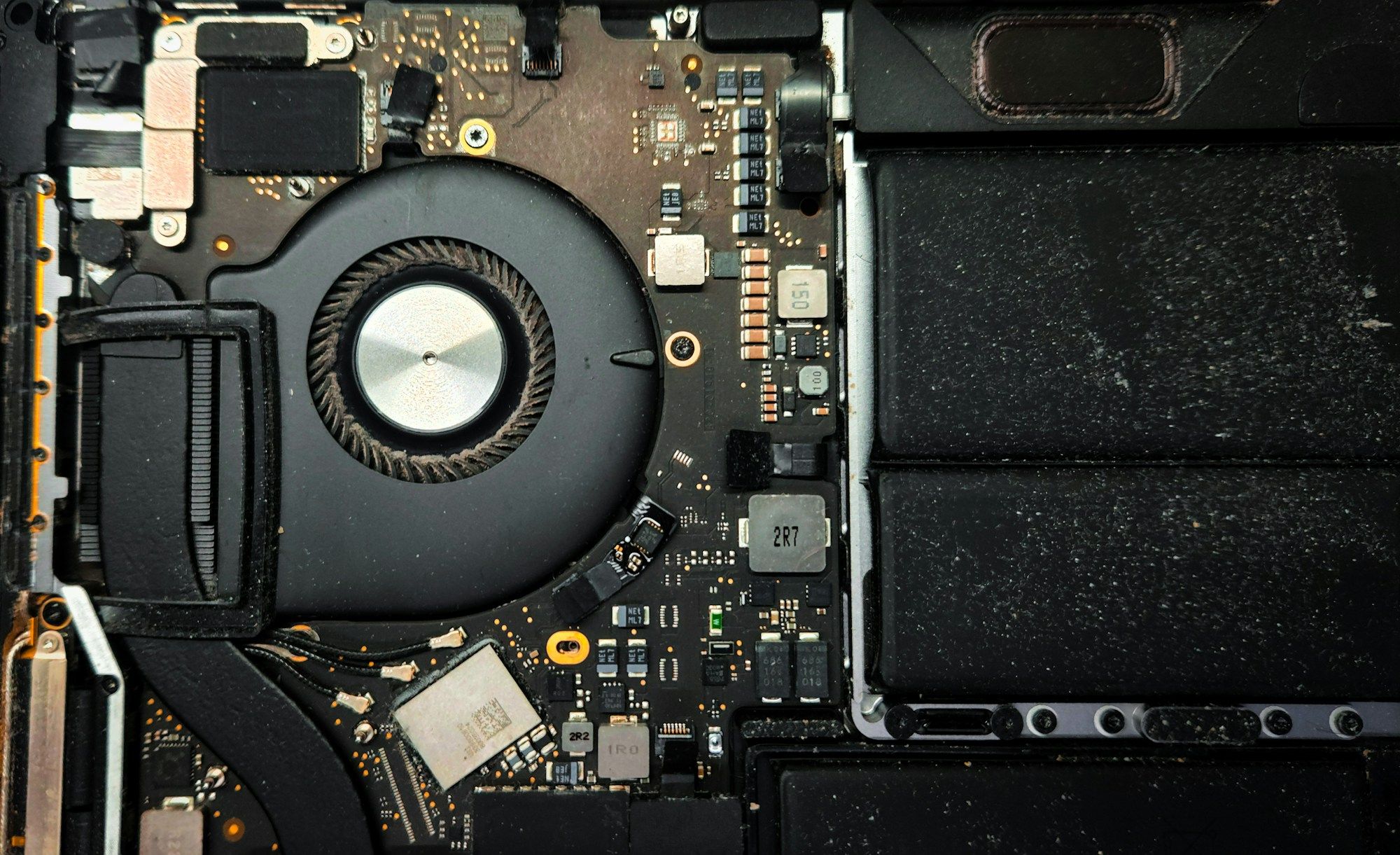
Why it happens: An overheating processor can slow itself down, while blocked airflow can make fans work harder. Intel lists slowness, lower than expected CPU frequency, and excessive fan noise among overheating symptoms. Dust can also clog vents and the heatsink fan.
Dell distinguishes fans that speed up during heavy work, such as a Windows update, from fans that remain abnormally loud while the computer is idle. Its fan diagnostic can show whether the fan hardware works.
How to fix it: Check that exterior vents are clear. If the heat and slowness continue, ask the PC maker to check the cooling system using Intel's overheating guidance as a starting point. On a Dell with the F12 One-time Boot Menu, restart, press F12 at the Dell logo, and select Diagnostics. For a focused check, select ADVANCED TEST, clear Select All, choose each fan and Thorough, then select RUN TEST. Save any error and validation codes.
2. Repeated freezes or stop code crashes

Why it happens: Crashes can involve heat, memory, power, hardware, drivers, or software. A Windows stop code alone does not identify the CPU. Microsoft says the code and, when shown, the module name can help identify the cause. Intel also lists an undersized power supply and improperly seated memory as possible causes of freezing in a self-built PC.
Microsoft gives PAGE_FAULT_IN_NONPAGED_AREA and MEMORY_MANAGEMENT as examples of codes to record. A newly installed device matters too: Microsoft recommends removing new hardware and restarting when crashes began after it was added.
How to fix it: Record the stop code. In Windows 11, select Start > Settings > Windows Update > Check for updates, then follow Microsoft's troubleshooting steps if crashes continue. Right-click Start > Device Manager and look for an exclamation point; right-click the marked device and select Update driver. If Windows struggles to restart, Microsoft says to start in safe mode before trying its remaining checks.
3. Shutdowns shortly after startup

Why it happens: Overheating can make a processor shut down to protect itself, though Intel says this symptom has other possible causes. For boxed desktop processors, Intel recommends checking the fan and thermal materials. Dell says a computer that shuts down without feeling hot may instead have a power or battery problem.
A hot computer that stops within minutes fits Intel's overheating scenario. A cool Dell that stops unexpectedly calls for power or battery checks. On a self-built PC, Intel recommends starting with minimal hardware, including one memory module, to help isolate a startup fault.
How to fix it: Check exterior vents for blockage. If shutdowns continue, ask the PC maker to assess cooling and power before replacing the CPU; see Intel's shutdown guidance. For an Intel boxed desktop, have the builder check fan operation and cooler installation. If a Dell starts long enough to reach its F12 One-time Boot Menu, press F12 at the Dell logo and select Diagnostics. Save any error and validation codes for service.
4. A CPU fan or temperature warning at startup
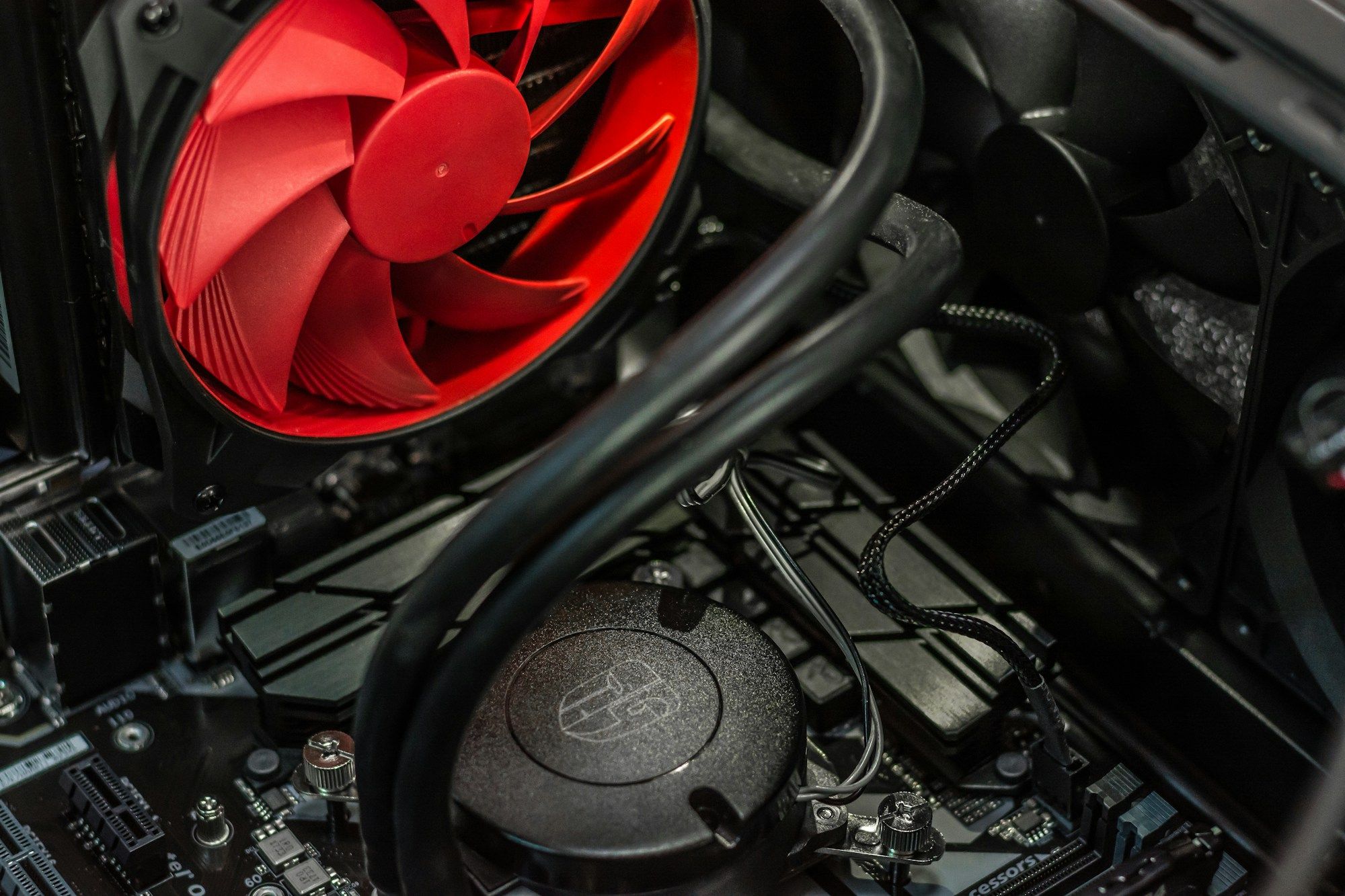
Why it happens: On ASUS motherboards, a CPU FAN Error means the board does not detect the fan. A CPU Over Temperature Error reports excessive CPU temperature, not a confirmed failed chip. ASUS says a slow third-party fan can trigger a fan warning because the board may not detect its speed correctly.
ASUS shows 85°C in red as an example of an excessive reading. An N/A fan speed means the fan stopped or was not detected. Its temperature guide also calls for checking cooler fan blades for dust or damage.
How to fix it: For the ASUS temperature warning, press F1 to enter BIOS Setup EZ Mode and read the CPU temperature and fan speed. If the reading is high or the fan shows N/A, stop using the PC and contact ASUS; follow its temperature warning guidance. On a desktop, have the builder confirm that the fan cable is firmly connected to CPU_FAN rather than CHA_FAN. ASUS recommends its service center if the temperature checks do not resolve the warning.
5. A CPU status light that stays on
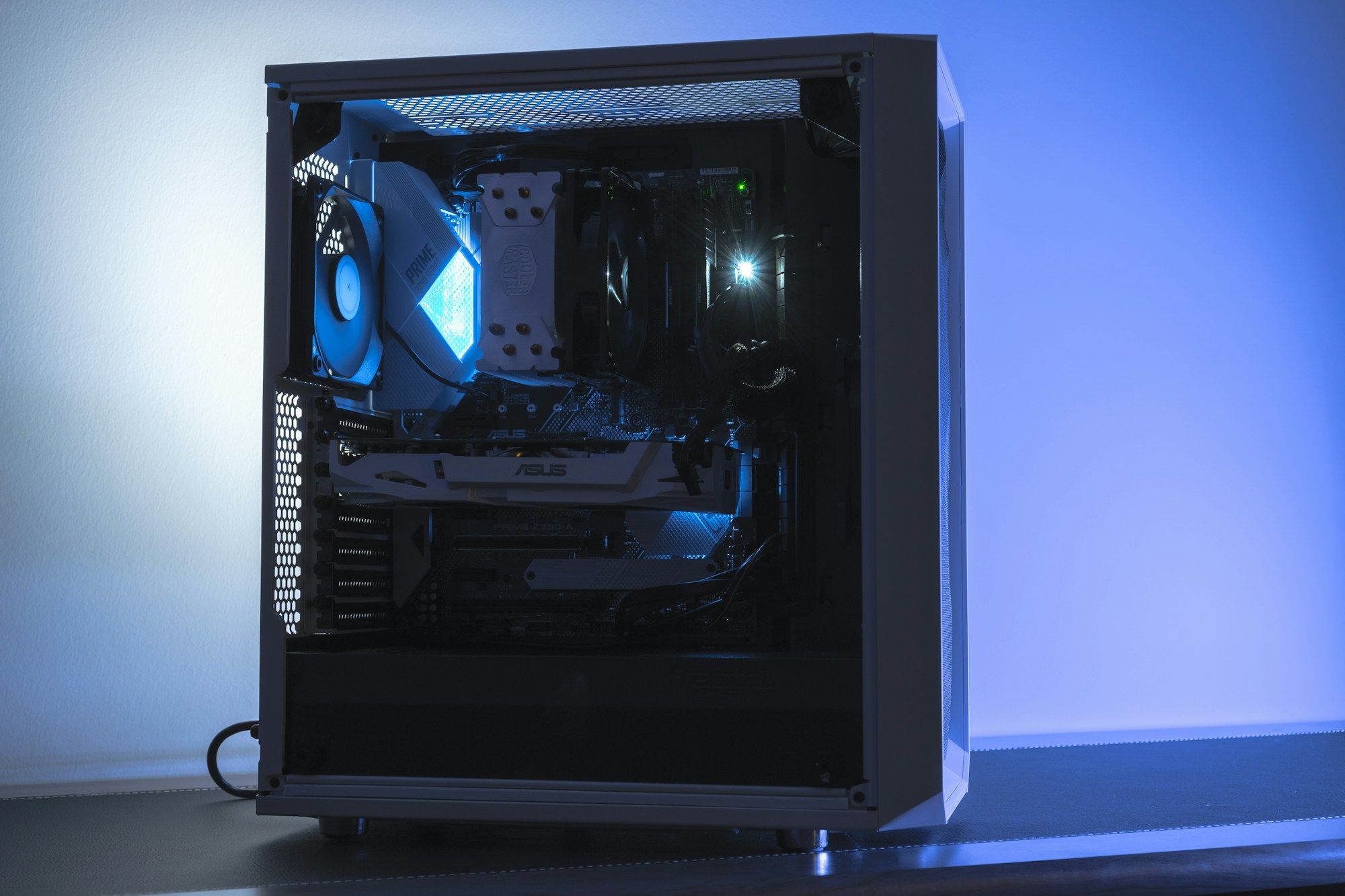
Why it happens: On ASUS boards with Q-LED, a CPU light that remains on during startup indicates that the CPU is absent or may be faulty. ASUS uses different persistent lights for DRAM, VGA, and BOOT problems. A DRAM light points to memory, while BOOT points to a missing or faulty startup drive.
ASUS's CPU light procedure starts with reinstalling the processor and checking the socket or CPU pins for dirt or damage. It recommends trying another processor after those checks. Identifying the light first keeps the inspection focused on the part named by the board.
How to fix it: Check your motherboard manual to confirm that it has Q-LED and that you identified the CPU light. If it stays on, contact ASUS support for diagnosis using its Q-LED guidance. To verify Q-LED support on ASUS's site, search your motherboard model, open Specifications > Special Features > ASUS Q-Design, and look for ASUS Q-LED. Give support the exact light label and the results of any seating or pin check.
6. An Intel processor diagnostic reports FAIL
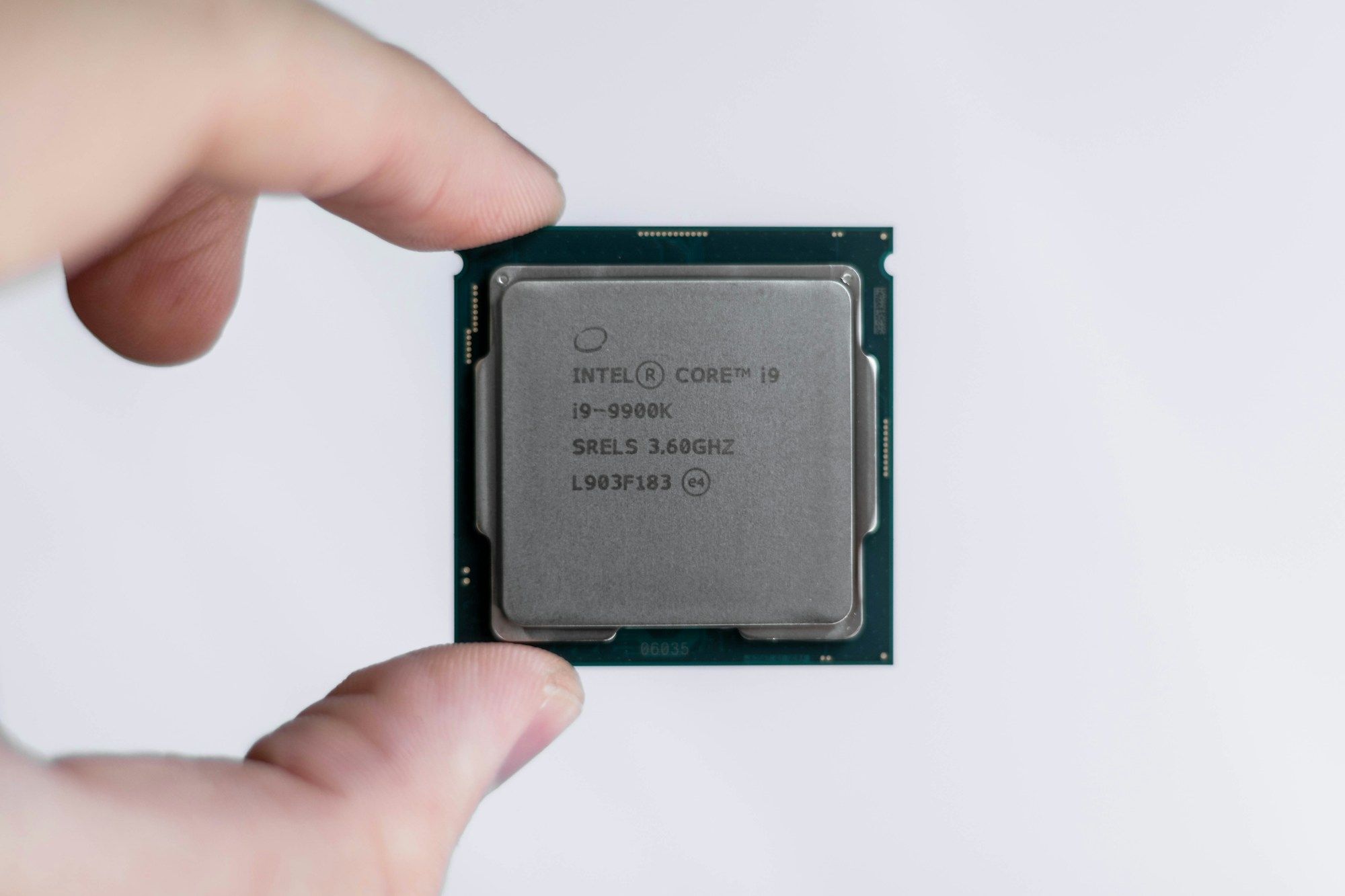
Why it happens: Intel's Windows diagnostic tests processor functions and reports PASS or FAIL. Intel says cooling or heavy CPU use can affect some failed test results. The default run checks cores, identity, frequency, and processor features, and includes a stress test. Intel also lists insufficient available memory as a possible contributor to a Prime Number failure.
The failed test name gives the maker more detail than a bare FAIL message. For a Prime Number failure, Intel says to check cooling, BIOS settings, CPU use, and available memory. Those checks can change the result before a processor is replaced.
How to fix it: Check cooling and CPU use, then share the result with Intel or your PC maker before replacing the processor. Start with the Intel Processor Diagnostic Tool guide. In the tool, select File > View Results File, then File > Save As to keep the detailed result. Open Task Manager > Performance > CPU to check use; Intel also says to review Memory after a Prime Number failure. The tool supports Windows, with no Linux or macOS version.
7. A burning or chemical smell
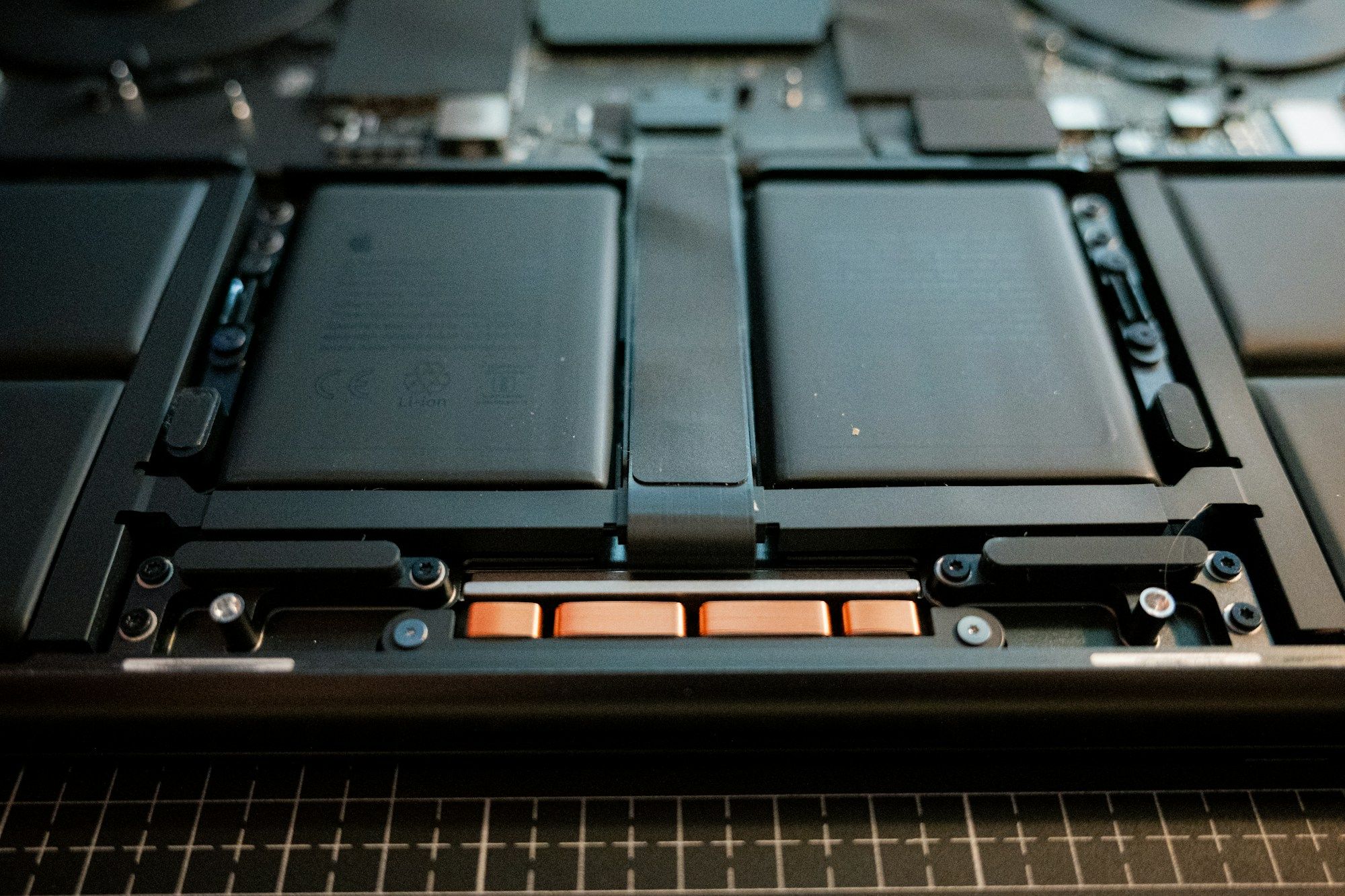
Why it happens: A burning smell can signal a battery or electrical fault. It does not identify the CPU as the source. Dell classifies a burning or chemical smell as a safety condition. It puts a swollen or deformed chassis, keyboard, or trackpad and a computer that remains too hot to touch after shutdown in the same category.
These details call for stopping use before ordinary troubleshooting. Dell specifically warns against opening the computer or removing a swollen battery yourself. A shutdown without unusual heat can have a power or battery cause, but a smell still triggers Dell's stop-use guidance.
How to fix it: Turn off the computer, disconnect its AC adapter, and stop using it. Contact the computer maker for service, as Dell's safety guidance advises. Do not restart it to run a CPU or fan test while the smell or swelling is present. If it is a Dell, tell support about the odor, swelling, or remaining heat and have its Service Tag ready. Leave battery removal to the service provider.