
If your Samsung Galaxy S24 is refusing to send pictures or group texts, it's almost always a quick settings fix. The most common culprit is that your mobile data is off, as MMS requires it even when you're on WiFi. I'd start by swiping down from the top of your screen and making sure the mobile data icon is lit up.
You can also dive into Settings > Connections > Mobile networks to double-check. If you see a strong signal but messages still won't go, try toggling Airplane mode on for a few seconds and then off again to refresh your connection to the tower.
Verify Your MMS App Settings
Open your Samsung Messages app and tap the three-dot menu in the top right. Go to Settings > Multimedia messages. Here, make sure "Auto download" is enabled. If it's off, your phone won't automatically retrieve MMS, which can sometimes block outgoing ones, too.
Also, look for a setting called "Group conversation" and ensure it's turned on. If this is off, your phone might be trying to send group messages as individual SMS threads, which will fail. These settings can occasionally get reset after a software update on the S24.
Clear the Messaging App's Cache
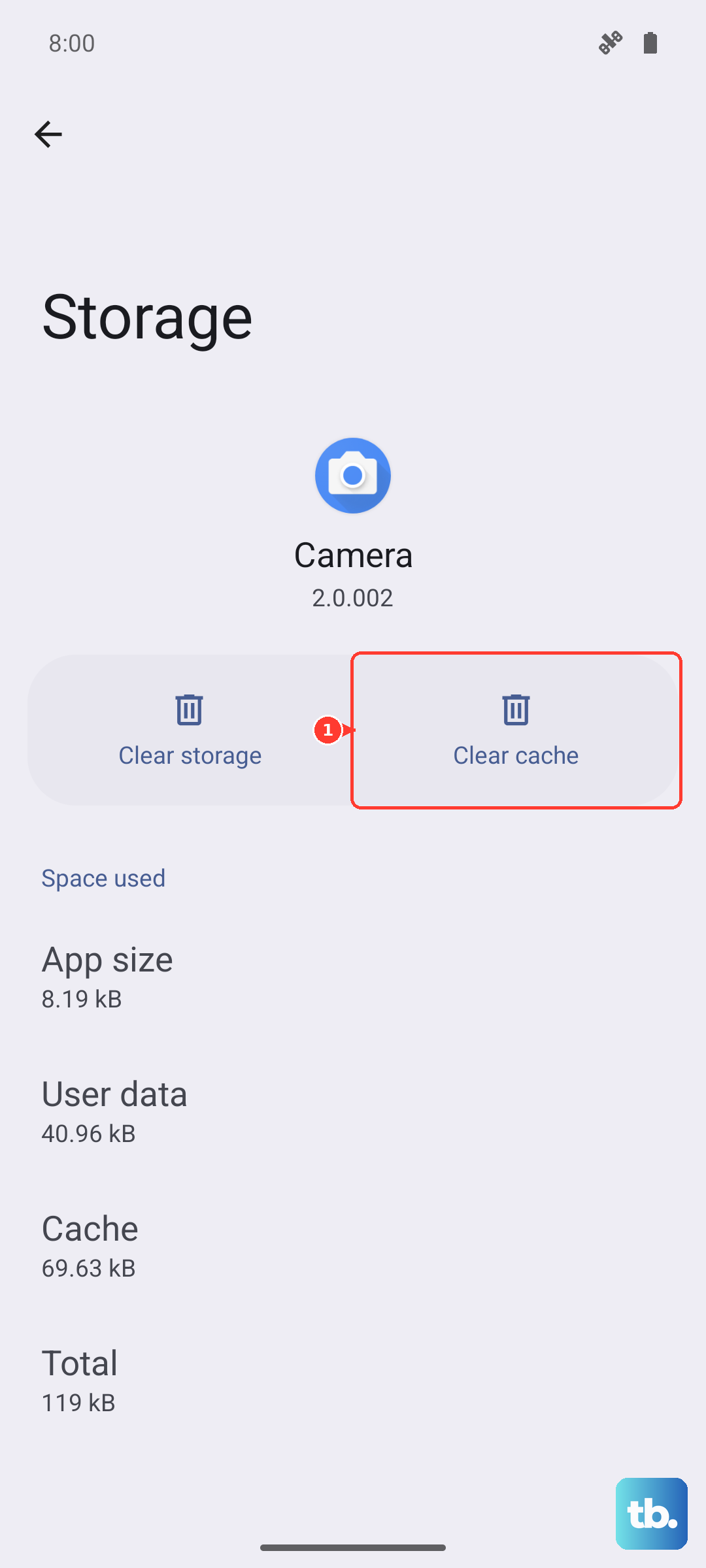
Corrupted temporary files in the messaging app can cause all sorts of delivery hiccups. Clearing the cache is a safe first step that won't delete your conversations. Go to Settings > Apps, find and tap on Messages.
Select Storage and then tap Clear cache. Give it a moment, then try sending an MMS again. If that doesn't work, you can go back and tap Clear data, but be warned this will erase your entire message history within the Samsung app, so only do this if you're okay with that.
Check and Update APN Settings
Your Access Point Name (APN) is like the address your phone uses to find your carrier's data and MMS services. If it's wrong, multimedia messages get lost. To check, go to Settings > Connections > Mobile networks > Access Point Names.
You should see an APN selected, usually with your carrier's name. Tap on it to view the details. The most critical fields for MMS are the "MMSC" address and the "APN type." If these are blank or look incorrect, the fastest fix is to get the right settings directly from your carrier. You can usually find them on their support website or by contacting them.
Reset Your Network Settings
This is a more thorough step that can fix deeper glitches without touching your personal data. It will wipe all your saved WiFi passwords, Bluetooth pairings, and mobile network preferences, so you'll have to reconnect to your networks afterward.
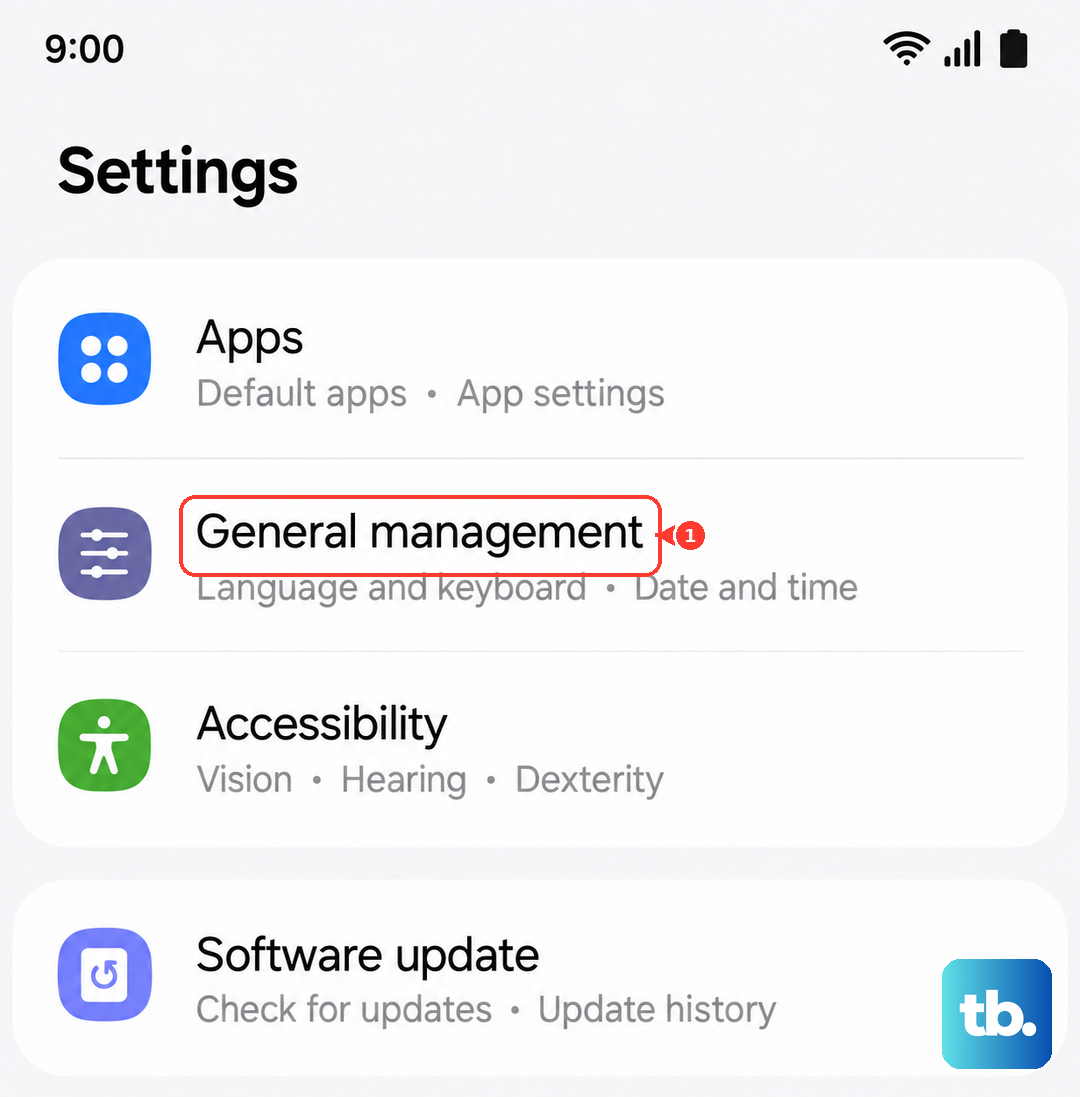
On your S24, navigate to Settings > General management > Reset > Reset network settings. Tap to confirm, and your phone will restart. Once it's back on, reconnect to your mobile network and WiFi, then test an MMS. This often resolves persistent issues after a major One UI update.
Ensure You're Not in Data Saver Mode
One UI's Data Saver feature can restrict background data usage, which sometimes includes the process needed to send and receive MMS. Pull down your notification shade twice to see the quick settings panel and look for the Data Saver icon. If it's active, tap it to turn it off.
You can also check in Settings > Connections > Data usage > Data saver. Make sure it's toggled off, or if you need it on, tap Allow apps while Data saver is on and ensure your Messages app is allowed.
Update Your Software and Carrier Services
Outdated system software can have bugs that break MMS functionality. Go to Settings > Software update > Download and install to check for any available updates. Installing the latest One UI patch can clear up these kinds of problems.
Also, open the Google Play Store, tap your profile icon, and go to Manage apps & device > Manage > Updates available. Look for an app called "Carrier Services" or something similar from your provider. If it's listed, update it, as this app handles communication between your phone and your carrier's network.
Try Google Messages as an Alternative
If you're still stuck, the issue might be with the Samsung Messages app itself. Installing Google Messages from the Play Store and setting it as your default can be a great workaround. Google's app often has more consistent MMS handling across different carriers.
After installing it, open the app and follow the prompts to make it your default. Then, try sending a photo message. If it works, you've confirmed the problem is app-specific. You can stick with Google Messages or use the success as a cue to investigate your Samsung app settings more closely.