
Missing calls on your Samsung Galaxy S23 can be incredibly frustrating, especially when you're expecting something important. You might see the missed call notification pop up, but you never heard a sound. The good news is this is usually a simple setting that got changed or a minor software hiccup.
I'd start by checking the most obvious things first. The physical buttons and volume settings are where most people find the solution.
Check Your Volume and Silent Mode
First, unlock your phone and press the volume up button on the side. Keep pressing until the volume slider on the screen shows it's at maximum. Make sure you're adjusting the "Ringtone" volume and not the "Media" or "Notification" volume, as they are controlled separately.
You can also check this in your settings. Go to Settings > Sounds and vibration. Here, you'll see sliders for Ringtone, Media, Notifications, and System. Drag the Ringtone slider all the way to the right.
Also, look at the top of your screen. If you see a circle with a line through it, your phone is in Silent or Vibrate mode. You can swipe down with two fingers from the top to open the Quick Settings panel and tap the "Sound" or "Vibrate" icon to switch it back to "Sound."
Review Do Not Disturb and Modes
Samsung's One UI has a powerful Modes and Routines feature (similar to Focus modes on other phones) that can automatically silence your phone. If a routine is active, it could be blocking your ringtone.
Open your Quick Settings panel by swiping down twice from the top of the screen. Look for an icon that says "Modes" or might show a moon. If it's highlighted, tap it to turn it off. For a more thorough check, go to Settings > Modes and routines.
Look at any active modes, like Sleep, Driving, or Work. Tap on them and make sure the "Mute" or "Sound" settings within that mode aren't set to silence calls. You can also tap the three-dot menu and select "Disable" to turn a mode off completely.
Disconnect Bluetooth Accessories
If your Galaxy S23 is connected to a Bluetooth device like headphones, a speaker, or your car, incoming call audio is often routed there. Your phone itself will stay silent.
Swipe down to open the Quick Settings panel and look for the Bluetooth icon. If it's blue, tap it to turn Bluetooth off temporarily. Now try having someone call you. If the ringtone plays normally, you know a Bluetooth device was the culprit.
You can manage this on a per-device basis later by going into Settings > Connections > Bluetooth, tapping the gear icon next to a device, and toggling off "Calls" for that accessory.
Verify Your Ringtone and Sound Settings
Sometimes the specific ringtone file can become corrupted. Try switching to a different one. Go to Settings > Sounds and vibration > Ringtone.
Choose a different default Samsung ringtone and tap "Done." Then, test with an incoming call. Also, while you're in the sound settings, scroll down and make sure "Vibrate for calls" is enabled if you want that extra alert.
Another setting to check is "Separate app sound." This can send audio from specific apps (like your Phone app) to a different output. Go to Settings > Sounds and vibration > Separate app sound and make sure it's turned off.
Check for Blocked Numbers and Call Settings
It's worth confirming you haven't accidentally blocked the person who's trying to reach you. Open your Phone app, tap the three-dot menu in the top right, and go to Settings > Block numbers.
Review the list to see if any numbers are there that shouldn't be. Also, check your call forwarding settings. In the Phone app settings, tap "Call forwarding." Make sure all options are set to "Turn off" or "Disable" so calls come directly to your phone.
Restart Your Phone
A simple restart clears out temporary glitches in the software that might be interfering with the sound system. Press and hold the Side key and Volume Down button together for about ten seconds.
You'll feel a vibration and see the Samsung logo as the phone reboots. This takes less than a minute and fixes a surprising number of odd issues.
Boot Into Safe Mode
If the problem started after installing a new app, that app could be causing a conflict. Booting into Safe Mode temporarily disables all third-party apps.
To do this, press and hold the Side key until the power menu appears. Then, press and hold the "Power off" option on your screen. You'll see a prompt to reboot to Safe Mode. Tap it.
If your phone rings normally in Safe Mode, a downloaded app is likely the problem. You'll need to restart to exit Safe Mode, then uninstall apps one by one (starting with the most recently installed) to find the culprit.
Update Your Software
Samsung regularly releases updates that fix bugs, including ones related to audio and calling. Make sure your S23 is running the latest version of One UI and Android.
Connect to Wi-Fi, then go to Settings > Software update > Download and install. If an update is available, install it. I've seen several updates for the S23 that addressed specific sound and notification issues reported by users.
Reset App Preferences or Settings
If the issue is isolated to a specific calling app like WhatsApp or Facebook Messenger, try resetting that app's preferences. Go to Settings > Apps, select the app in question, tap "Storage," and then "Clear cache." Do not select "Clear data" unless you're prepared to log back into the app.
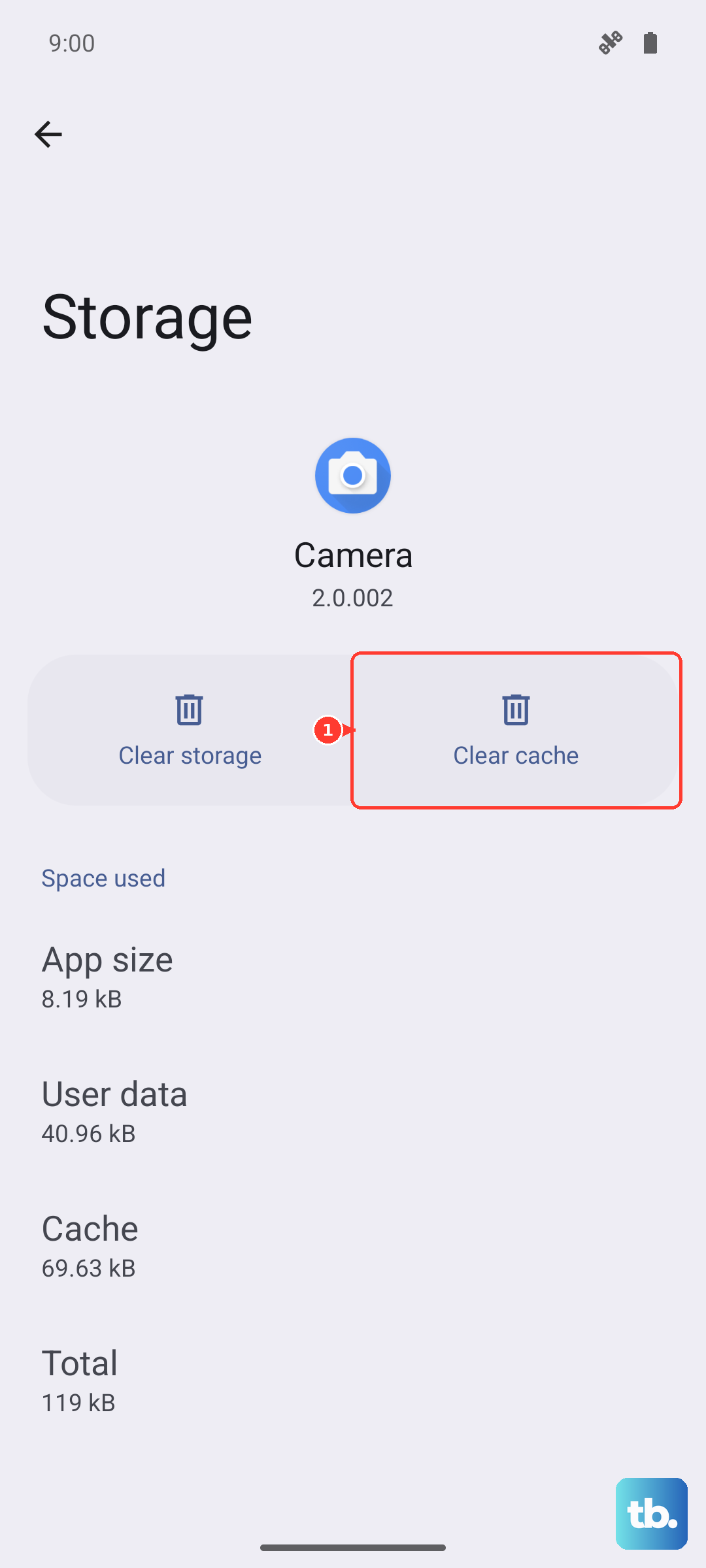
Also, ensure the app has notification permissions. Go to Settings > Notifications > App notifications, find the app, and make sure it's toggled on and set to "Allow notifications."
Perform a Network Settings Reset
This can help if you're having issues with carrier calls not coming through properly. It will reset your Wi-Fi, Bluetooth, and mobile network settings back to default, so you'll need to reconnect to Wi-Fi networks afterward.
Go to Settings > General management > Reset > Reset network settings. Tap "Reset settings" and enter your PIN if prompted. This doesn't delete any personal data like photos or messages.











