When videos on your Samsung Galaxy Tab S9 start stuttering, freezing, or buffering endlessly, it can ruin the whole experience. This is a common headache, but the good news is you can usually fix it yourself without too much fuss.
Free Up Storage Space on Your Tab S9
This is often the culprit, especially if you've downloaded a lot of high-resolution videos or games. When your tablet's storage is nearly full, the system struggles to read and write data smoothly, which directly causes video lag.
Head to Settings > Battery and device care > Storage to see how much space you have left. If you're below 5-10GB free, it's time for a cleanup. You can use the built-in cleaner here or manually delete old downloads and unused apps.
For videos you want to keep, consider moving them to a microSD card if you have one, or uploading them to a cloud service like Google Drive or Samsung Cloud to free up that crucial internal storage.
Check Your Internet Connection for Streaming
If the lag only happens with streaming apps like YouTube, Netflix, or Disney+, your Wi-Fi is the first place to look. The Tab S9's high-resolution screen demands a strong, stable connection for smooth playback.
Try running a speed test on your tablet. You can also try switching between the 2.4GHz and 5GHz bands on your router if you have both available. The 5GHz band is usually faster and less congested, which is better for video.
As a test, try downloading a video file to play locally. If that plays perfectly, you've confirmed the issue is with your network and not the tablet itself.
Close Background Apps and Boost Performance
Too many apps running in the background can eat up your Tab S9's RAM and processing power, leaving less for smooth video playback. This is especially true if you're multitasking or using Samsung DeX mode.
Swipe up from the bottom and hold to see your recent apps, then tap "Close all" to give your system a fresh start. For a more thorough boost, go to Settings > Battery and device care > Memory and tap "Clean now" to free up RAM.
You can also enable a hidden developer option for a more aggressive cleanup. Go to Settings > About tablet > Software information and tap "Build number" seven times to unlock Developer options. Then, go back and find Developer options > Running services to see exactly what's using your resources.
Update Your Software and Apps
An outdated version of One UI or the video app itself can have bugs that cause playback issues. Manufacturers regularly release updates that include performance optimizations and codec fixes.
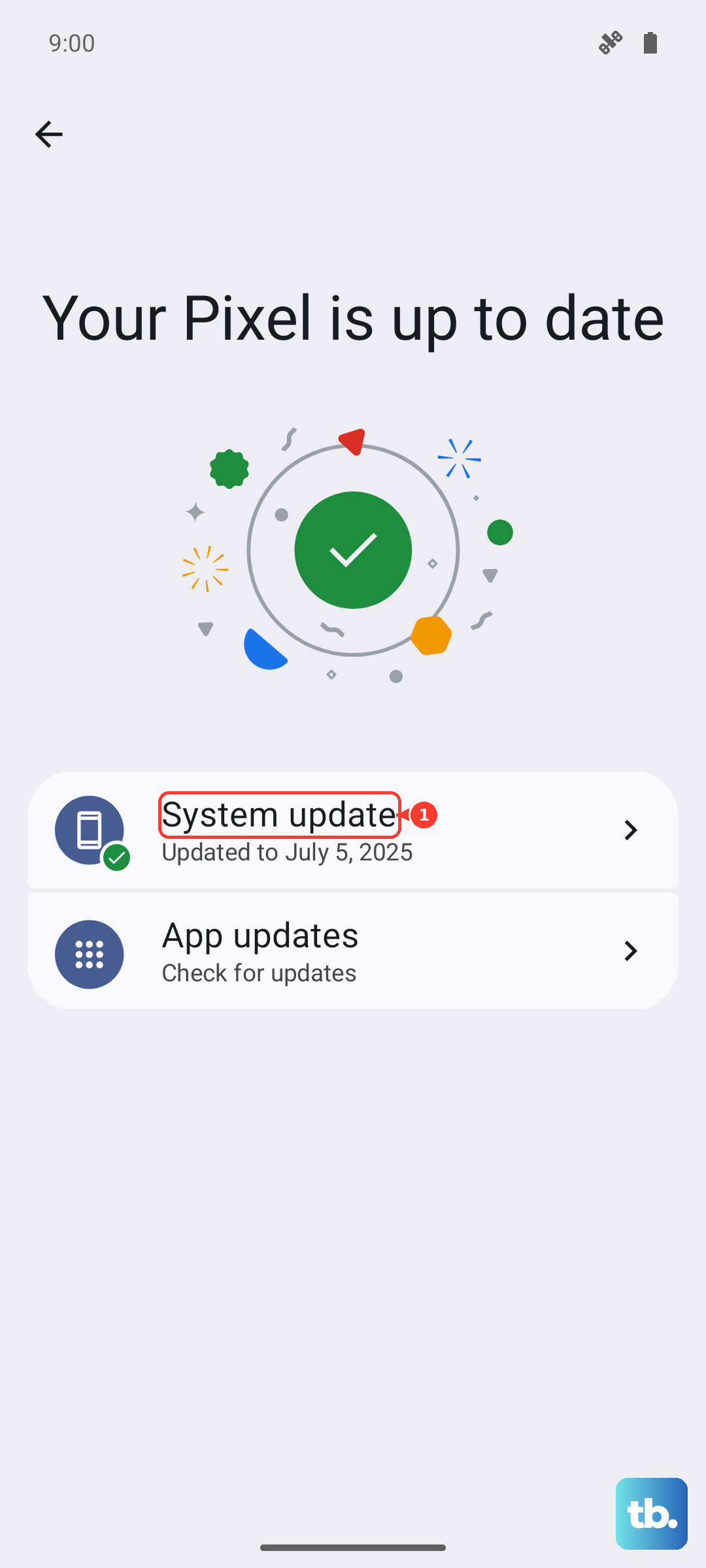
Check for a system update by going to Settings > Software update > Download and install. For your apps, open the Galaxy Store or Google Play Store, go to your profile menu, and check for updates there, paying special attention to your video players and streaming services.
Adjust Video and Display Settings
Sometimes the tablet is working hard to play a video in a resolution or format that's causing a strain. If you're playing a very high-bitrate 4K or HDR video file, try switching to a lower resolution within the video player app's settings.
Also, check your display settings. Go to Settings > Display > Motion smoothness. If it's set to "Adaptive," try switching it to "Standard." The adaptive setting can sometimes interfere with the frame rate of certain video content, making it look choppy.
Clear the App's Cache and Data
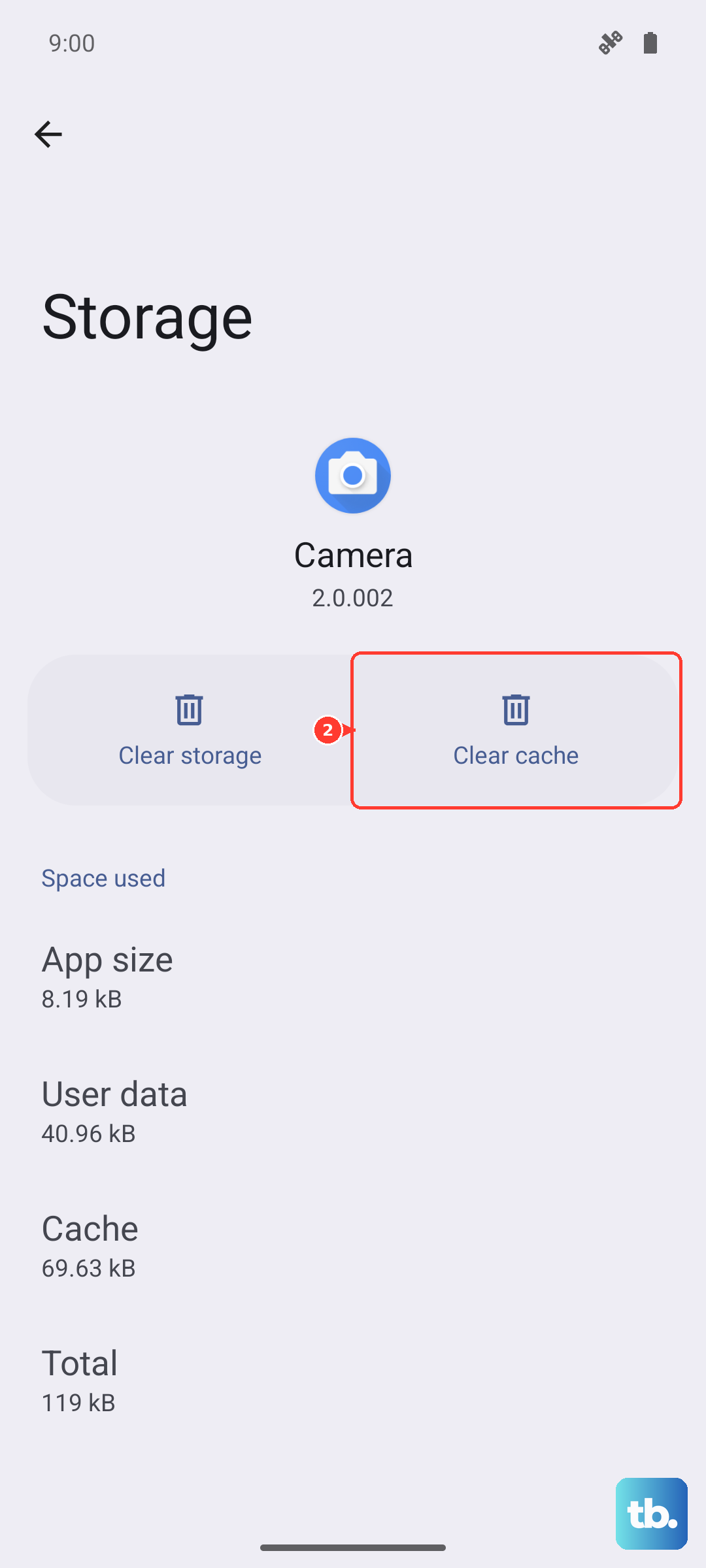
If the lag is specific to one app, like YouTube or VLC, the app's temporary data (cache) might be corrupted. Clearing it can often resolve playback glitches without deleting your login info or downloads.
Go to Settings > Apps, select the problematic video app, then tap "Storage." Tap "Clear cache" first. If the problem continues, you can tap "Clear data," but be aware this will reset the app to its default state and you may need to log back in.
Perform a Soft Reset
A simple reboot can clear out temporary software glitches that might be affecting performance. Press and hold the Volume Down button and the Side (power) button together for about 10 seconds until you see the Samsung logo appear, then release.
This forces the tablet to restart and refreshes all system processes. It's a quick and harmless first step that fixes a surprising number of odd behaviors, including video lag.
Check for Overheating
The Galaxy Tab S9 is powerful, but intensive video playback, especially at high brightness or while charging, can cause it to get warm. To prevent performance throttling, make sure the tablet is in a well-ventilated area.
Avoid using it on a soft surface like a blanket or pillow that can block the vents. If it feels hot to the touch, give it a break to cool down. Playing videos while using a slow charger can also contribute to excess heat buildup.
Reset All Settings
If you're still having issues and you've tried everything else, this step can help. It resets all your system settings (like Wi-Fi passwords, Bluetooth connections, and display preferences) back to default without deleting any of your personal data, photos, or apps.
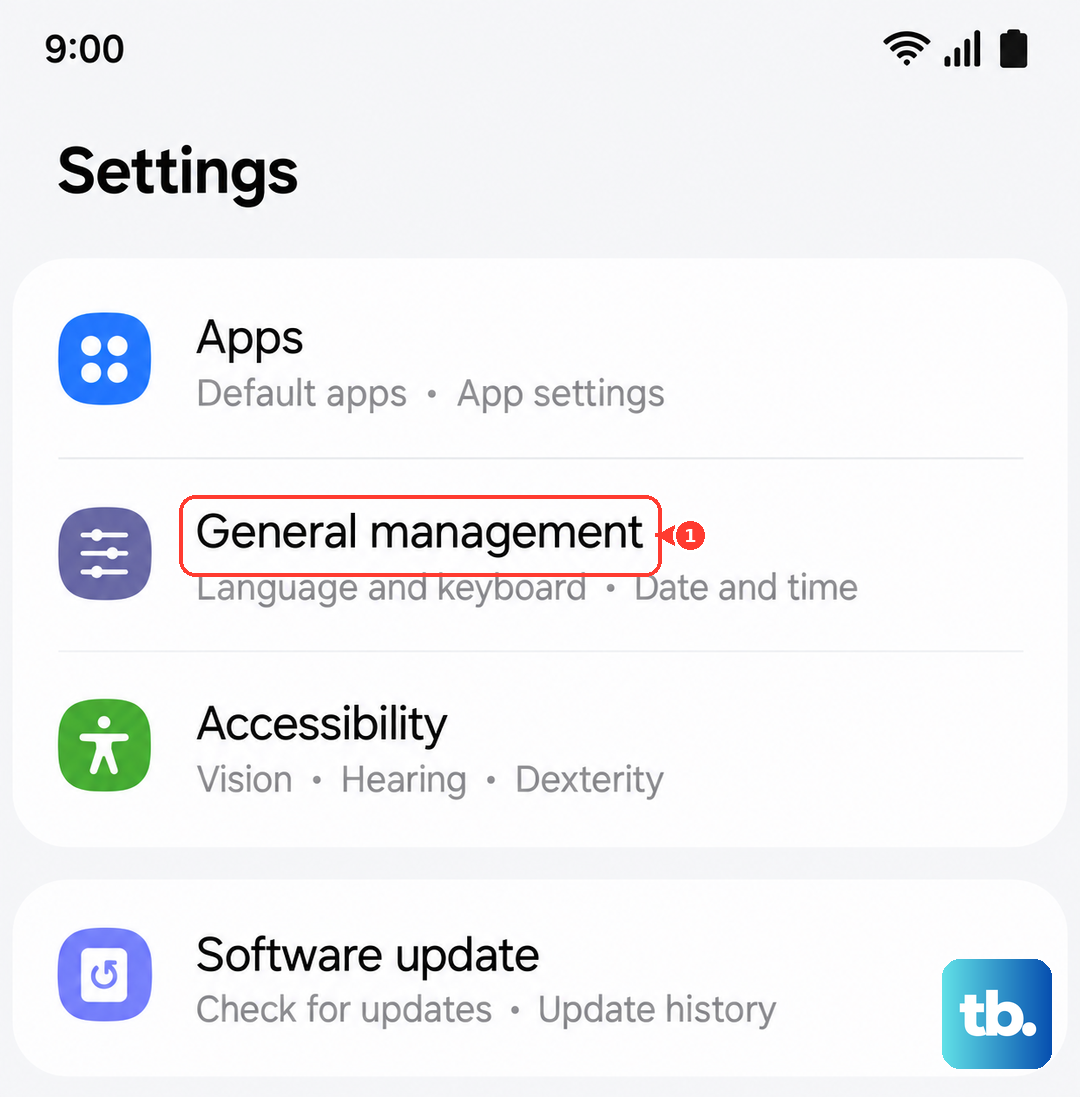
Go to Settings > General management > Reset > Reset all settings. You'll need to re-enter your Wi-Fi passwords and reconfigure things like your home screen layout, but it can eliminate a misconfigured setting that's causing the problem.