
When your Galaxy S26+ stops responding to "Hi Bixby" or Google Assistant, it can feel like your phone has gone deaf. The voice assistant that's supposed to help you hands-free suddenly ignores you. Here's how to get it listening again.
Start With a Quick Restart
Before diving into settings, give your phone a fresh start. A simple force restart can clear out temporary glitches that might be affecting the microphone or voice services. Just press and hold the Volume Down button and the Side/Power button together for about 10 seconds until you see the Samsung logo appear.
Check Your Voice Assistant Settings
First, confirm that your preferred voice assistant is actually enabled and set to listen. On the S26+, you might be using Bixby, Google Assistant, or both.
For Bixby, open the Bixby app or go to Settings > Advanced features > Bixby. Make sure "Voice wake-up" is turned on. For Google Assistant, open the Google app, tap your profile picture, go to Settings > Google Assistant > Hey Google & Voice Match. Ensure "Hey Google" is enabled.
Look for Software Conflicts
Certain features in One UI 8.5 can interfere with voice wake-up commands. A common one is the Mute mode. If your phone is set to vibrate or silent, the assistant might not respond audibly.
Check your ringtone volume with the side buttons. Also, go to Settings > Sounds and vibration and make sure "Do not disturb" is off. Another setting to check is in Settings > Accessibility > Hearing enhancements > Sound detectors. If this is on, it can prevent "Hi Bixby" from working.
Retrain Your Voice Model
If the assistant hears you but doesn't activate, it might need a refresher on your voice. Background noise, a different way of speaking, or a software update can throw off the recognition.
For Bixby, go to Settings > Advanced features > Bixby > Voice wake-up. Tap "Retrain voice model" and follow the prompts. For Google Assistant, go to Google app > Settings > Google Assistant > Hey Google & Voice Match and tap "Retrain voice model." Speak the phrases clearly in your normal tone.
Check Microphone Permissions and Access
Your S26+ needs microphone access for the voice assistant to work. A recent app installation or update might have changed a permission.
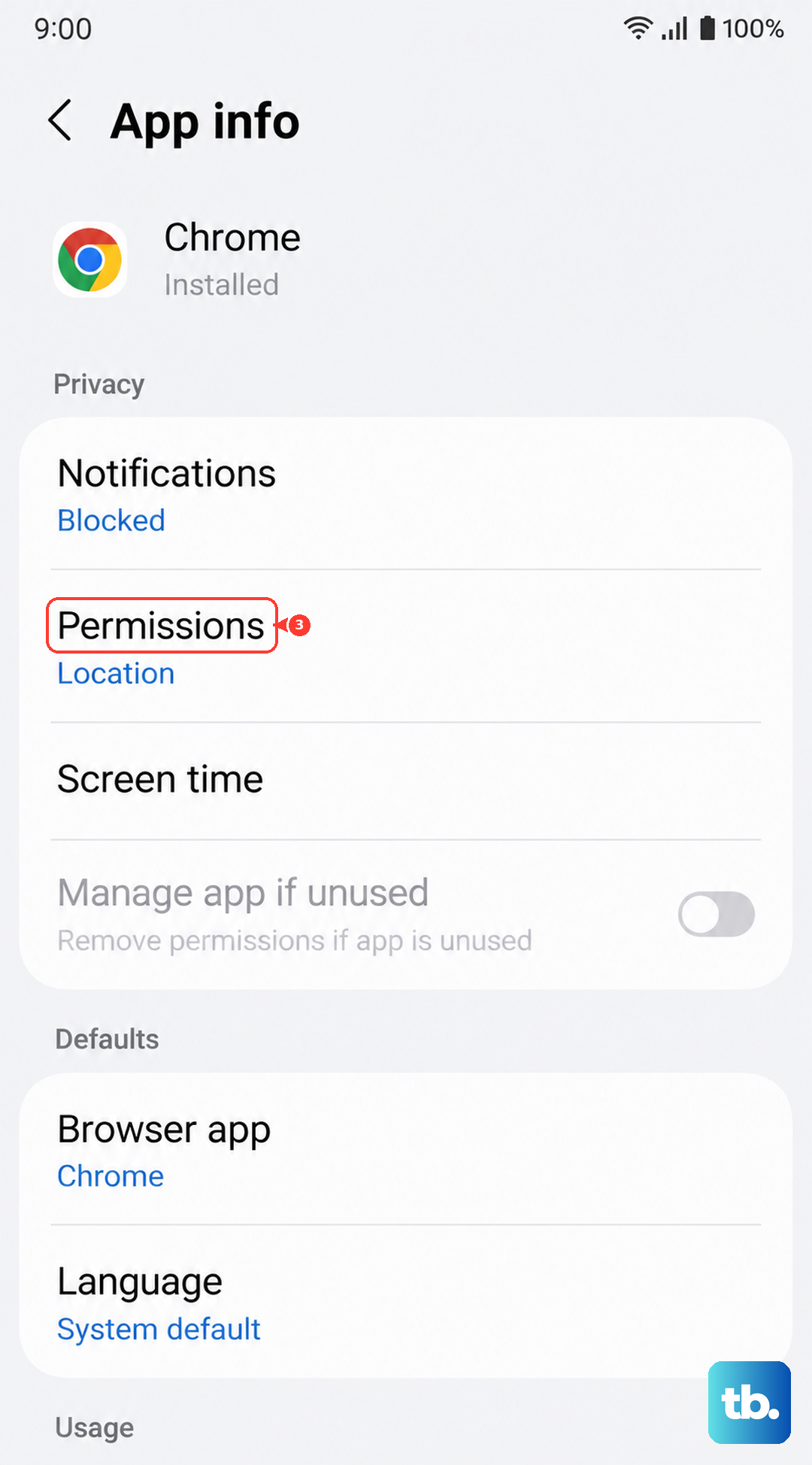
Go to Settings > Apps. Select either "Bixby" or "Google" from the list. Tap Permissions and ensure the Microphone permission is set to "Allow." Also, check for any physical blocks. Look at the small microphone holes at the top and bottom of the phone frame. Gently clean them with a soft, dry brush to remove any lint or dust.
Update Your Software
Since the S26+ is new with One UI 8.5, early software bugs are a possibility. Samsung frequently releases patches to fix these kinds of issues.
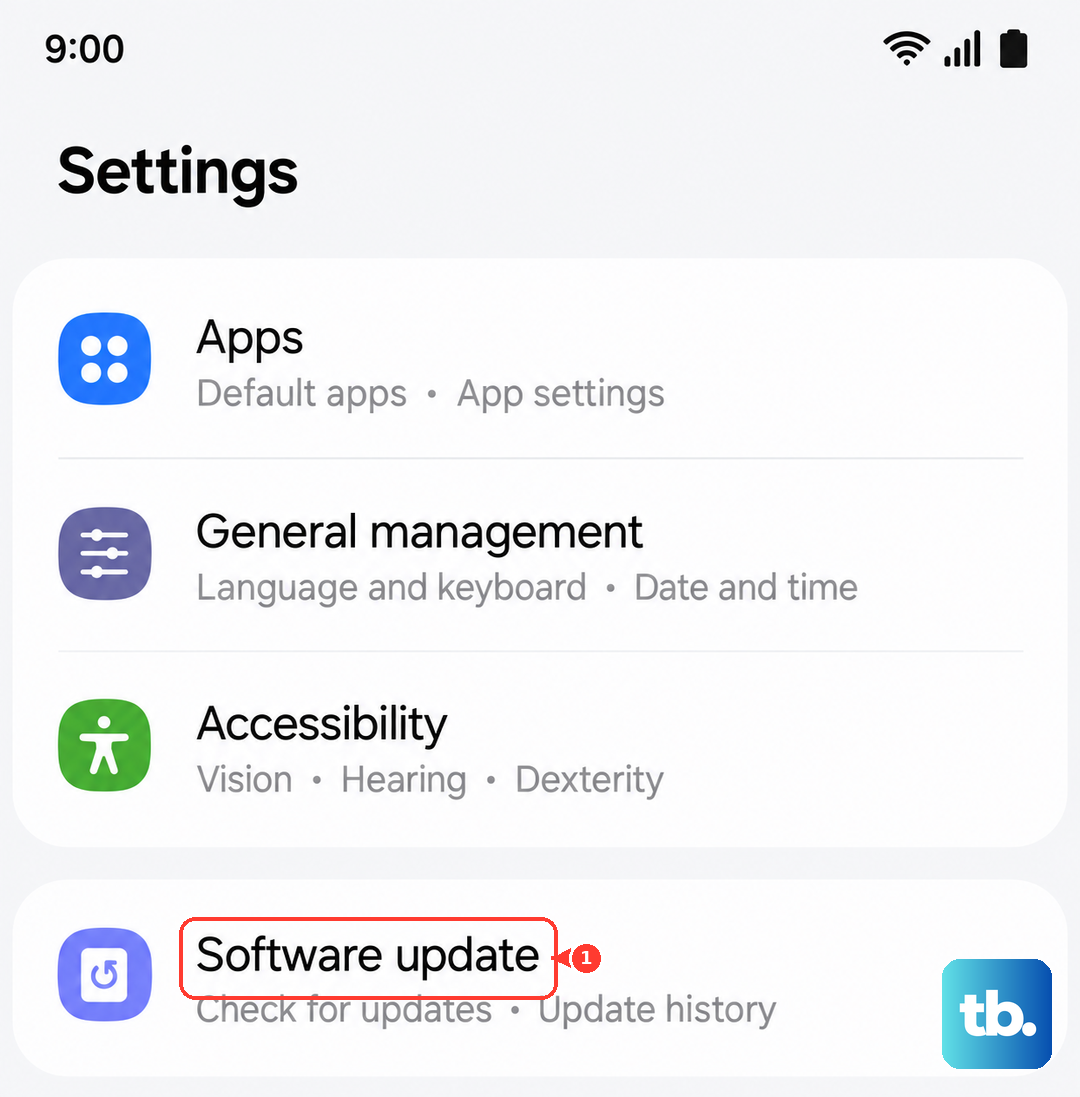
Connect to Wi-Fi and go to Settings > Software update > Download and install. If an update is available, install it. I've seen many early-adopter quirks get resolved with the first few patches. After updating, restart your phone and test the voice command again.
Review Connected Devices and Audio Output
If your phone is connected to a Bluetooth speaker, headphones, or your car, the voice assistant might be trying to respond through that device, or the connection could be causing a conflict.
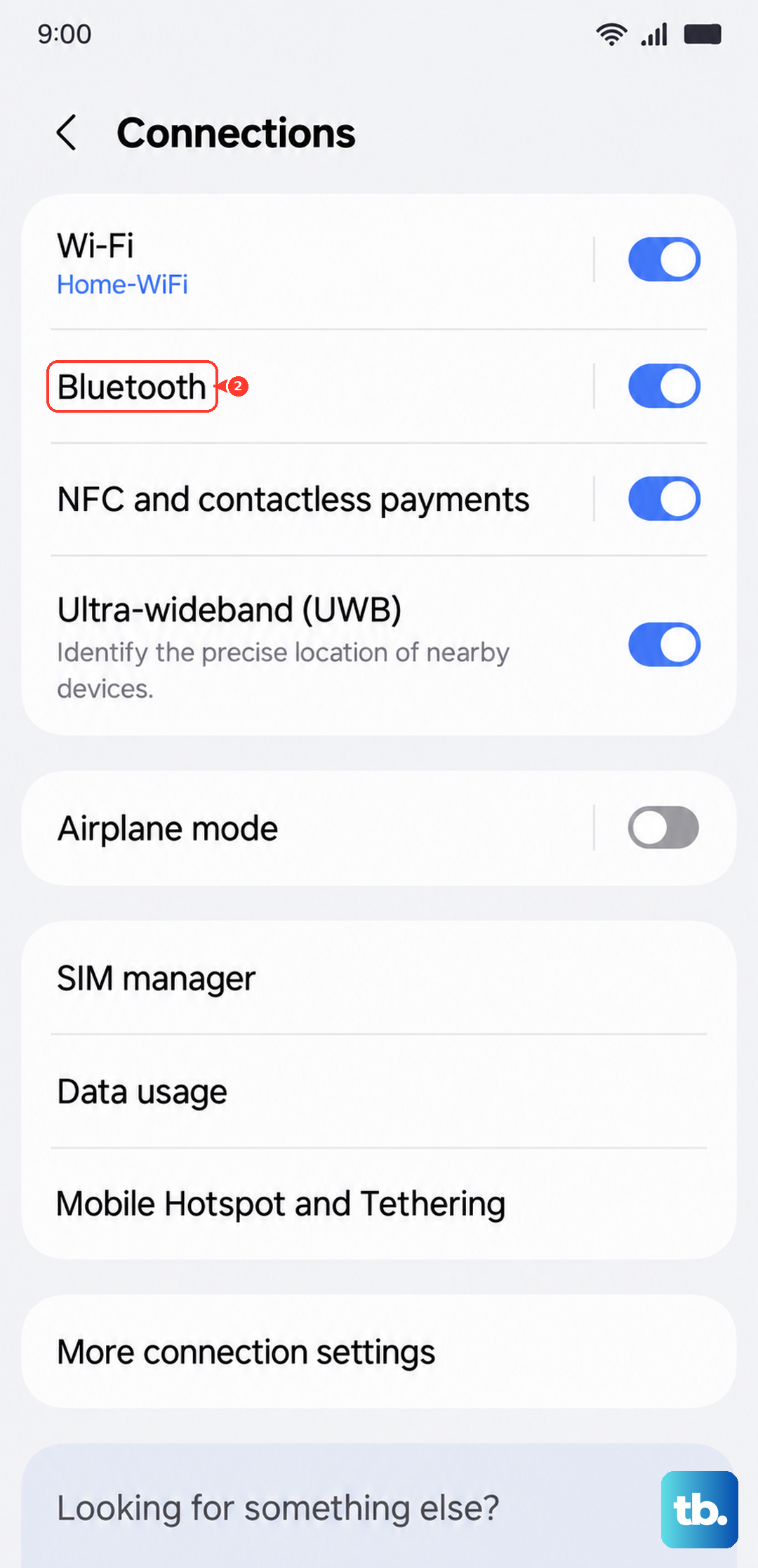
Go to Settings > Connections > Bluetooth and temporarily turn Bluetooth off. Then try "Hi Bixby" or "Hey Google" again. If it works, you know a connected device was the issue. You can also check the assistant's settings to see if it's set to prefer a specific audio output.
Reset App Preferences or Settings
If the problem persists, you can reset app preferences. This won't delete any personal data, but it will reset all app permissions, notifications, and default apps back to their factory state.
Go to Settings > Apps > Menu (three dots) > Reset app preferences. Tap Reset. You'll then need to re-grant microphone permission to Bixby or Google. For a more thorough reset, you can try resetting all settings. Go to Settings > General management > Reset > Reset all settings. This will reset network, keyboard, and all system settings but won't touch your photos or apps.