
When your Galaxy S26 Ultra's volume buttons stop responding, it can feel like you're locked out of controlling your phone's sound. You press the rocker but get no feedback, no volume change, and no haptic click. Since this is a brand new device, early software bugs are a real possibility and often the easiest thing to fix.
Before you consider a trip to a service center, work through these steps. I'd start with the force restart, as it clears temporary software glitches that can affect hardware controls.
Remove Your Phone Case
Begin with the simplest check. Take off your S26 Ultra's case. Some cases, especially rugged or ill-fitting ones, can press against the button frame and restrict the rocker's movement. Without the case, press the volume buttons a few times to see if they click and respond normally.
Perform a Force Restart
A force restart is the go-to fix for many unresponsive control issues on Samsung phones. It doesn't delete any of your data or settings, it just gives the system a fresh start. For the S26 Ultra, press and hold the Volume Down button and the Side/Power button simultaneously.
Keep holding them for about 10 seconds, until you see the Samsung logo appear on the screen. Once it boots back up, test the volume buttons immediately.
Check for Software Updates
Given that the S26 Ultra is a new release, Samsung is likely pushing out updates to address early bugs. A software update could contain a fix specifically for button responsiveness. Go to Settings > Software update and tap Download and install.
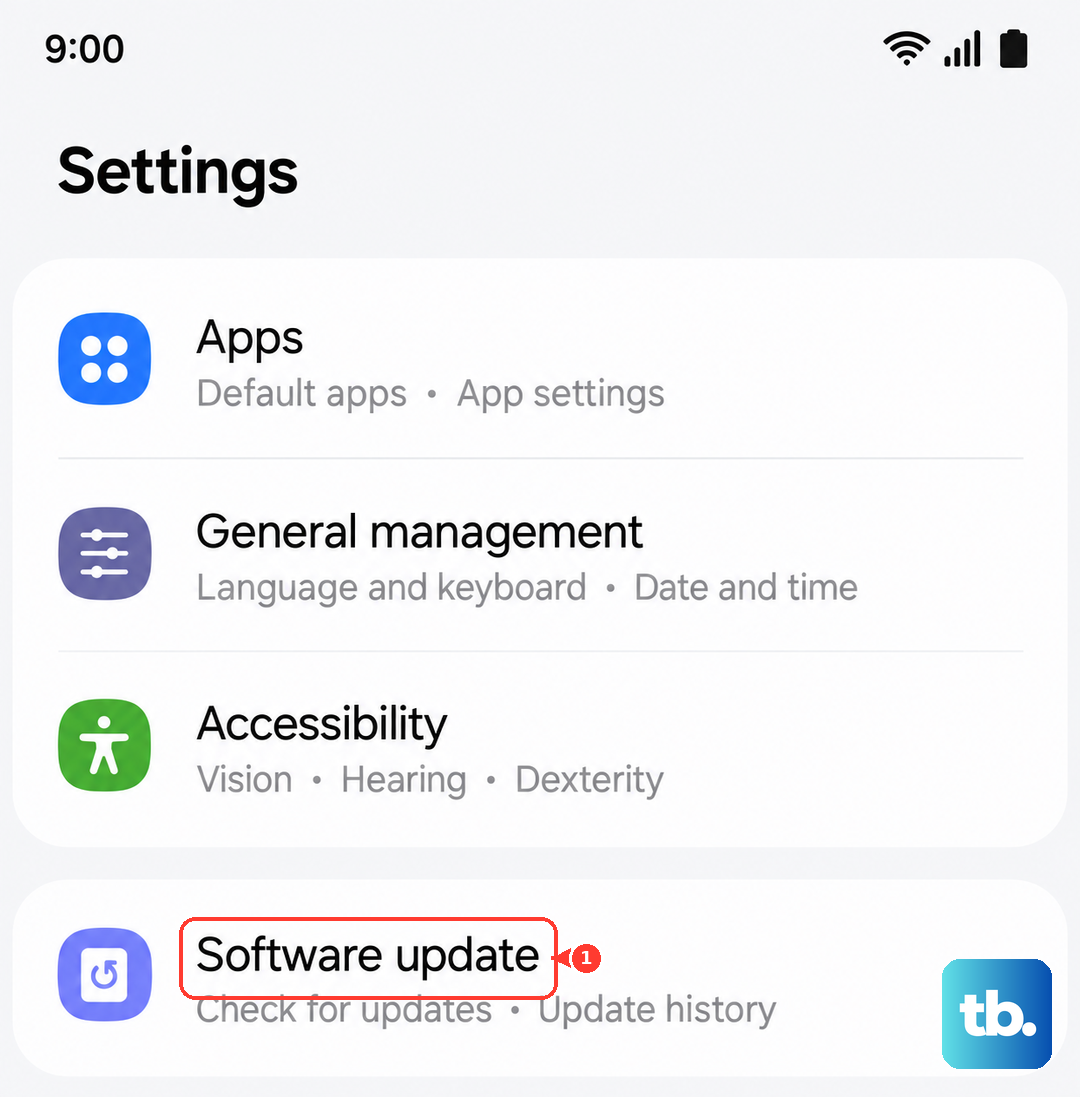
Make sure your phone is connected to Wi-Fi and has at least 50% battery, or is plugged into a charger. I've seen minor point updates resolve similar control issues on past Galaxy models.
Clean Around the Buttons
The S26 Ultra's design, with its integrated S Pen slot, can sometimes trap fine debris. This dust can migrate to the small gap around the volume rocker. Use a can of compressed air to give the button area a few short, gentle blasts from different angles.
If you suspect sticky residue, dampen a cotton swab with a tiny amount of isopropyl alcohol (90% or higher), wring it out well, and carefully clean around the edges of the button. Let it dry completely before testing.
Test in Safe Mode
Booting into Safe Mode temporarily disables all third-party apps. If the volume buttons work perfectly in Safe Mode, then a recently installed app is likely interfering with the system controls. To enter Safe Mode, press and hold the Side/Power button until the power menu appears.
Then, tap and hold the Power off icon on the screen. You'll see a prompt to reboot to Safe Mode. Tap it. If the buttons work here, restart normally and try uninstalling apps you installed just before the problem started.
Verify Sound Settings
While it's rare, it's worth checking that a system setting hasn't been changed. Open the Settings app and go to Sounds and vibration. Scroll down and ensure that Use volume keys for media is toggled on.
Also, try adjusting all the sliders here, ringtone, notification, system, using the on-screen controls. This can sometimes reset the software pathway for the physical buttons.
Use the On-Screen Volume Panel
As a workaround while you troubleshoot, you can control volume from the screen. Simply press any volume button once to bring up the volume panel on the right side of the display. Then, you can drag the slider up or down with your finger.
You can also access more detailed sound settings by tapping the three dots below the slider. This doesn't fix the button, but it keeps you in control of your audio.
Check for Accessibility Features
Certain accessibility settings can remap or alter how buttons function. Go to Settings > Accessibility > Interaction and dexterity. Look at features like Assistant menu or any other button customization options.
If any are enabled, try disabling them temporarily to see if it restores normal volume button operation. The Assistant menu, in particular, adds a floating on-screen control panel that can sometimes conflict.
Reset All Settings
This is a stronger step that resets all your system settings (like Wi-Fi passwords, wallpaper, and ringtones) back to default but leaves your personal data intact. It can clear out any corrupted settings causing the issue. Go to Settings > General management > Reset > Reset all settings.
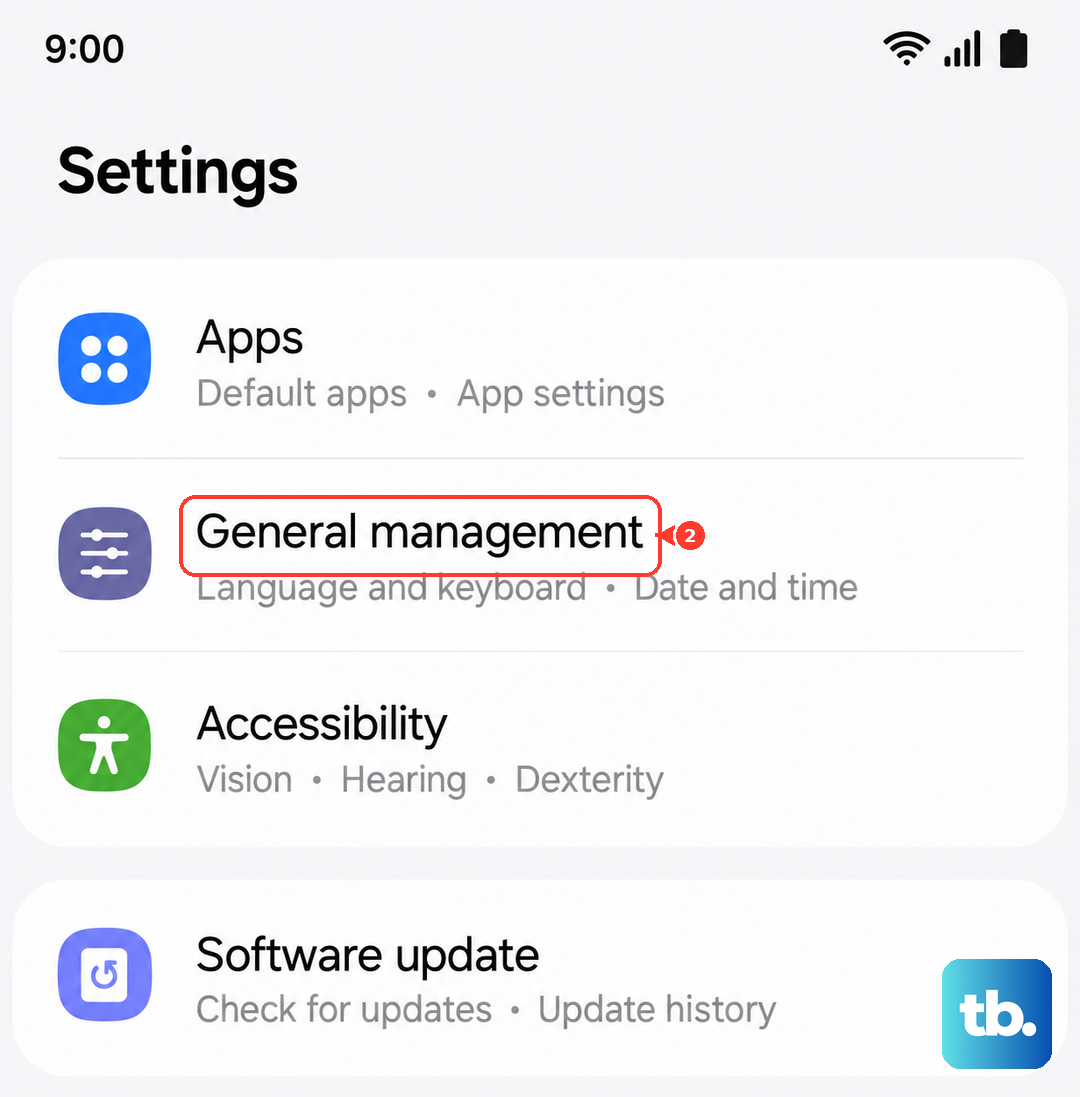
You'll need to enter your PIN or password. After the phone reboots, you'll have to reconfigure your preferences, but it's worth trying before a full factory reset.
Inspect for Physical Damage
Look very closely at the volume rocker. Has the phone been dropped recently? Even a small dent or misalignment in the metal frame near the button can prevent it from pressing the internal switch properly. Compare the click feel to the power button.
If the volume rocker feels mushy, loose, or makes a different sound than the power button, the issue is likely physical. Moisture damage, though less common with the S26 Ultra's IP68 rating, can also cause internal corrosion affecting the buttons.