
When your Samsung Galaxy S26 starts having apps crash or freeze, it's usually a software hiccup that you can fix yourself. Since the S26 runs the brand new One UI 8.5 on Android 16, there can be some early bugs that get ironed out with updates. I'd start with the simplest fix first, which is often all you need.
Force Stop and Restart the App
If a single app is acting up, force stopping it is the quickest way to reset it. Go to Settings > Apps, find the problematic app in the list, and tap on it. On the app's info page, tap Force Stop. This completely shuts it down. Wait a few seconds, then open the app again from your home screen.
Restart Your Galaxy S26
A full phone restart clears out the system's temporary memory and can stop multiple apps from crashing. For the S26, press and hold the Volume Down button and the Side/Power button together for about 10 seconds. Let go when you see the Samsung logo appear on the screen. This force restart is a bit more thorough than a standard shutdown and is great for clearing glitches.
Update Everything
Outdated software is a prime suspect. First, check for app updates in the Galaxy Store or Google Play Store. Open the store app, tap your profile icon, and go to Updates to install any pending ones.
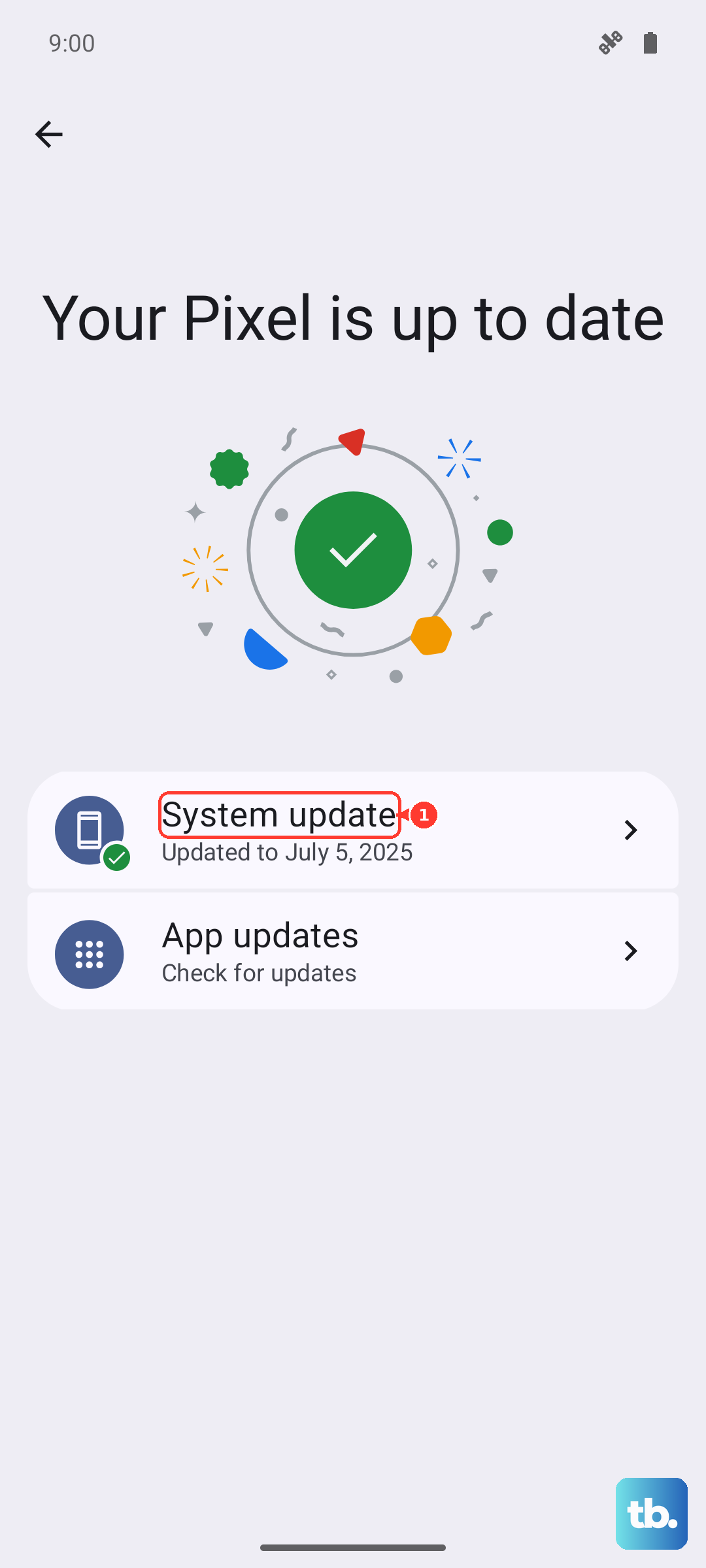
Next, check for a critical system update. With a new OS like One UI 8.5, Samsung is likely pushing out fixes. Go to Settings > Software update and tap Download and install. Doing this over Wi-Fi is a good idea, and make sure your phone has more than 30% battery.
Clear the App's Cache
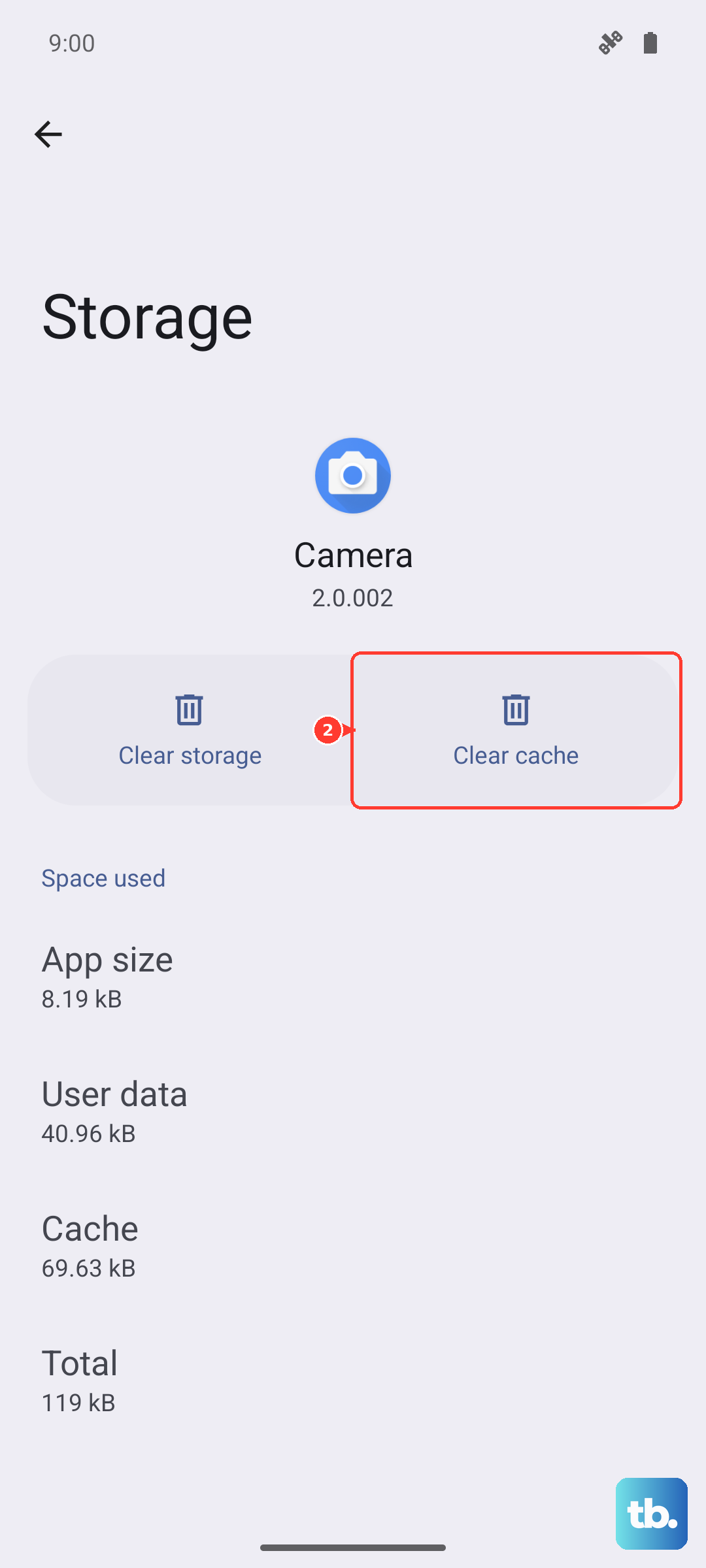
Apps store temporary data (cache) to load faster, but this data can get corrupted. Clearing it won't delete your login info or saved files. Head back to Settings > Apps, select the crashing app, and tap Storage. Tap Clear cache. If the problem persists, you can try Clear data, but be warned this will reset the app to its freshly installed state, so you might need to log in again.
Check Your Available Storage
When your phone's storage is nearly full, apps don't have room to operate properly and can crash. Open Settings > Device care > Storage. The S26 will show you what's taking up space. If you're below 10% free space, start by clearing cached data for all apps from this menu or moving photos and videos to cloud storage or a computer.
Reinstall the Problem App
If one specific app is the only troublemaker, a fresh install often does the trick. Press and hold the app icon on your home screen or app drawer, then tap Uninstall. Don't worry, you can get it right back. Open the Galaxy Store or Play Store, search for the app, and install it again. This gives you a clean slate with all the latest files from the developer.
Review App Permissions
Sometimes an app crashes because it's being denied a permission it suddenly needs after an update. Go to Settings > Apps, select the app, and tap Permissions. Look for any permissions listed as "Denied" that seem relevant to the app's function, like Location or Storage, and change them to "Allow only while using the app" to see if it stabilizes.
Boot into Safe Mode
This is a great way to figure out if a third-party app you downloaded is causing system-wide crashes. To boot the S26 into Safe Mode, press and hold the Side/Power button until the power menu appears. Then, press and hold the "Power off" option on the screen. You'll get a prompt to reboot to Safe Mode, tap OK.
If your apps work fine in Safe Mode, a recently installed app is likely the culprit. You'll need to uninstall apps one by one (starting with the most recent) to find the bad one.
Reset All Settings
If crashes are widespread and you've tried everything else, this resets all your system settings to default without touching your personal data. Your Wi-Fi passwords, app logins, and files will remain. Go to Settings > General management > Reset > Reset all settings. You'll have to reconfigure things like ringtones, display brightness, and connections, but it can resolve deep configuration conflicts in One UI.