When your Galaxy S26+ suddenly goes quiet or the volume is barely a whisper, it can throw off your whole day. Sound issues on a new phone like this are often just software hiccups, especially with the early One UI 8.5 builds. I'd start with the quick checks first, as they solve most problems in under a minute.
Start with a free online speaker test that plays left and right channels one at a time. Hearing both sides confirms the hardware, which makes the remaining steps much easier to pin down.
Grab your phone and press the volume up button on the side. If you see a volume slider pop up, make sure it's not all the way down. Sometimes a case or a pocket can press the buttons accidentally. Also, swipe down from the top of your screen to open the Quick Panel and look for a bell icon with a line through it, that's Silent mode, and tapping it will turn your sounds back on.
Disconnect Bluetooth and Accessories
Your S26+ might be trying to send audio somewhere else. If you've used wireless earbuds or a speaker recently, your phone could still be connected to them even if they're in another room.
Go to Settings > Connections > Bluetooth. You'll see a list of paired devices. If any show as "Connected," tap the settings icon next to them and hit Disconnect. For a quicker fix, just tap the Bluetooth icon in your Quick Panel to turn the entire feature off temporarily. Also, remove any USB-C headphones or dongles from the charging port.
Check Advanced Sound and App Settings
Samsung's sound settings are powerful, but they can sometimes get crossed up. A feature called Separate app sound might be routing audio from one app to a non-existent Bluetooth device.
Head to Settings > Sounds and vibration > Advanced sound settings. Tap on Separate app sound and make sure the toggle is switched off. While you're here, also check Sound quality and effects. If you have Dolby Atmos or any equalizer settings enabled, try turning them off to see if that restores normal volume, as a buggy audio profile can cause distortion.
Clean the Speaker Grills Carefully
The S26+ has slim speaker grills along the top edge and bottom next to the USB-C port. Over just a few weeks, pocket lint and dust can pack in there and muffle the sound significantly.
Take a look at the grills with your phone's flashlight. If you see debris, the safest way to clean it is with a soft, dry toothbrush. Gently brush across the grill to dislodge any particles. You can also use a can of compressed air, but hold it upright and use very short bursts from a few inches away to avoid forcing moisture into the phone.
Review Do Not Disturb and Accessibility
System-wide mute settings can be easy to enable and then forget about. The Do Not Disturb mode on your S26+ can silence everything except alarms if it's set up that way.
Pull down the notification panel twice and look for the Do Not Disturb icon. If it's highlighted, tap it to turn it off. For more control, go to Settings > Notifications > Do Not Disturb and review the rules. Also, check Settings > Accessibility > Hearing enhancements. Ensure that options like "Mute all sounds" are not activated.
Force Restart Your Phone
A simple force restart clears the phone's working memory and can kill a temporary glitch that's affecting the audio driver. This is different from a normal restart and is a great first step for any weird behavior on a new device.
Press and hold the Volume Down button and the Side/Power button at the same time. Keep holding them for about 10 seconds until you see the Samsung logo appear on the screen, then let go. Your phone will boot up normally. This doesn't delete any data, it just gives the system a fresh start.
Boot Into Safe Mode
If the sound works fine in Safe Mode, you'll know a third-party app you installed is the culprit. Safe Mode temporarily disables all apps you downloaded from the Galaxy Store or Google Play.
To enter Safe Mode, turn your S26+ off completely. Once it's off, press and hold the Side/Power button. When "Samsung" appears on the screen, release the Power button and immediately press and hold the Volume Down button. Keep holding it until the phone finishes restarting, you'll see "Safe mode" in the bottom-left corner of the screen. Test your speakers now. To exit, just restart the phone normally.
Clear the System Cache Partition
Corrupted system cache files from a recent update can cause all sorts of issues, including audio problems. Clearing this cache is safe and won't touch your personal photos, messages, or apps.
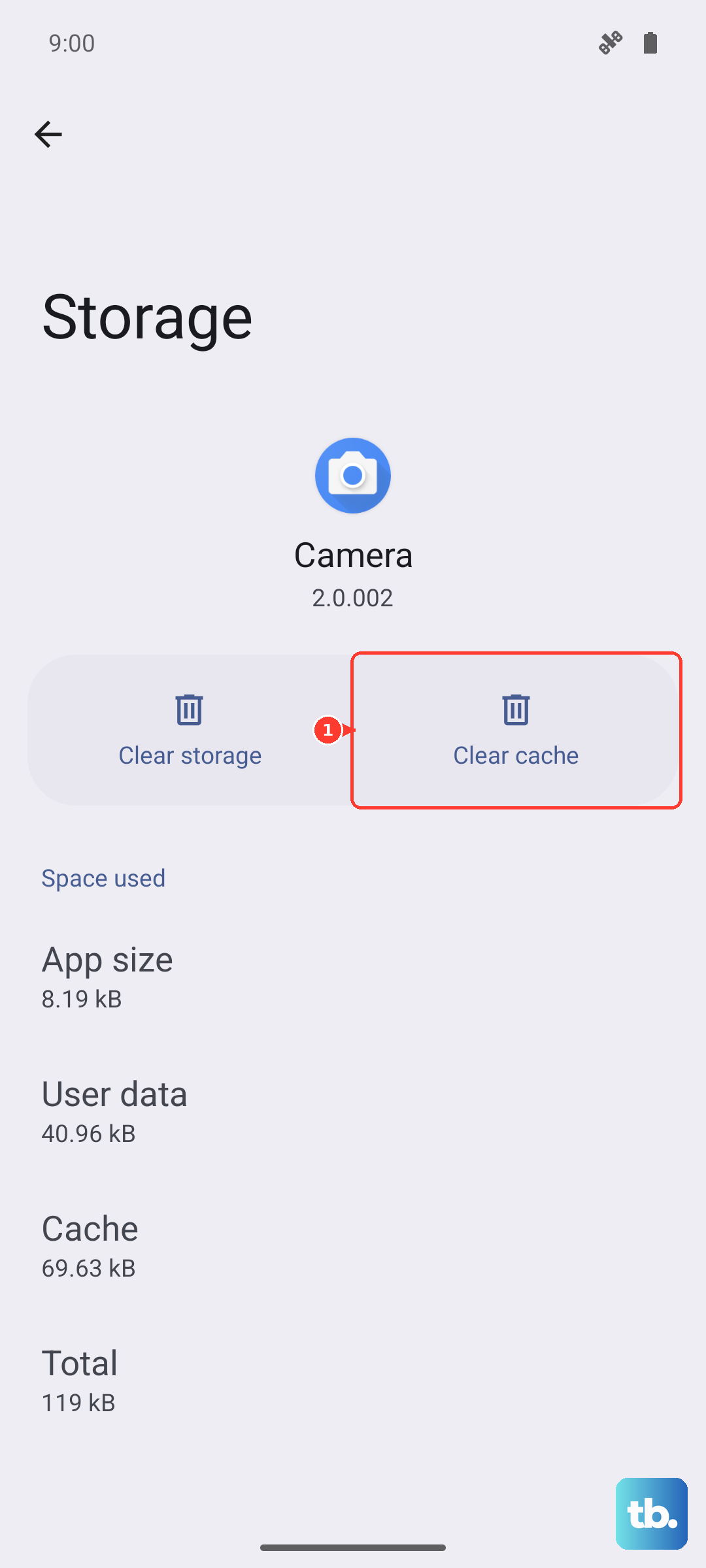
Newer Galaxy phones, including the S26+, no longer have a Wipe cache partition option in Recovery mode. Samsung removed it because seamless (A/B) updates now clear the system cache automatically. Instead, clear cache from within Android. For a specific misbehaving app, go to Settings > Apps, tap the app, tap Storage, then tap Clear cache. To clean up system-wide junk, open Settings > Battery and device care and tap Optimize now.
Update Your Software
Samsung is likely already rolling out patches for One UI 8.5 teething problems. An update could contain a direct fix for the audio issue you're experiencing.
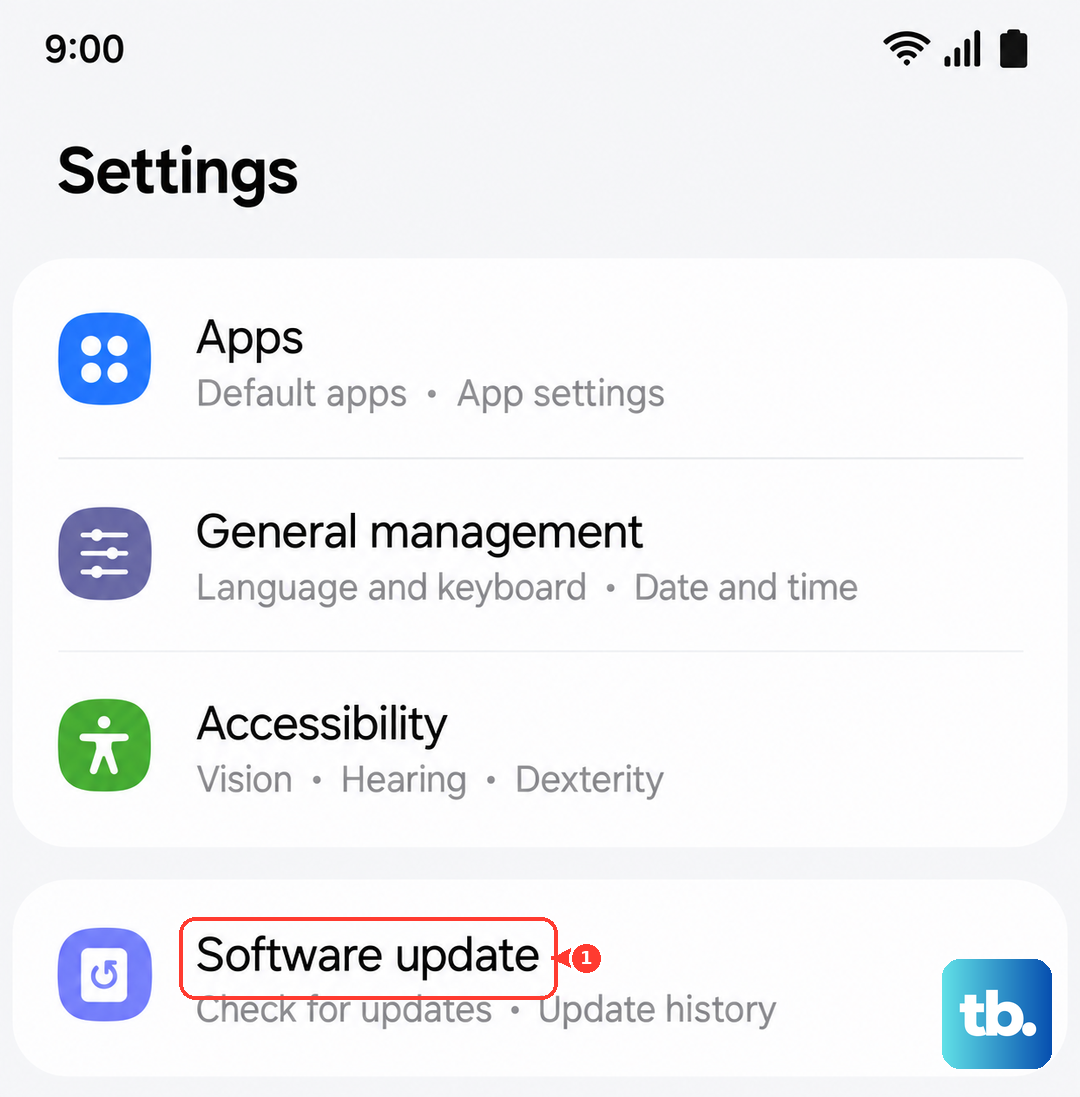
Connect to Wi-Fi and go to Settings > Software update > Download and install. Your S26+ will check for updates. If one is available, tap Download and follow the prompts to install it. It's a good idea to plug your phone into a charger during this process. After the update, test your sound again, as a reboot is part of the installation.
Reset All Settings
If a specific setting is causing the conflict but you can't pinpoint which one, this reset will revert all your preferences back to factory defaults without erasing your data. You'll have to re-setup things like Wi-Fi passwords and wallpapers, but your files will be safe.
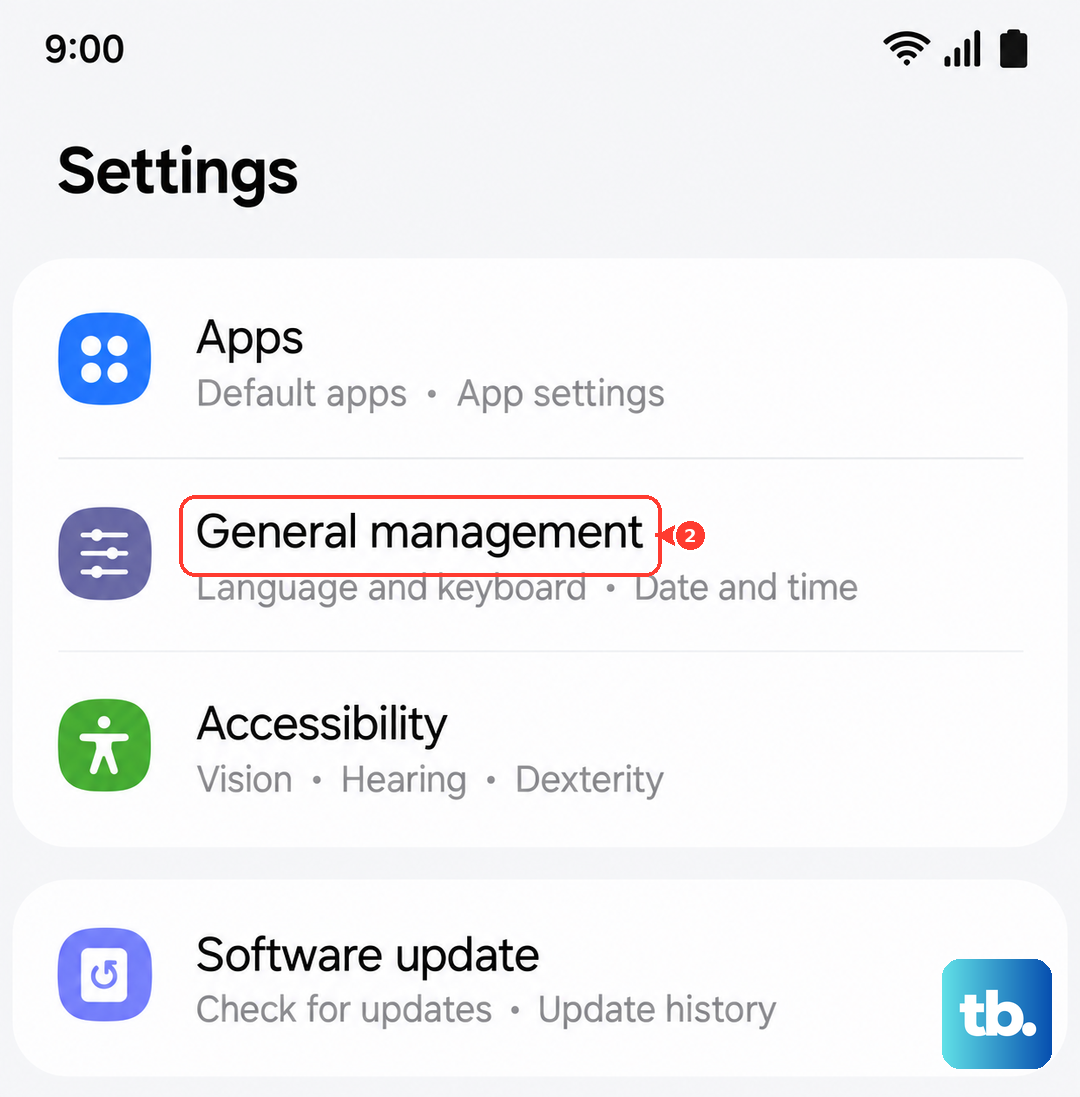
Open Settings > General management > Reset. Tap on Reset settings. You'll see an option to also reset network settings and accessibility settings, you can choose these if you suspect a Bluetooth or hearing aid setting is involved. Tap the final Reset button to confirm. Your phone will restart and the sound should be restored to its standard configuration.