
If your brand new Samsung Galaxy S26 isn't ringing when someone calls, you're missing more than just a conversation. This problem can stem from a simple toggle you accidentally switched or a deeper glitch in the fresh One UI 8.5 software. I'd start with the quick checks below, as they resolve the majority of these silent phone issues.
Check Do Not Disturb and Focus Modes First
Swipe down from the top of your screen twice to open the full Quick Settings panel. Look for the "Do Not Disturb" or "Modes" icon, if it's highlighted, tap it to turn it off. Also, pull down the notification shade and check for any active "Focus" mode banners, as these can silence calls from everyone except your favorites.
Dig deeper by going into Settings > Modes and Routines. See if any routine is active that might be modifying your call behavior based on time, location, or activity.
Verify Your Network Connection
Poor signal is a classic culprit. Check the signal bars in the top-right corner of your S26. If they're low or showing an "X," try toggling Airplane Mode on and off from the Quick Settings.
You can also try forcing the phone to search for networks. Go to Settings > Connections > Mobile networks > Network operators. Tap "Search networks" and select your carrier manually if it appears. This can re-establish a dropped connection.
Review Call Blocking and Spam Settings
Samsung's call features are powerful but can sometimes be overzealous. Open your Phone app, tap the three-dot menu, and go to Settings > Block numbers. Make sure no important numbers are listed there.
Next, look at Settings > Caller ID and spam protection. If this is enabled, try turning it off temporarily to see if a spam filter is incorrectly blocking legitimate calls. The brand-new software on the S26 might still have some kinks in its identification algorithms.
Disable Call Forwarding
It's easy to accidentally enable call forwarding without realizing it. To check, open the Phone app and tap the three-dot menu. Go to Settings > Supplementary services > Call forwarding.
You'll see options for different scenarios, like "Always forward" or "When busy." Tap each one and ensure it's set to "Disable" or that the forwarding number is blank. If a number is listed there, your calls are being sent elsewhere.
Reset Your Network Settings
This clears all your Wi-Fi passwords, Bluetooth pairings, and mobile network configurations back to default. It's a strong fix for persistent connection woes. Go to Settings > General management > Reset > Reset network settings.
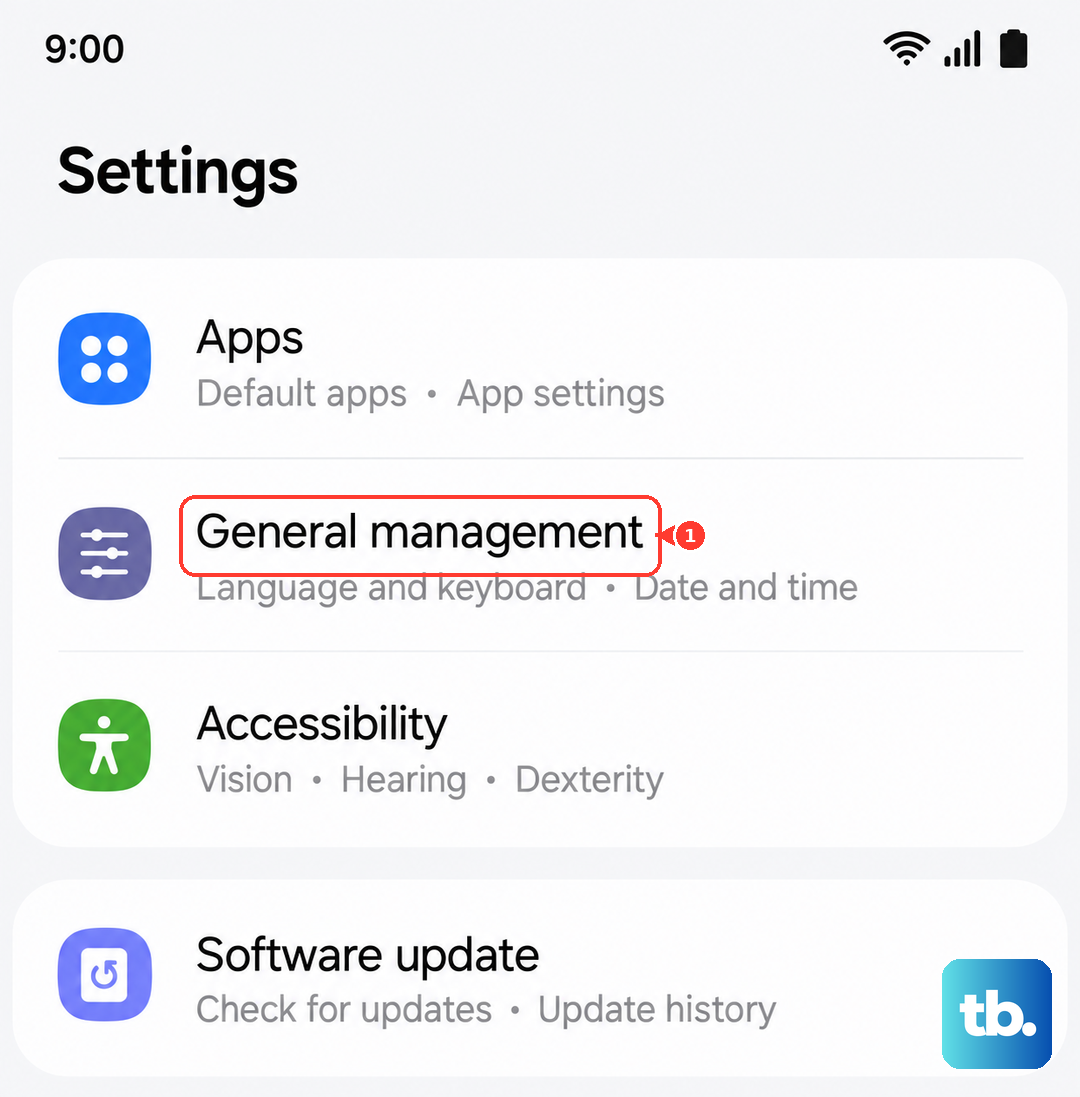
Tap "Reset settings" and confirm. Your phone will reboot. Afterward, you'll need to reconnect to Wi-Fi networks and re-pair Bluetooth devices, but it often clears up obscure network glitches that affect calling.
Examine Your SIM Card
Power off your Galaxy S26 and use the SIM ejector tool to pop out the tray. Carefully remove the SIM card, inspect the gold contacts for any dust or damage, and then re-seat it firmly. Power the phone back on.
If you have access to another compatible phone, try your SIM card in that device. If calls work there, the issue is with your S26. If calls still fail, the problem is likely with the SIM or your carrier account, and you should contact them.
Update Your Software
Since the S26 ships with the very latest One UI 8.5, early software bugs affecting cellular connectivity are a real possibility. Samsung will be pushing updates to address these. Go to Settings > Software update > Download and install.
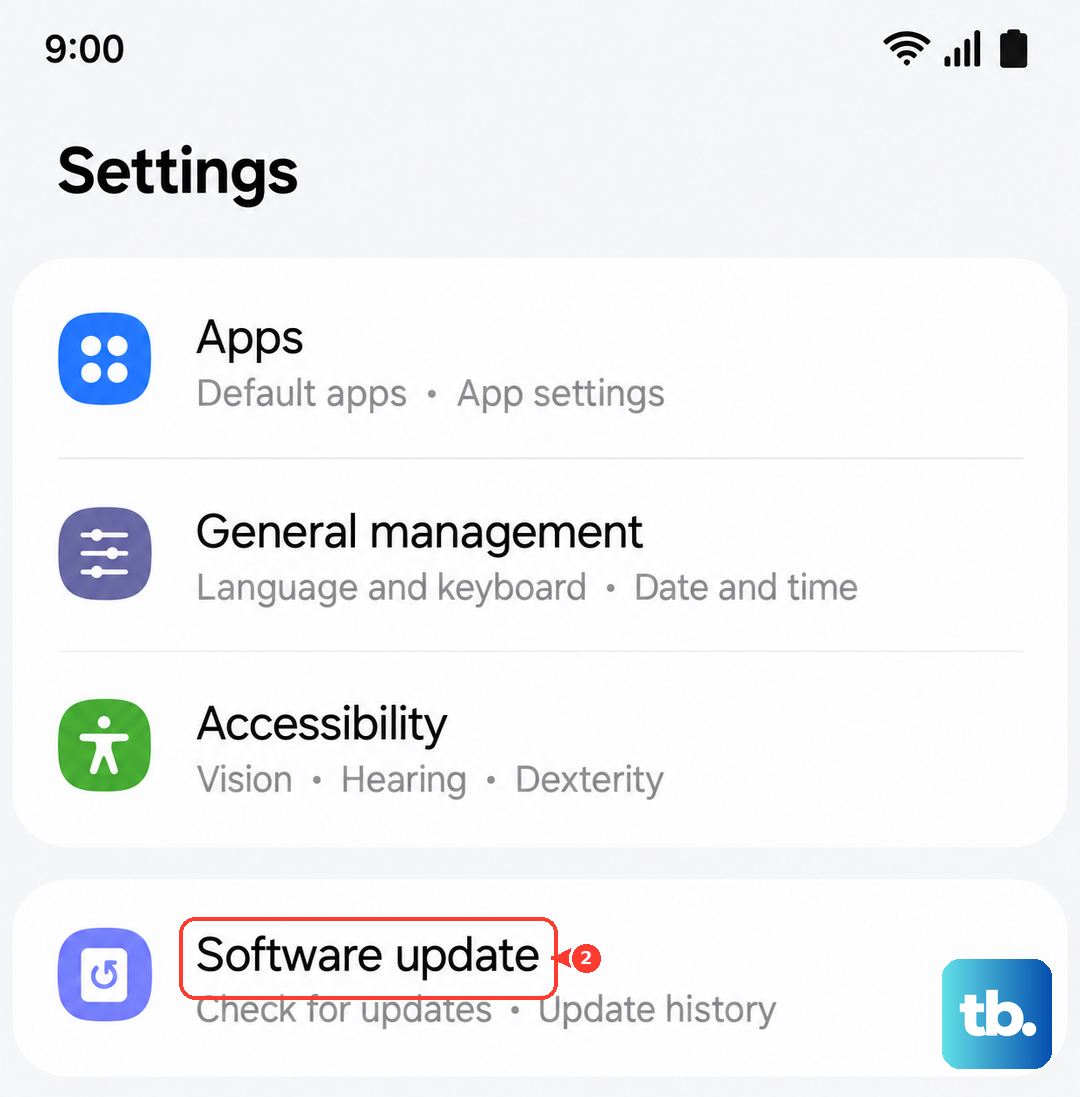
Check for updates manually, even if it says your system is up to date. It's worth checking daily for the first few weeks after you get a new flagship phone like this.
Clear the Phone App's Cache and Data
A corrupted cache in the Phone app itself can cause strange behavior. Go to Settings > Apps > Phone. Tap on "Storage" and then hit "Clear cache." This is safe and won't delete your call history.
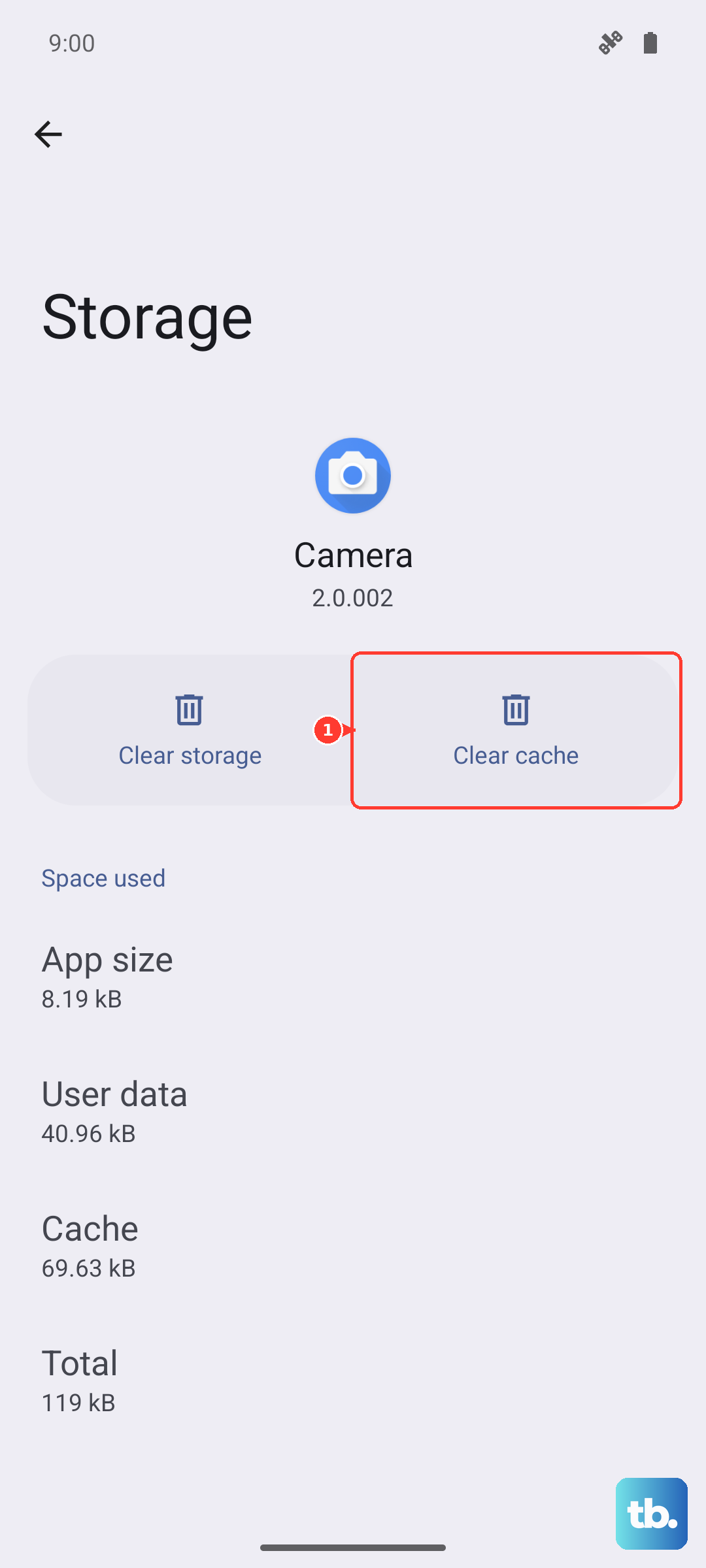
If the problem persists, you can go a step further and tap "Clear data." This will reset the Phone app to its default state, so you may lose your call log and any custom settings within the app. It's a more thorough refresh.
Check for Problematic Third-Party Apps
An app with call or contact permissions could be interfering. Think about any apps you installed just before the problem started, especially call recorders, dialers, or security apps. Boot your S26 into Safe Mode to test.
Press and hold the power button until the power menu appears. Then, tap and hold the "Power off" option until you see a "Safe Mode" prompt. Tap to reboot. If calls work normally in Safe Mode, a downloaded app is the cause. You'll need to uninstall apps one by one to find the culprit.
Perform a Factory Reset
This is your last resort before contacting support. A factory reset will wipe your S26 back to its out-of-box state. Before you begin, ensure everything is backed up to your Samsung account or Google Drive.
Go to Settings > General management > Reset > Factory data reset. Scroll down and tap "Reset." Confirm your PIN and let the process complete. After setup, test a call before restoring your apps to see if the core issue is resolved.