
If your Galaxy S26 isn't buzzing for calls or notifications, it's a surprisingly common hiccup. The good news is it's almost always a software setting or a minor glitch you can fix yourself in a few minutes.
Start With a Quick Restart
Before you dive into settings, give your phone a fresh start. Press and hold the Volume Down button and the Side/Power button together for about 10 seconds. Let go when you see the Samsung logo appear on the screen.
This force restart clears out any temporary software bugs that might be stopping the vibration motor. I'd start with this one, as it fixes the issue more often than you'd think.
Verify Your Sound Mode
Your S26 might be stuck in a silent or mute mode. Swipe down from the top of your screen to open the Quick Settings panel and look for the sound icon. Make sure it's set to "Sound" or "Vibrate," not "Mute."
You can also check this in Settings > Sounds and vibration > Sound mode. If it's on Mute, switch it back to Sound or Vibrate. This is the most common reason people miss vibrations.
Check the Core Vibration Toggles
Head to Settings > Sounds and vibration. Right at the top, you'll see a toggle for "Vibrate while ringing." Make sure this is switched on.
If it's already on, try turning it off and back on again. Just below that, also ensure "Vibrate for notifications" is enabled. These are the master switches for your phone's haptic feedback.
Adjust the Vibration Strength
Sometimes the vibration is working, but it's just too faint to feel, especially if the phone is in a pocket or on a soft surface. In Settings > Sounds and vibration, tap on "Vibration intensity."
You'll see separate sliders for call vibration, notification vibration, and touch feedback. Crank these up to the maximum and test if you can feel the difference. The S26's motor is quite strong, so this usually makes it noticeable.
Inspect App-Specific Notification Settings
If vibrations are missing only from specific apps like Messages or WhatsApp, the problem is in that app's notification settings. Go to Settings > Apps, select the problematic app, and tap "Notifications."
Make sure notifications are turned on for the app overall. Then, tap into notification categories like "General" or "New messages" and ensure the "Vibrate" option is checked within each one. App updates sometimes reset these permissions.
Look for a Software Update
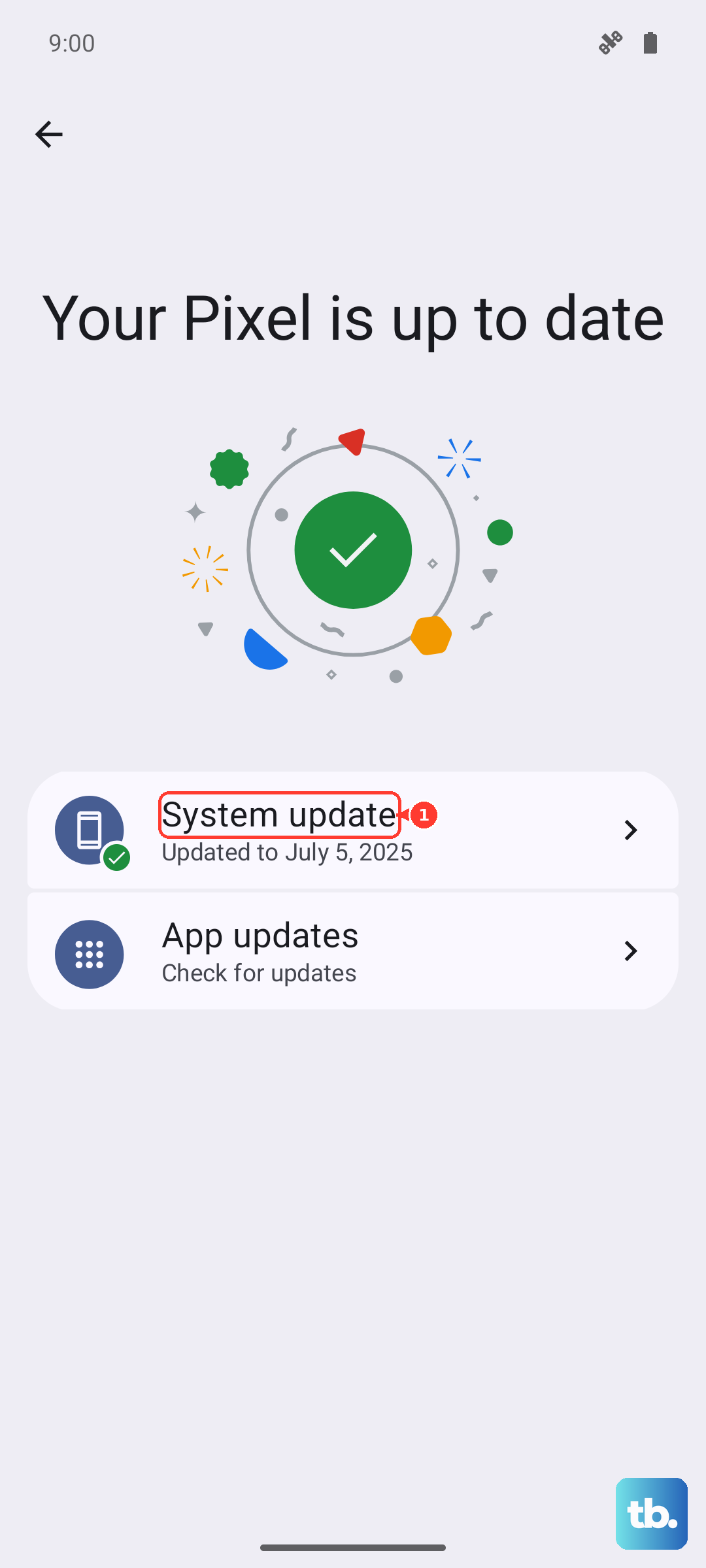
The Galaxy S26 runs the brand new One UI 8.5, and early software can have bugs. Samsung is usually quick to patch these things. Go to Settings > Software update > Download and install.
If an update is available, install it. A system update has fixed vibration issues for many users on previous Samsung models, so it's a solid step to try.
Test in Safe Mode
This will tell you if a third-party app you installed is causing a conflict. To enter Safe Mode, press and hold the Power button until the power menu appears. Then, tap and hold the "Power off" option on your screen.
You'll see a prompt to reboot into Safe Mode. Tap it. If your vibrations work perfectly in Safe Mode, you know a downloaded app is the culprit. Restart normally and try uninstalling recent apps one by one to find the offender.
Check Accessibility and Extra Settings
Certain accessibility features can alter vibration behavior. Go to Settings > Accessibility > Advanced settings and look for any options about vibration or haptic feedback being disabled.
Also, if you're using a custom theme from the Galaxy Store, try switching back to the default theme. Some user-created themes have been known to interfere with system sounds and vibrations on older One UI versions.
Run a Hardware Diagnostic
Samsung has a built-in diagnostic menu to test components. Open your Phone app and dial *#0*#. This will open a secret service menu. Tap the "Vibration" test button.
If your phone vibrates in a long, steady pattern during this test, the vibration motor hardware is functioning perfectly. This confirms the issue is purely software-related, which is great news.
Reset All Settings
If you've tried everything else, this resets all your system settings to default without touching your personal data or apps. Go to Settings > General management > Reset > Reset all settings.
You'll need to re-enter Wi-Fi passwords and reconfigure things like ringtones, but it can clear out any deep-seated configuration error that's blocking the vibration function. It's a very effective last step before considering more drastic measures.