
If your Samsung Galaxy S26 is refusing to send pictures or group texts, it's a frustrating roadblock. The fix is usually straightforward, often involving a setting that got switched off or a temporary software hiccup. Let's get your multimedia messages flowing again.
Start With Mobile Data
MMS doesn't use your regular cellular signal or WiFi to send. It requires an active mobile data connection. Swipe down from the top of your screen twice to open the Quick Settings panel and make sure the Mobile data icon is turned on. You should see the 4G, 5G, or LTE symbol in your status bar.
If you're connected to WiFi, try turning it off temporarily. Some networks can interfere with the MMS data pathway. Send a test photo using just your cellular data to see if that's the issue.
Check Your MMS App Settings
The Samsung Messages app on your S26 has specific settings for multimedia. Open the Messages app and tap the three-dot menu in the top-right corner, then go to Settings. Look for the Multimedia messages section within the settings menu.
Inside, ensure Auto download is enabled. You might also want to toggle on Roaming auto download if you're traveling. I've seen cases where a recent software update can reset these preferences, so it's worth a quick look.
Restart Your Galaxy S26
It sounds simple, but a restart clears out temporary glitches in the messaging service. Press and hold the Volume Down button and the Side/Power button together for about 10 seconds until you see the Samsung logo appear on screen.
This force restart is a bit more thorough than a standard reboot. Once your phone is back on, try sending an MMS again before moving to more involved steps.
Update Your Software
Your S26 runs the brand-new One UI 8.5, and early software bugs can absolutely affect network services like MMS. Go to Settings > Software update and tap Download and install.
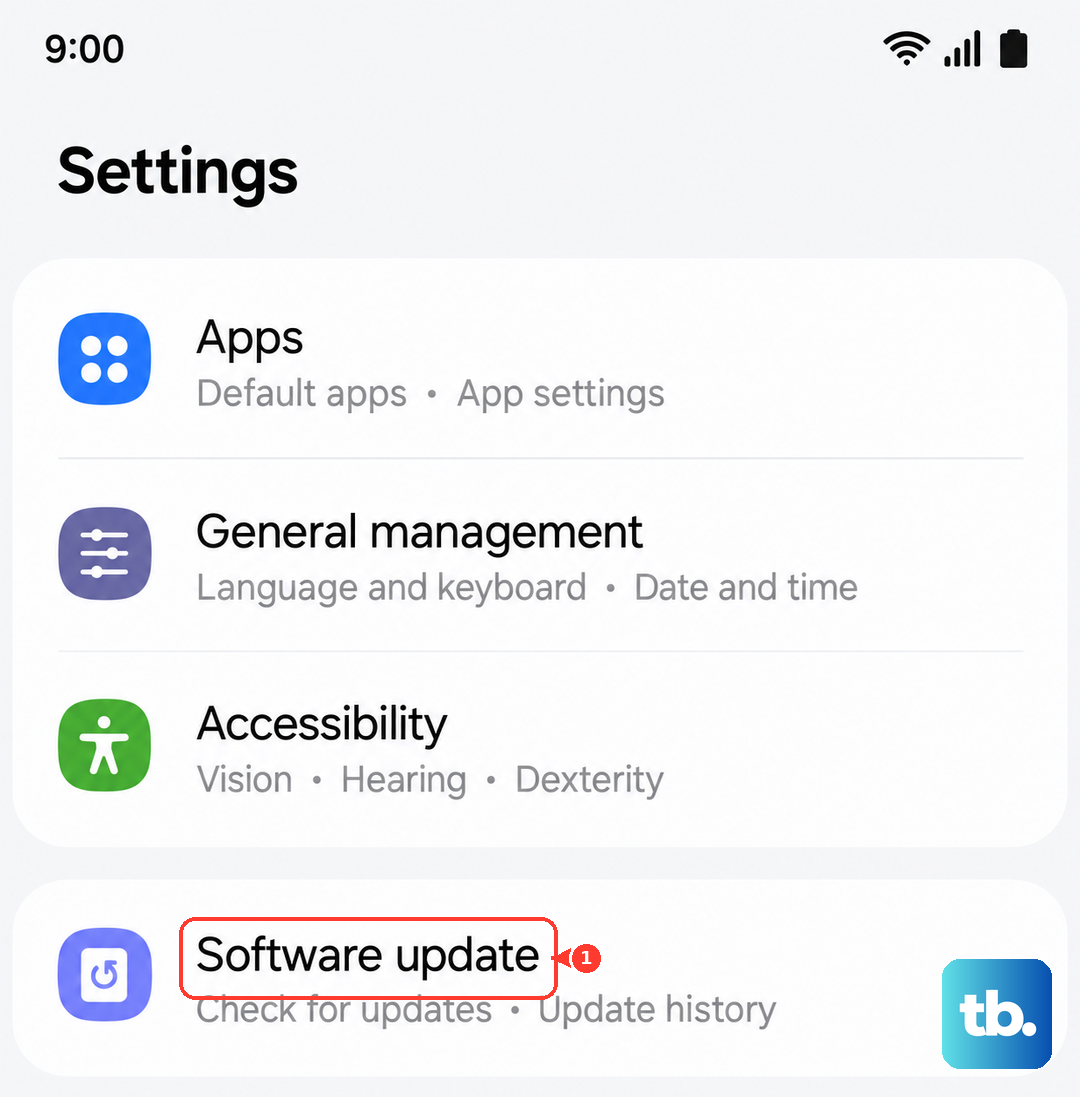
If an update is available, install it and restart your phone. Samsung frequently releases patches that address connectivity issues, so this is a crucial step for a 2026 device.
Clear the Messaging App's Cache
Corrupted temporary files can break MMS sending. Go to Settings > Apps, then find and select Messages from the list. Tap on Storage and then hit Clear cache.
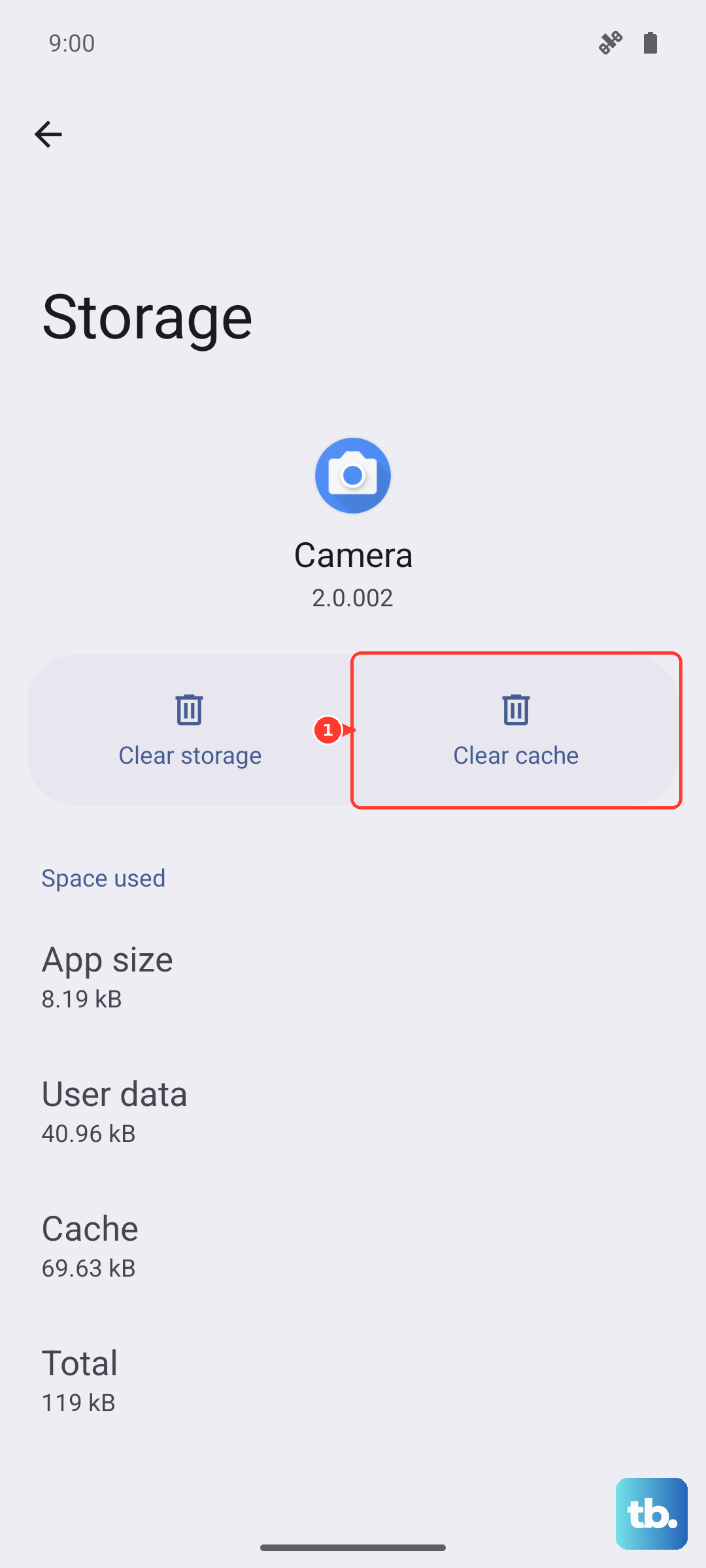
This won't delete any of your actual texts or conversations. If clearing the cache doesn't help, you can try Clear data as a last resort, but be warned this will erase your entire message history within the Samsung app.
Verify Your APN Settings
Access Point Name (APN) settings are your phone's roadmap to your carrier's multimedia network. If they're wrong, MMS fails. Go to Settings > Connections > Mobile networks > Access Point Names.
You should see your carrier's APN listed. Don't change anything here unless you're sure of the correct values. If the settings look blank or incorrect, the fastest fix is to contact your carrier's support. They can send you the correct APN configuration for the Galaxy S26, which you can then enter manually.
Reset Network Settings
This step resets all your network connections back to factory defaults. It will forget WiFi passwords, Bluetooth pairings, and cellular settings, but it often resolves stubborn MMS problems. Navigate to Settings > General management > Reset > Reset network settings.
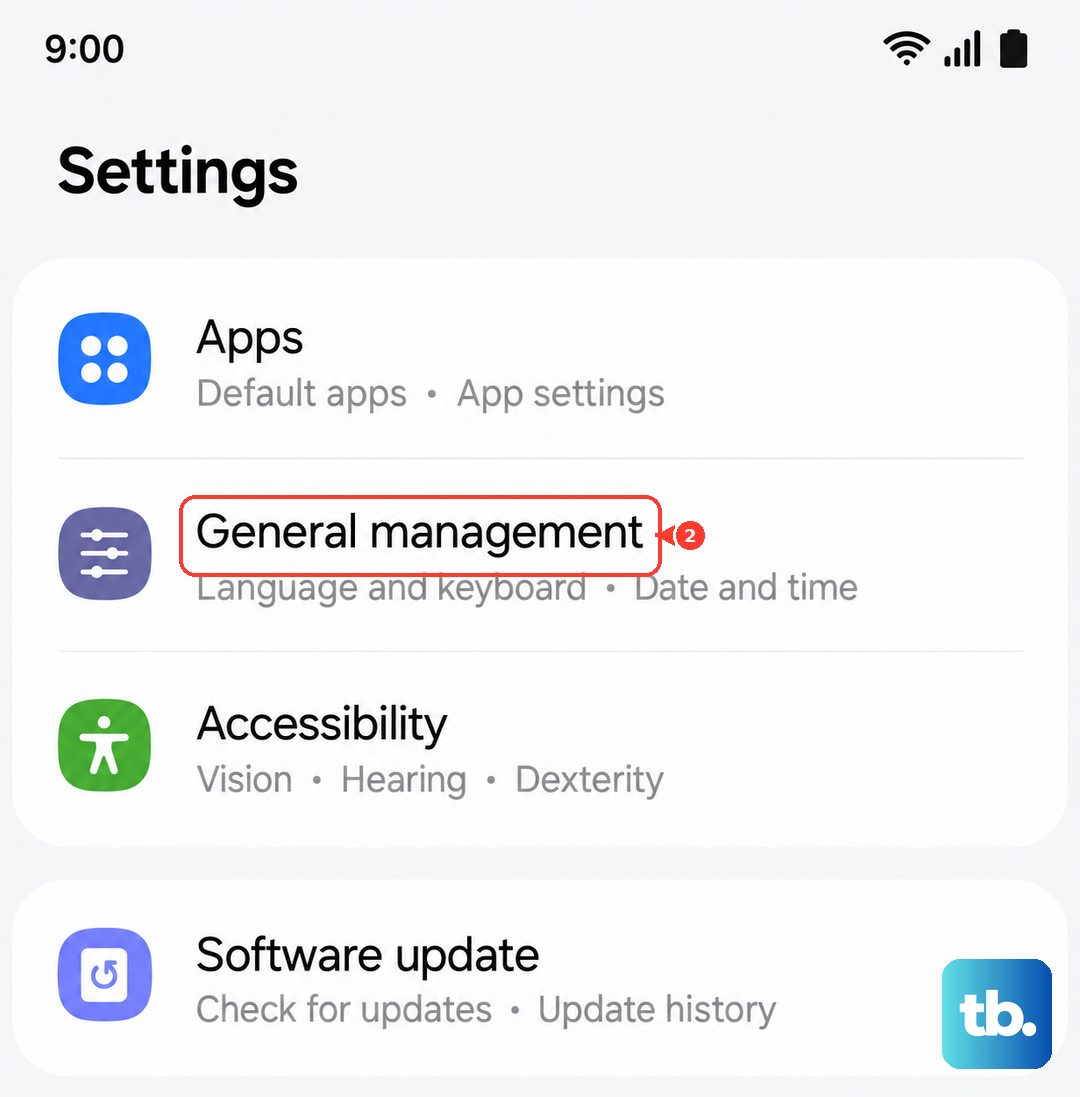
Tap to confirm and your phone will restart. After it boots up, you'll need to reconnect to your WiFi and re-pair Bluetooth devices, but your APN should be reconfigured automatically.
Check for Carrier Service Changes
Some carriers are transitioning their messaging systems, which can sometimes cause temporary issues with the default Samsung app. It's worth a quick call or online chat with your carrier's tech support.
Ask them if there are any known MMS issues in your area or if they recommend specific settings for the Galaxy S26. They can also check if MMS is properly enabled on your account line.
Try Google Messages
If you're still stuck, the problem might be with the Samsung Messages app itself. Download Google Messages from the Play Store and set it as your default messaging app when prompted.
Google's app sometimes handles carrier interoperability better. If MMS works perfectly there, you've identified the Samsung app as the culprit, and you can either stick with Google Messages or wait for a Samsung app update to fix the bug.