
Seeing a "Call Failed" or "Network Not Available" message on your new Samsung Galaxy S26+ can stop you in your tracks. This usually means your phone is having trouble connecting to your carrier's network properly. Since this is a brand new device running One UI 8.5, early software bugs, incorrect settings, or a weak signal are the most likely culprits.
Let's start with the quickest fixes you can try right now, which often solve the problem in under a minute.
Toggle Airplane Mode
The fastest way to refresh your cellular connection is to use Airplane Mode. This clears out any temporary network glitches that might be preventing calls from going through.
Just swipe down from the top of your screen to open the Quick Settings panel. Tap the Airplane Mode icon to turn it on, wait about 10 seconds, and then tap it again to turn it off. Your phone will reconnect to the network, and you can try your call again.
Check Your Signal Strength
Weak signal is the most common reason for call failures. Look at the signal bars in the top-right corner of your S26+ screen. If you only have one or two bars, try moving to a different location or near a window.
Buildings, basements, and rural areas can all cause poor reception. If you see an "X" or "No Service," the network issue is more severe and you'll definitely need to move to get a signal.
Perform a Force Restart
A simple restart can clear out minor software hiccups in One UI 8.5. If your phone is unresponsive, you'll need to force restart it.
Press and hold the Volume Down button and the Side/Power button simultaneously for about 10 seconds. Keep holding until you see the Samsung logo appear on the screen, then let go. Your phone will reboot, which can resolve many temporary issues.
Check for Do Not Disturb and Focus Modes
Your S26+ has powerful Focus modes that can sometimes block calls without you realizing it. Swipe down from the top to check your Quick Settings for any active Focus icons, like "Work" or "Sleep."
You can also go into Settings > Digital Wellbeing and parental controls > Focus modes to see which ones are on and adjust their rules. Make sure the people you're trying to call are allowed to break through the mode.
Verify Your SIM Card
A loose, dirty, or faulty SIM card is a classic cause of call problems. Grab the SIM ejector tool that came with your phone (or a small paperclip) and gently push it into the tiny hole on the SIM tray.
Pop the tray out, remove the SIM card, and give the gold contacts a quick wipe with a soft, dry cloth. Reinsert the SIM card firmly into the tray, making sure it's seated correctly, and slide the tray back into your phone.
Update Your Phone Software
Since the Galaxy S26+ is new, Samsung is likely releasing patches for One UI 8.5 to fix early bugs, including potential network issues. Keeping your phone updated is crucial.
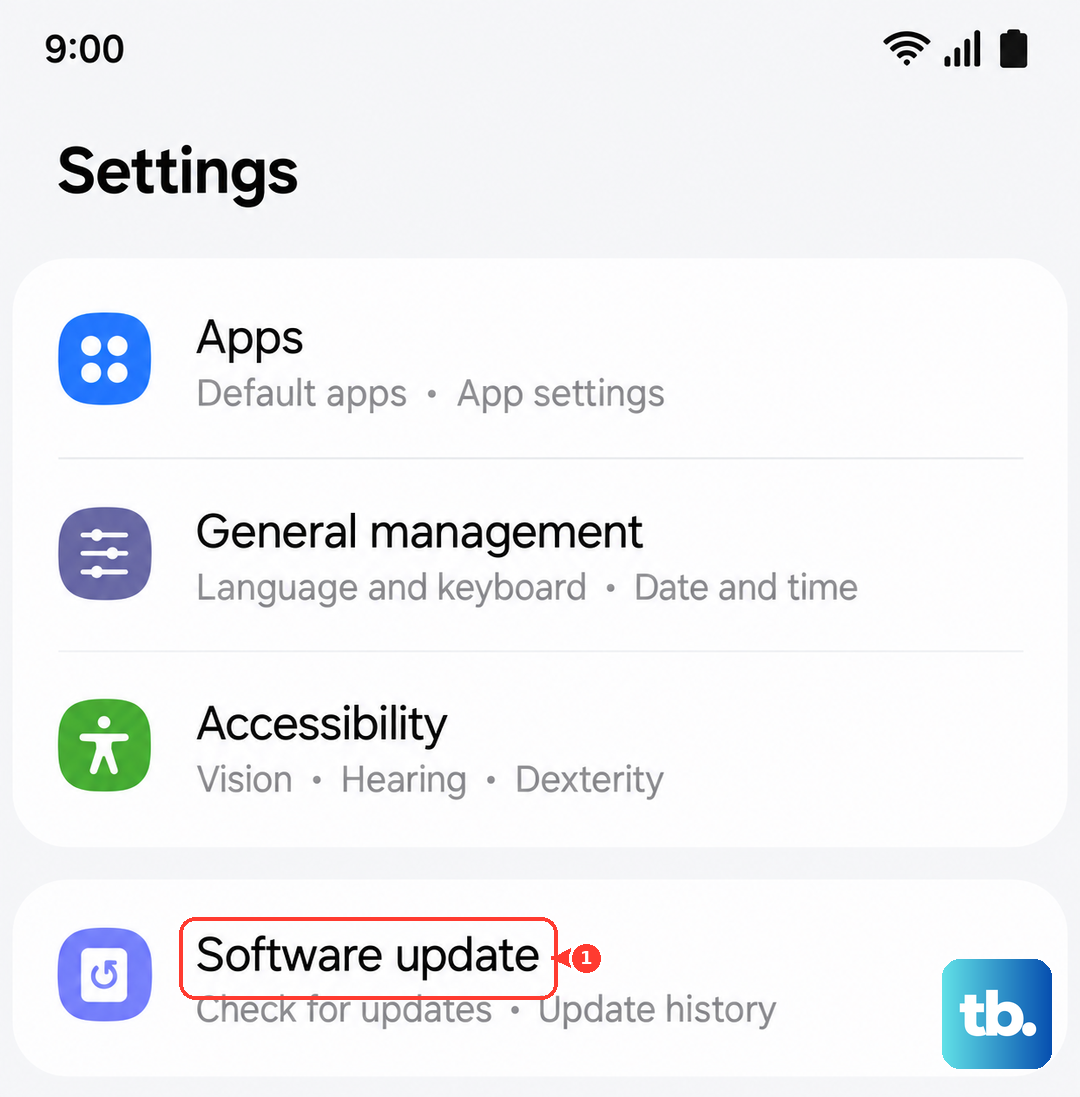
Go to Settings > Software update and tap "Download and install." Make sure you're connected to Wi-Fi and have at least 30% battery. Installing the latest update can resolve software-related calling problems.
Reset Your Network Settings
This is a more thorough step that clears all your saved Wi-Fi networks, Bluetooth pairings, and cellular settings back to default. It won't delete your personal data like photos or messages.
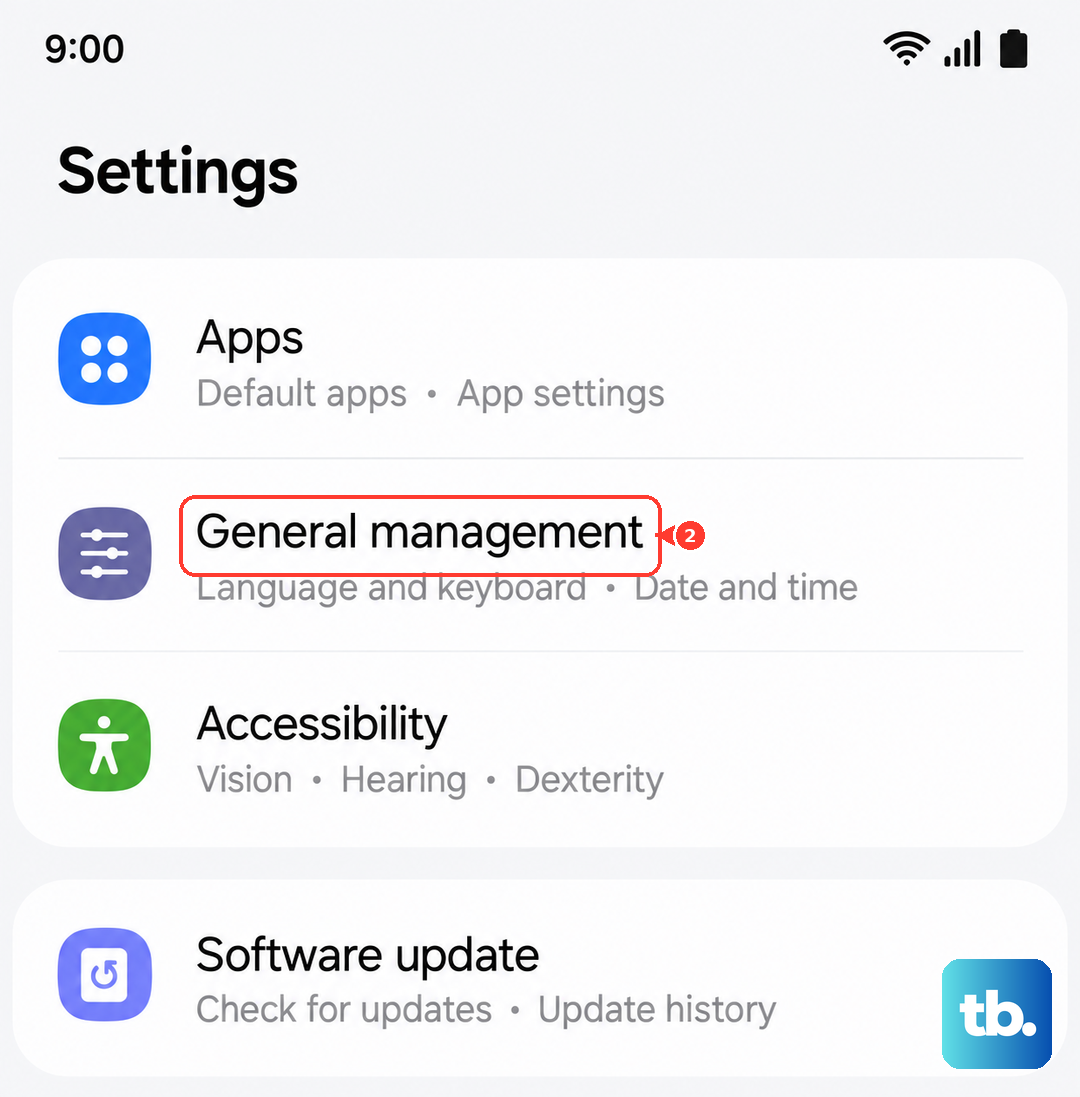
To do this, open Settings > General management > Reset. Tap on "Reset network settings" and confirm by entering your PIN or password. Your phone will reboot, and you'll need to reconnect to Wi-Fi and re-pair Bluetooth devices, but it often fixes stubborn network problems.
Check for Blocked Numbers
It's easy to accidentally block a number. Open your Phone app and tap the three-dot menu in the top-right corner. Select "Settings" and then look for "Block numbers."
Review the list to make sure the number you're trying to call isn't on it. If it is, you can tap the minus (-) icon next to it to remove the block.
Manually Select Your Network Operator
Sometimes your phone might be trying to connect to a partner network that has poor service in your area. You can manually force it to use your primary carrier.
Go to Settings > Connections > Mobile networks > Network operators. Turn off "Select automatically." Your phone will search for available networks. When the list pops up, choose your specific carrier's name from the list.
Contact Your Mobile Carrier
If you've tried everything here and calls still fail, the issue might be on your carrier's end. There could be a temporary network outage in your area, a problem with your account, or your SIM card might be defective.
Call your carrier's customer service from another phone or visit a local store. They can check for outages, reprovision your line on their network, or provide you with a new SIM card to test. Since the S26+ is a new model, they may also need to ensure their systems fully support it.