
If your Samsung Galaxy S25 camera app is black, crashes, or just won't open, the first thing to try is a force restart. Press and hold the Volume Down button and the Side button together for about 10 seconds until you see the Samsung logo appear. I'd start with this one, as it clears out any temporary software glitches that can freeze the camera.
Key Points
- Restart and Update Your Phone: A force restart is the fastest way to fix a frozen camera app.
- Clear the Camera App's Data: Corrupted cache or settings are a common cause of camera crashes on One UI 7.
- Check for App Conflicts and Permissions: A recently installed app can interfere with the camera system.
- Inspect for Physical Damage and Moisture: The S25's camera module is sensitive to impacts and water exposure.
- Reset All Settings as a Last Resort: This can fix deeper software conflicts without erasing your personal data.
Wait for the phone to fully boot up, then try opening the camera again. If it was a minor software hiccup, this should get it working.
Next, check for any available software updates. Samsung frequently releases patches that fix camera performance and stability. Go to Settings > Software update and tap Download and install.
Install any pending updates and restart your phone afterward. An update from late 2025, for example, specifically addressed autofocus issues and app freezing for some S25 units.
Clear the Camera App's Data
If a restart doesn't help, the camera app's stored data might be corrupted. This is a very common fix for the S25. Go to Settings > Apps, then find and tap on Camera.
Tap Storage, then select Clear cache. Try the camera again. If it's still not working, go back and tap Clear data. This will reset the camera app to its default settings, so you'll lose any custom modes or settings you've saved within the app itself.
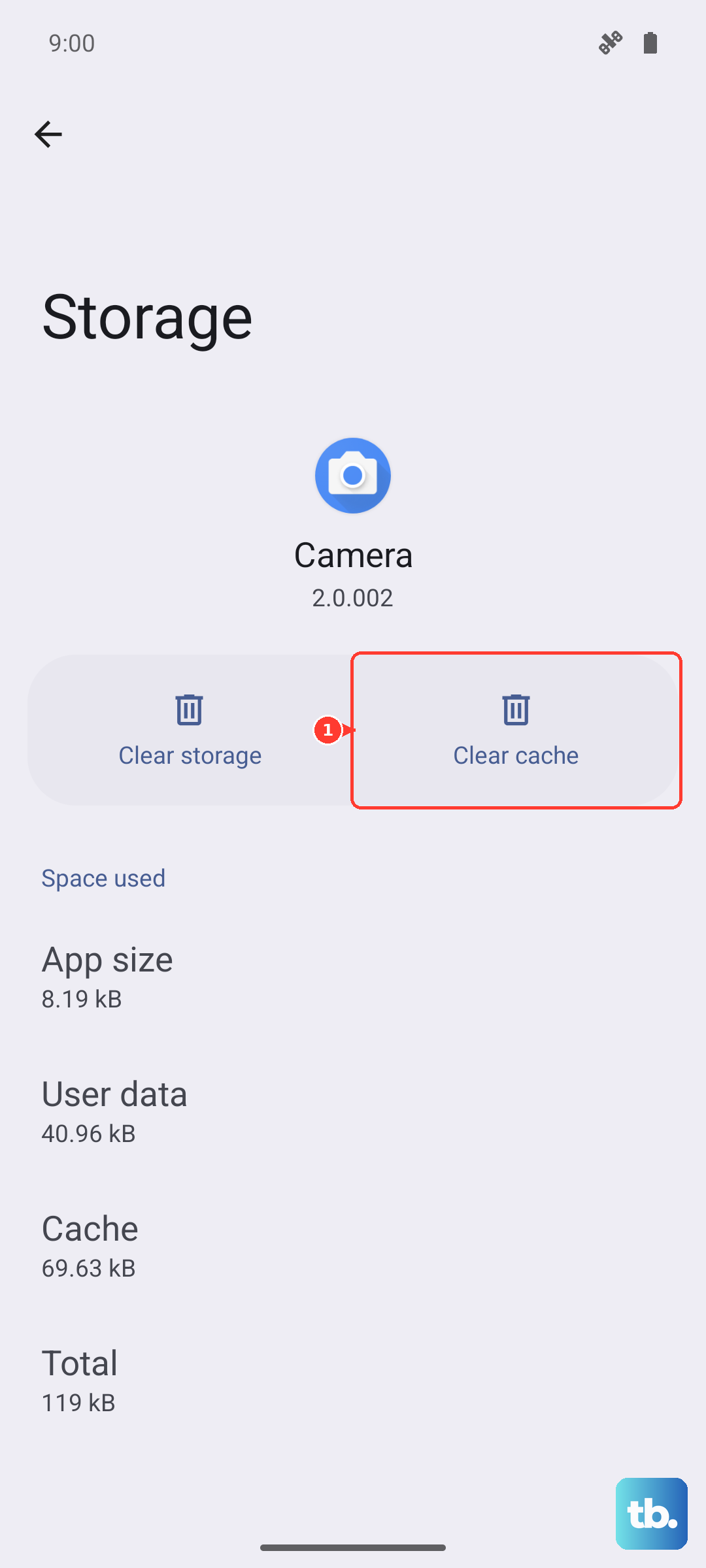
Your photos and videos are stored separately and won't be touched by this process. After clearing the data, open the camera and see if it initializes properly.
Check for App Conflicts and Permissions
Sometimes, another app you've installed can interfere with the camera hardware. Boot your Galaxy S25 into Safe Mode to check. Press and hold the power button until the power off menu appears, then press and hold the Power off icon until you see the Safe Mode prompt.
Tap to restart in Safe Mode. If the camera works perfectly here, a third-party app is the culprit. Start by uninstalling any recent downloads, especially other camera apps, social media platforms, or QR code scanners.
Also, double-check the camera's permissions. Go to Settings > Apps > Camera > Permissions. Make sure the Camera permission is set to Allow only while using the app or Allow all the time. If it's denied, the app will show a black screen.
Inspect for Physical Damage and Moisture
Take a close look at the camera lenses on the back of your phone. Even a small crack or deep scratch over a lens can ruin image quality. Check for any dirt, fingerprints, or residue, and clean the lenses gently with a microfiber cloth.
If you've dropped your phone recently, the impact could have dislodged the camera module's internal connections. The S25 is also susceptible to false "Moisture detected" warnings in the USB-C port, which can sometimes disable features like the camera to prevent short circuits.
If you see that warning, even if the port is dry, use a can of compressed air to blow it out and leave the phone powered off for at least 30 minutes. This often clears the false sensor reading.
Reset All Settings as a Last Resort
If you've tried everything else and the camera is still broken, you can reset all your phone's settings. This won't delete your photos, apps, or personal files, but it will revert Wi-Fi passwords, Bluetooth pairings, display settings, and similar preferences back to default.
This can fix deeper software conflicts in One UI 7 that might be blocking the camera. Go to Settings > General management > Reset > Reset all settings.
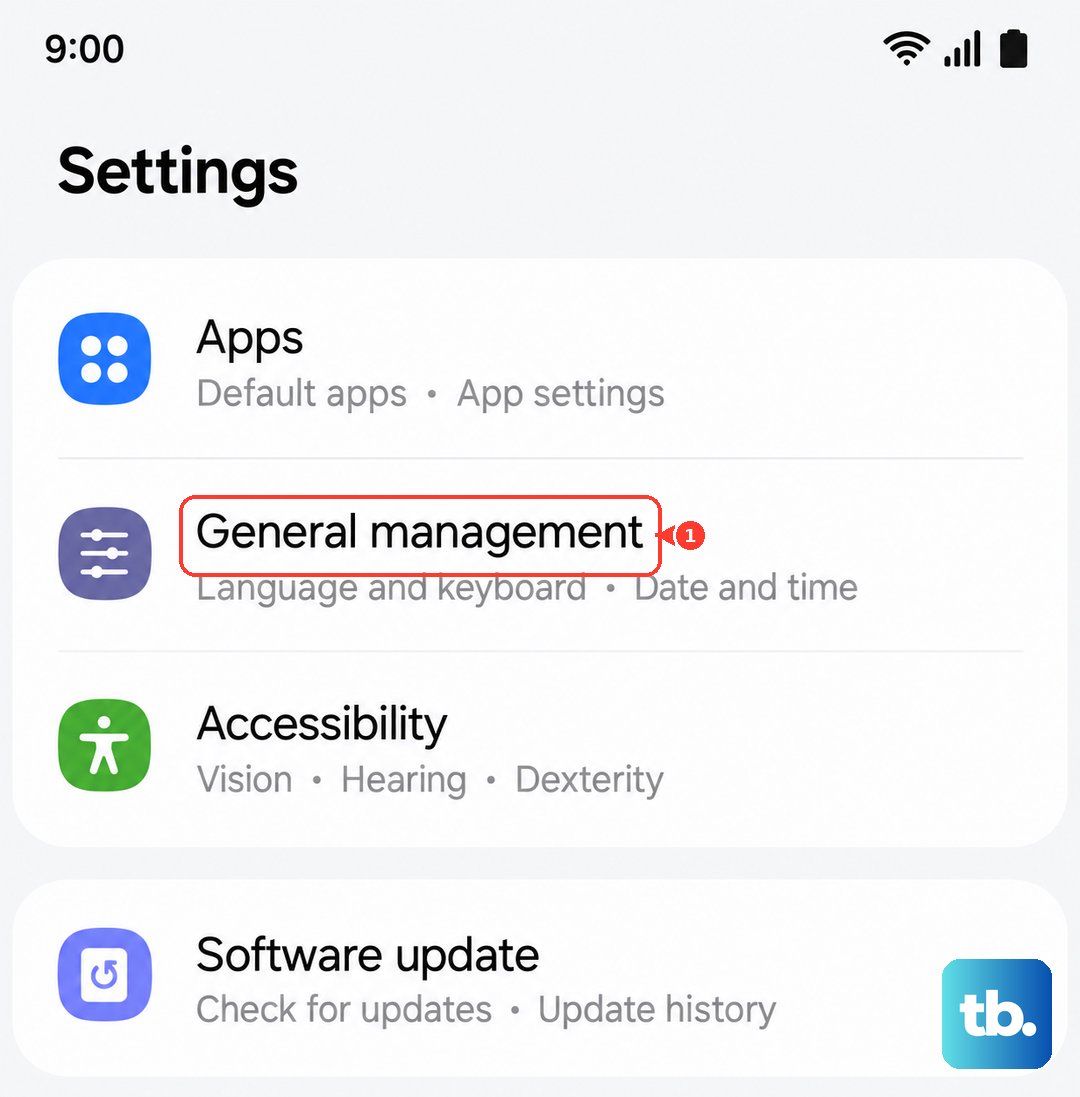
Enter your PIN if prompted and confirm. After the phone restarts, you'll need to reconfigure your settings, but it's worth trying before considering more drastic measures. Test the camera immediately after the reset is complete.