
If your Samsung Galaxy A56 camera app won't open or crashes immediately, the first thing to try is a force restart. Press and hold the Volume Down button and the Side button together for about 10 seconds until you see the Samsung logo appear. This clears the phone's temporary memory and can fix a frozen camera app. I'd start with this one, as it's often the quickest solution.
After the phone reboots, give it a moment to fully start up, then try opening the camera again from the home screen or lock screen shortcut.
Clear the Camera App's Cache and Data
Corrupted temporary files can stop the camera from launching. Go to Settings > Apps and find the Camera app in the list. Tap on it, then select Storage. You'll see two options: Clear Cache and Clear Data.
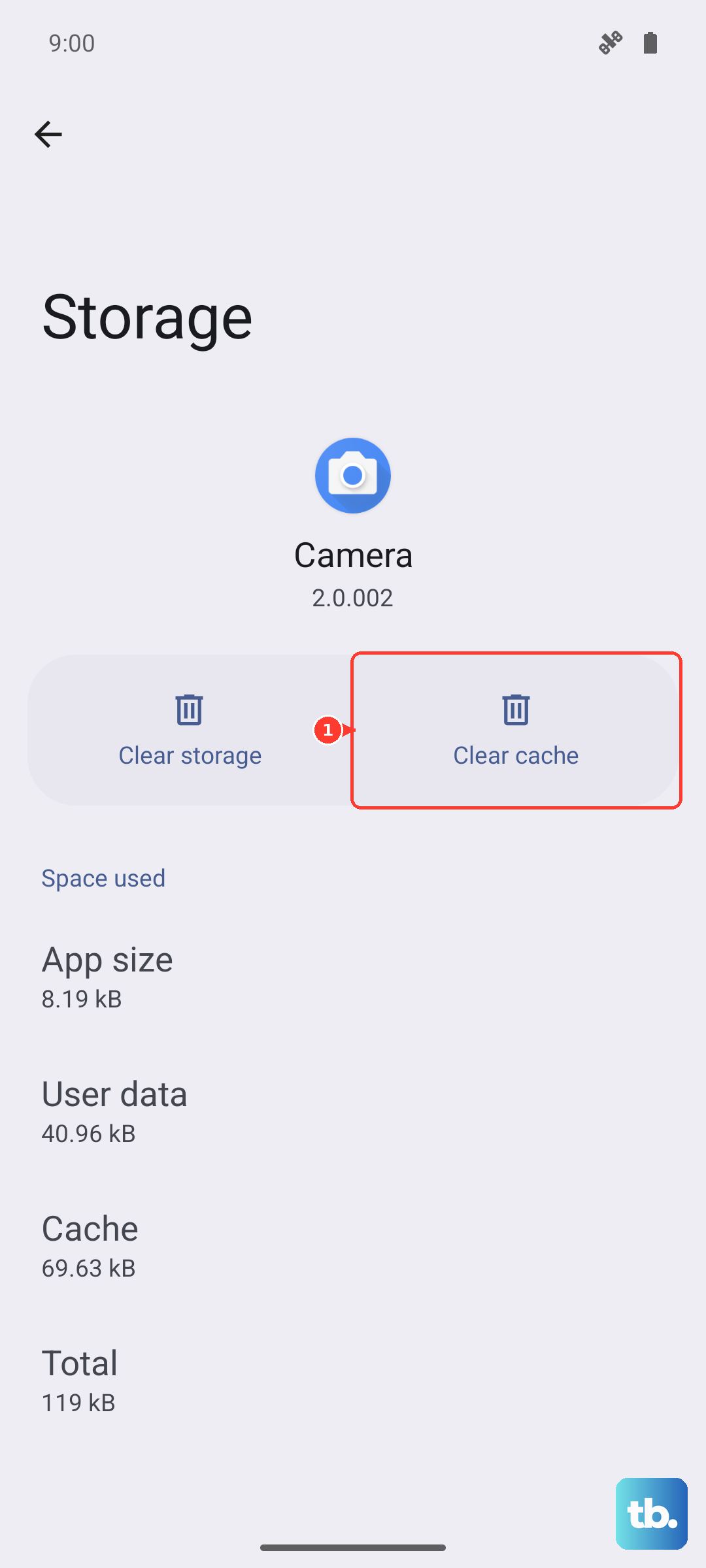
Tap Clear Cache first. This removes temporary files without affecting your personal settings or photos. If the camera still won't open, go back and tap Clear Data. This resets the camera app to its default state, so you'll need to reconfigure any custom settings, but it often resolves deeper glitches.
Check for Software Updates
Outdated software can cause conflicts with the camera hardware. Samsung regularly releases updates that fix bugs. Open Settings > Software update and tap Download and install.
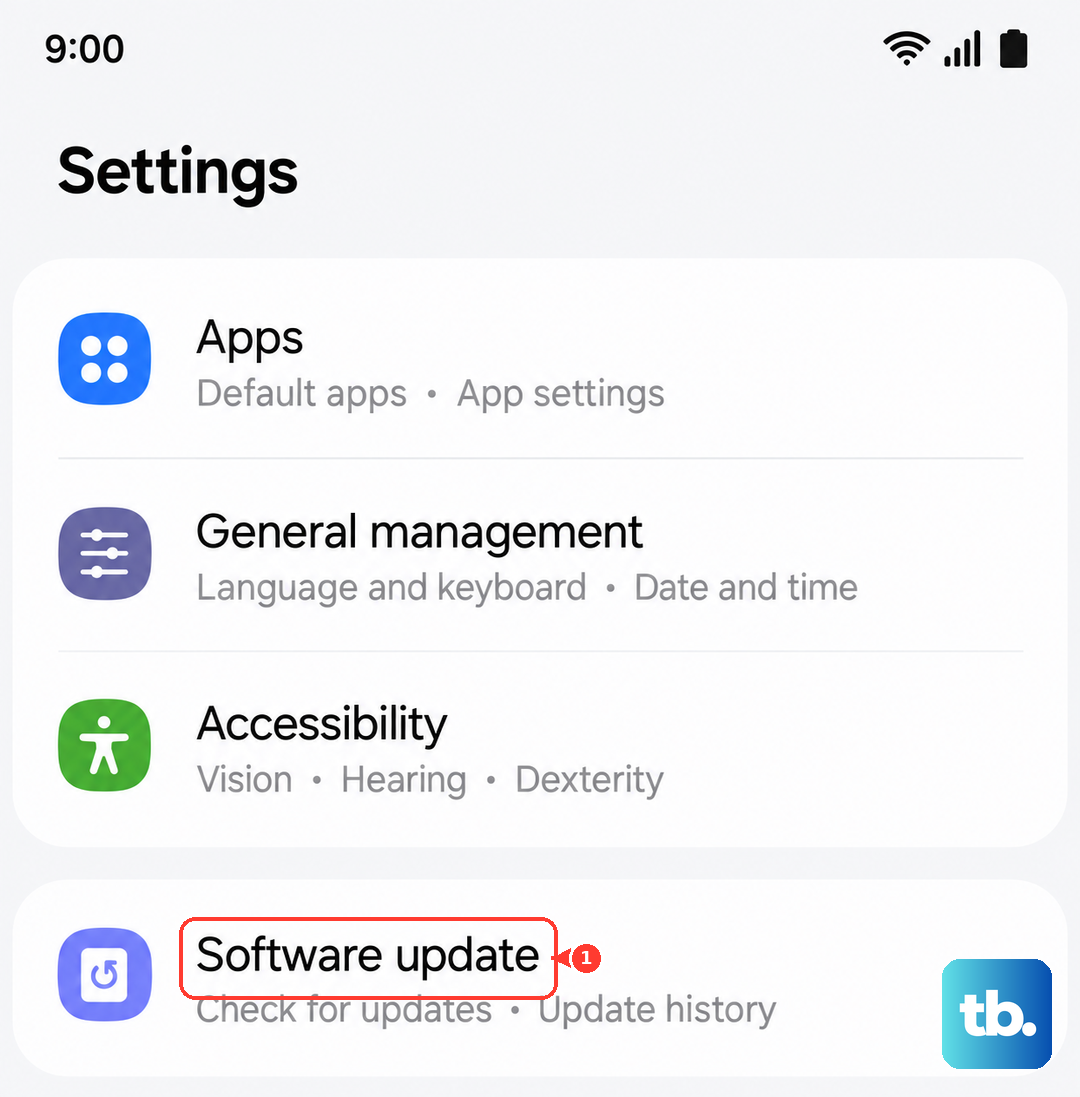
Make sure your phone is connected to Wi-Fi and has sufficient battery before starting the update. After installing any updates, perform another restart to ensure all the new software components load correctly, then test the camera.
Boot Into Safe Mode
If a recently installed third-party app is interfering with the camera, Safe Mode will tell you. To enter Safe Mode, open the power menu by pressing the Power and Volume up buttons together (on Samsung phones, the Side and Volume down buttons) or by tapping the power icon in the quick settings panel, then touch and hold Power off and tap Safe Mode or OK. Then, press and hold the "Power off" option on your screen. A prompt will ask if you want to reboot to Safe Mode, tap OK.
In Safe Mode, all downloaded apps are temporarily disabled. Try opening the camera. If it works perfectly here, then a third-party app is the problem. Restart your phone normally to exit Safe Mode, then uninstall apps one by one, starting with the most recent, until the camera works again.
Inspect for Physical Damage or Obstructions
Take a close look at the camera lenses on the back of your Galaxy A56. Check for any cracks in the glass or if the protective camera bump is damaged. Even a small crack can affect the sensors and cause the app to fail on launch.
Also, make sure no part of your phone case is obstructing or pressing against the lenses or the flash module. A poorly fitted case can sometimes block sensors that the camera system needs to initialize. Try removing the case completely and see if the camera app will open.
Reset App Preferences
This resets all your app permissions, notifications, and default apps without deleting any personal data. It can fix issues if the camera app's permissions were accidentally revoked or corrupted. Go to Settings > Apps > tap the three-dot menu in the top right and select Reset app preferences.
You'll need to re-grant permissions the next time you use apps, but it's a broad fix for many app-related problems. After resetting, try launching the camera.
Scan for Malware
While less common on phones from the official Play Store, malicious software can disrupt system functions. Open the Samsung Device Care app, which is pre-installed on your A56. Tap on Security and run a scan with Samsung's built-in protection.
It will check for any harmful apps or unusual activity. If it finds anything, follow the prompts to remove it. After cleaning your device, restart it and check if the camera is now accessible.
Check for Moisture Detection Alerts
The Galaxy A56 has a moisture detection feature for its USB-C port. While this usually affects charging, a false positive can sometimes trigger broader system warnings. If you see a water droplet icon in your notification panel, the phone has detected moisture.
Even if the port is completely dry, this can be a bug. Try gently drying the port with a blast of compressed air (don't use heat). You can also try turning the phone off, leaving it for an hour, and turning it back on to see if the alert clears and the camera works.
Perform a Factory Reset
This is a last resort, but if a software issue is deeply rooted, a factory reset can wipe it clean. Before you do this, it's critical to back up all your important data, photos, and files to Samsung Cloud or a computer. Go to Settings > General management > Reset > Factory data reset.
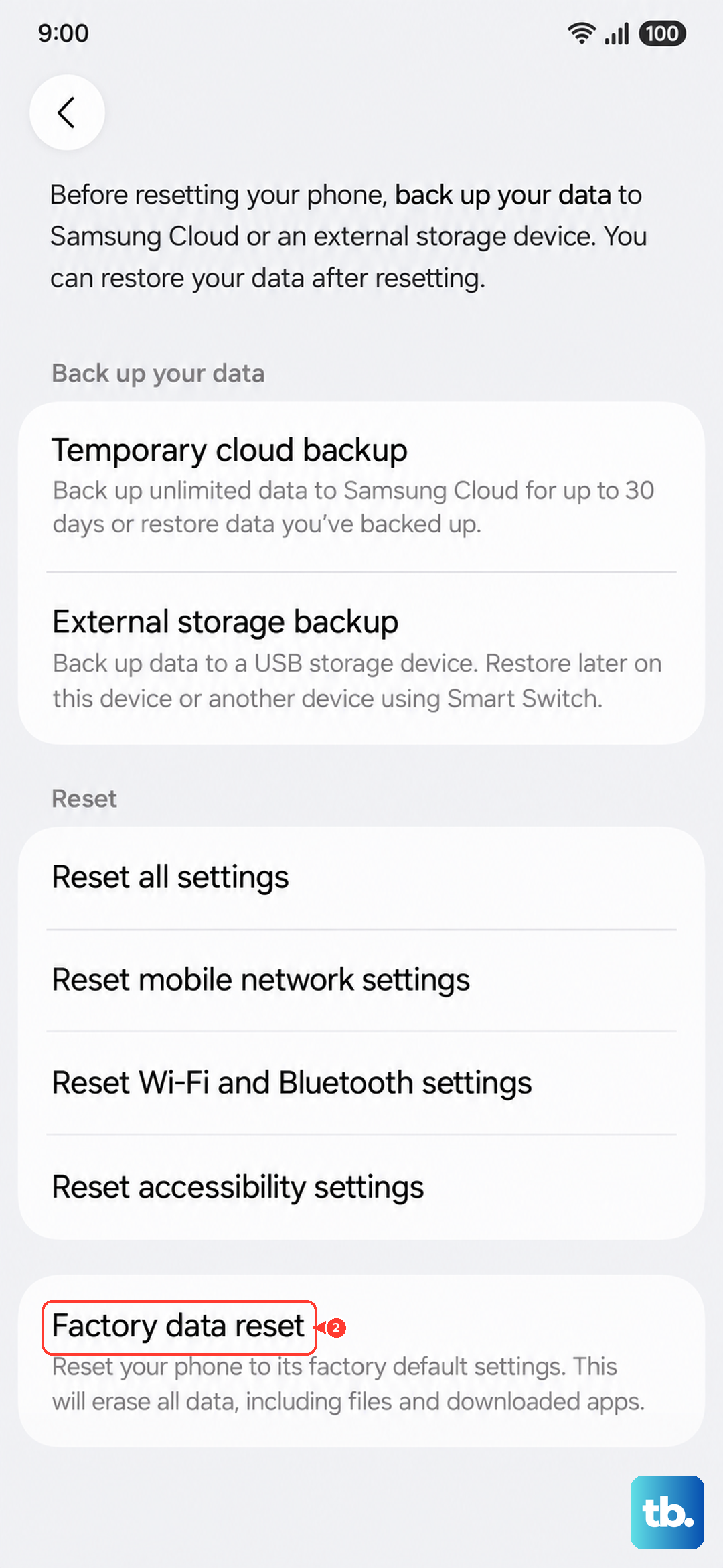
Follow the on-screen instructions. The phone will erase everything and restart as if it were new. After the reset, set it up and test the camera immediately before restoring your apps, to see if the problem is gone.