
If your Samsung Galaxy S26+ camera app is crashing or showing a black screen, start with a force restart. Press and hold the Volume Down button and the Side/Power button together for about 10 seconds until you see the Samsung logo. I've found this clears up most temporary software glitches that can freeze the camera.
Start with a free quick webcam test to rule out a hardware fault. If a live preview appears there but not in your app, the camera is fine and the app is the problem.
Key Points
- Restart the Camera App: Force close the app and clear its temporary data.
- Check for Software Updates: Early One UI 8.5 builds may have camera bugs that Samsung patches.
- Clean the Camera Lenses: Smudges on the multiple lenses can cause blurry photos or focus issues.
- Verify App Permissions: The camera needs permission to function in every app you use it with.
- Boot Into Safe Mode: This checks if a recently downloaded app is interfering with the camera.
- Reset Camera Settings: Revert all camera options back to their factory defaults.
- Clear System Cache: Wipe temporary system files that could be corrupted.
- Check for Physical Damage: Inspect the camera module for cracks or water indicators.
- Perform a Factory Reset: A last resort to eliminate deep-seated software conflicts.
Give the phone a moment to fully reboot, then try opening the camera again.
Restart the Camera App
Sometimes the camera app itself gets stuck. Swipe up from the bottom of your screen and hold to enter the recent apps view. Find the Camera app and swipe it all the way up to close it. Then, reopen it from your home screen or app drawer.
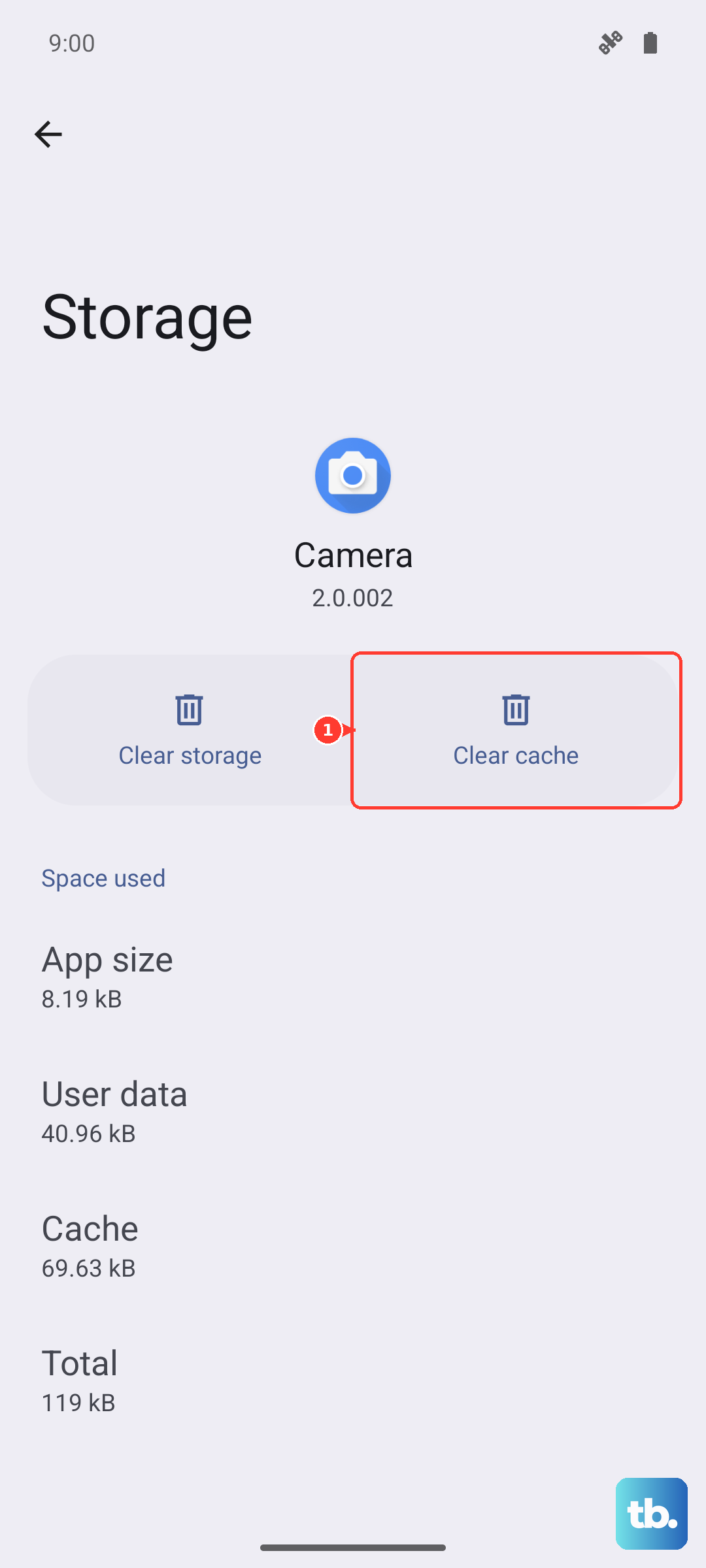
If that doesn't help, clear the app's cache. Go to Settings > Apps and select Camera. Tap on Storage and then hit Clear Cache. This deletes temporary files without touching your photos or personal settings.
Check for Software Updates
Since the S26+ is brand new with One UI 8.5, Samsung is likely rolling out fixes for early bugs. Open Settings > Software update and tap Download and install. Install any available updates and restart your phone afterward.
These updates often include stability improvements for the camera system and can resolve crashes or performance hiccups.
Clean the Camera Lenses
It sounds simple, but fingerprints and dirt on the lenses are a common culprit for blurry or hazy photos. Use a soft, dry microfiber cloth to gently wipe the entire camera module on the back. Pay attention to each individual lens and the flash.
Avoid using harsh chemicals or paper towels, as they can scratch the protective coating. After cleaning, try taking a photo in good light to see if the image quality improves.
Verify App Permissions
The camera needs permission to work in apps like Instagram, Snapchat, or your banking app. Go to Settings > Apps, select the app having trouble, and tap Permissions. Make sure the Camera permission is set to "Allow."
If you previously denied permission, the app will just show a black screen when you try to use the camera within it.
Boot Into Safe Mode
Safe Mode temporarily disables all third-party apps. If the camera works fine here, a downloaded app is causing the conflict. To enter Safe Mode, press and hold the power button until the power menu appears.
Then, tap and hold the "Power off" option on your screen. You'll see a prompt to reboot into Safe Mode, tap OK. Test your camera. To exit, just restart your phone normally.
If the camera works in Safe Mode, start uninstalling recently added apps one by one, testing the camera after each removal.
Reset Camera Settings
If you've changed a lot of options like scene optimizer or pro mode settings, something might be misconfigured. Open the Camera app and tap the settings gear icon. Scroll all the way down and tap Reset settings.
This will revert all picture modes, video settings, and preferences back to how they were out of the box. It won't delete any of your photos or videos.
Clear System Cache
Corrupted system cache files can affect many phone functions, including the camera. Turn off your S26+. Then, press and hold the Volume Up button and the Side/Power button together.
When the Samsung logo appears, release both buttons. You'll enter the recovery menu. Use the volume buttons to highlight "Wipe cache partition" and press the power button to select it. Confirm the action, then select "Reboot system now."
Check for Physical Damage
Take a close look at the camera module on the back. Look for any cracks over the lenses or deep scratches. Also, check the small water damage indicator (usually a white dot or strip) near the SIM tray or inside the port.
If it's pink or red, that indicates moisture exposure, which could cause the camera to fail. Physical damage typically requires a professional repair.
Perform a Factory Reset
This is a major step that erases all your data, so ensure you have a complete backup first. If all else fails, a factory reset can eliminate deep software corruption. Go to Settings > General management > Reset > Factory data reset.
Tap "Reset" and follow the prompts. After the phone restarts, set it up as new initially to test the camera before restoring your backup.











