If your Samsung Galaxy Tab S9 camera is acting up, start by cleaning the lens. Smudges and fingerprints are the most common cause of blurry photos or videos. Use a soft, dry microfiber cloth to gently wipe the main camera lens and the front-facing selfie camera.
Key Points
- Fix a Blurry or Out-of-Focus Camera: Clean the lens and check your camera settings.
- Resolve a Camera App That Crashes or Won't Open: Clear the app's cache and data.
- Fix Dark or Grainy Photos and Videos: Ensure you have adequate lighting and check HDR settings.
- Address Slow or Laggy Camera Performance: Close background apps and free up storage space.
- Fix Video Recording Issues: Check your resolution settings and available storage.
- Restore Missing Camera Modes or Features: Update the Camera app and your tablet's software.
Give the lens a good polish and try taking a photo again. I've seen this simple step fix picture quality issues more often than not.
If the camera app itself is freezing or crashing, a quick restart can clear temporary glitches. Press and hold the Volume Down button and the Side button together for about 10 seconds until you see the Samsung logo. This force restarts the tablet without needing to navigate any menus.
Fix a Blurry or Out-of-Focus Camera
After cleaning the lens, check if your camera is set to the correct mode. Sometimes the camera gets stuck in macro or portrait mode. Open the Camera app and look at the top or side of the viewfinder for mode icons like "Photo," "Video," or "Portrait." Tap to switch back to the standard "Photo" mode.
Tap on the screen where you want the camera to focus. A yellow square should appear, and you'll feel a slight haptic feedback when focus locks. If the image stays blurry, try tapping on a different area with more contrast, like the edge of an object.
Make sure you haven't accidentally enabled a filter or effect that softens the image. Look for a magic wand or "T" icon in the viewfinder and tap it to see if any filters are active. Set it back to "Normal" or "None."
Resolve a Camera App That Crashes or Won't Open
If the Camera app closes immediately or shows a black screen, clear its cache. This removes temporary files that can become corrupted. Go to Settings > Apps, then find and tap on "Camera." Select Storage and tap Clear cache.
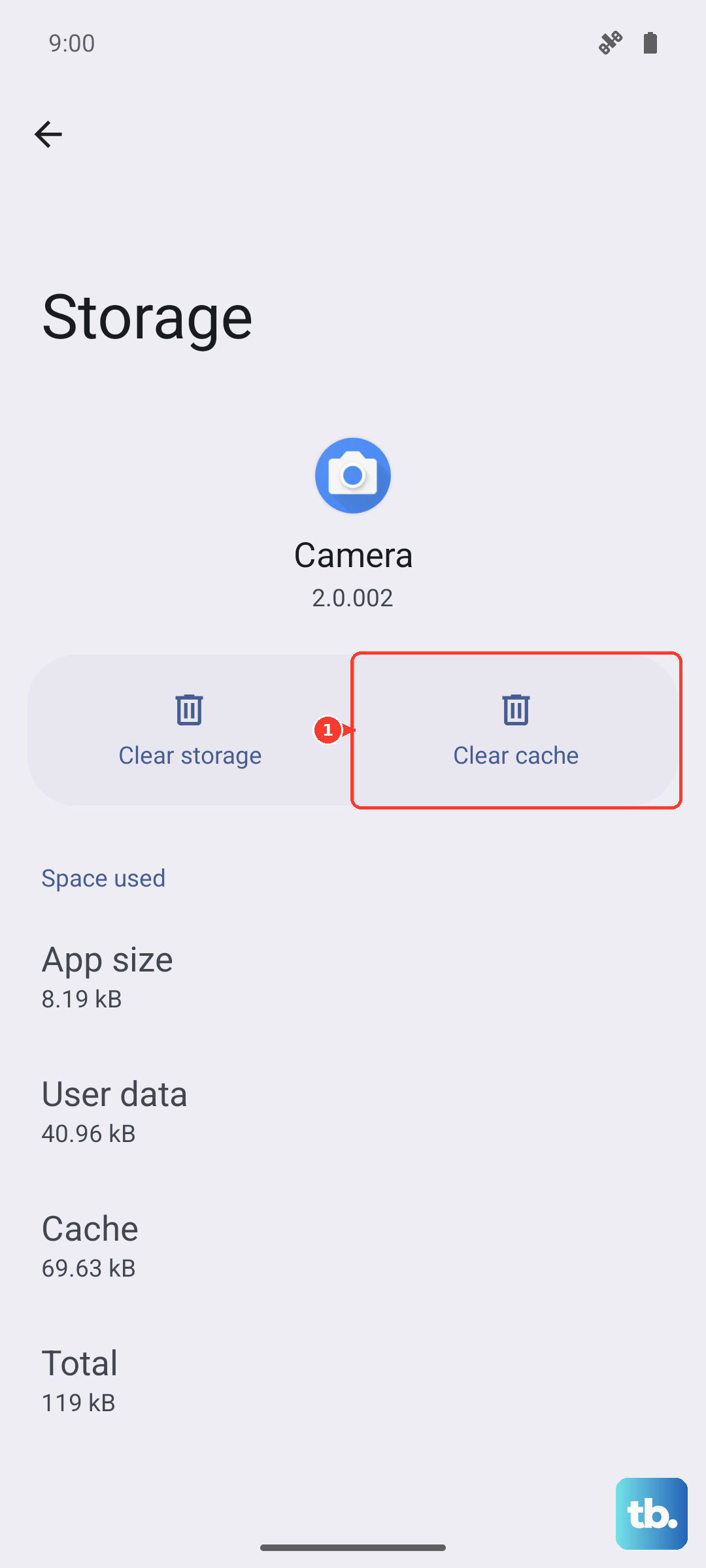
If clearing the cache doesn't help, you can try clearing the app data next. This will reset the Camera app to its default settings, so you'll lose any custom modes or preferences you've set. In the same Storage menu, tap Clear data and confirm.
After clearing data, open the Camera app again. It will take a moment to initialize. Test to see if it opens and functions properly now. This fix often resolves crashes that started after a software update.
Fix Dark or Grainy Photos and Videos
Dark, noisy photos usually mean the camera sensor isn't getting enough light. First, make sure you're not covering the lens with your finger or a case. Move to a brighter area or turn on more lights in the room.
Check if Night mode is stuck on. In the Camera app, look for a moon icon. If it's yellow or highlighted, tap it to turn Night mode off for regular shooting. Night mode is meant for very dark scenes and can make well-lit photos look overprocessed.
Disable HDR (High Dynamic Range) to see if that improves the shot. HDR can sometimes cause a delay or make colors look flat. Tap the settings gear icon in the Camera app, then look for "HDR (Rich tone)" and toggle it off. Take a test photo to compare the results.
Address Slow or Laggy Camera Performance
If there's a long delay between tapping the shutter button and the photo being taken, close other apps running in the background. Swipe up from the bottom of the screen and hold, then swipe away all open apps to free up memory for the camera.
Check your available storage space. A nearly full tablet can slow down all processes, including saving photos. Go to Settings > Battery and device care > Storage to see how much space is free. If you're below 10%, consider moving photos to the cloud or deleting unused files.
Make sure your tablet's software is up to date. Camera performance improvements are often included in updates. Go to Settings > Software update > Download and install.
Fix Video Recording Issues
If video recording stops abruptly or won't start, the first thing to check is your resolution setting. Recording in 4K or 8K requires a lot of processing power and storage. Open the Camera app, switch to Video mode, and tap the resolution setting (like "UHD 60" or "FHD 30"). Try lowering it to 1080p (FHD) at 30 frames per second.
Ensure you have enough storage space for video files, as they are much larger than photos. A one-minute 4K video can take up over 400 MB. Recording will fail if your storage is full.
If the video footage is shaky, enable Super Steady mode. In Video mode, look for a little hand icon with waves around it and tap it to turn it on. This uses software stabilization to smooth out hand movements.
Restore Missing Camera Modes or Features
Some camera modes, like Pro or Food mode, might seem to disappear after an update. First, swipe through the mode icons at the bottom of the Camera app's viewfinder. You can also tap "More" to see a full list of available modes.
If a specific mode is missing, you may need to update the Camera app itself. Open the Galaxy Store app, tap the menu icon, and go to Updates. See if there's an update available for "Camera." Installing it can restore features and fix bugs.
Finally, check for a full system update. Major updates to One UI can change how camera features are organized or accessed. Installing the latest software ensures you have all the current camera enhancements and fixes from Samsung.