
If your Samsung Galaxy S23 is having trouble connecting to your wireless earbuds, car, or smartwatch, it can be incredibly frustrating. Bluetooth issues on the S23 are often tied to specific software updates or settings within Samsung's One UI, but they're usually fixable without needing a trip to the repair shop.
Check These Simple Things First
Before we get into deeper fixes, run through this quick checklist. It solves more problems than you might think.
Make sure both your S23 and the device you're connecting to have enough battery. I'd recommend keeping both above 20% for a stable pairing process. Double-check that Bluetooth is actually enabled by pulling down the quick settings panel and looking for the blue icon.
Keep the devices within about 10 feet of each other when pairing, and ensure the accessory is in its correct pairing mode. For Samsung devices like Galaxy Buds or a Galaxy Watch, you often need the Galaxy Wearable app for the initial setup, not just the standard Bluetooth menu.
Toggle Bluetooth and Restart
The digital equivalent of "turn it off and on again" is your best first step. Swipe down from the top of your screen to open the Quick Panel and tap the Bluetooth icon to turn it off. Wait a solid 10 seconds, then tap it again to turn it back on.
If that doesn't do it, give your S23 a full restart. Press and hold the Volume Down button and the Side key (power button) together for about 10 seconds until you see the Samsung logo appear. This force restart can clear out temporary glitches that a standard reboot might miss.
Forget and Re-Pair the Problem Device
Sometimes a pairing gets corrupted. The fix is to remove that device completely and start fresh. Open Settings and go to Connections > Bluetooth.
Find the troublesome device in your list of paired gadgets. Tap the gear icon next to its name, then select Unpair or Forget. Once it's removed, put the accessory back into pairing mode and search for it again on your phone to create a new connection.
Clear the Bluetooth System Cache
Your phone stores temporary data to help Bluetooth run faster, but this cache can become corrupted. Clearing it is safe and won't delete your paired devices. Go to Settings > Apps.
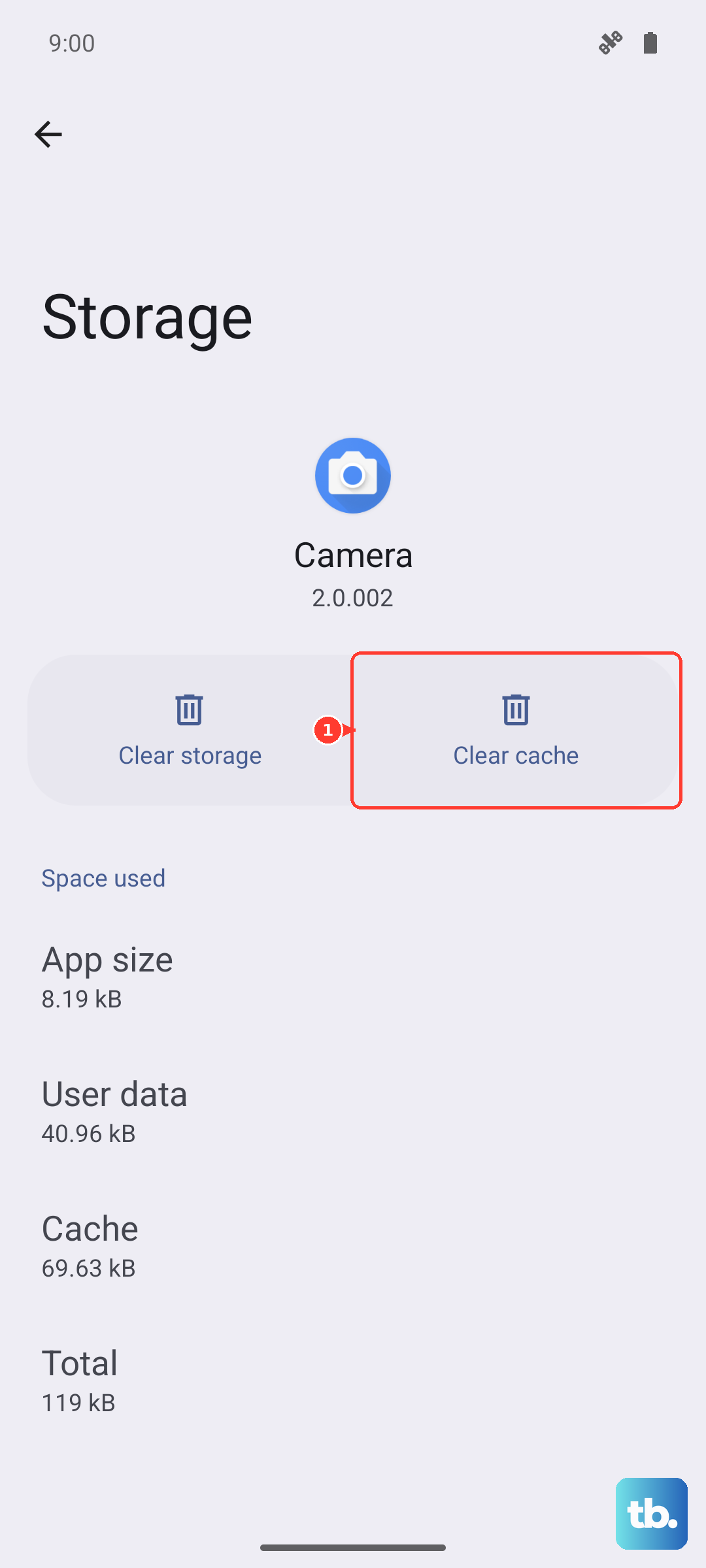
Tap the three-dot menu in the top right and select Show system apps. Scroll down and find Bluetooth in the list, then tap on it. Select Storage and tap Clear Cache. Restart your phone and test the connection again.
Update Your Phone's Software
Samsung has released several updates for the S23, especially after the Android 14 and One UI 6 rollout, that specifically address connectivity bugs. Keeping your phone updated is crucial.
Go to Settings > Software update and tap Download and install. If an update is available, install it and restart your phone. Also check if your Bluetooth accessory has a companion app, like the Galaxy Wearable app, that might offer a firmware update for the device itself.
Boot Into Safe Mode
If a recently downloaded third-party app is causing a conflict, Safe Mode will tell you. To enter Safe Mode on the S23, press and hold the Side key and the Volume Down button at the same time until the power menu appears.
Then, tap and hold the Power off option on your screen. You'll get a prompt to reboot to Safe Mode. Tap OK. If Bluetooth works perfectly in Safe Mode, you know an app is the culprit. Restart normally and try uninstalling recent apps one by one to find the offender.
Reset Your Network Settings
This will wipe all network-related data back to factory defaults, including Wi-Fi passwords, paired Bluetooth devices, and mobile network settings. It's a stronger step but very effective.
Navigate to Settings > General management > Reset. Tap on Reset network settings. You'll need to enter your PIN or password to confirm. After the reset, you'll have to re-pair all your Bluetooth devices and reconnect to Wi-Fi networks.
Clear Bluetooth App Data
If clearing the cache didn't help, the next step is to clear the Bluetooth app's data. Warning: this will erase all your paired devices from the phone. Go back to Settings > Apps > Bluetooth (remember to show system apps).
Tap Storage again, but this time select Clear data instead of Clear Cache. Confirm the action, then restart your S23. You'll be starting with a completely fresh Bluetooth slate and will need to pair every device again.
Check for Interference and Special Cases
Wireless interference from other electronics can cause dropouts. Try moving away from routers, microwaves, or dense crowds of other phones. For car Bluetooth issues, delete your phone from the car's memory and delete the car from your phone, then re-pair with both systems in their pairing modes.
Some older car systems have trouble with newer Bluetooth protocols. If you see an error like "Couldn't pair" or "Connection unsuccessful," the network reset or cache clear steps are your best bet.
Consider a Factory Reset
If you've tried everything else and Bluetooth is completely non-functional, a factory reset is the last software step. This will erase everything on your phone, so you must back up your photos, messages, and important data first.
You can find the option at Settings > General management > Reset > Factory data reset. If Bluetooth still doesn't work after a factory reset, it may indicate a hardware issue with the phone's Bluetooth antenna.











