
Seeing "Call Failed" or having your Galaxy S24 drop calls unexpectedly is a common headache. This usually happens when your phone struggles to maintain a proper connection to your carrier's network. Weak signals, a minor software hiccup in One UI, or a simple setting can often be the culprit.
Let's run through the most effective fixes, starting with the quickest ones you can try right now.
Toggle Airplane Mode On and Off
The fastest way to refresh your cellular connection is with Airplane Mode. This forces your phone to disconnect from and then reconnect to the network, clearing any temporary glitches.
Swipe down from the top of your screen to open the Quick Settings panel. Tap the Airplane Mode icon to turn it on, wait about 10 seconds, then tap it again to turn it off. You should see your signal bars disappear and then reappear.
Check Your Signal Strength
Weak signal is the number one reason for failed calls. Look at the signal bars in the top-right corner of your S24's screen. If you have only one or two bars, try moving to a different location.
Going near a window or stepping outside can make a big difference. If you're in a building with thick walls, this is often the simple solution.
Perform a Force Restart
A soft reset can clear out temporary software bugs that might be interfering with the phone app or modem. For the Galaxy S24, press and hold the Volume Down button and the Side key (power button) together for about 10 seconds.
Keep holding until you see the Samsung logo appear on the screen, then release. The phone will reboot. This doesn't erase any of your data.
Review Your Do Not Disturb and Focus Modes
Check that a Focus mode isn't silently blocking your calls. Swipe down twice from the top to see your full Quick Settings, and look for any active Focus icons like "Sleep" or "Work".
You can also go into Settings > Digital Wellbeing and parental controls > Focus modes to see which ones are on and adjust their rules. Make sure your important contacts are allowed through.
Ensure Mobile Data is Enabled
While calls typically use the voice network, having mobile data on can help with call setup, especially for HD Voice or Wi-Fi Calling. It's a good setting to verify.
Open Settings > Connections > Data usage. Make sure the "Mobile data" switch is turned on. If you're traveling, you might also need to enable Settings > Connections > Mobile networks > Data roaming.
Update Your Phone's Software
Samsung regularly releases updates for One UI that include stability improvements and bug fixes for the phone and network modules. An outdated system could be causing your call problems.
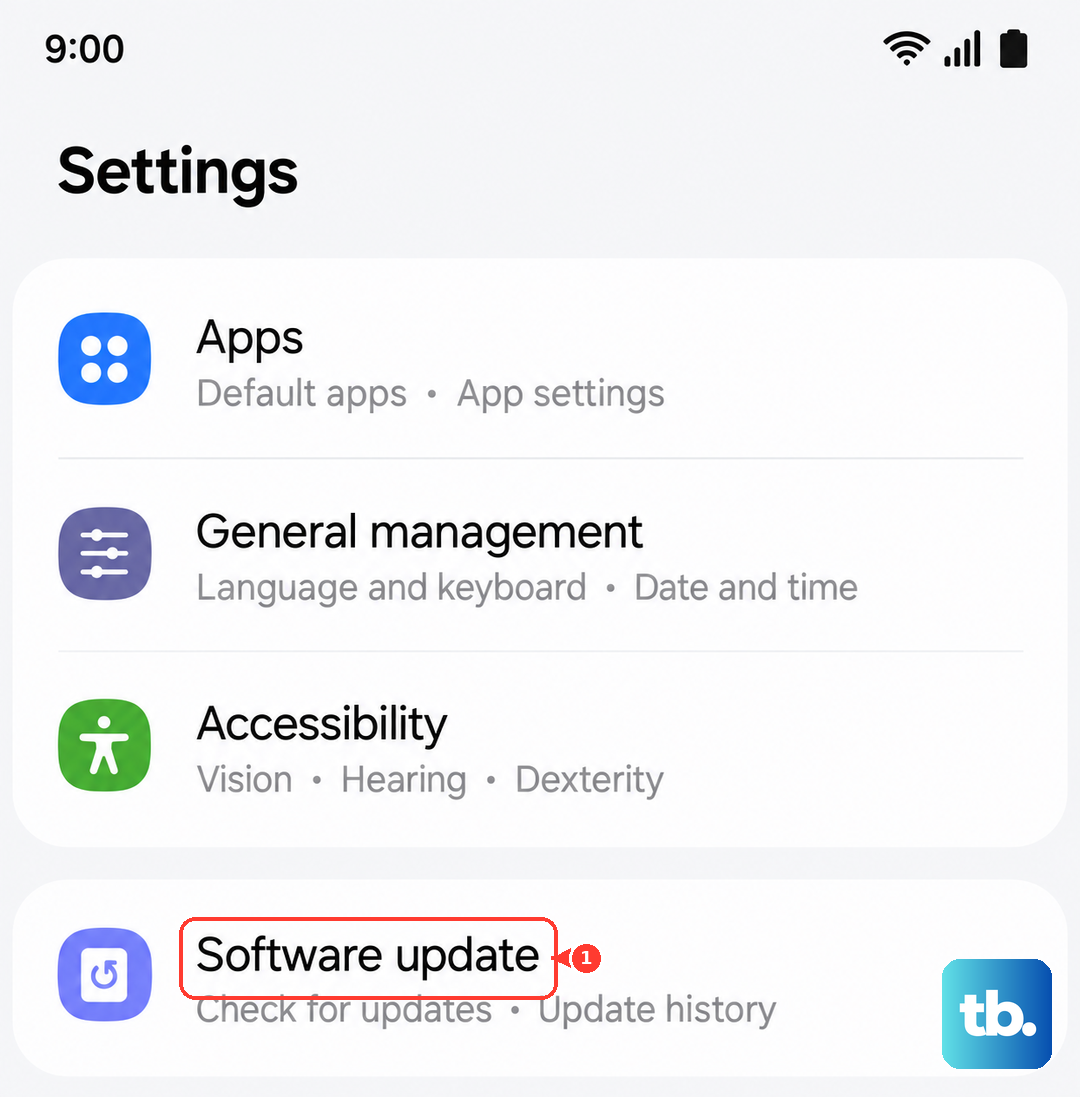
Connect to Wi-Fi, then go to Settings > Software update > Download and install. If an update is available, follow the prompts to install it. I've seen minor point updates resolve weird calling issues on previous Galaxy models.
Check for Blocked Numbers
It's worth a quick look to ensure you haven't accidentally blocked the number you're trying to reach. The Phone app has its own block list.
Open the Phone app, tap the three-dot menu in the top right, and go to Settings > Block numbers. Review the list and remove any numbers that shouldn't be there.
Reset Your Network Settings
This is a more thorough step that clears all your saved Wi-Fi networks, Bluetooth pairings, and cellular network preferences. It's very effective for persistent connection issues.
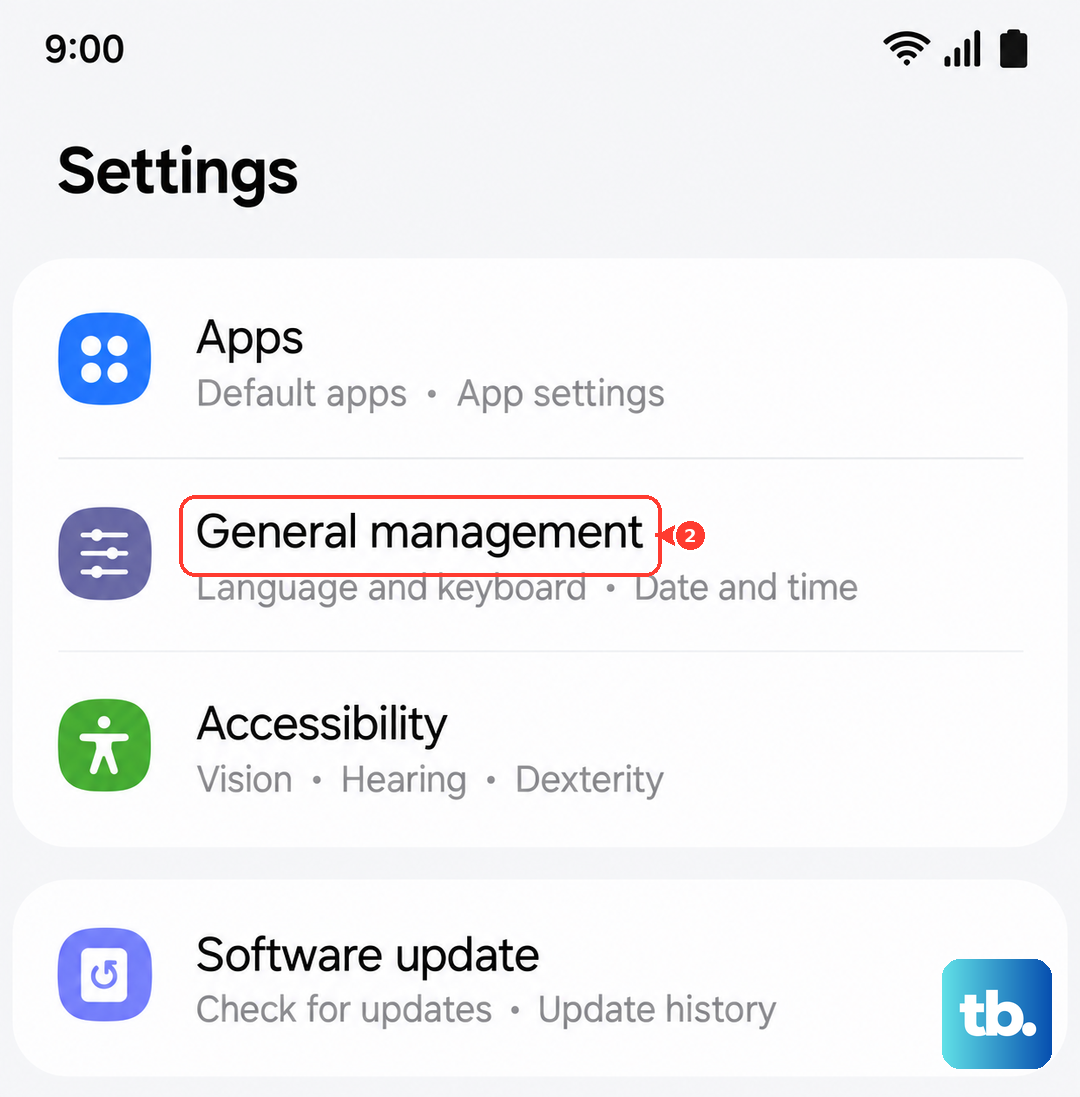
Go to Settings > General management > Reset > Reset network settings. Tap to confirm. You'll need to re-enter Wi-Fi passwords and re-pair Bluetooth devices afterward, but it often solves stubborn call failures.
Inspect Your SIM Card
A loose, dirty, or faulty SIM card can directly cause call failures. The S24 uses a nano-SIM, and the tray is on the bottom edge.
Use the SIM eject tool that came with your phone (or a small paperclip) to pop out the tray. Remove the SIM card, gently wipe the gold contacts with a soft cloth, and carefully reinsert it. Ensure it's seated correctly in the tray before pushing it back into the phone.
Contact Your Mobile Carrier
If you've tried everything here, the problem might be on your carrier's end. There could be a temporary network outage in your area, or there might be an issue with your account or SIM card provisioning.
Give your carrier's customer service a call from another phone if possible. They can check for outages, reprovision your line, or send you a replacement SIM card if yours is determined to be faulty.