
When your Samsung Galaxy S24's keyboard disappears, it's usually a temporary glitch in the Samsung Keyboard app or One UI. The quickest fix is to force stop the keyboard app and restart it, which clears up most minor software hiccups.
Head to Settings > Apps. Tap the search icon and type "Samsung Keyboard" to find it. Tap on the app, then select Force Stop. Confirm if prompted, then exit Settings and try opening a text field again. If you're using a third-party keyboard like Gboard, look for that app name instead.
Restart Your Galaxy S24
A simple restart can clear the phone's memory and resolve conflicts that might be hiding the keyboard. Press and hold the Side button and either Volume button, then tap "Restart" on the screen. If your screen is unresponsive, you can force a restart by pressing and holding the Volume Down button and the Side button together for about 10 seconds until you see the Samsung logo.
Clear the Keyboard's Cache and Data
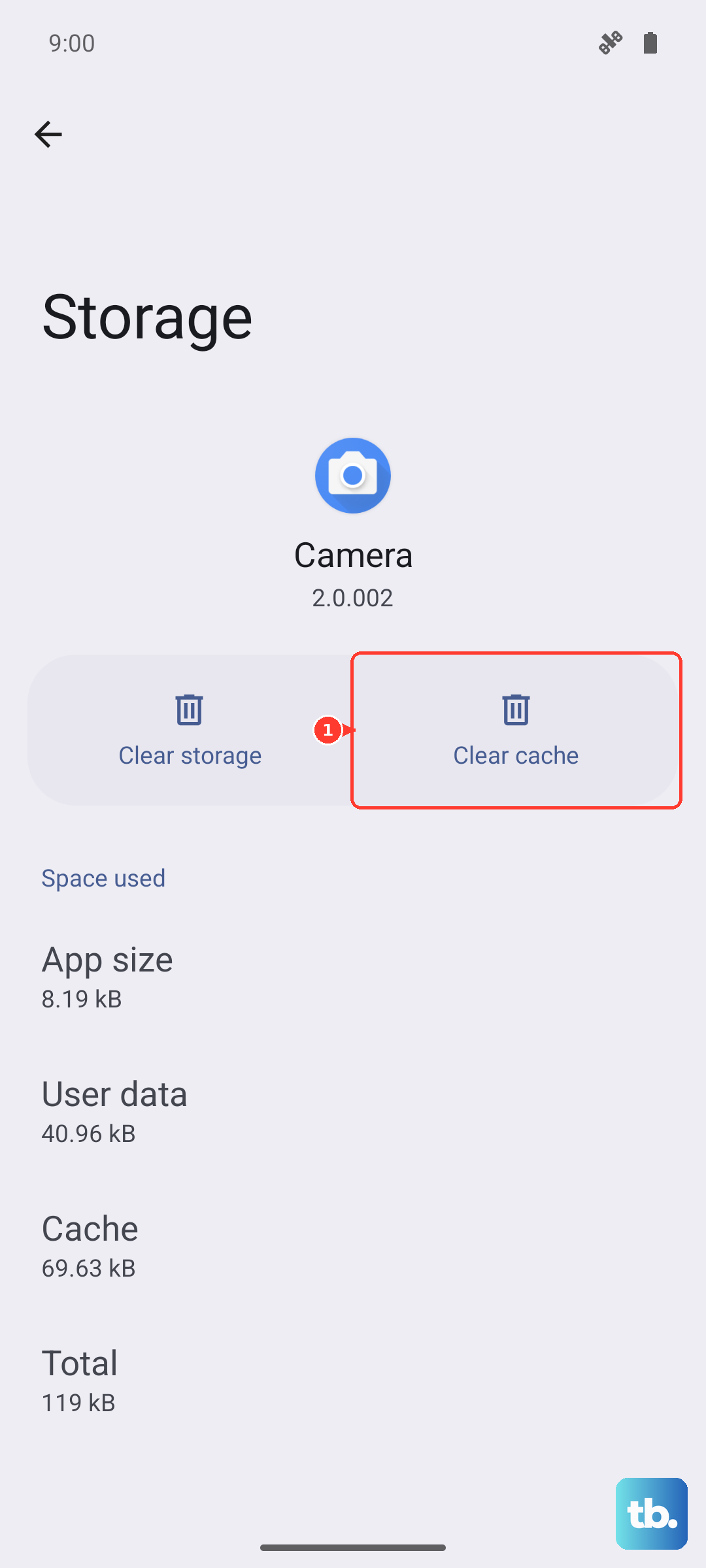
Corrupted temporary files can cause the keyboard app to crash or not appear. Clearing the cache is safe and won't delete your personal data, but clearing the data will reset the keyboard to its default settings, removing any custom dictionaries or layouts.
Go back to Settings > Apps > Samsung Keyboard. Tap on Storage. First, tap Clear Cache. If the problem persists, go back and tap Clear Data. You'll get a warning that this will reset the app; confirm it. Afterward, restart your phone and test the keyboard.
Check for Keyboard and System Updates
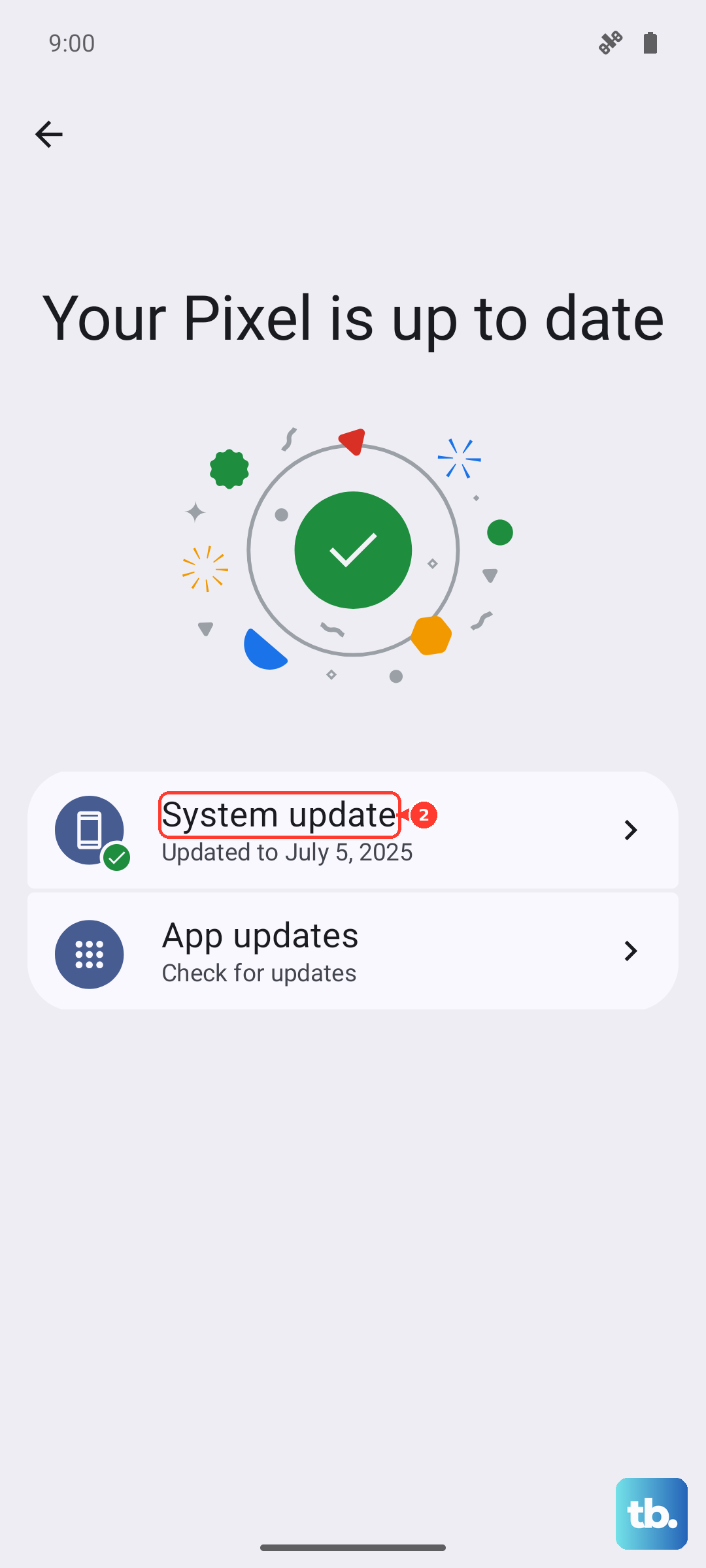
An outdated keyboard app or system software can lead to compatibility bugs, especially after a recent One UI update. Open the Galaxy Store and check for updates to the Samsung Keyboard app. You should also check for a full system update by going to Settings > Software update > Download and install.
Reset the Keyboard Settings
If a specific setting got misconfigured, resetting the keyboard can help. Navigate to Settings > General Management > Keyboard list and default. Tap on Samsung Keyboard underneath "On-screen keyboards." Scroll down and tap Reset settings. This will revert all its preferences back to factory defaults without touching your personal data.
Boot Into Safe Mode
Safe mode temporarily disables all third-party apps. If your keyboard works fine in safe mode, then a recently downloaded app is likely causing the conflict. To enter safe mode on the S24, press and hold the Side button until the power menu appears.
Then, press and hold the "Power off" option on the screen. A prompt will appear asking if you want to reboot to safe mode; tap "OK." You'll see "Safe mode" in the bottom-left corner of your screen. Test your keyboard in a messaging app. To exit, just restart your phone normally.
Try a Different Keyboard App
As a workaround, you can install another keyboard from the Play Store. Apps like Gboard or SwiftKey are great alternatives. Once installed, go to Settings > General Management > Keyboard list and default and tap on Default keyboard to switch to the new one. This can confirm if the issue is isolated to the Samsung Keyboard.
Reset All Settings
This is a broader step that resets every system setting on your phone, like network, Bluetooth, and display, back to default, but it won't delete your photos, apps, or personal files. It can fix deeper configuration errors.
Go to Settings > General Management > Reset > Reset all settings. Enter your PIN if asked and confirm. Your phone will reboot. After it starts, you'll need to reconfigure things like Wi-Fi passwords and wallpapers, but your keyboard should be restored.











