
It's a common headache when you tap send on a photo and nothing happens, or you just get a "Failed to send" message on your Galaxy A56. The good news is this is almost always a quick fix, and I'd start with the most common culprit first.
Check Your Mobile Data and MMS Settings
If you're trying to send a picture via a standard text message (SMS/MMS), your mobile data needs to be on. Go to Settings > Connections > Data usage and make sure "Mobile data" is switched on. While you're there, tap Mobile data only apps and ensure your messaging app is allowed to use data.
Next, you need to verify your MMS settings are correct. Open your Messages app, tap the three-dot menu, go to Settings > More settings > Multimedia messages. Make sure "Auto-download MMS" is enabled. If you have a "Group conversation" option, turning that on can sometimes help, too.
Force Restart Your Phone
A quick reboot can clear out temporary glitches that might be hanging up your messaging app. For the Galaxy A56, press and hold the Volume Down button and the Side (power) button together for about 10 seconds. Let go when you see the Samsung logo appear.
This is the same method used on the S series, and it doesn't delete any of your data. Once the phone restarts, try sending the photo again.
Verify Your Internet Connection
Whether you're using RCS (Chat features), an app like WhatsApp, or MMS, a solid connection is key. If you're on Wi-Fi, check that the icon is in your status bar. Sometimes toggling Wi-Fi off and back on can re-establish a better connection.
For mobile data, look at your signal bars. If they're low, try moving to a different spot. MMS messages in particular often need a decent cellular signal to go through, even if you're connected to Wi-Fi.
Clear the Cache for Your Messages App
Corrupted temporary data in the app can cause sending failures. Go to Settings > Apps, then find and tap on Messages. Select Storage and then tap Clear cache.
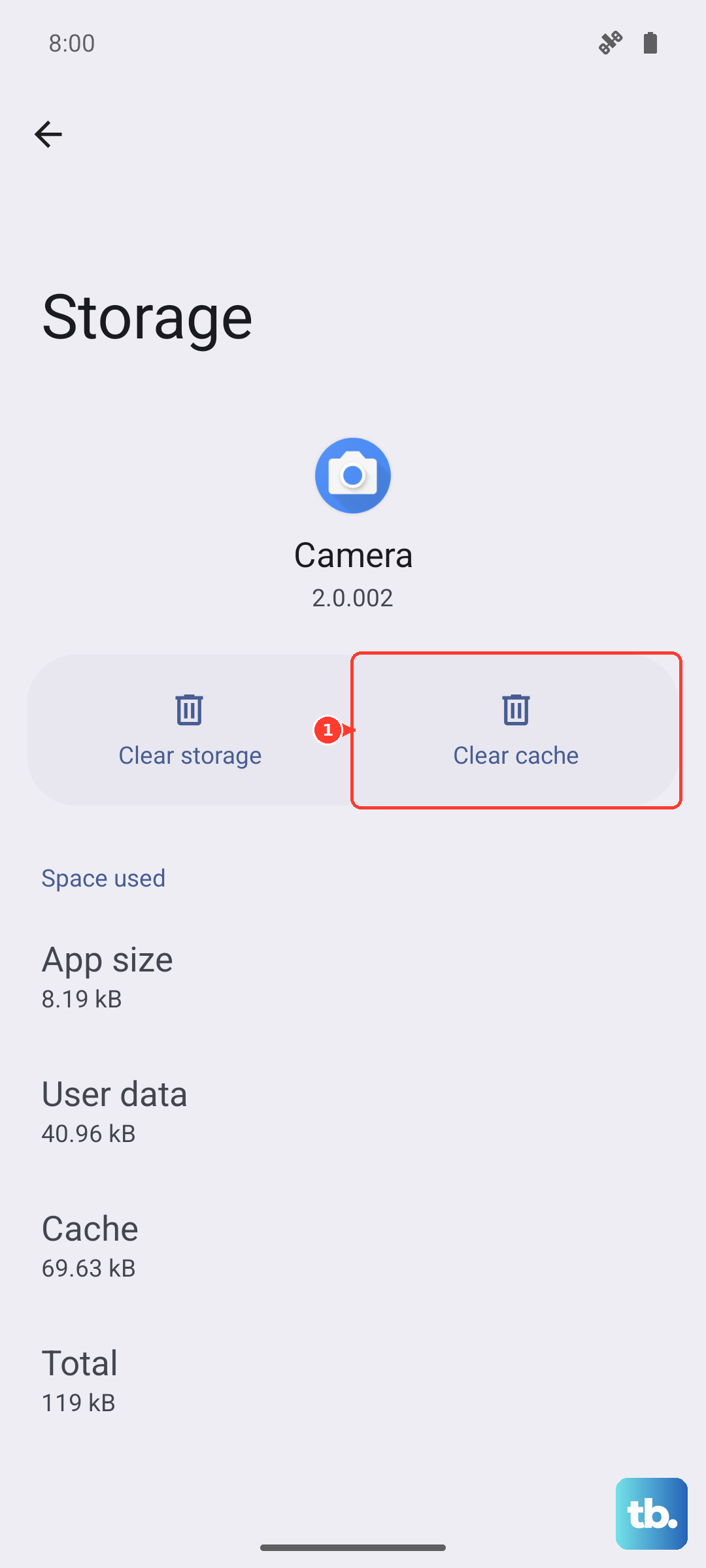
This only deletes temporary files and won't touch your actual message history. After clearing it, open Messages and try sending your photo once more.
Check for Software Updates
An outdated system can have bugs that affect messaging. Samsung and your carrier release updates to fix these kinds of issues. Connect to Wi-Fi, then go to Settings > Software update > Download and install.
If an update is available, let it install. Your phone will restart, and it's worth checking if the photo sending issue is resolved afterward.
Review Your APN Settings
Your Access Point Name (APN) is how your phone connects to your carrier's network for data and MMS. If these settings are wrong, MMS won't work. You can find them in Settings > Connections > Mobile networks > Access Point Names.
Don't change anything here unless you know the correct values. Instead, a safer fix is to contact your carrier (like T-Mobile, Verizon, or AT&T). They can often send you a configuration message that automatically resets your APN to the correct settings.
Try a Different Messaging App
This is a great way to figure out if the problem is with the Samsung Messages app itself or a deeper system issue. Download Google Messages from the Play Store and set it as your default.
If you can send photos without any trouble in the new app, then the issue is likely with the original app's data. You can stick with the new app or go back and try clearing the data for Samsung Messages (note: this will erase your message history within that app).
Disable Power Saving Modes
Power saving modes, especially the more aggressive ones, can restrict background data to save battery. This can prevent your phone from connecting to the server to send a multimedia message. Swipe down your notification panel and make sure any battery saver icon is turned off.
You can also check in Settings > Battery to ensure no power saving mode is active.
Reset Your Network Settings
This step will reset all Wi-Fi, Bluetooth, and mobile network settings back to default. It's very effective for persistent connection issues. Go to Settings > General management > Reset > Reset network settings.
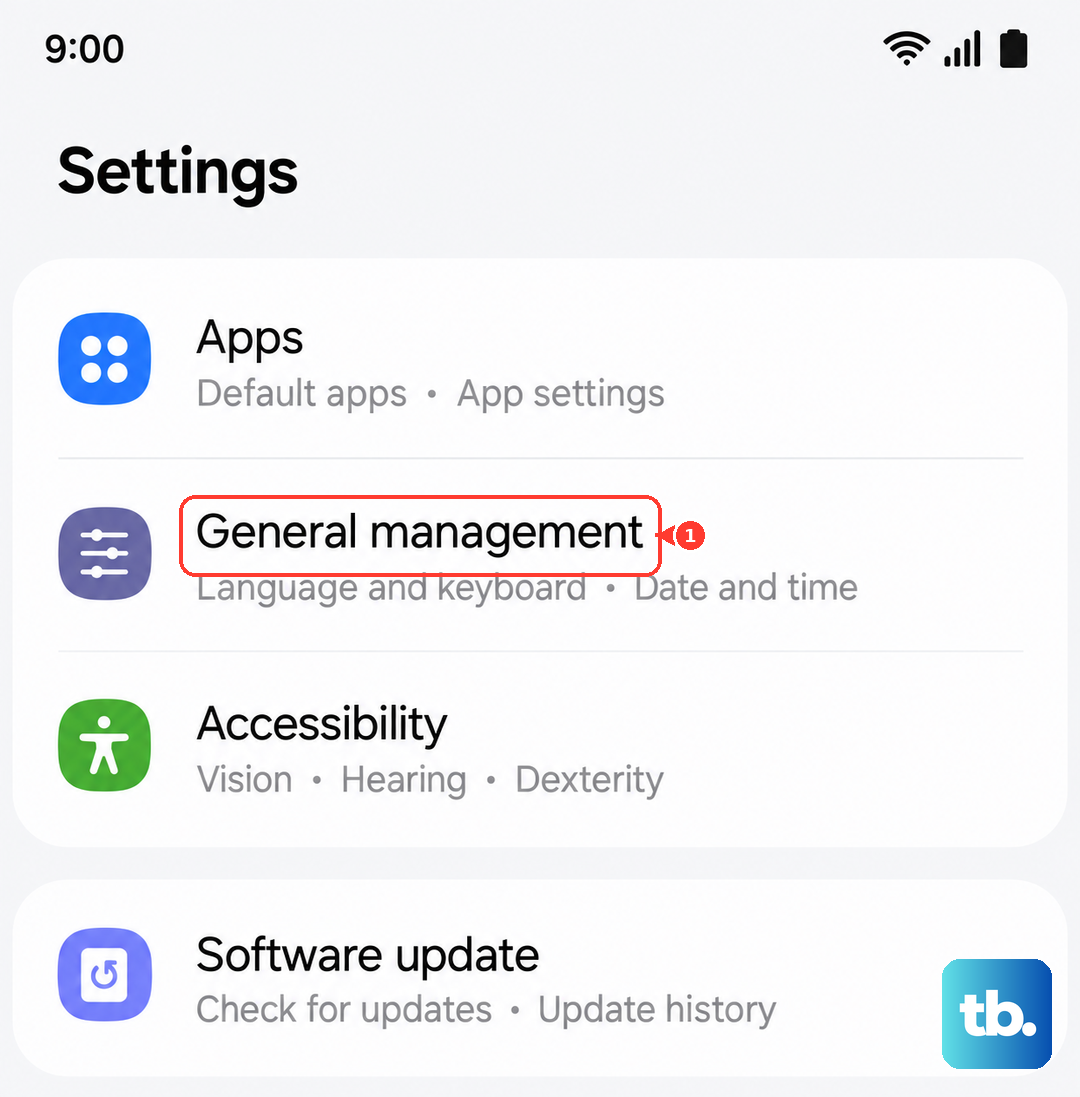
You'll need to enter your PIN, and then confirm. Remember, this will erase all saved Wi-Fi passwords and paired Bluetooth devices, so you'll have to reconnect to them afterward.
Check the Photo Size and Format
Most carriers have a size limit for MMS messages, often around 1MB. If your photo is a huge, high-resolution file straight from the A56's camera, it might be too large. Try sending a different, smaller photo to see if it goes through.
You can also check the photo's file format. While rare, some very old phones might have trouble with modern formats like HEIC. Your Galaxy A56 likely saves photos as JPEG by default, which is widely compatible.