
When your Galaxy S23 won't send a picture message, it's usually a quick setting that needs adjusting. The most common fix is toggling your mobile data off and back on, or making sure MMS is enabled in your messaging app's settings.
Let's walk through the steps to get your photos and group chats working again.
Check Your Mobile Data Connection
MMS messages require a mobile data connection, even if you're on Wi-Fi. First, pull down the quick settings panel from the top of your screen and make sure the mobile data icon is lit up.
If it's on but you're not sure it's working, try turning it off, waiting a few seconds, and turning it back on. Sometimes the connection just needs a quick refresh.
Verify MMS is Enabled in Messages
Open your Samsung Messages app and tap the three-dot menu in the top right. Go to Settings > More settings.
Look for the Multimedia messages option and make sure it's toggled on. While you're here, also check that Group conversation is enabled if you're having trouble with group MMS.
Review Your APN Settings
Incorrect Access Point Name (APN) settings from your carrier can block MMS. Go to Settings > Connections > Mobile networks > Access Point Names.
Your carrier's APN should be selected. If you're not sure, you can often restore the correct settings by tapping the three-dot menu and selecting "Reset to default."
Disable Wi-Fi and Try Sending
Some phones can get confused about which network to use for MMS. A simple test is to turn off Wi-Fi completely from your quick settings panel.
Once you're on mobile data only, try sending the picture message again. If it goes through, you know the issue is related to your Wi-Fi network configuration.
Check for a Software Update
Samsung has released updates for One UI that address various connectivity bugs. Go to Settings > Software update and tap "Download and install."
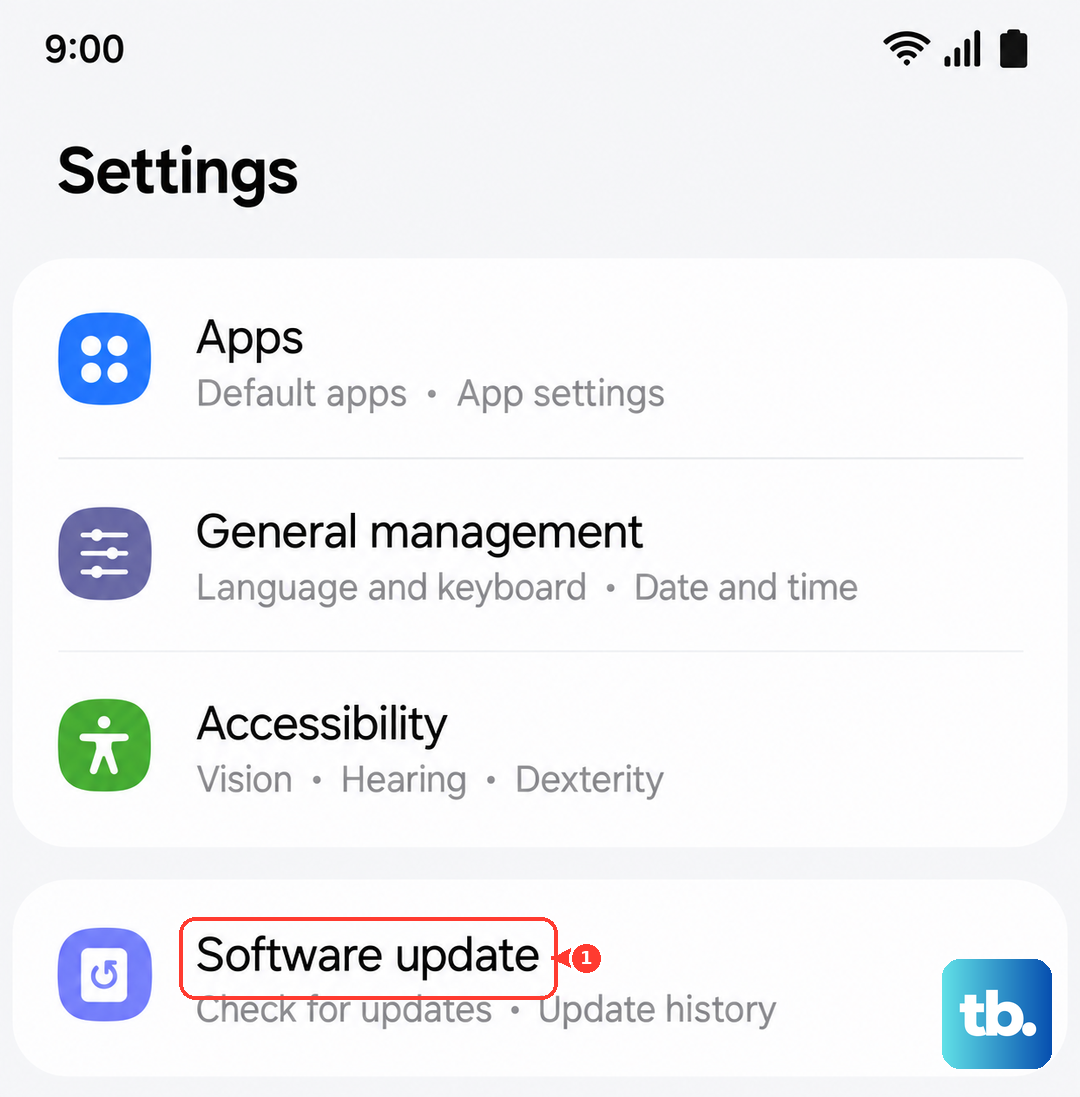
Make sure your phone is connected to Wi-Fi and has a good charge before starting the update. I've seen this clear up messaging issues that appeared after the Android 14 update.
Force Restart Your Phone
A soft reset can clear out temporary glitches affecting the modem or messaging app. Press and hold the Volume Down button and the Side key (power button) together for about 10 seconds.
Release the buttons when you see the Samsung logo. Your phone will restart, and it's worth trying to send the MMS again once it boots up.
Try a Different Messaging App
To rule out a problem with the Samsung Messages app itself, try downloading Google Messages from the Play Store. Set it as your default app temporarily and see if you can send an MMS.
If it works in another app, the issue is likely with your Samsung Messages settings or data. You can always switch back later.
Clear the Cache for Your Messages App
Go to Settings > Apps, then find and select "Messages." Tap on Storage and then hit "Clear cache."
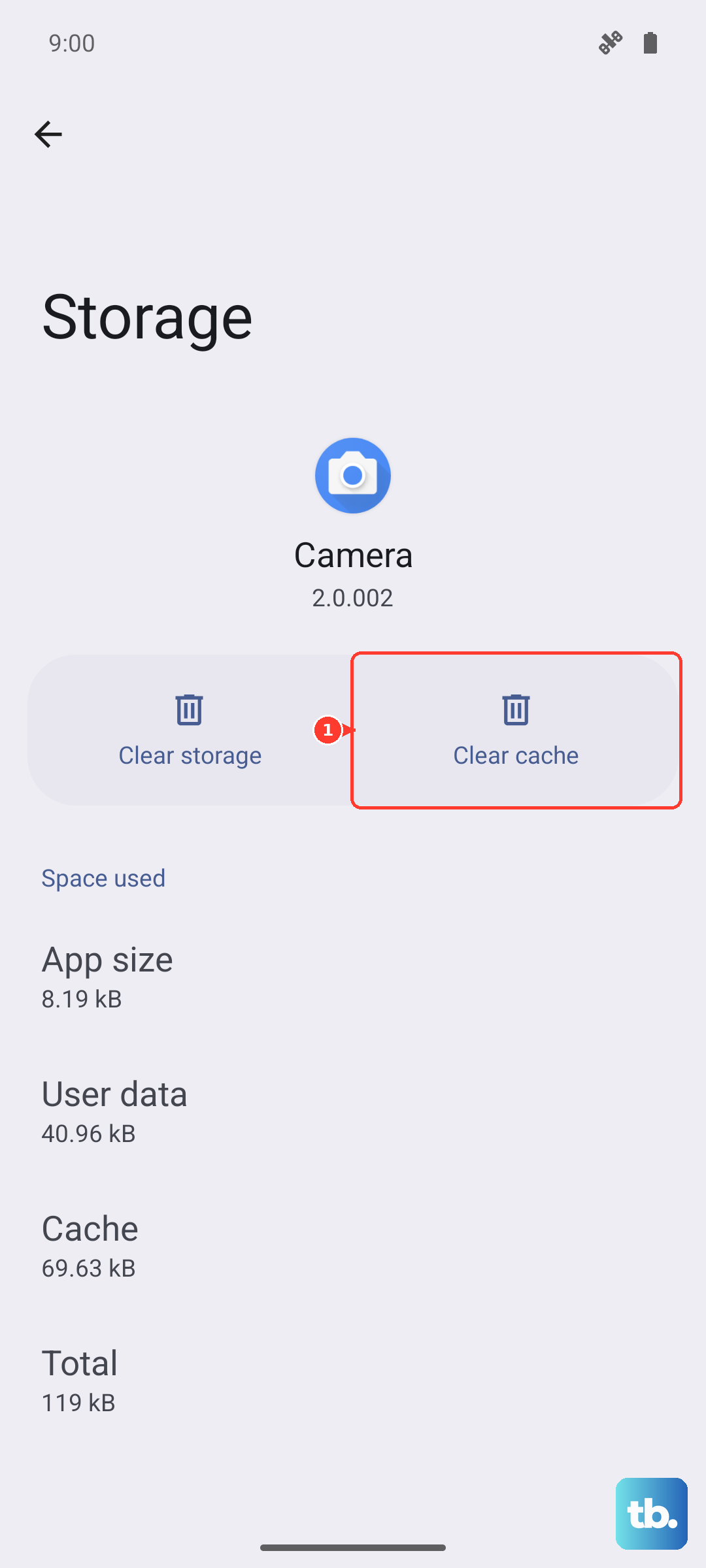
This won't delete your conversations, but it will remove temporary data that might be causing a hiccup. After clearing, open the app and try sending again.
Boot Into Safe Mode
If a recently installed third-party app is interfering, Safe Mode will tell you. Press and hold the power button until the power menu appears, then tap and hold the "Power off" option.
Tap "Safe mode" when prompted. If MMS sends successfully in Safe Mode, you'll need to uninstall apps one by one to find the culprit.
Reset Your Network Settings
This is a more thorough step that resets all network-related configurations. Go to Settings > General management > Reset > Reset network settings.
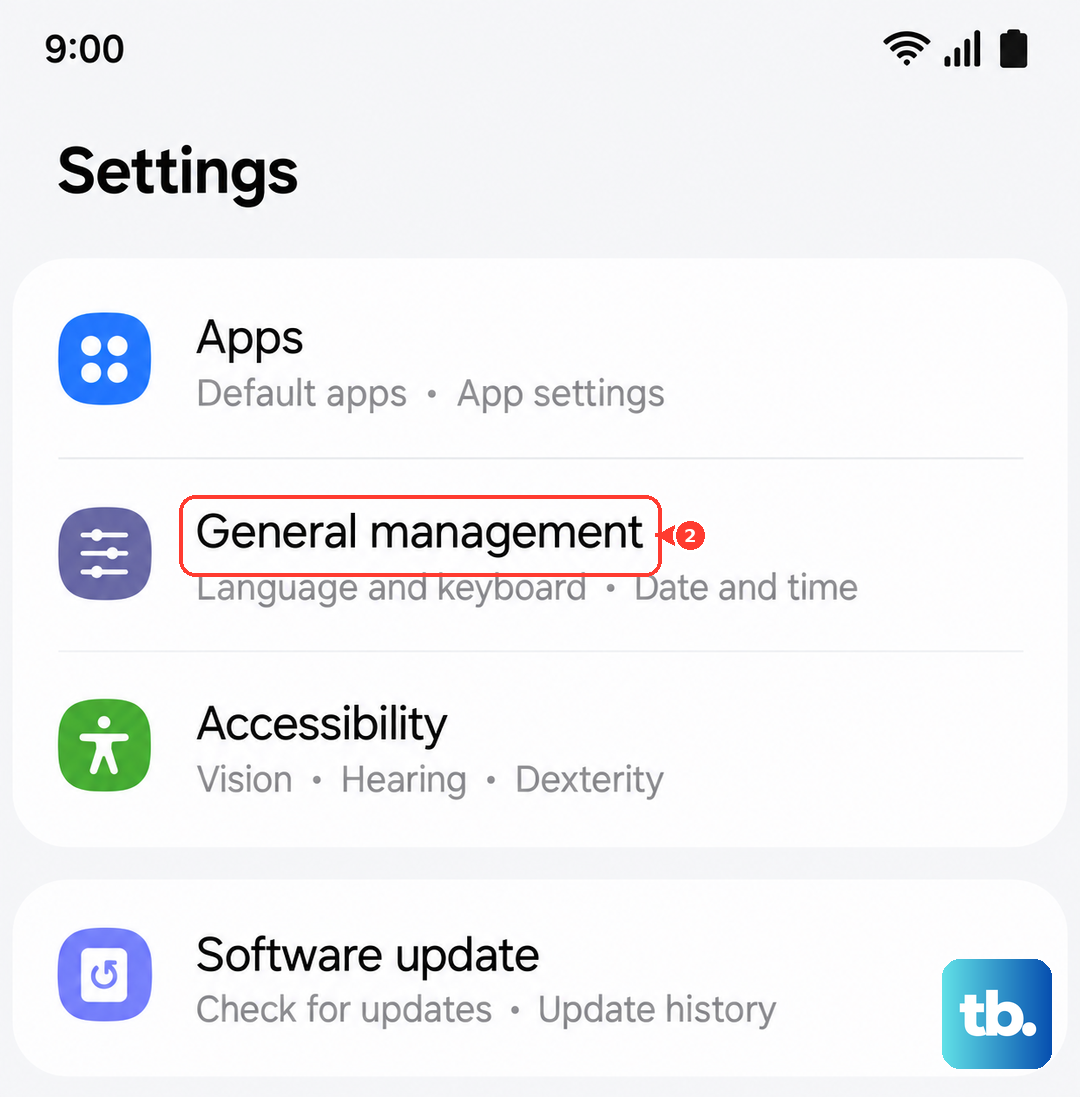
Tap to confirm. This will erase all saved Wi-Fi networks, Bluetooth pairings, and mobile data settings, so you'll have to reconnect to your Wi-Fi afterward.