
When the keys on your Galaxy Book 4 Pro stop responding, it can feel like you've hit a wall. The issue might be all keys, a specific row, or keys typing the wrong characters. The good news is, most of the time, it's a software glitch you can fix yourself.
Start with a free key test to map out exactly which keys respond. Knowing whether the fault is one key or the whole board changes which fixes below apply.
Restart Your Galaxy Book
A simple restart is the most effective first step. It clears temporary software conflicts and reloads the keyboard driver. If the keyboard is completely dead and you can't use the Start menu, hold down the power button for about 10 seconds to force a shutdown, then press it again to turn the laptop back on.
Check for Physical Debris
Crumbs, dust, or a small piece of debris can easily get lodged under a key and prevent it from making contact. Gently turn your laptop on its side and tap the back to dislodge anything loose. For a more thorough clean, use a can of compressed air to blow between the keys, holding it at an angle.
Disable Filter Keys in Windows
Windows has an accessibility feature called Filter Keys that, if accidentally enabled, can make your keyboard seem incredibly slow or unresponsive. To check, go to Settings > Accessibility > Keyboard. Look for the "Filter keys" option and make sure the toggle is switched off. While you're there, also ensure "Sticky keys" is disabled.
Update or Reinstall the Keyboard Driver
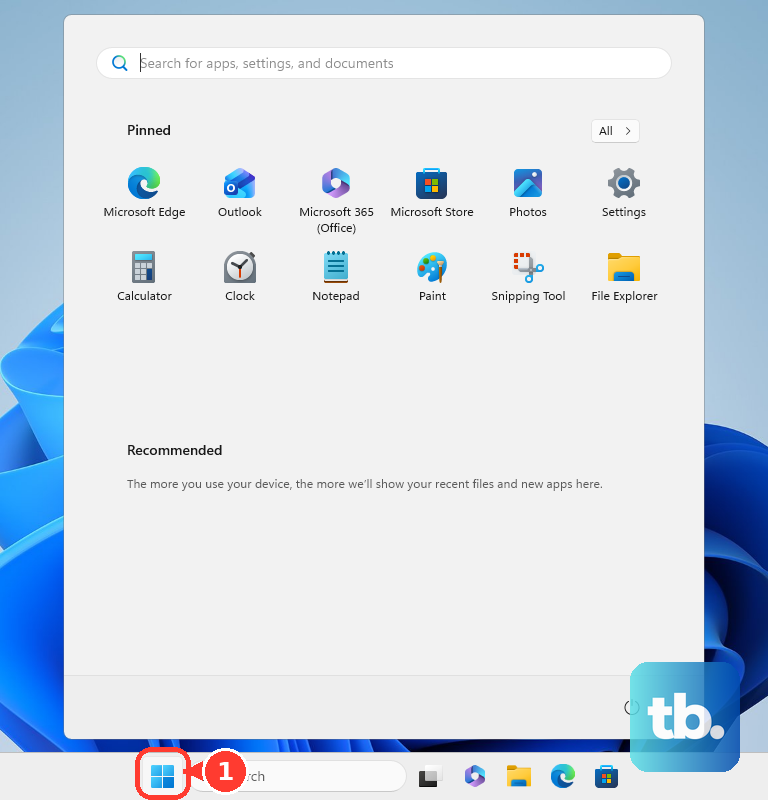
Open the Start menu and type "Device Manager" to launch it. Expand the "Keyboards" section, right-click on "Standard PS/2 Keyboard" or a similar listing, and select "Update driver." Choose "Search automatically for drivers." If that doesn't help, right-click again and choose "Uninstall device." Restart your Galaxy Book, and Windows will automatically reinstall a fresh driver.
Verify Your Keyboard Language and Layout
If your keys are typing the wrong symbols or characters, your keyboard layout might have been switched. Go to Settings > Time & language > Language & region. Under "Preferred languages," click on your language (e.g., English) and select "Options." Check that the correct keyboard layout is listed and remove any others you don't use.
Check the Samsung Settings App
On the Galaxy Book 4 Pro, Samsung's own Settings app can sometimes conflict with Windows settings. Open the "Samsung Settings" app from your Start menu. I'd look through the performance or input sections to see if there are any keyboard-specific options that might be misconfigured. Temporarily disabling any battery optimization features for keyboard processes can also help.
Boot into Windows Safe Mode
If the keyboard works fine in Safe Mode, you know a third-party application is causing the conflict. To enter Safe Mode, go to Settings > System > Recovery and click "Restart now" under Advanced startup. After the reboot, choose Troubleshoot > Advanced options > Startup Settings > Restart. Press 4 or F4 to enable Safe Mode. Once in, you can uninstall any recently added software.
Run Samsung's Built-in Diagnostics
Samsung includes a hardware diagnostic tool you can access at boot. Restart your Galaxy Book 4 Pro and immediately start pressing the F4 key repeatedly as it starts up. This will launch the Samsung Recovery solution. From here, you can navigate to diagnostics and run a test on the keyboard hardware to see if there's a physical fault.
Use an External Keyboard as a Test
Plugging in a USB keyboard or pairing a Bluetooth one is a great way to isolate the problem. If the external keyboard works perfectly, it strongly suggests an issue with the laptop's internal keyboard hardware. This could be a loose ribbon cable connection inside the chassis or, in unfortunate cases, damage from liquid.