
Here's the quickest thing to try first. Plug your Galaxy A56 into a wall outlet using a USB-C cable and a 25W power delivery (PD) charger if you have one. Let it charge, undisturbed, for at least 30 to 45 minutes. A completely drained battery can sometimes need a solid charge before it will even show a charging icon or respond to the power button.
If you see a battery icon with a lightning bolt, you're good, just wait. If you see a water drop icon, that's the moisture detection alert. Unplug the cable immediately and let the port dry completely for a few hours before trying again.
Perform a Force Restart
If charging doesn't wake it up, the next step is a force restart. This is the same method used on Samsung's S series phones. Press and hold the Volume Down button and the Side (power) button together for about 10 seconds.
Keep holding until you feel a vibration or see the Samsung logo appear on the screen. This forces a hard reboot and can clear temporary software glitches that are preventing a normal startup. It doesn't erase any of your personal data.
Inspect Your Charging Setup
Since the Galaxy A56 doesn't come with a charger in the box, you might be using an older or underpowered one. For the fastest, most reliable charge, you need a charger that supports USB Power Delivery (PD) and can output at least 25W.
Try a different USB-C cable and a different wall adapter if you can. Also, check the phone's USB-C port for any lint, dust, or debris. Use a can of compressed air or a dry toothpick to gently clean it out, as even a small obstruction can prevent a proper connection.
Boot Into Safe Mode
If your phone turns on but gets stuck on the Samsung logo or freezes during startup, a recently installed app could be the culprit. Booting into Safe Mode temporarily disables all third-party apps.
To enter Safe Mode, first turn the phone off completely. Then, press and hold the Side button until you see the Samsung logo. As soon as the logo appears, release the Side button and immediately press and hold the Volume Down button. Keep holding it until the phone finishes booting; you should see "Safe mode" in the bottom-left corner of the screen.
If the phone starts up fine in Safe Mode, you know a downloaded app is causing the problem. You can then restart normally and try uninstalling apps you installed just before the problem began.
Clear the System Cache
Corrupted temporary system files in the cache partition can cause boot problems. Clearing it is a safe maintenance step that won't touch your photos, messages, or apps.
First, power the phone off. Then, connect it to a computer or a charger with a USB-C cable. Press and hold the Volume Up and Side buttons together. When the Samsung logo appears, let go of both buttons.
You'll see the Android Recovery screen. Use the Volume Down button to highlight "Wipe cache partition," then press the Side button to select it. Confirm the action, and once it's done, select "Reboot system now."
Check for a Problematic SD Card
If you use a microSD card for extra storage, it's worth removing it to see if that's the issue. A failing or corrupted SD card can sometimes prevent the phone's operating system from loading properly.
Turn the phone off and use the SIM ejector tool to open the tray on the side. Take out the SD card, close the tray, and try turning the phone on again. If it boots successfully, the SD card is likely damaged. You may need to format it or replace it, but be aware formatting will erase everything on the card.
Consider a Factory Reset
This is your last resort before seeking repair, as it will erase all data from your phone's internal storage and restore it to factory settings. You should only do this if you've backed up your data recently or are okay with losing it.
To start, power the phone off. Press and hold the Volume Up and Side buttons until the Samsung logo comes up, then release. In the recovery menu, use the volume keys to navigate to "Factory data reset" or "Wipe data/factory reset" and select it with the Side button.
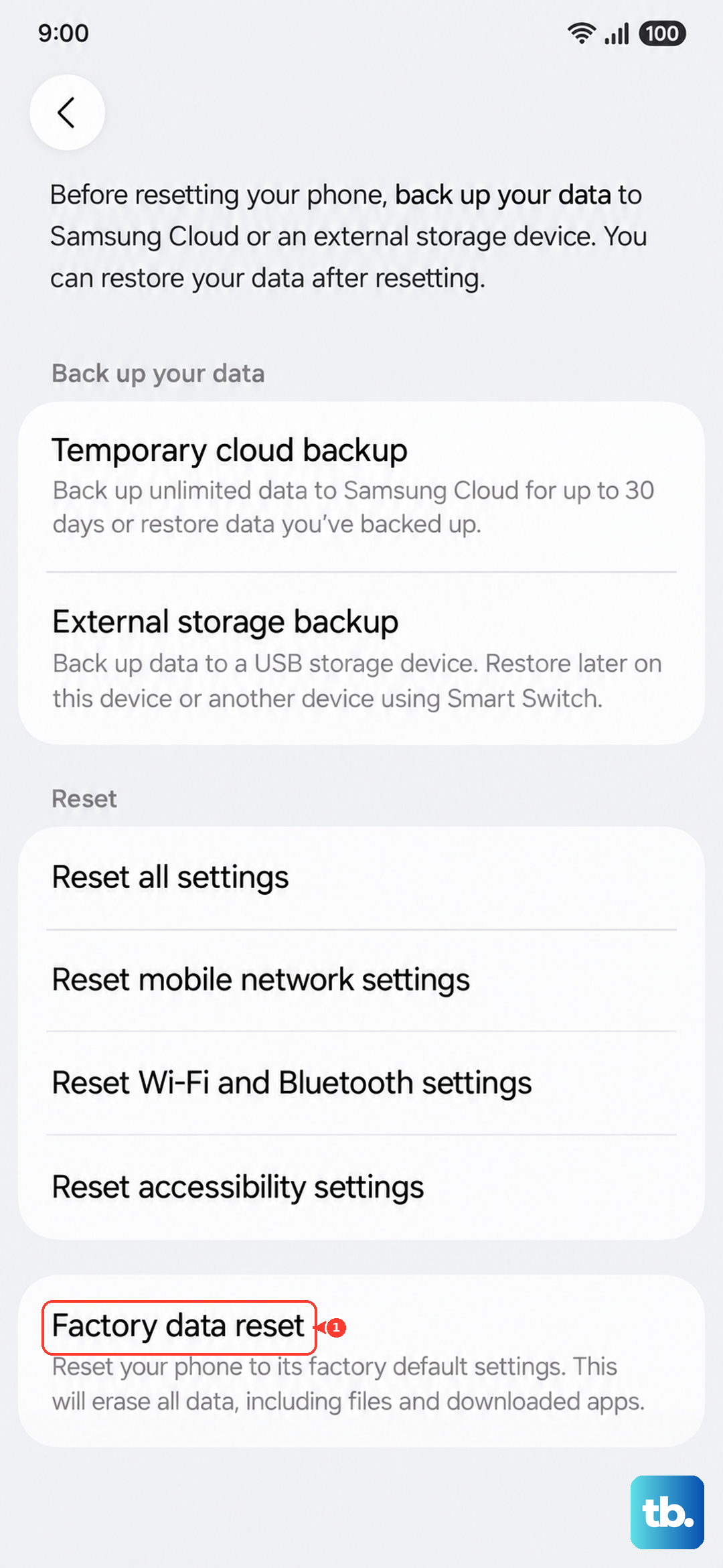
You'll need to confirm your choice and then let the process complete, which can take several minutes. Afterward, select the option to reboot the system. If the phone was suffering from a deep software issue, this should resolve it.
Look for Signs of Physical or Water Damage
If your phone has taken a recent hard drop or been exposed to liquid, the problem could be physical. Look for any cracks on the screen, particularly near the edges, or any dents on the frame.
The Galaxy A56's USB-C port has moisture detection. If it was exposed to humidity or splashes, it may disable charging to prevent a short circuit. Leaving the phone in a dry, warm place (not on a heater) for 24 hours can sometimes resolve this. I've seen this fix work for many phones that seemed completely dead after getting damp.
Persistent failure to turn on after all these steps, especially if the phone shows no signs of life, no vibration, no flash of the screen, nothing, often points to a hardware failure like a disconnected battery, a faulty power button, or a motherboard issue.