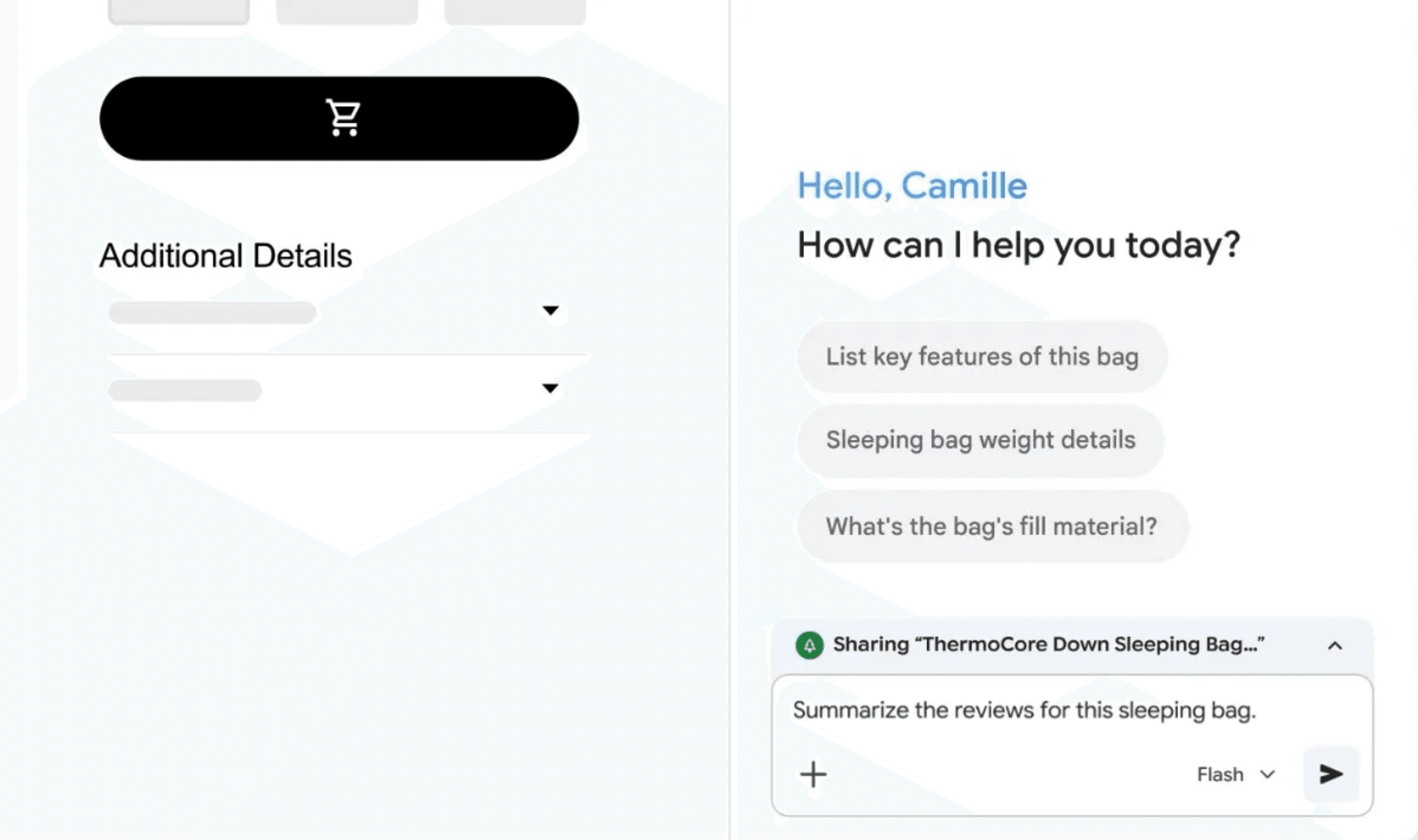
Gemini in Chrome can answer questions about a website from a side panel while you keep your place on the page. Google highlights report summaries, product comparisons and explanations of difficult subjects as uses for the browser feature, with no need to open an additional tab.
The starting point is the Gemini icon on Chrome's toolbar. Selecting that icon brings up the side panel, according to Google's instructions. From there, you can ask Gemini for help with the material you are reading while keeping the website in view.
For reports, Google describes asking Gemini to condense dense material into a summary. That gives the feature a specific use when a report is the subject of your browsing: requesting a shorter account through the panel, with the original page still at hand.
Product information is another example in the instructions. You can ask Gemini to compare details about products through the same panel. Google's example focuses on comparing those details, with the request handled through Gemini in Chrome while you maintain your place on the website.
The third example is an explanation of a complicated topic in simpler language. You can use the panel to request that kind of explanation as you read. Google presents this alongside summarizing reports and comparing products as something to ask the assistant to do.
Google's November 12 post sets out the same basic sequence for these requests: open Gemini using the toolbar icon, then ask for the summary, comparison or explanation. The interaction takes place through Chrome's side panel without requiring another browser tab.