
Seeing that progress bar stuck on your iPhone 17e is a real letdown, especially when you're just trying to get the latest features. Whether it's frozen on "Preparing Update" or failing with an error, these steps can help you get moving again.
Free Up Storage Space
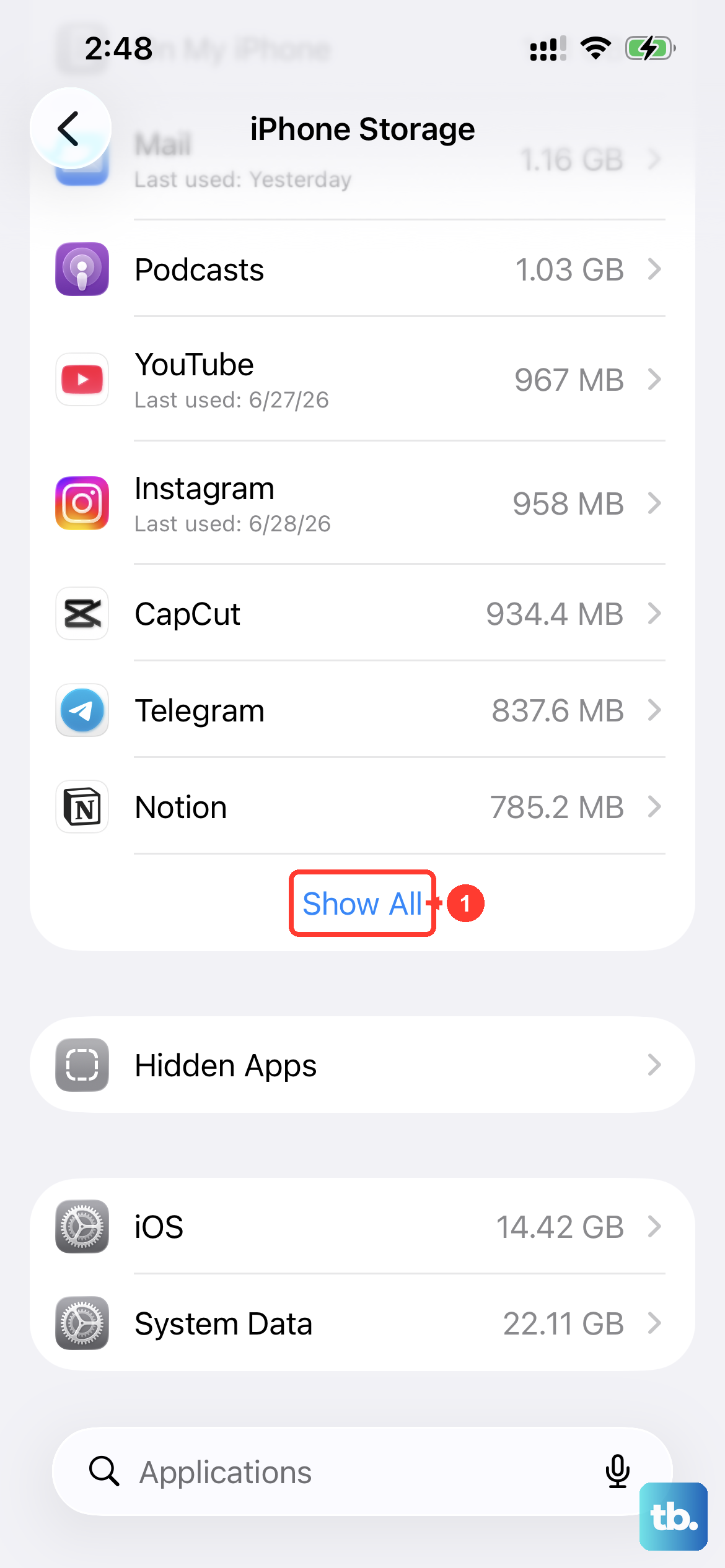
Your iPhone 17e needs breathing room for an update. Head to Settings > General > iPhone Storage to see what's available. I'd aim for several gigabytes free for a major update. The quickest win is to offload apps you don't use often, which removes the app but keeps your documents and data.
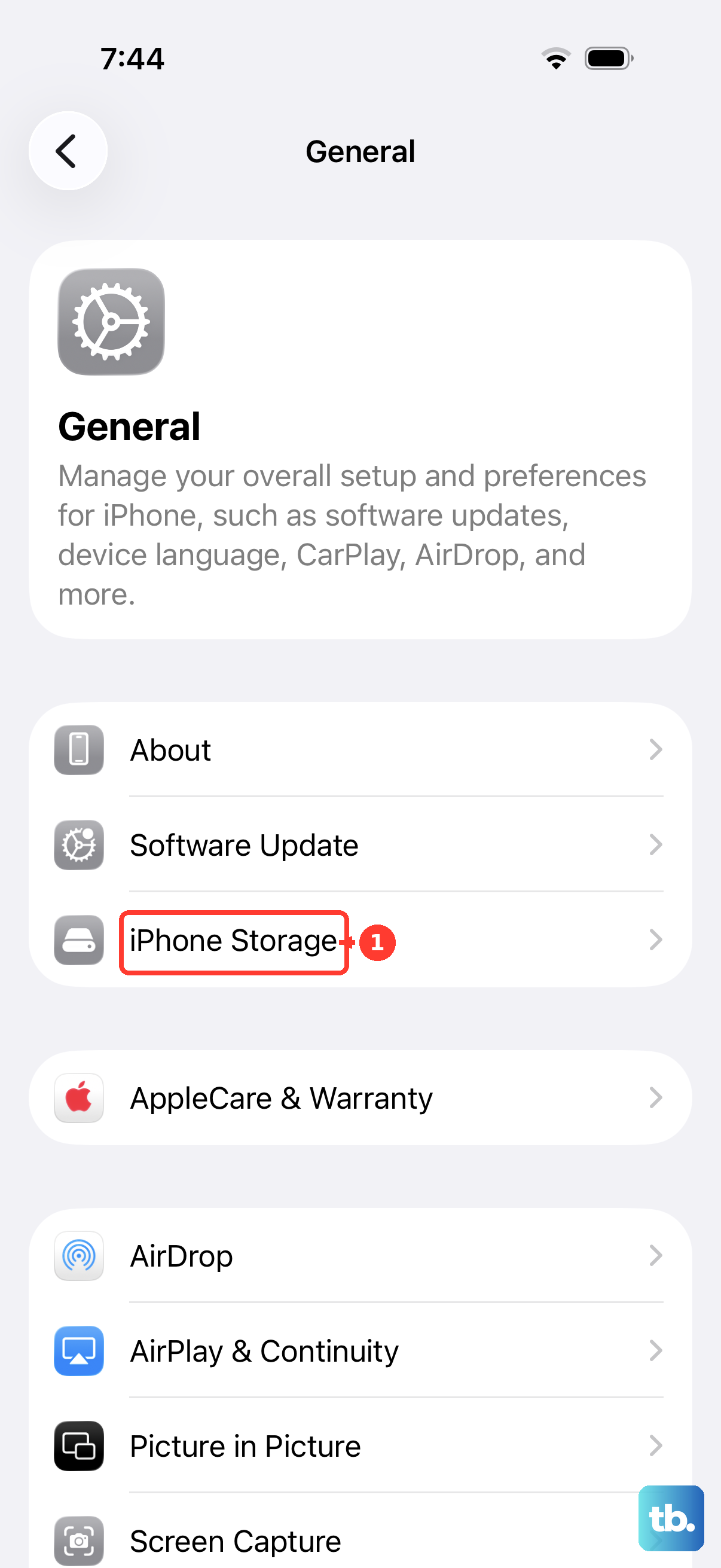
Delete the Downloaded Update File
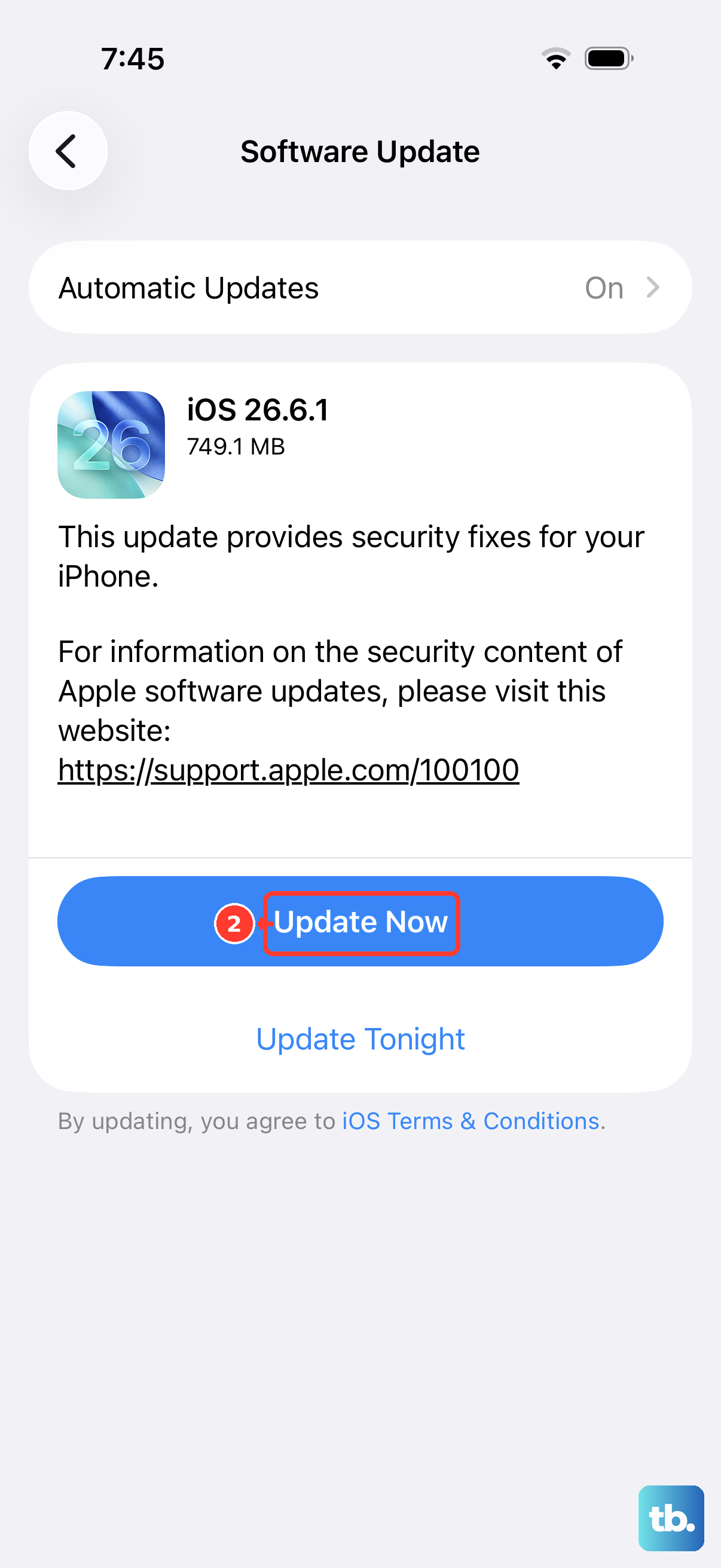
If the update won't install, deleting it and downloading it again can help. Go back into Settings > General > iPhone Storage and scroll down. Look for the iOS update file in the list, tap it, and choose Delete Update. This clears the slate so you can start a fresh download from Settings > General > Software Update.
Restart Your iPhone 17e
A restart may help if the update process has stalled. Hold the Side button and either Volume button until the power-off slider appears. Drag the slider, then wait 30 seconds for your iPhone to turn off. To turn it back on, hold the Side button until the Apple logo appears.
Check Your Wi-Fi Connection
Connect to a solid Wi-Fi connection before downloading the update. Try opening a website in Safari to test the speed. If it's sluggish, restart your router. I've seen public networks and some corporate Wi-Fi block the large update files, so switching to a personal hotspot or a different network can help.
Reset Network Settings
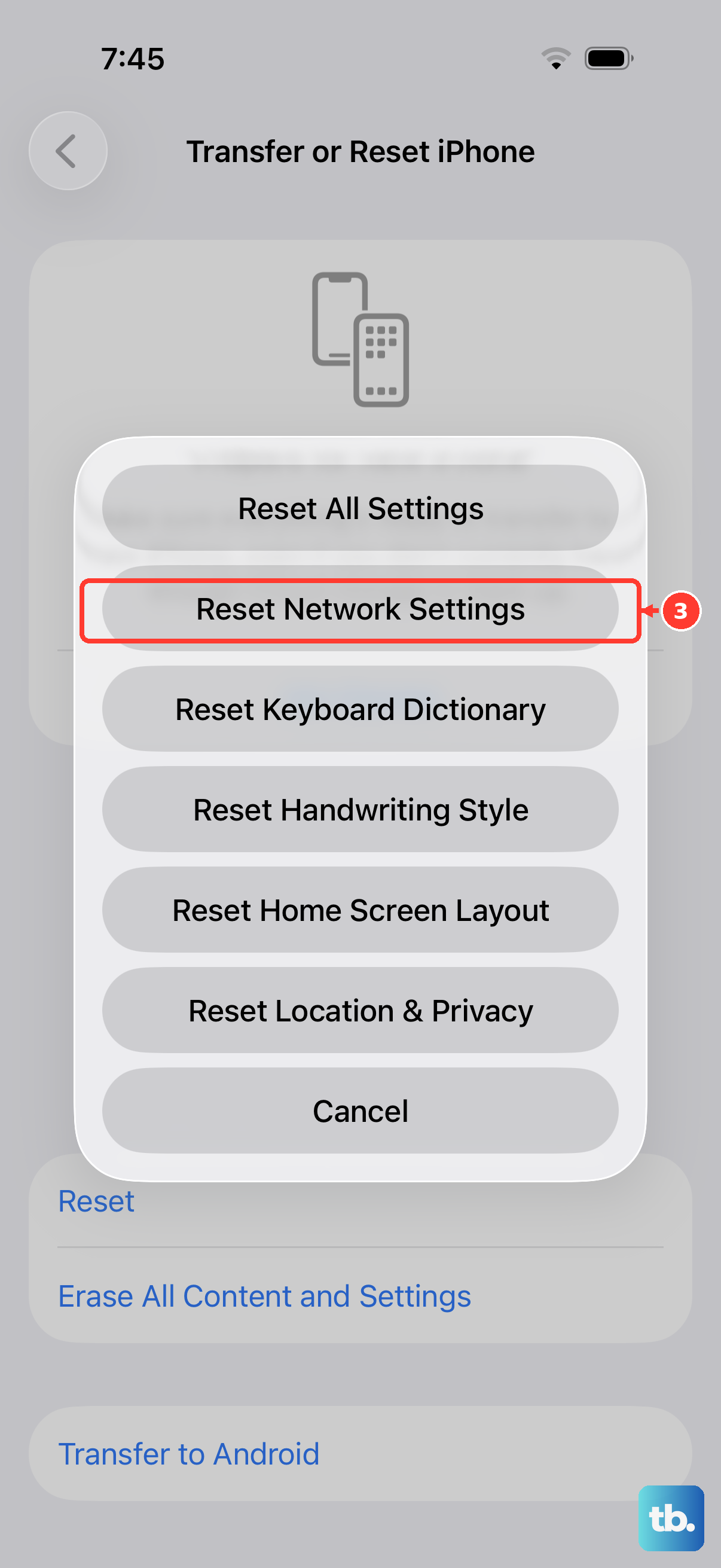
If other fixes have failed and the update still won't download, try resetting your network settings. Go to Settings > General > Transfer or Reset iPhone > Reset > Reset Network Settings. This erases saved Wi-Fi networks and passwords, cellular settings, and VPN and APN settings, so you'll need to rejoin your Wi-Fi networks afterward.
Update Using a Computer
When over-the-air updates fail, try using a computer. Back up your iPhone 17e, then connect it to your Mac or PC with a USB-C cable. On a Mac with macOS Catalina or later, open Finder; on an older Mac, use iTunes. On a Windows PC, open the Apple Devices app or iTunes. Select your device; in Finder, click General, then Check for Update and Download and Update.
This method downloads the update to your computer first, then installs it on your phone. You may still need to free up storage on your iPhone, and your computer needs an internet connection.
Force Restart Your Device
If your iPhone is frozen or unresponsive, use the force restart sequence. Quickly press and release the Volume Up button, then quickly press and release the Volume Down button. Finally, press and hold the Side button until you see the Apple logo appear, then let go. Try the update again afterward.
Check Apple's System Status
The problem might not be on your end. Grab another device and visit apple.com/support/systemstatus. If a service there shows an outage, wait and try again later. If you see an "Unable to Check for Update" or "Unable to Download" alert, try updating again on the same network. If the alert returns, try another network or update using a computer.
Try During Off-Peak Hours
Try initiating the update late at night or very early in the morning. Keep your iPhone connected to power and Wi-Fi, and avoid downloading other content while the update downloads. Download time depends on the update's size and your internet speed, so allow time for it to finish.