
When your iPhone 17 Pro starts restarting on its own, it's incredibly disruptive. You might be in the middle of something important when the screen suddenly goes black and the Apple logo pops up. This can happen for a few reasons, from a simple software hiccup in iOS 26 to a more stubborn app conflict.
Before you try anything, it's a good idea to make sure you have a recent backup. You can do this through iCloud or by connecting to your computer. This protects your photos, messages, and other data just in case.
Perform a Force Restart
This is almost always the first thing I'd try. A force restart clears the phone's temporary memory and can stop a minor software glitch in its tracks. For the iPhone 17 Pro, the process is quick.
Press and quickly release the Volume Up button. Then, press and quickly release the Volume Down button. Finally, press and hold the Side button. Keep holding it until you see the Apple logo appear on the screen, then you can let go.
Check for a Problematic App
If the random restarts started after you installed a new app, that app could be the culprit. A good first step is to close all your open apps. Swipe up from the very bottom of the screen, pause in the middle, and then swipe up on each app card to close it.
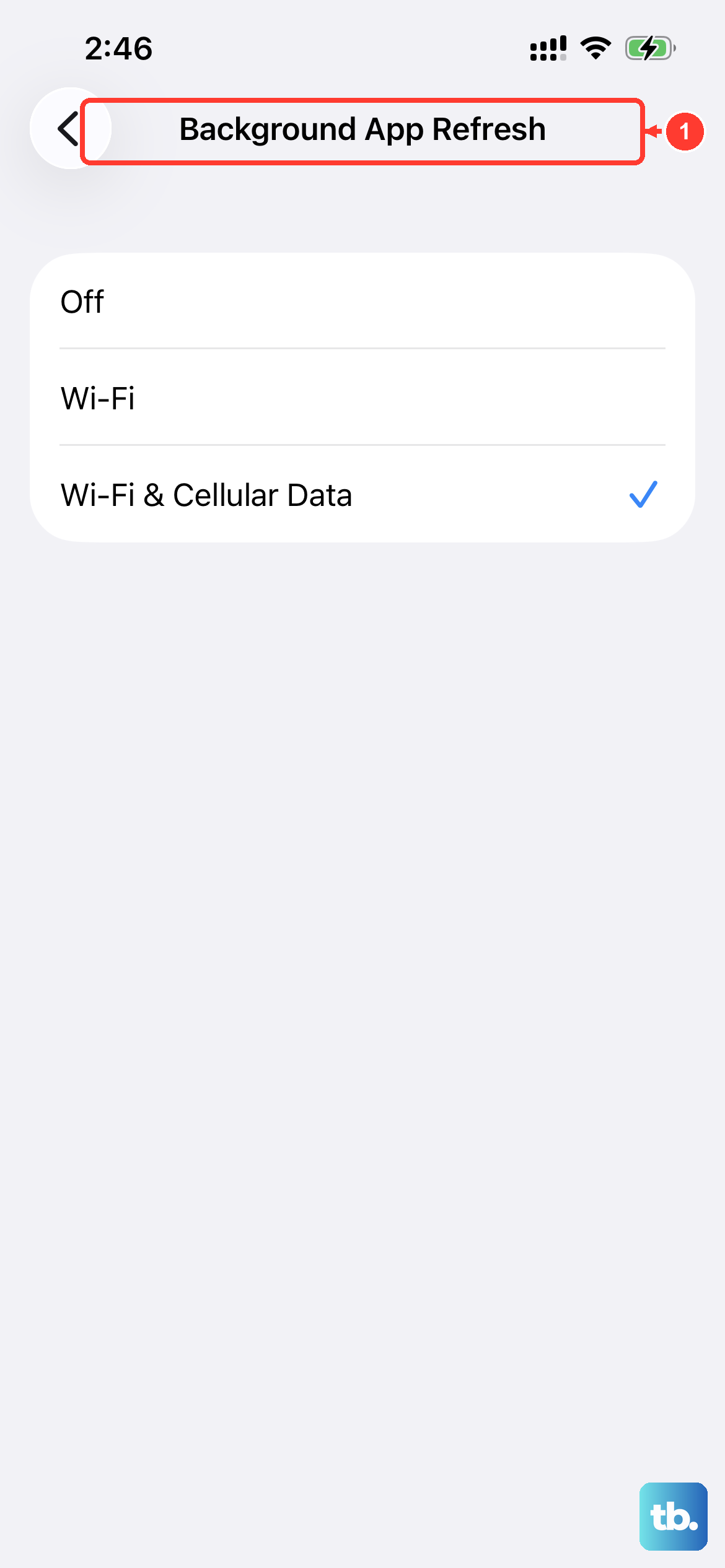
You can also prevent apps from running in the background. Go to Settings > General > Background App Refresh. You can turn this off entirely, or just for specific apps you suspect.
Update Everything
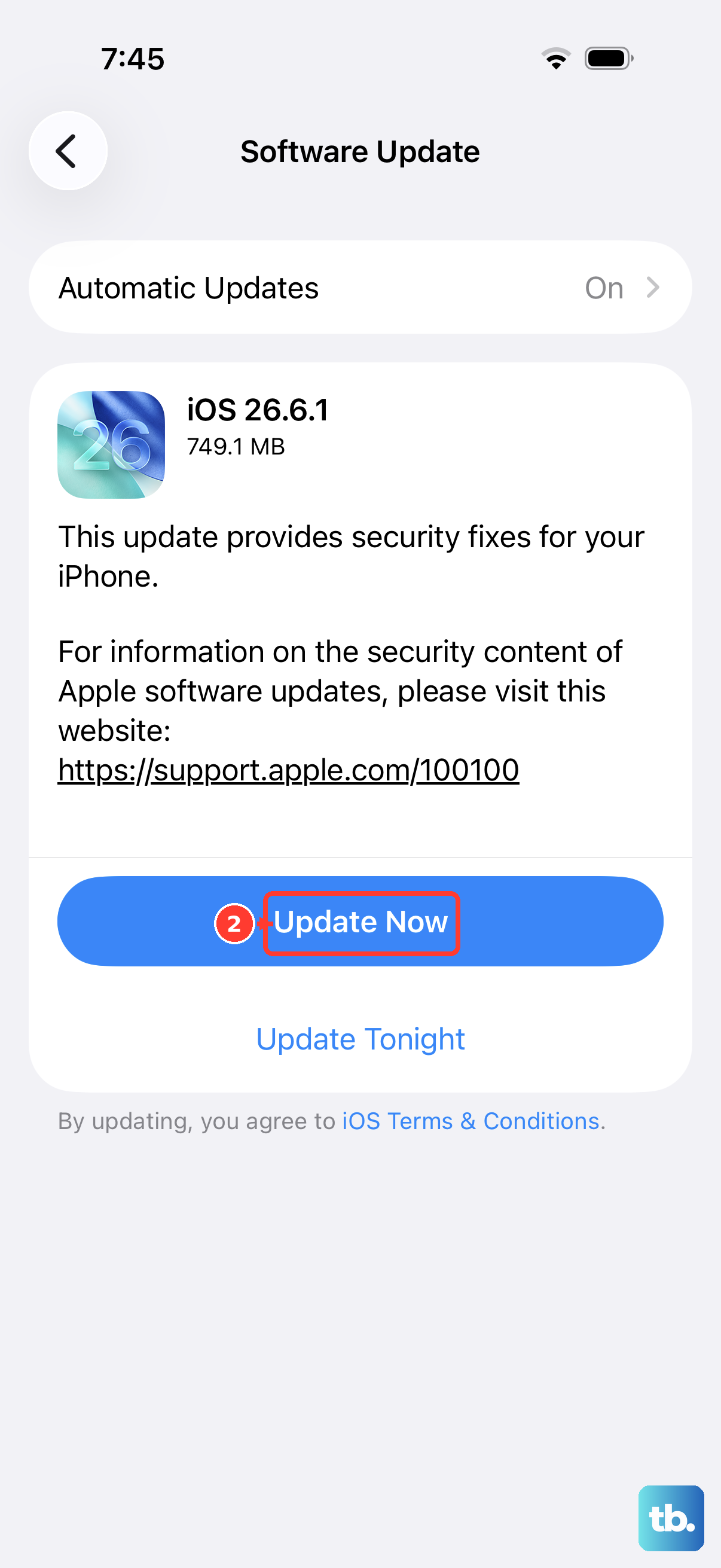
Running outdated software is a common cause of instability. First, check for any iOS updates. Go to Settings > General > Software Update. If an update for iOS 26 is available, download and install it.
Next, update all your apps. Open the App Store, tap your profile icon in the top right corner, and scroll down. If you see an "Update All" option, use it. If not, manually update any apps that have pending updates listed.
Review the Crash Logs
Your iPhone 17 Pro keeps a detailed log of every crash and system error. You can check this to see if a specific app is causing the trouble. Navigate to Settings > Privacy & Security > Analytics & Improvements > Analytics Data.
Look through the list for entries that start with "panic-full" – these indicate a full system crash. Also look for logs that have an app's name in the filename, which points to a specific problematic application.
Free Up Storage Space
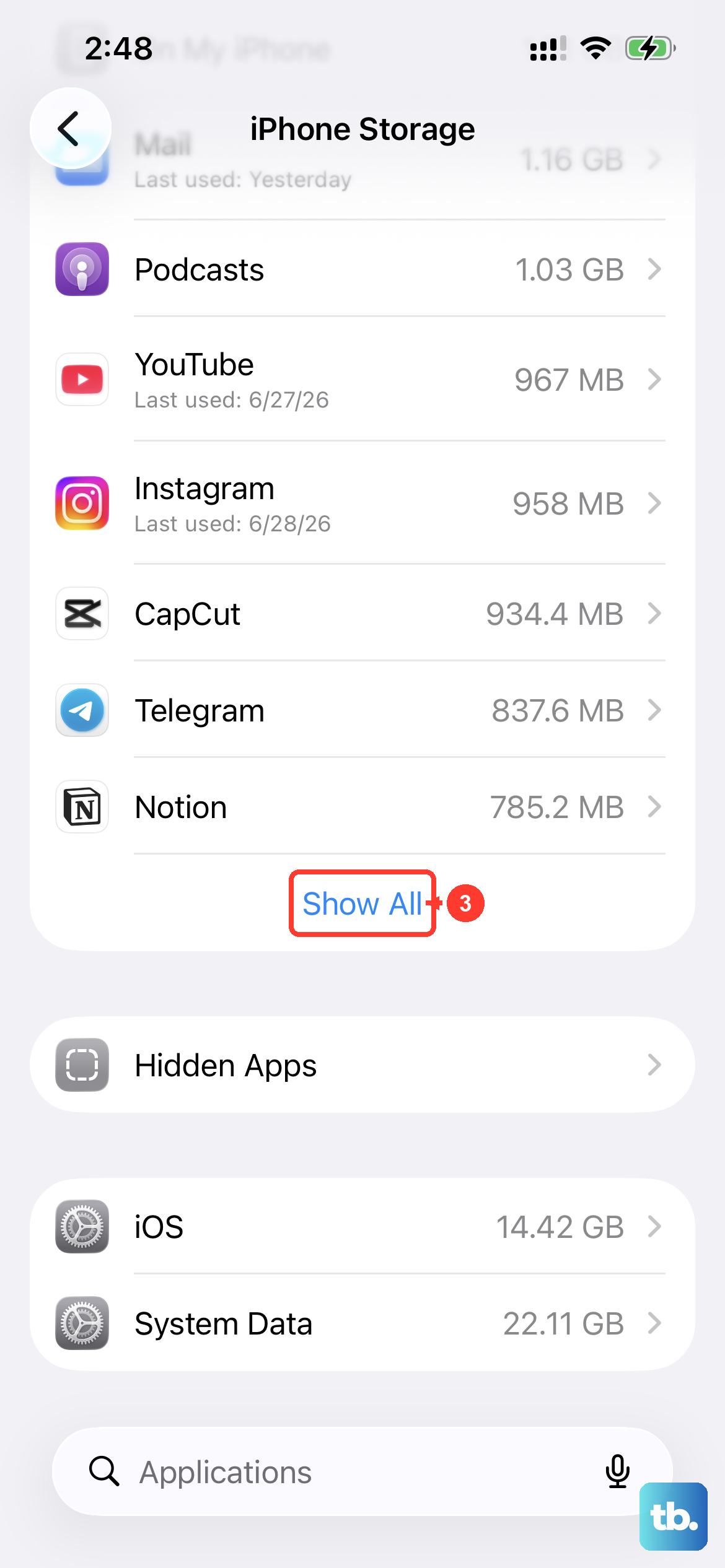
If your iPhone's storage is completely full, it can cause all sorts of strange behavior, including random restarts. Go to Settings > General > iPhone Storage to see how much space you have left.
The system will usually offer recommendations here, like reviewing large attachments or offloading unused apps. Offloading an app removes the app itself but keeps its documents and data, so it's a safe way to free up space quickly.
Reset All Settings
This won't delete your personal data like photos or messages, but it will reset every system setting back to its factory default. That includes network settings, display brightness, privacy permissions, and your home screen layout.
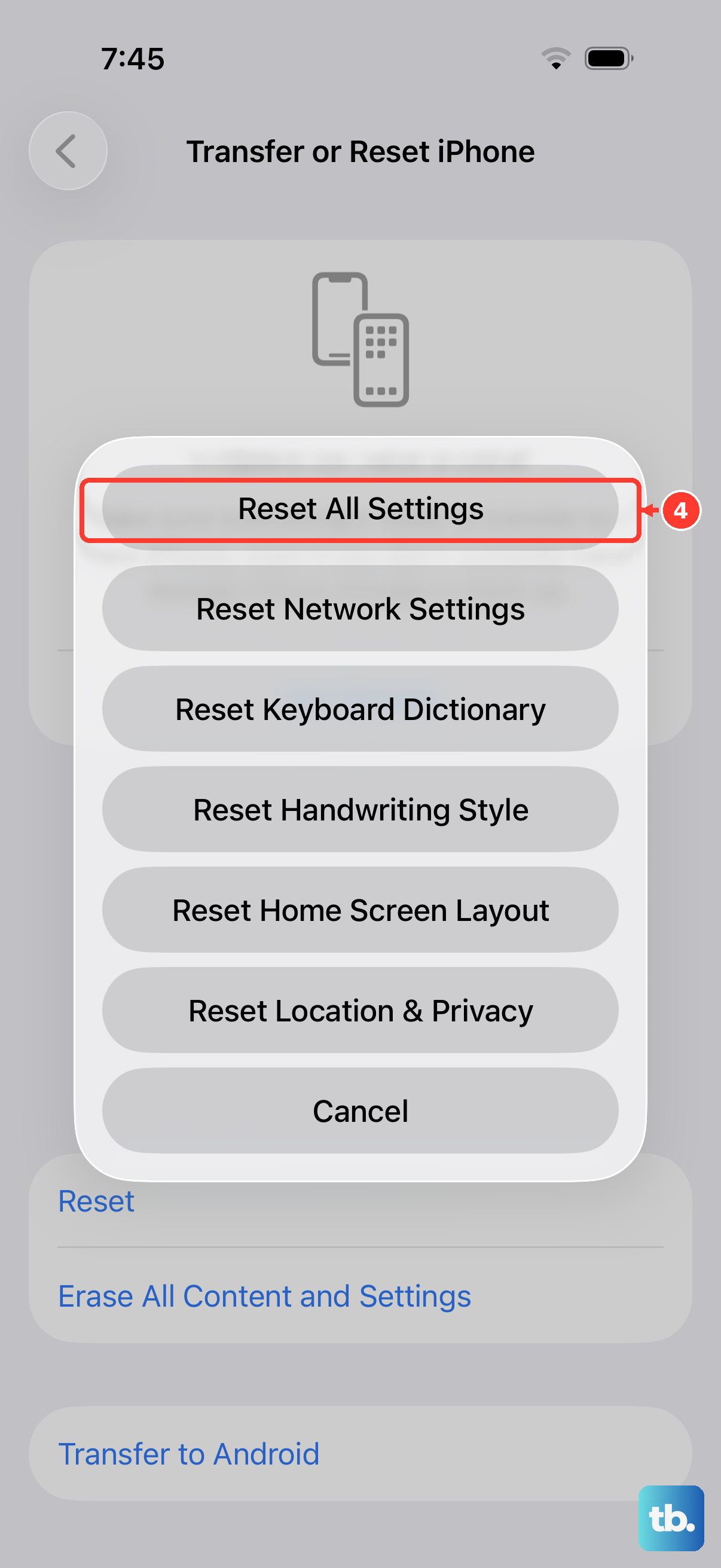
To do this, go to Settings > General > Transfer or Reset iPhone > Reset. Then, choose "Reset All Settings." You'll need to enter your passcode to confirm.
Check Your Charging Setup
The iPhone 17 Pro's advanced 60W charging can sometimes cause the device to get warm. While it's designed to handle this, excessive heat from a faulty charger or cable can trigger a protective shutdown. Make sure you're using a certified USB-C cable and a compatible power adapter.
For the fastest 60W speeds, you need Apple's 40W Dynamic Power Adapter. Standard USB-C Power Delivery chargers will be limited to around 30W. Also, check Settings > Battery > Charging to see if features like Optimized Battery Charging are active, as they manage charging behavior.
Restore via Recovery Mode
If your phone is stuck in a continuous restart loop, you'll need to use recovery mode. This lets you reinstall iOS 26 through your computer. First, connect your iPhone 17 Pro to a Mac or PC with a cable.
Quickly press and release the Volume Up button, then quickly press and release the Volume Down button. Immediately press and hold the Side button. Don't let go when you see the Apple logo, keep holding until you see the recovery mode screen (a cable pointing to a computer icon).
On your computer, you'll get an option to Update or Restore. Choose "Restore" to download and install a fresh copy of iOS. This will erase all data on the phone, so it's a last resort.
Inspect the SIM Card
It's less common, but a loose or damaged SIM card can cause communication errors that lead to a restart. Use the SIM eject tool (or a paperclip) to gently pop open the SIM tray on the side of your iPhone 17 Pro.
Remove the SIM card and check the gold contacts for any obvious dirt or damage. Give it a gentle wipe with a soft, dry cloth and then reinsert it firmly into the tray. Close the tray and see if the problem continues.