


Seeing a "Not Registered on Network" error on your new iPhone 17e means it can't connect to your carrier's cell towers. You won't be able to make calls, send texts, or use mobile data. This is a frustrating way to start with a brand new phone, but it's usually something you can fix yourself.
Since the iPhone 17e is a brand new model with the latest C1X cellular modem, there's a chance you're encountering an early software bug. I'd start with the simplest solutions first, as they often clear up the problem in under a minute.
Toggle Airplane Mode
This is the quickest thing to try. Swipe down from the top-right corner of your screen to open Control Center and tap the airplane icon. Wait about 15 seconds, then tap it again to turn Airplane Mode off. This forces your iPhone 17e's modem to completely disconnect and then re-establish a fresh connection with the network, which can resolve temporary glitches.
Restart Your iPhone 17e
If Airplane Mode didn't work, give your phone a full restart. The force restart sequence for the iPhone 17e is the same as recent models. Quickly press and release the Volume Up button, then quickly press and release the Volume Down button. Finally, press and hold the Side button until you see the Apple logo appear, then let go.
This is a clean boot that clears out any stuck processes in iOS 26 that might be interfering with the cellular radio. Wait for your phone to fully start up and see if it finds the network.
Check for a Carrier Settings Update
Carrier settings are small files that tell your iPhone how to work with your specific network. An outdated file can cause registration failures. Go to Settings > General > About. If an update is available, a pop-up will appear on this screen.
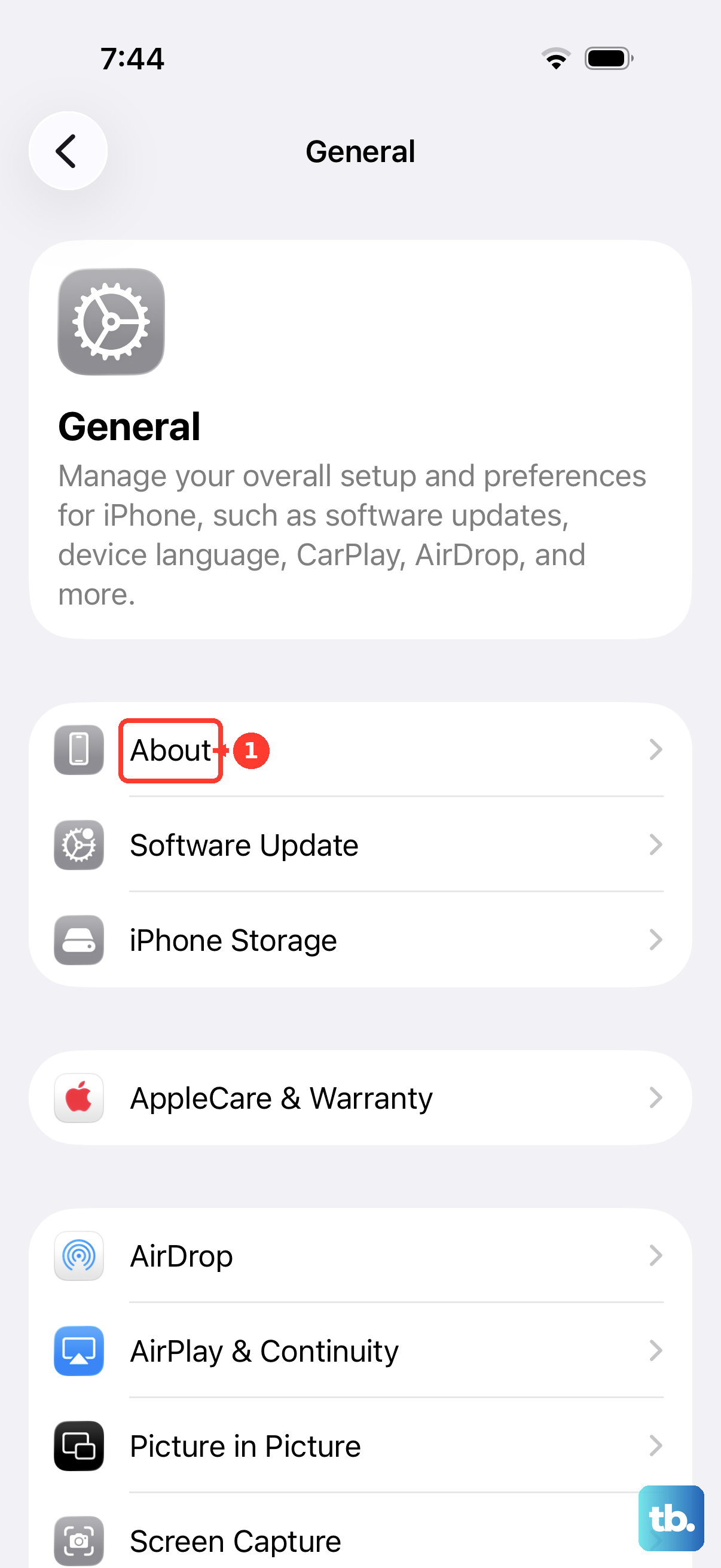
Tap "Update" if you see the prompt. The update installs in seconds and your phone will reboot automatically. This is a very common fix, especially for a new device like the 17e that carriers are still optimizing for.
Reinsert Your SIM Card
A SIM card that isn't seated perfectly in the tray can lose connection. Grab the SIM ejector tool that came in the iPhone 17e's box. Turn off your phone, then insert the tool into the small hole on the left side to pop out the tray.
Carefully remove the SIM card, blow gently on the tray slot to dislodge any dust, and place the SIM back in. Push the tray firmly back into the phone until it clicks. Power your iPhone 17e back on and let it search for the network again.
Update iOS
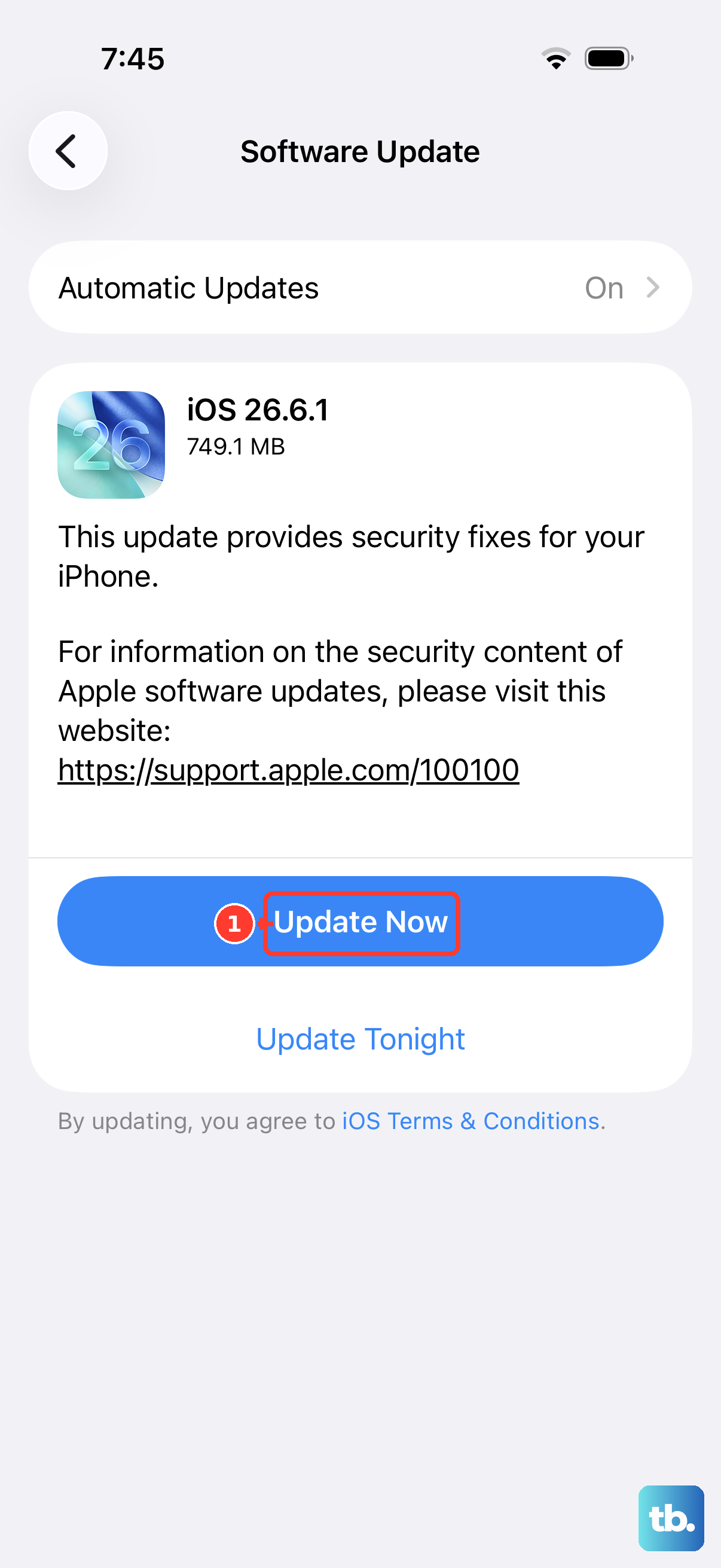
Apple is quick to release patches for connectivity issues, especially for a new release. Go to Settings > General > Software Update. If an update to iOS 26.x is available, tap "Download and Install."
Make sure your phone is connected to Wi-Fi and has sufficient battery. After the update and restart, your iPhone 17e will have the latest bug fixes for its A19 chip and C1X modem, which could directly solve your network problem.
Reset Network Settings
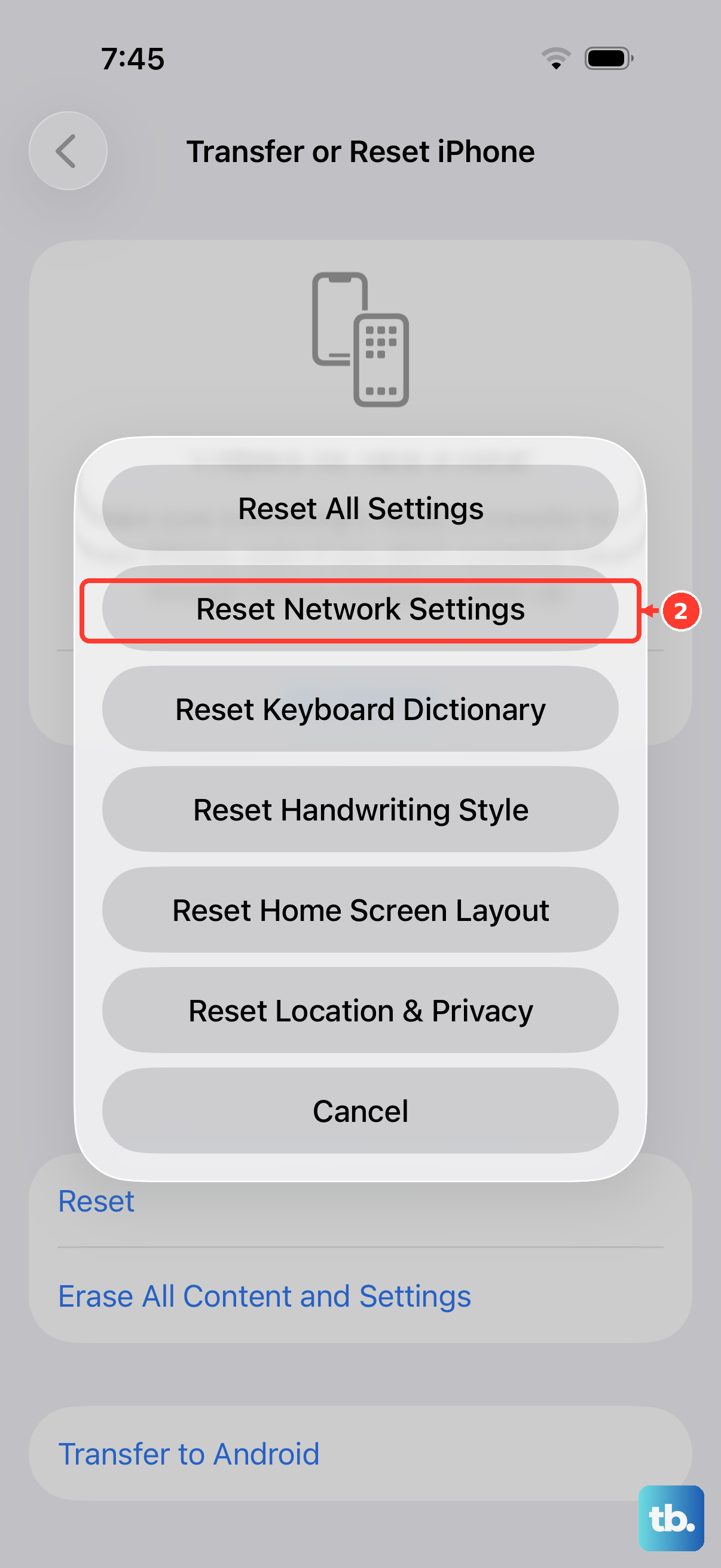
This step clears all your saved Wi-Fi passwords, Bluetooth connections, VPN settings, and cellular network configurations. It's a deeper clean that often fixes persistent registration errors. Go to Settings > General > Transfer or Reset iPhone > Reset.
Tap Reset Network Settings and enter your passcode to confirm. Your iPhone 17e will restart. After it boots up, you'll need to reconnect to Wi-Fi and re-pair Bluetooth devices, but it will attempt a fresh, clean registration with your cellular network.
Verify Your Carrier Account
Sometimes the issue isn't with the phone. If you just activated the iPhone 17e or switched your SIM to it, there might be a provisioning error on your carrier's end. Your account could also be suspended due to a billing issue.
Try calling your carrier's customer service from another phone or use their online chat. Ask them to verify that your line is active and properly provisioned for the iPhone 17e. They can often refresh your connection on their side, which can resolve the error immediately.
Try a Different SIM Card
This test determines if the problem is with your SIM card or the phone itself. If you can borrow a working SIM card from a friend or family member (even from a different carrier), insert it into your iPhone 17e.
If the borrowed SIM card connects to a network without the error, then your original SIM is likely faulty or damaged. You'll need to contact your carrier for a replacement SIM. If the borrowed SIM also shows "Not Registered on Network," the issue is with your iPhone's hardware or software.
Manually Select Your Network
Your iPhone might be trying to latch onto a weak or incompatible network tower automatically. You can force it to choose your specific carrier. Go to Settings > Cellular.
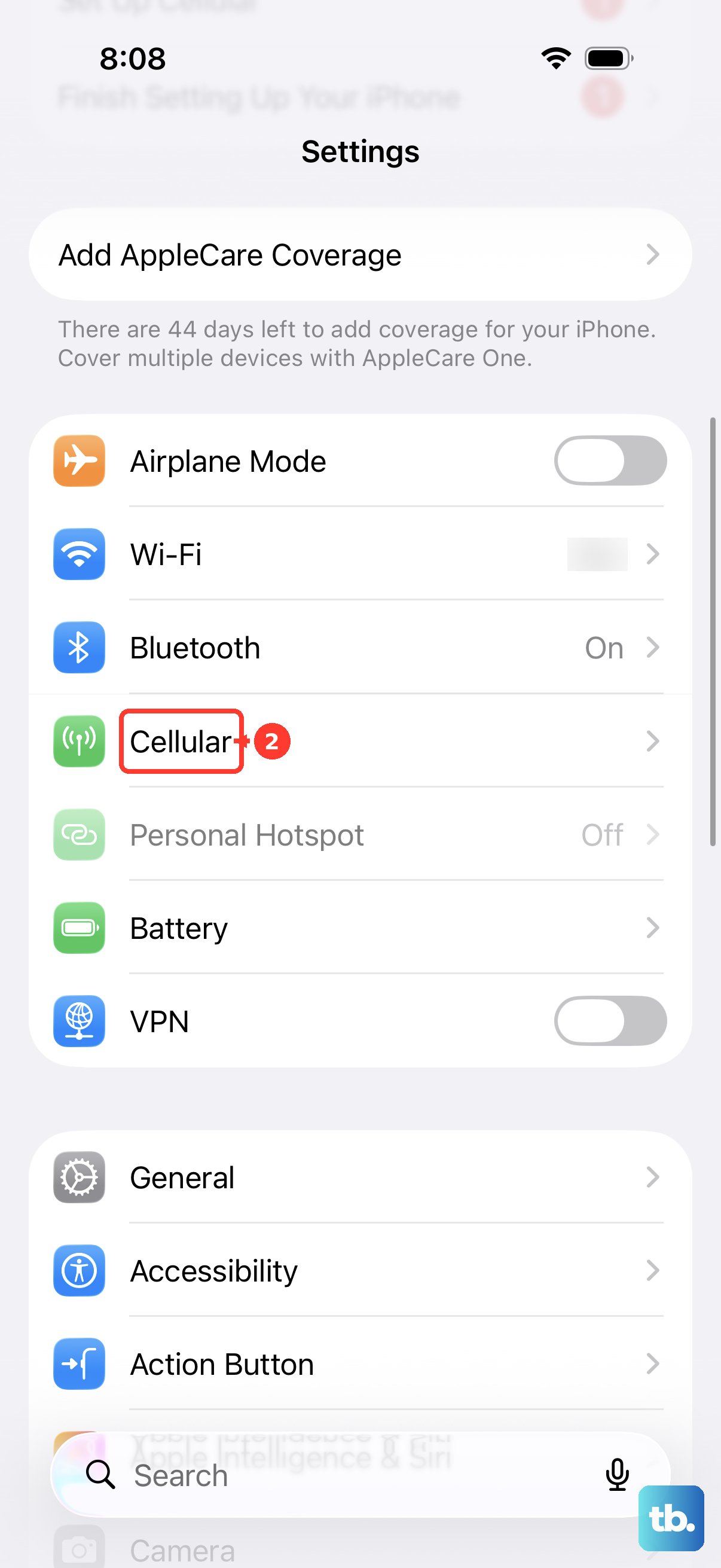
Tap Network Selection and turn off "Automatic." After a moment, a list of available networks will appear. Select your carrier's name from the list. Your iPhone 17e will attempt to register exclusively on that network, which can bypass automatic selection problems.
Restore Your iPhone via Computer
This is the most comprehensive software fix. It involves using a Mac or PC to install a completely fresh copy of iOS 26 onto your iPhone 17e. Make sure you have a recent backup in iCloud or on your computer before you start.
Connect your iPhone to the computer using a USB-C cable. Open Finder (on Mac) or iTunes (on Windows), select your device, and choose "Restore iPhone." This process can fix deep-seated software corruption that a simple reset cannot. If the network error remains after a full restore, the issue is likely a hardware fault with the cellular modem, and you should contact Apple Support.