


When you tap on a photo or video in Messages and it just sits there with a spinning wheel, it's one of those modern annoyances that can really slow you down. On your iPhone 17 Pro Max, this MMS download error usually comes down to a network hiccup, a setting that got flipped off, or a temporary software glitch.
Let's walk through the most effective ways to get those pictures and videos loading again.
Restart Your iPhone 17 Pro Max
This is almost always my first move. A quick restart clears out temporary memory and can fix a surprising number of glitches, including stuck MMS downloads.
For the iPhone 17 Pro Max, you force restart by pressing and quickly releasing the Volume Up button, then quickly pressing and releasing the Volume Down button. Finally, press and hold the Side button until you see the Apple logo appear on the screen.
Check Your Cellular and Data Connection
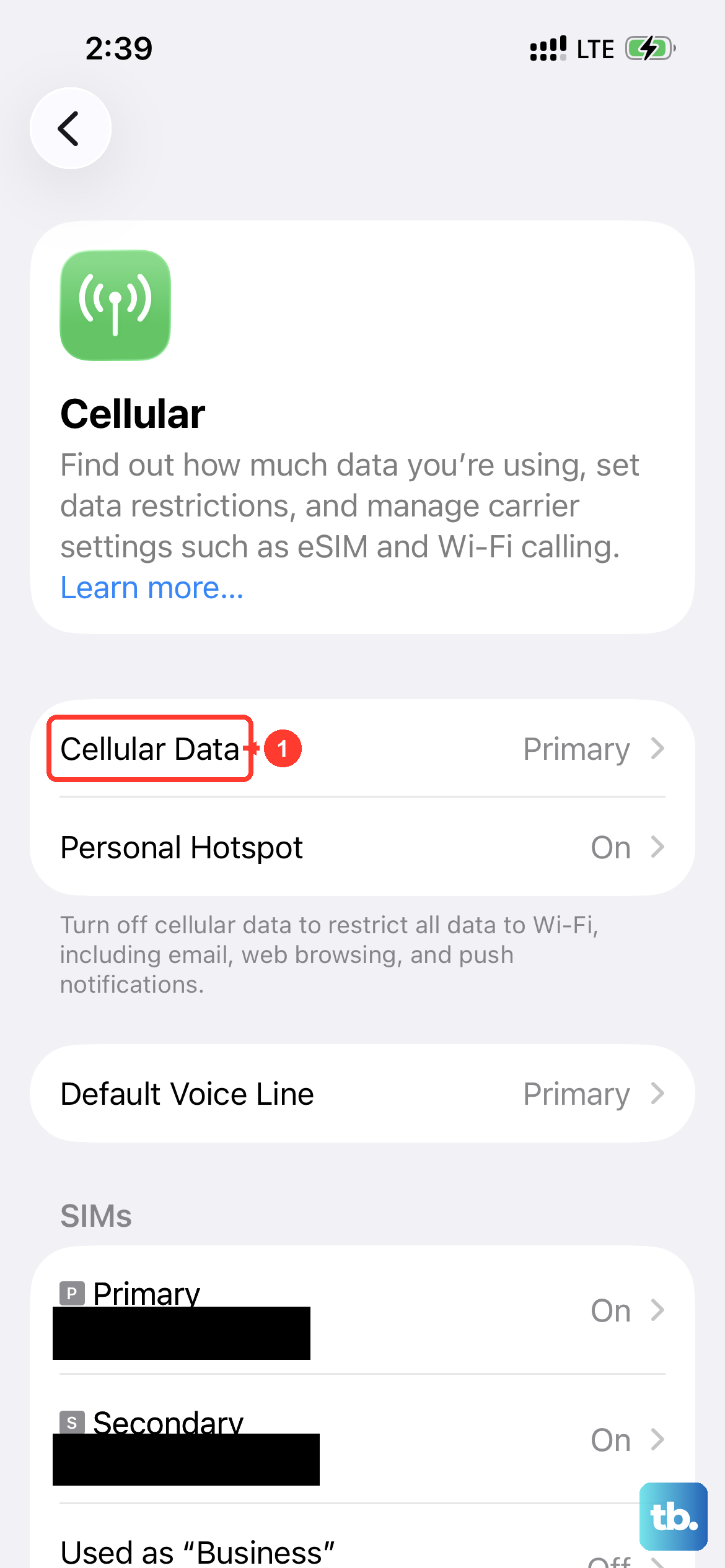
MMS requires a cellular data connection to download, it won't work over Wi-Fi alone. First, make sure Cellular Data is turned on by going to Settings > Cellular.
Also, check your signal strength. If you're in a low-coverage area with only one or two bars, try moving to a different location. Sometimes toggling Airplane Mode on for 10 seconds and then off again can force the phone to reconnect to the network more cleanly.
Ensure MMS Messaging is Enabled
It sounds simple, but this setting can sometimes get disabled, especially after a software update. You need to make sure it's switched on for messages to come through.
Open Settings, scroll down and tap Messages. In the SMS/MMS section, make sure the toggle for MMS Messaging is green and turned on. If it was off, turn it on and try downloading the message again.
Turn Off Low Data Mode
Low Data Mode is a great feature for saving your cellular data allowance, but it can sometimes prevent larger MMS files from downloading automatically. It's worth checking if this is the culprit.
Go to Settings > Cellular > Cellular Data Options. Look for Low Data Mode and make sure it is turned off. Also check the same setting for your Wi-Fi connection under the specific network in Settings > Wi-Fi.
Update Your Carrier Settings
Carrier updates are small files that Apple and your mobile provider release to improve network connectivity and performance. Having an outdated version can lead to MMS issues.
To check, make sure your iPhone 17 Pro Max is connected to Wi-Fi and has a cellular signal. Then go to Settings > General > About. If an update is available, a prompt will appear on this screen. Just follow the instructions to install it.
Check for a Software Update
Running an old version of iOS 26 could have a bug that's interfering with MMS. Apple regularly releases updates that fix these kinds of problems.
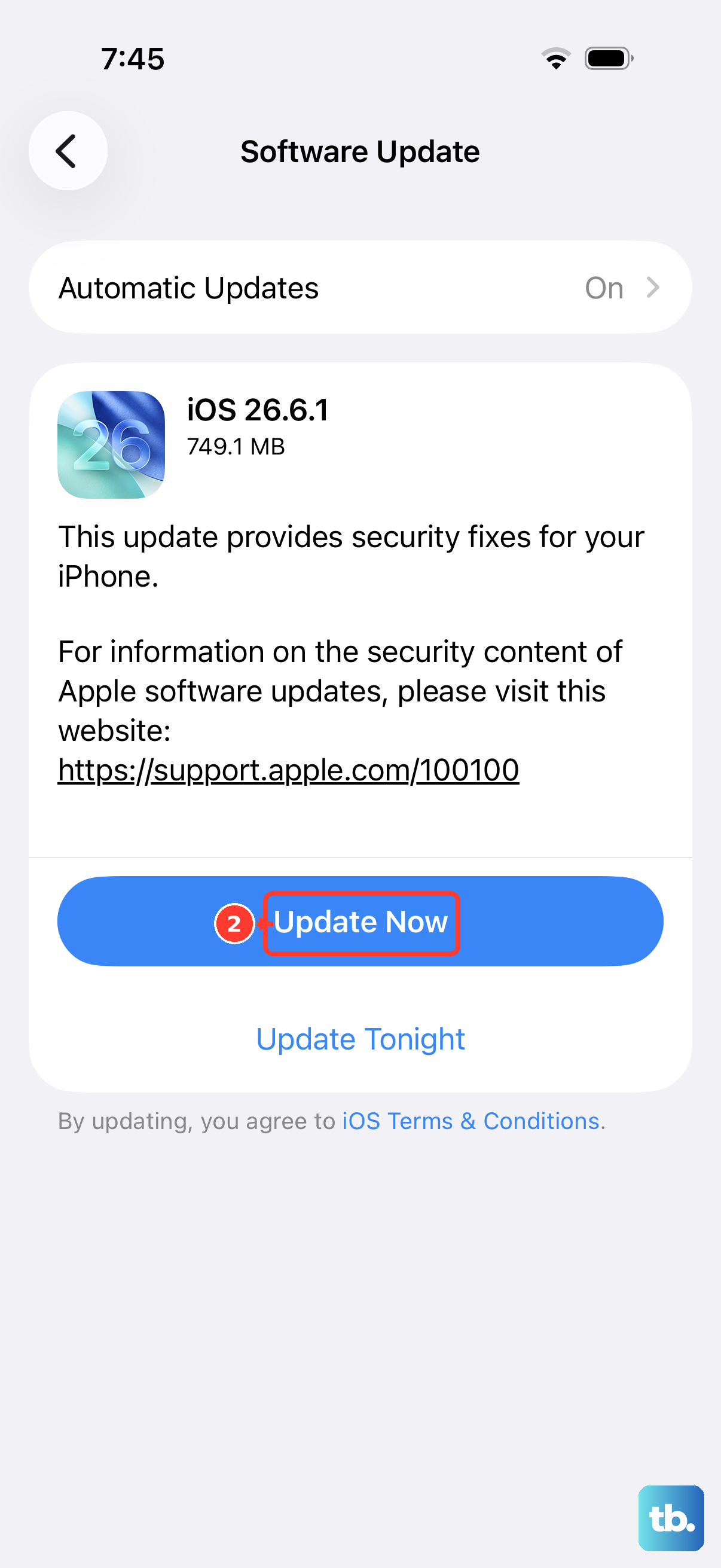
Head to Settings > General > Software Update. Your phone will check for any available updates. If one is there, I'd recommend installing it, as it often resolves persistent messaging issues.
Reset Your Network Settings
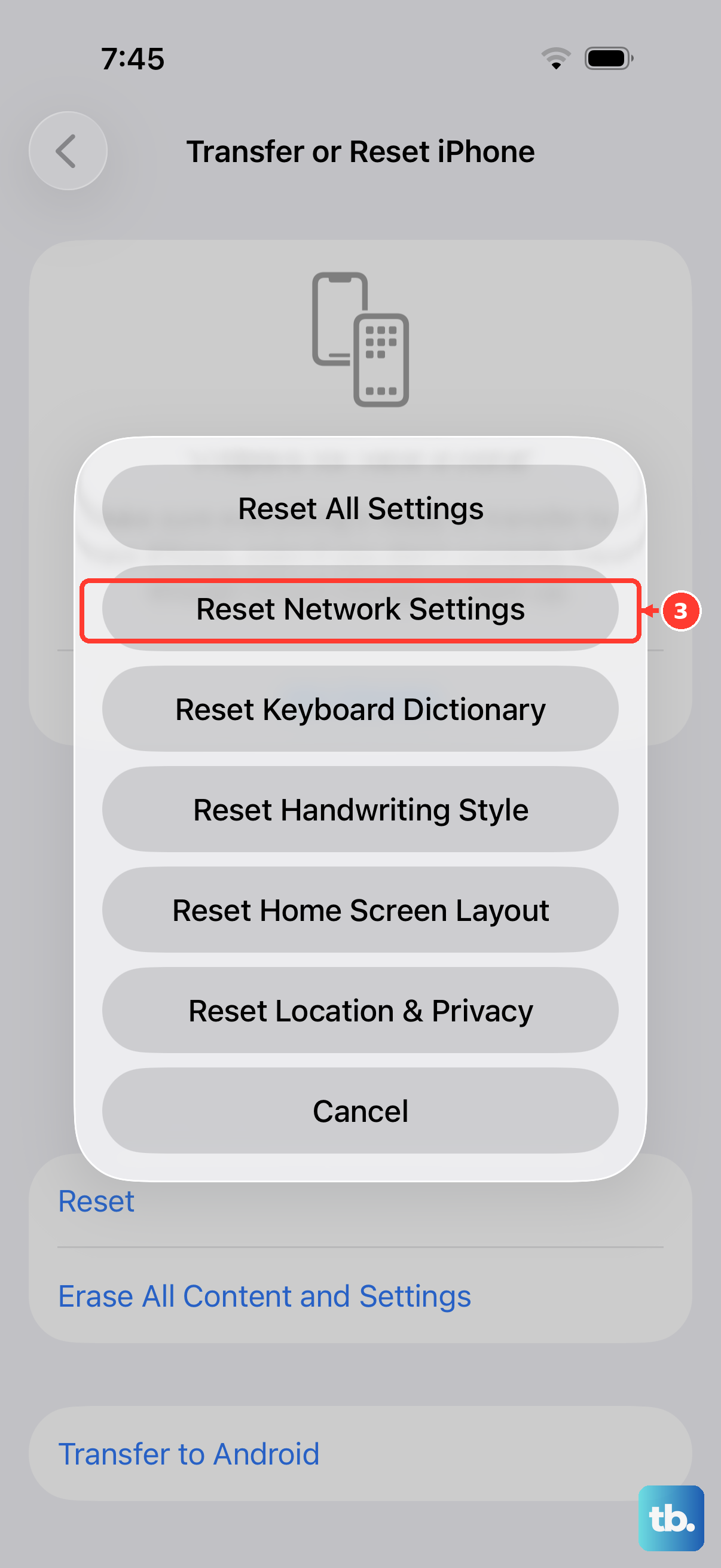
This is a more thorough step that clears all your saved Wi-Fi networks, passwords, and cellular settings back to default. It won't delete your personal data, but you will have to re-join Wi-Fi networks afterward.
On your iPhone 17 Pro Max, go to Settings > General > Transfer or Reset iPhone. Tap Reset and then choose Reset Network Settings. Enter your passcode if asked and confirm. After the phone restarts, try downloading the MMS again.
Delete the Problem Message Thread
Sometimes a single conversation thread can become corrupted, causing all new messages within it to fail. If the MMS that won't download is from one specific person or group, try deleting that entire thread.
Open the Messages app, swipe left on the problematic conversation, and tap the red trash can. Confirm the deletion. Ask the sender to resend the photo or video to a new, fresh message thread.
Check Your iPhone's Storage
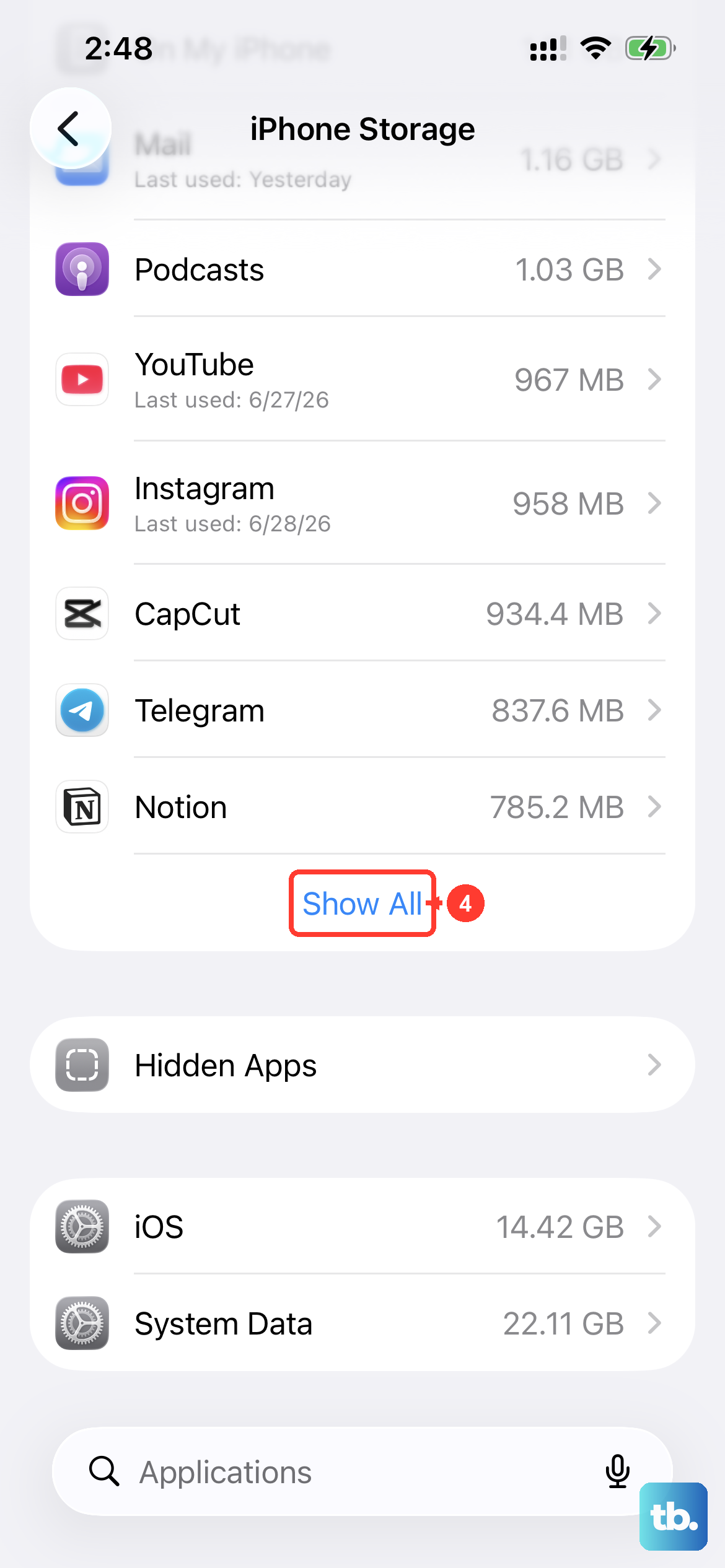
If your iPhone 17 Pro Max is completely full, it may not have the space needed to download and save a new multimedia file. The system needs a little free space to operate properly.
Go to Settings > General > iPhone Storage. Here you can see how much space is available. If you're critically low, you may need to offload some apps, delete old videos, or clear cached data before the MMS can come through.
Contact Your Carrier
If you've tried everything here and the MMS still won't download, the issue might be on your carrier's end. They can check if there's a service outage in your area or if there's a problem with your account's MMS provisioning.
Give them a call or use their online support chat. You can mention you've already reset network settings and confirmed MMS is enabled on the device, which will help them narrow down the problem faster.