
If your iPhone 17 is refusing to send photos or videos in the Messages app, the quickest thing to check is your cellular data. MMS requires an active data connection. Swipe down from the top-right corner to open Control Center and make sure the cellular data icon is turned on and not grayed out.
Sometimes, a simple restart can clear out a temporary software hiccup. For the iPhone 17, press and quickly release the Volume Up button, press and quickly release the Volume Down button, then press and hold the Side button until you see the Apple logo appear.
Check Your MMS Settings in Messages
Open the Settings app, tap Apps, then tap Messages. Make sure the MMS Messaging toggle is switched on. If it's off, your phone won't send or receive picture messages through the cellular network.
Also in the Messages settings, look for the Send as Text Message option. When iMessage is unavailable, turning this on allows your message to send as a standard SMS or MMS instead of failing. It's a good backup to have enabled.
Verify Your Cellular Data Settings
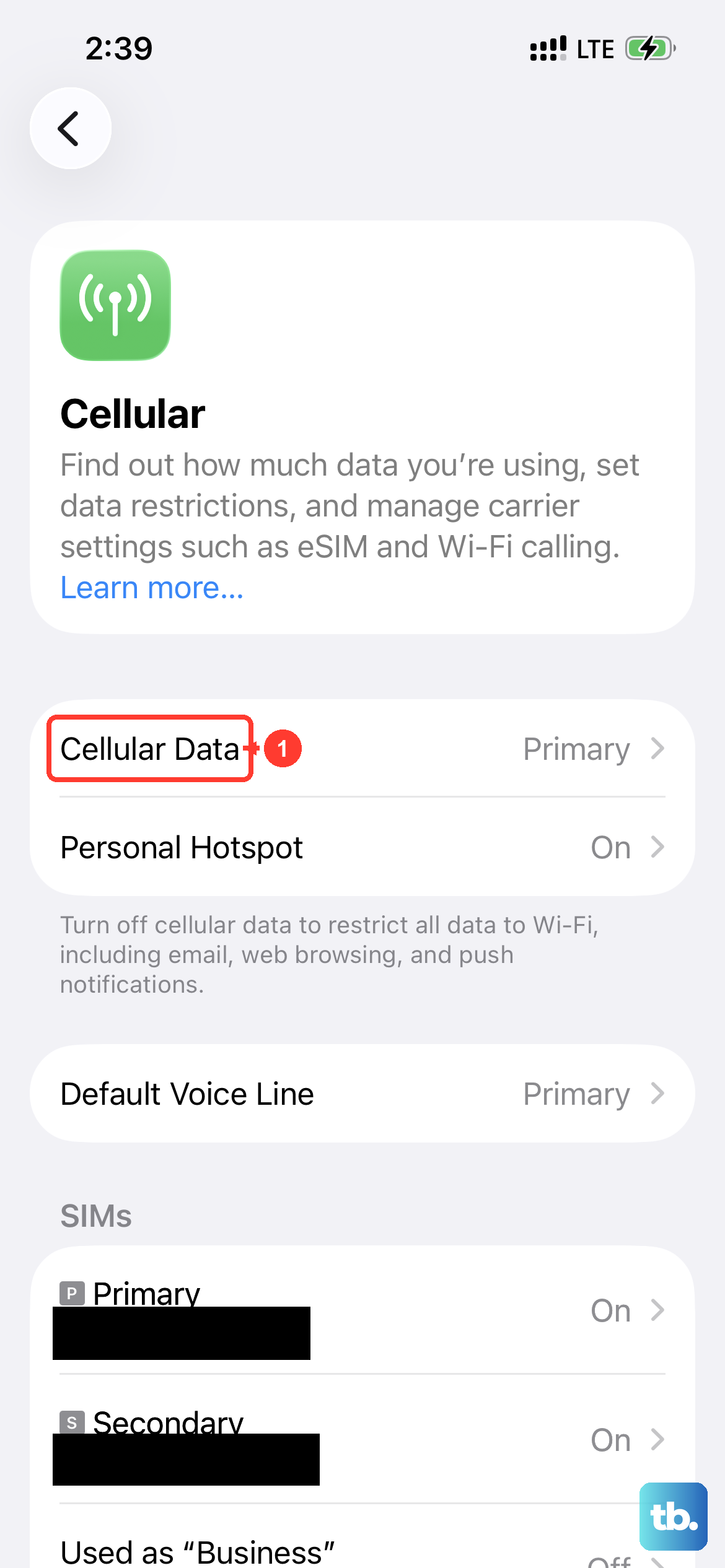
Your cellular plan needs to include data for MMS to work. Go to Settings, then Cellular, and ensure Cellular Data is enabled. While you're there, scroll down and make sure the toggle for Messages is also turned on under the list of apps using cellular data.
If you see an option for Low Data Mode on your cellular plan settings, try turning it off. This mode can sometimes restrict background data services that MMS relies on to send and receive.
Update Your Carrier Settings
Carrier updates are small files that help your iPhone 17 work better with your network provider. These can fix MMS issues. To check for one, go to Settings, then General, and tap About.
If an update is available, a prompt will appear. Just follow the on-screen instructions to install it. This process only takes a moment and doesn't affect your personal data.
Reset Your Network Settings
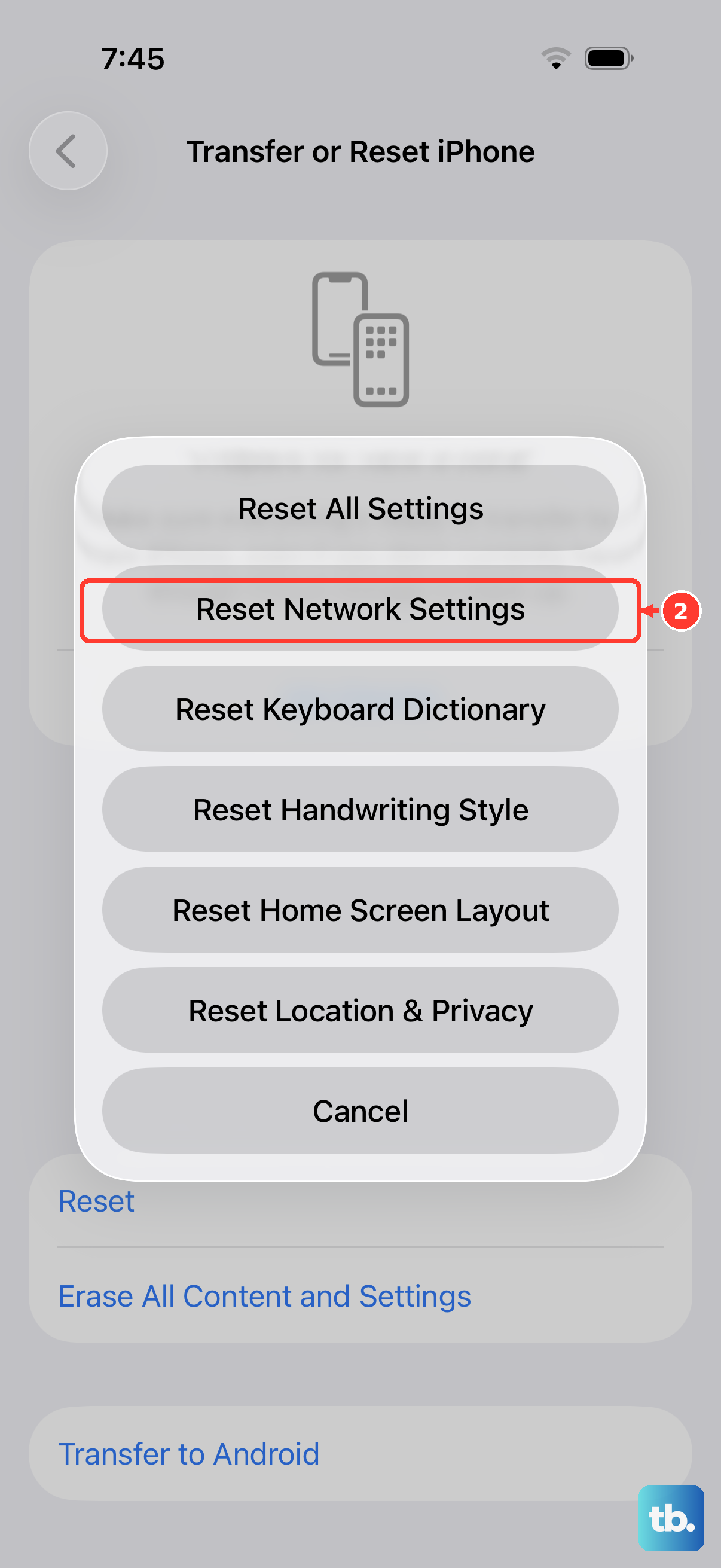
This is a more thorough step that can resolve deeper configuration problems. It will erase all your saved Wi-Fi networks, passwords, and cellular settings, so you'll need to reconnect to Wi-Fi afterward.
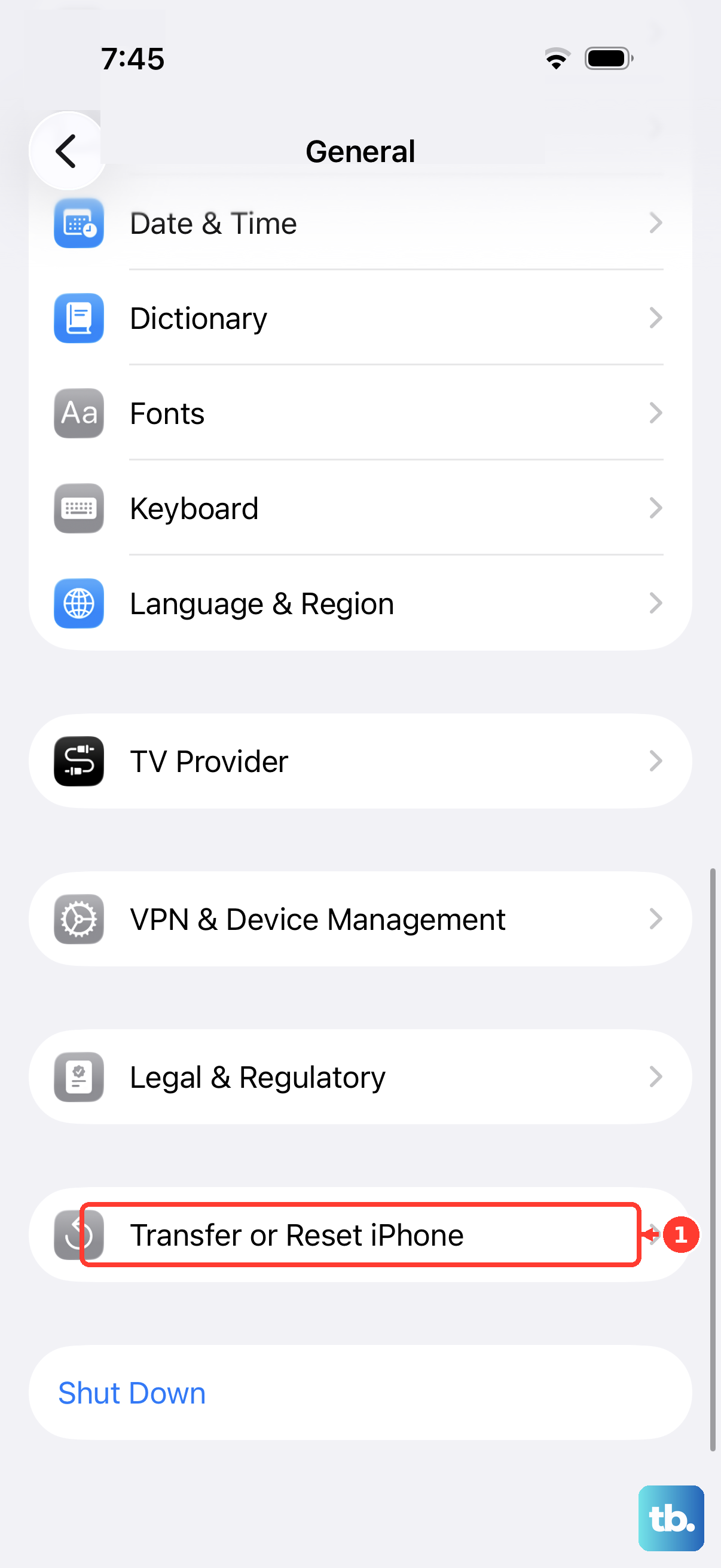
Go to Settings, then General, and tap Transfer or Reset iPhone. Choose Reset, then select Reset Network Settings. Enter your passcode if prompted and confirm. Your iPhone will restart. Reconnect to Wi-Fi and then test an MMS.
Check for a Software Update
iOS updates often include bug fixes for connectivity and messaging issues. Open Settings, go to General, and tap Software Update. If an update is available, tap Download and Install.
It's best to do this while connected to Wi-Fi and with your phone plugged into power. After the update installs, try sending an MMS again to see if the problem is resolved.
Review Your Message Thread
If you're trying to send a photo or video to a group message that includes both iPhone and Android users, make sure you're not accidentally trying to send it via iMessage. The thread should appear as a green bubble conversation for MMS to work.
Also, check the size of the media you're trying to send. Very large videos may exceed carrier size limits for MMS. You might see a prompt to send it via Mail or another service instead.
Contact Your Carrier
If you've tried everything here, the issue might be on your carrier's end. Give them a call or check their support website. Ask them to verify that MMS is enabled on your line and that there are no service outages in your area.
You can also ask them to reprovision your line, which is a fancy way of saying they refresh your connection to their network. This can fix stubborn MMS problems when nothing else works.