
When your iPhone 17 Pro gets stuck on an update, it's a roadblock you need to clear fast. You might be staring at an "Unable to Check for Update" message, a download that won't budge from zero, or an install that fails and reboots your phone. Let's get iOS 26 on your device.
Free Up Storage Space on Your iPhone 17 Pro
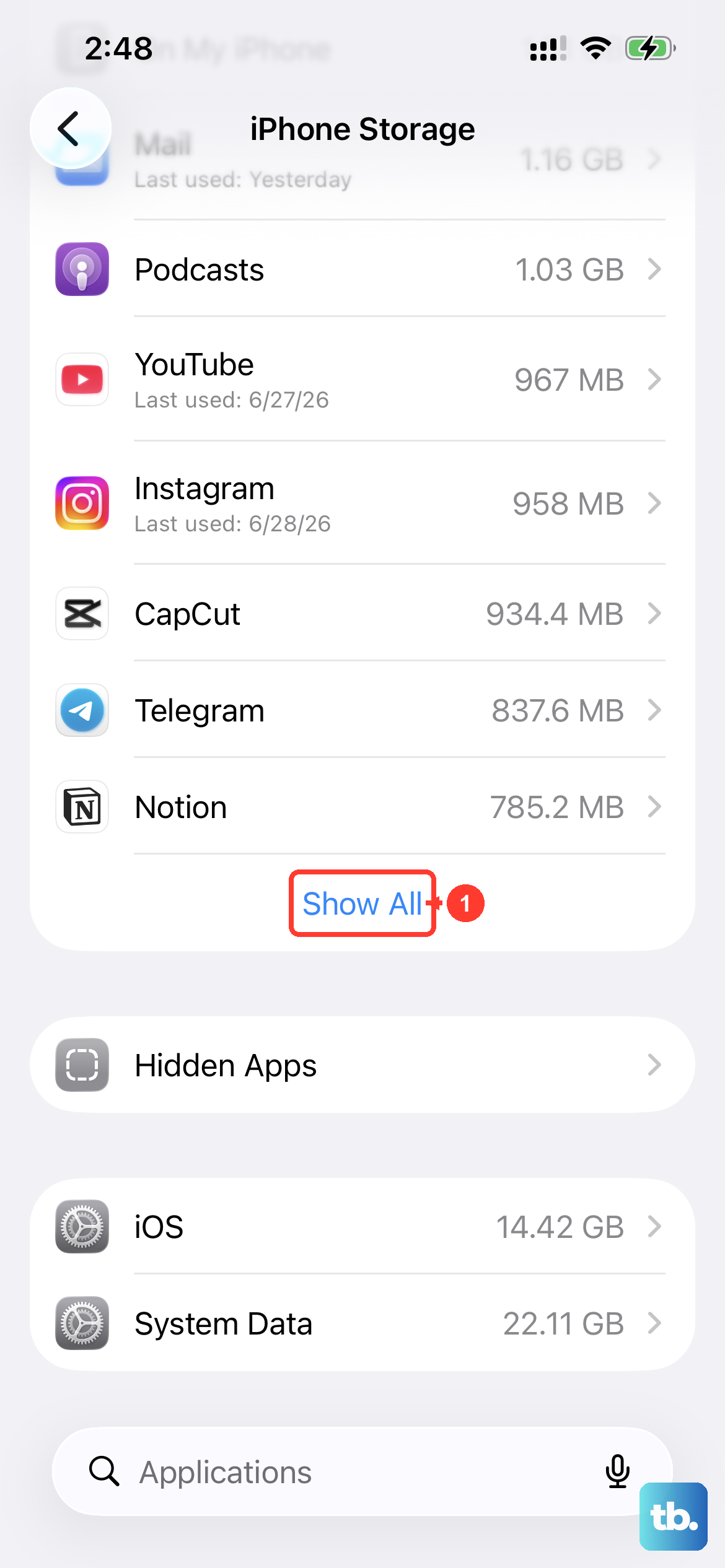
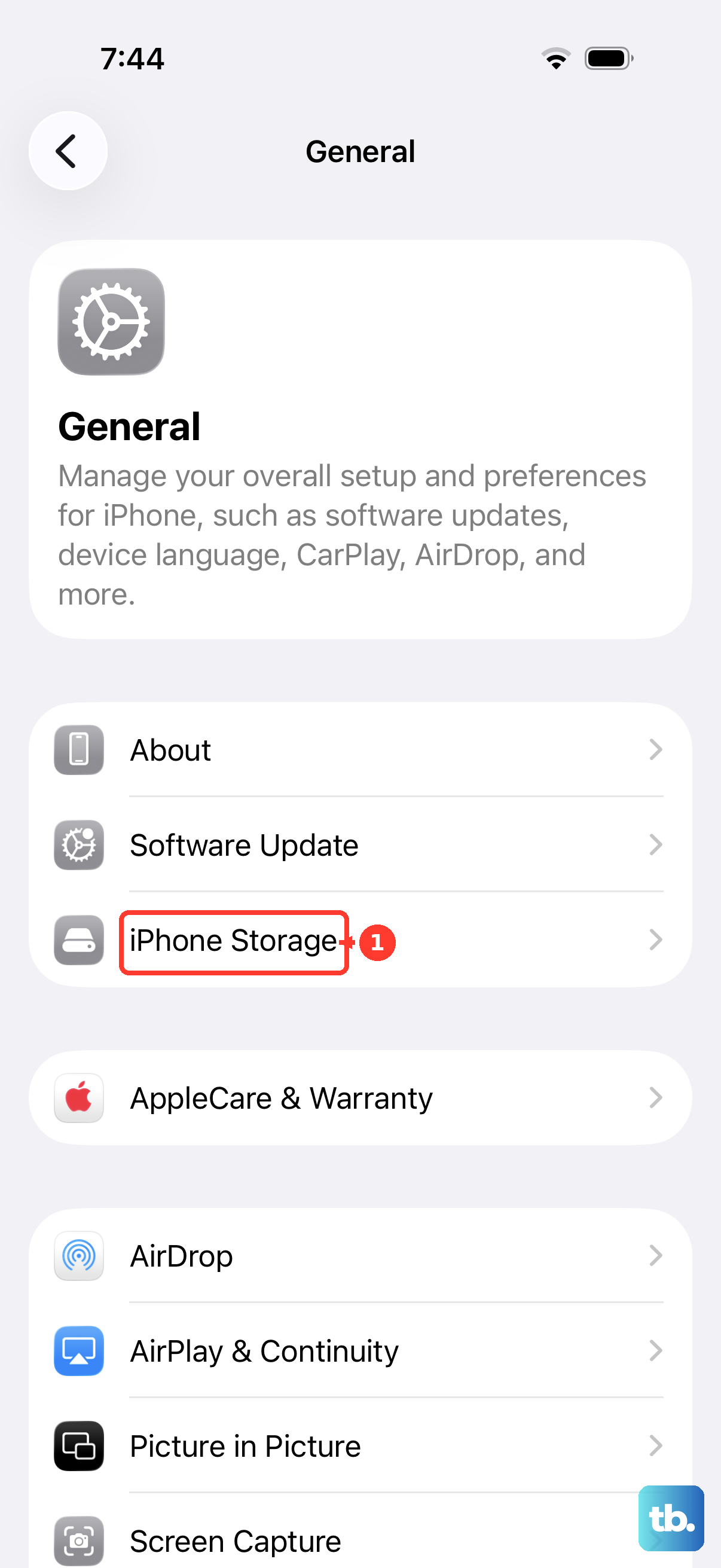
iOS updates need a surprising amount of free space to unpack and install. On your iPhone 17 Pro, head to Settings > General > iPhone Storage to see what's available. I'd recommend having at least 7-8 GB free for a major update like iOS 26.
If you're short, the quickest win is to offload unused apps. This removes the app but keeps its documents and data. You can also review large attachments in Messages or clear your Recently Deleted album in Photos.
Delete the Corrupted Update File
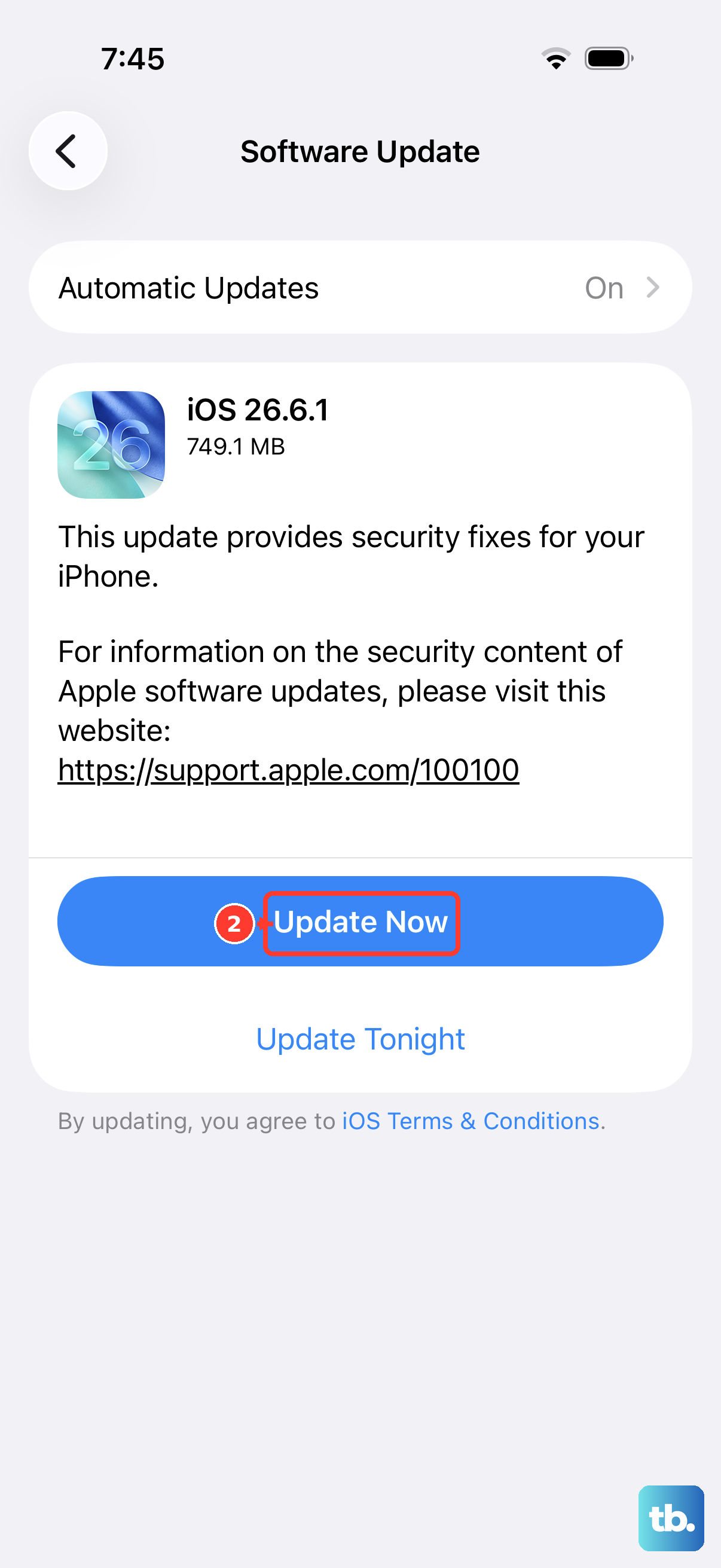
A failed download can leave a corrupted update file on your phone that blocks new attempts. Go back into Settings > General > iPhone Storage and scroll down the list of apps.
Look for the iOS update file itself, it will be several gigabytes in size. Tap on it and select Delete Update. Once it's gone, navigate to Settings > General > Software Update to start a fresh, clean download.
Restart Your iPhone 17 Pro
This is the classic fix for a reason. A simple restart clears out temporary glitches and cached data that might be interfering with the update service. To restart your iPhone 17 Pro, press and hold the Side button and either volume button until the power slider appears.
Slide to power off, wait a full 30 seconds, then press the Side button again to turn it back on. Once it boots up, go straight to Software Update and try again.
Check Your Wi-Fi Connection Thoroughly
iOS updates won't download over cellular, so a solid Wi-Fi connection is mandatory. Try loading a few websites in Safari to test the stability. If pages are slow, restart your router by unplugging it for 30 seconds.
Be cautious with public or corporate Wi-Fi networks, as they often have firewalls that block large downloads like system updates. Your home network is always the best bet.
Reset Your iPhone's Network Settings
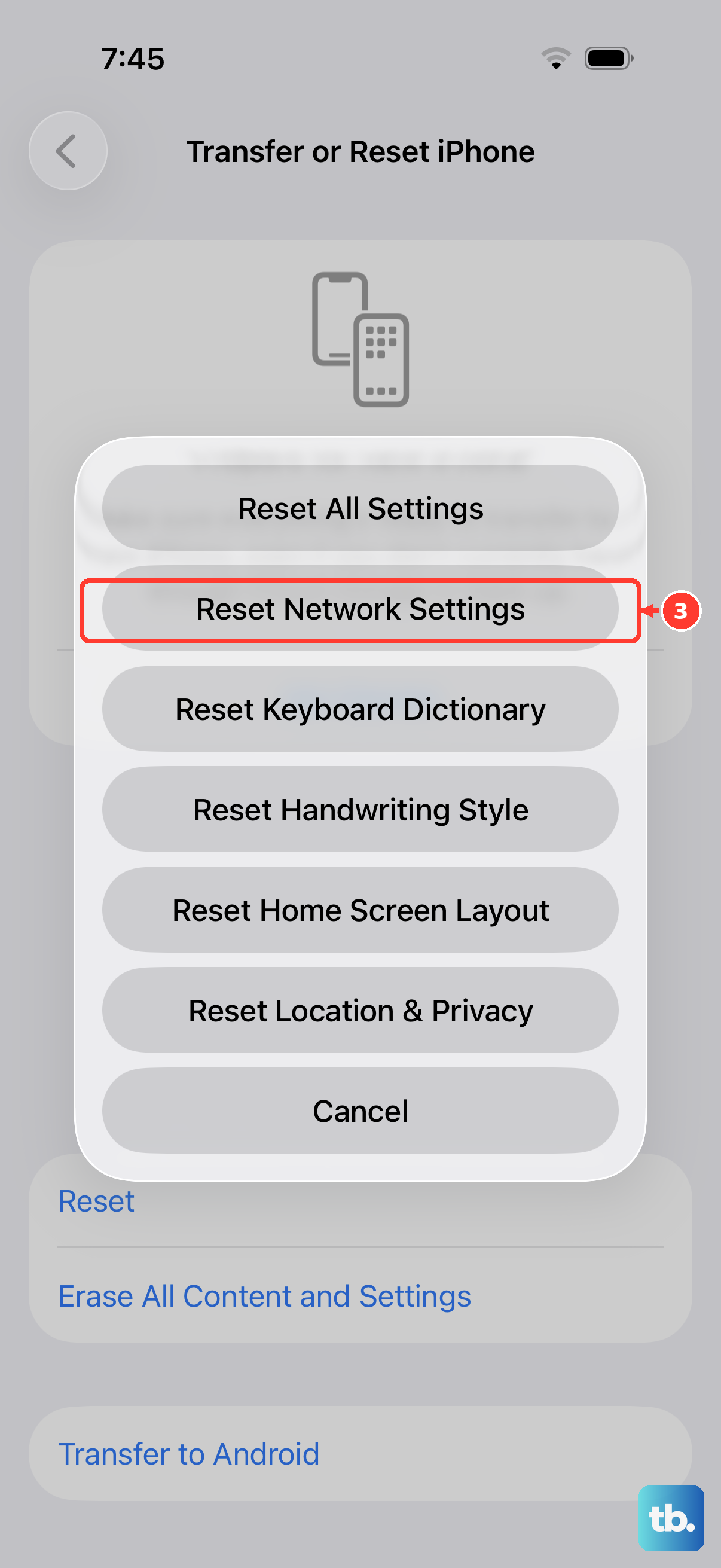
If your connection seems fine but the update still fails, the problem could be in your phone's network configuration. Go to Settings > General > Transfer or Reset iPhone > Reset and tap Reset Network Settings.
This will erase all saved Wi-Fi passwords, so you'll need to reconnect to your network afterward. Once you're back online, attempt the update again, this often clears up persistent download errors.
Update Using a Mac or PC
When over-the-air updates repeatedly fail, using a computer is your most reliable path. Connect your iPhone 17 Pro to your Mac or Windows PC using a USB-C cable. On a Mac with macOS Catalina or later, open Finder and select your device from the sidebar.
On a Windows PC, you'll use iTunes. Click Check for Update, then Download and Update. This method downloads the update file to your computer first, then installs it directly to your phone, bypassing any storage or network issues on the device itself.
Check Apple's System Status Page
Sometimes the issue isn't on your end at all. During a major iOS 26 rollout, Apple's servers can get overwhelmed. Pull up apple.com/support/systemstatus on another device and look for the Software Update service.
If you see a yellow or red indicator, the delay is widespread. Your only option is to wait a few hours and try the update again later when server load has decreased.
Try Updating During Off-Peak Hours
If the system status page looks clear but downloads are still slow or failing, it could be due to high regional traffic. Millions of iPhone 17 Pro and other compatible device owners might be hitting the servers at the same time.
Try initiating the update very early in the morning or late at night. The download often goes through much more smoothly when overall demand is lower.
Ensure Your iPhone 17 Pro is Compatible and Charged
While the iPhone 17 Pro is fully compatible with iOS 26, it's still good to confirm. Go to Settings > General > About to see your model name. Also, make sure your phone has enough battery or is plugged in.
The update process can take a while, and your iPhone 17 Pro needs to be above 50% charge or connected to power. Using your Apple 40W Dynamic Power Adapter will keep it charged fastest during the install, but any USB-C charger will work.
Check for App Interference
In some cases, a background app can interfere with the update process. VPNs, security apps, or certain content blockers are common culprits. Try turning off any VPN you have active before starting the update.
If you suspect an app, you can restart your phone and immediately go to Software Update without opening any other apps first. This minimizes background processes that could cause a conflict.