
When your iPhone 17 Pro's Settings app keeps crashing or closing unexpectedly, it can lock you out of managing your device. This is usually a software hiccup in iOS 26, often tied to a recent update or a corrupted cache. Let's get it working again.
Force Restart Your iPhone 17 Pro
This is the quickest fix and clears out temporary system glitches. It's different from a normal restart and doesn't erase any data. On the iPhone 17 Pro, you press and quickly release the Volume Up button, then quickly press and release the Volume Down button. Finally, press and hold the Side button until you see the Apple logo appear, then let go.
Wait for your phone to boot back up and try opening Settings again. If it still crashes, the issue is a bit more persistent.
Check for an iOS Update
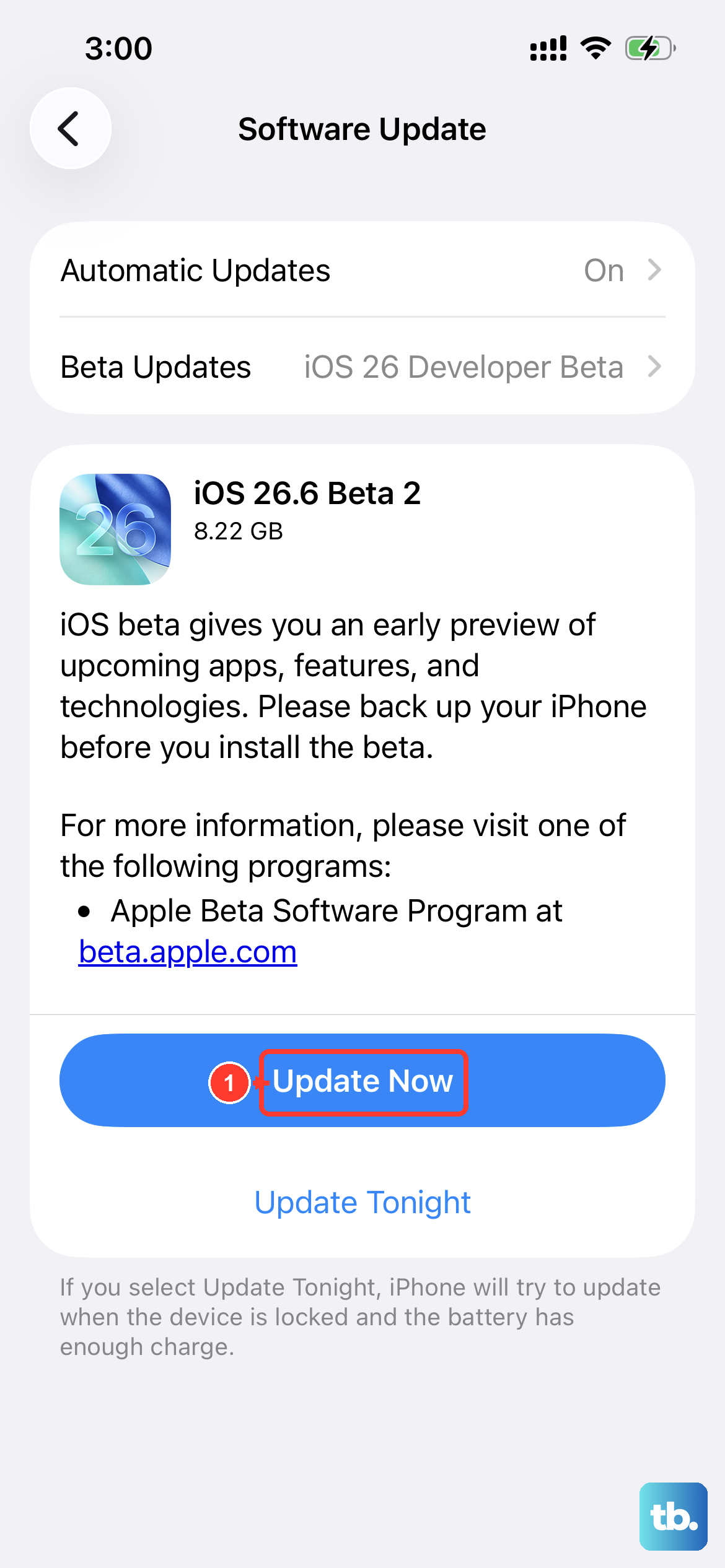
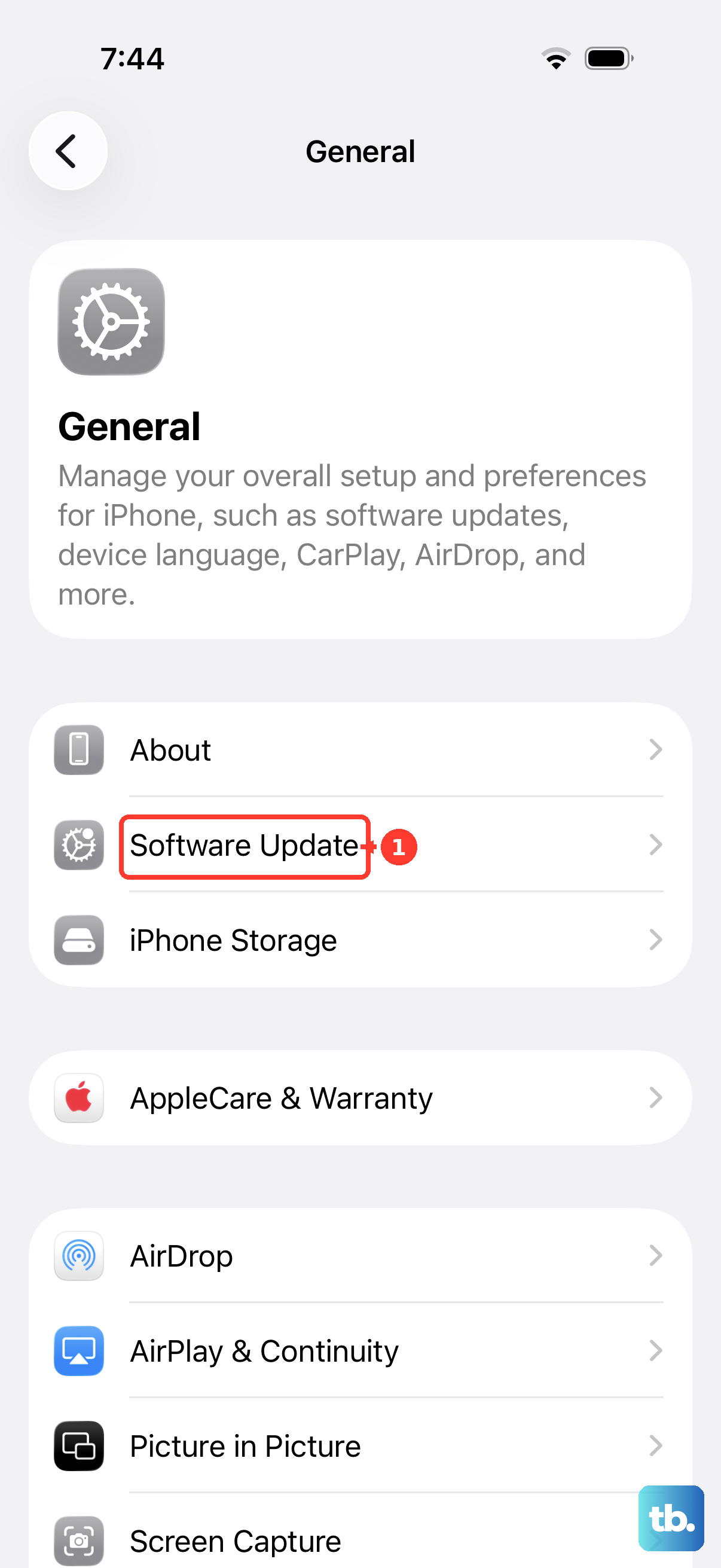
Apple frequently releases minor updates to patch bugs that can cause system app crashes. Since you're on iOS 26, navigate to Settings > General > Software Update. Your phone will check for any available updates.
If an update is there, tap "Download and Install." I'd recommend doing this over Wi-Fi and while your phone is charging, especially if you're using the 60W fast charging with the Apple 40W Dynamic Power Adapter to keep it topped up during the process.
Reset All Settings
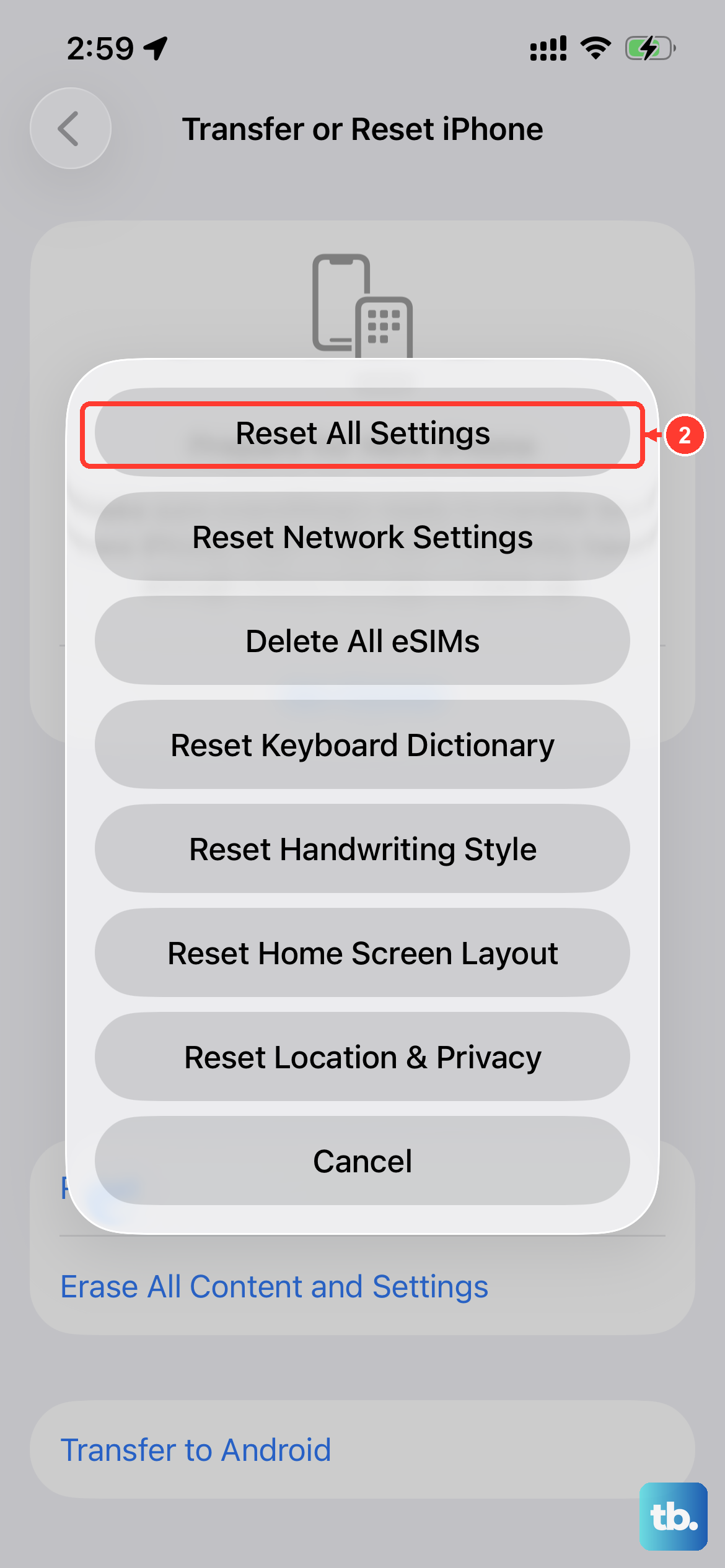
This is a powerful step that resets all your preferences, like Wi-Fi passwords, wallpaper, and privacy settings, back to factory defaults without touching your personal data or apps. It can clear out a configuration file that's causing Settings to fail.
Go to Settings > General > Transfer or Reset iPhone > Reset. Then, tap "Reset All Settings." You'll need to enter your passcode and confirm. Your iPhone will restart, and you'll have to set up things like Face ID and Wi-Fi networks again, but it often resolves these kinds of system app issues.
Offload and Reinstall a Problematic App
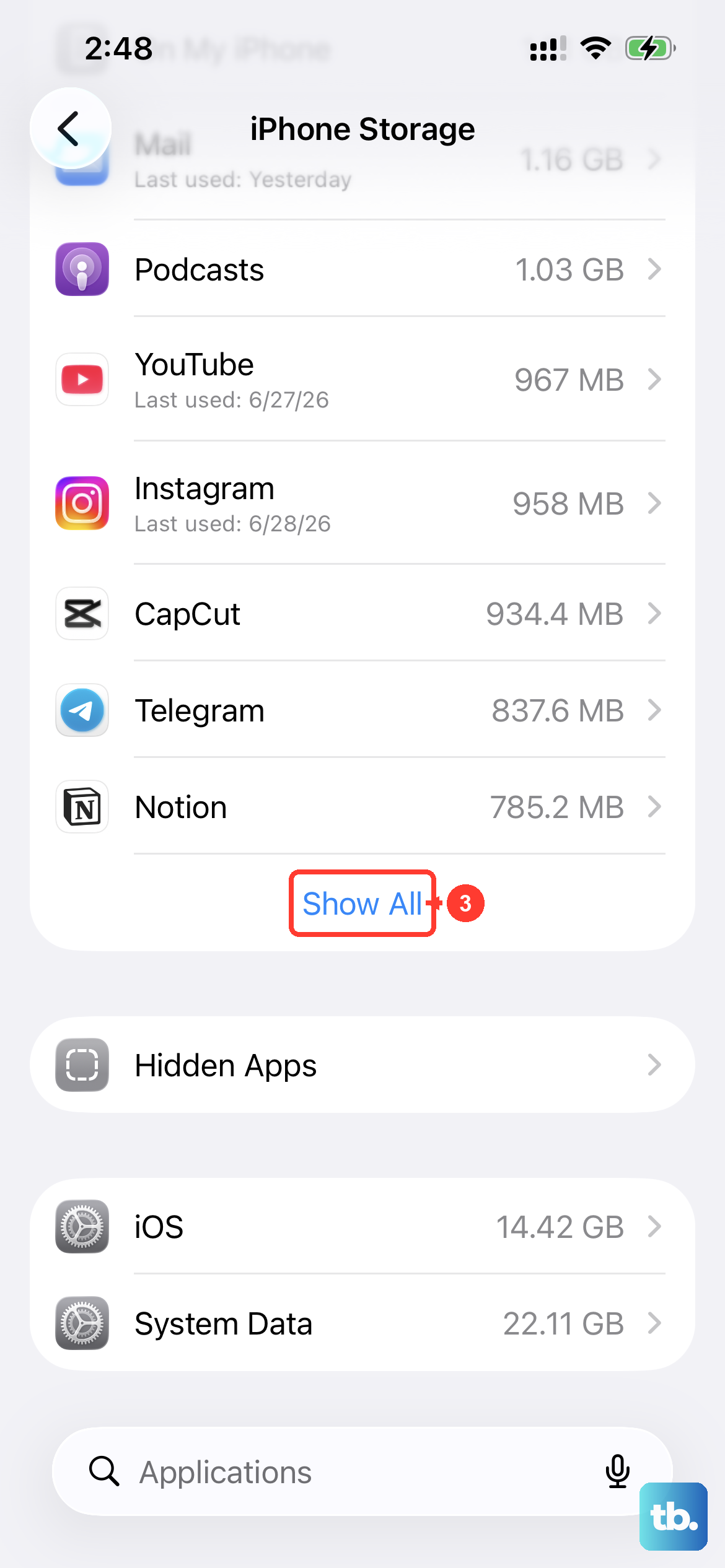
Sometimes, a specific third-party app you recently installed can conflict with system services, causing instability. iOS has a feature that removes the app but keeps its documents and data, making it easy to test.
Head to Settings > General > iPhone Storage. Scroll through the list and look for any apps you installed just before the problem started. Tap on one, then select "Offload App." Confirm, and the app will be removed. Try opening Settings immediately after to see if the crashing stops.
If the problem is fixed, you can reinstall the offloaded app from the App Store by tapping its icon. Your data will still be there.
Check for Profile-Related Issues
Configuration profiles, often installed for work, school, or beta software, can sometimes introduce instability. To check, open Settings and look for a "Profile" or "Profiles & Device Management" option near the top. If you see one, tap into it.
Review any installed profiles. If you recognize a profile for iOS 26 beta software or a work account that you no longer need, you can tap "Remove Profile." You may need to enter your device passcode. After removing it, restart your iPhone.
Update Your Apps
Outdated apps, especially ones with deep system integration, can cause conflicts. Open the App Store and tap your profile icon in the top right. Scroll down to see if any pending updates are available.
Tap "Update All" to install them. It's a good habit to keep apps updated, as developers frequently release compatibility patches for new iOS versions like iOS 26.
Restore iPhone via Computer
If nothing else has worked, the final step is to restore your iPhone's software using a Mac or PC. This installs a fresh copy of iOS 26. You have two main options: a standard restore, which erases everything, or restoring from a backup you make first.
First, ensure you have a recent iCloud or computer backup. Then, connect your iPhone 17 Pro to your computer using a USB-C cable. Open Finder (on Mac) or iTunes (on PC), select your device, and choose "Restore iPhone." This process will completely wipe the device and install the latest iOS version.
After it finishes, you can set it up as new to see if the problem is gone, or restore from your backup. If the issue returns after restoring from a backup, it suggests the corruption was in the backup itself, and setting up as new may be the permanent solution.