
When your iPhone 15 apps start freezing up or crashing back to the home screen, it can really interrupt your day. This usually happens because of a temporary software hiccup, a buggy app update, or your phone running low on resources. I'd start with a quick restart, as that clears out the phone's memory and often solves the problem right away.
To force restart your iPhone 15, quickly press and release the Volume Up button, then quickly press and release the Volume Down button. Finally, press and hold the Side button. Keep holding it until you see the Apple logo appear, then let go. This is different from older iPhones and can fix a lot of strange behavior.
Update the Problem App
App developers are constantly pushing out updates to squash bugs. If one specific app is crashing, it's very likely there's an update waiting that addresses the exact issue you're having. Head to the App Store and tap your profile icon in the top right corner.
Scroll down to see if the problematic app is listed under "Pending Updates." If it is, tap "Update" next to it. If you see "Update All," you might as well tap that to get everything current. After the update, open the app again to see if it runs smoothly.
Update iOS
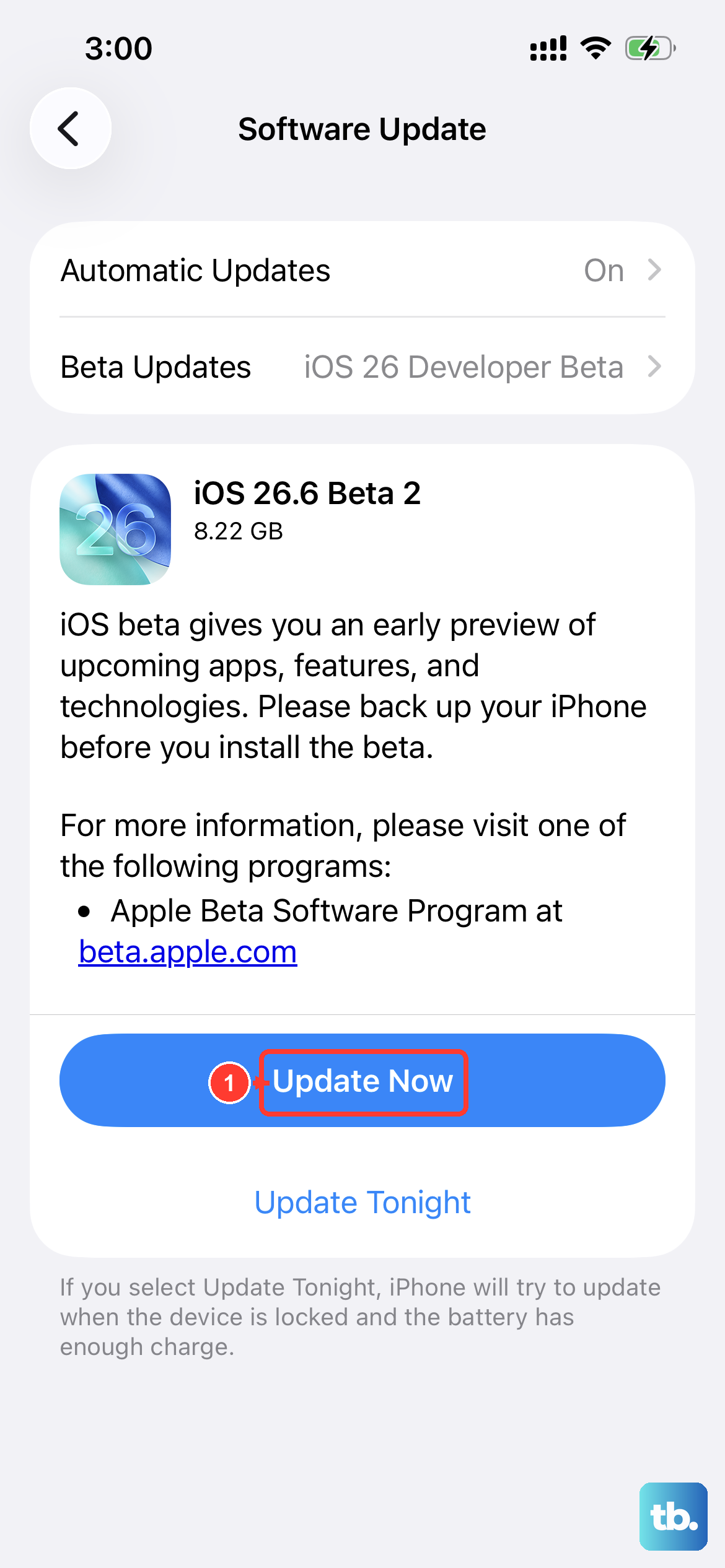
Sometimes the issue isn't with the app itself, but with the system software it's running on. Apple releases iOS updates that include important stability fixes. Since you're on an iPhone 15, you should be running a fairly recent version of iOS, but it's always worth checking.
Go to Settings > General > Software Update. Your phone will check for any available updates. If one is there, I'd recommend installing it, especially if it's a minor point update (like iOS 17.4.1). These often contain critical bug patches that can resolve app crashes.
Offload and Reinstall the App
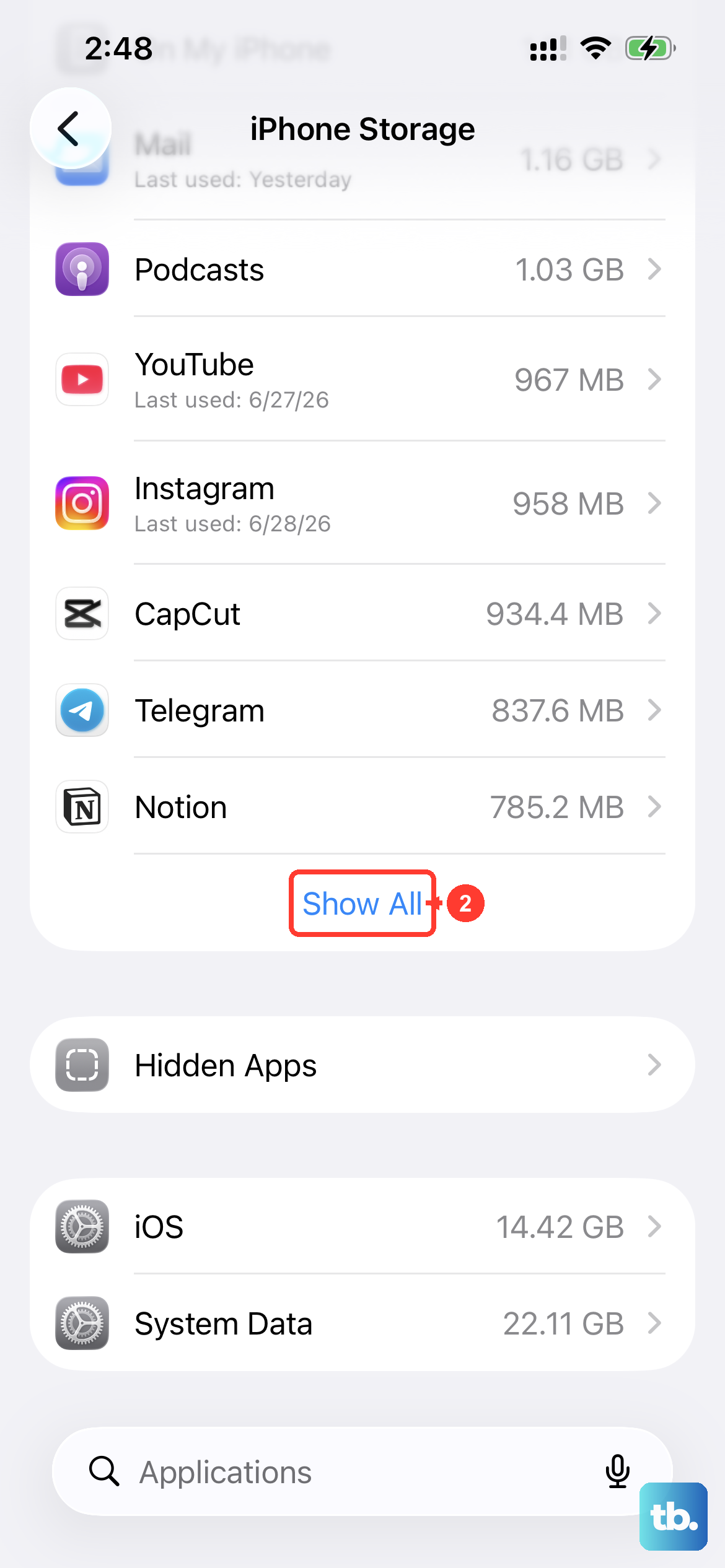
If updating didn't help, the next step is to give the app a completely fresh install. iOS has a handy feature called "Offload App" that removes the app itself but keeps all its documents and data on your phone. This means you won't lose your login info or saved files.
Go to Settings > General > iPhone Storage. Find the crashing app in the list and tap on it. You'll see an option for "Offload App." Tap that, then confirm. Once it's offloaded, the icon will remain on your home screen with a little cloud symbol. Just tap it to re-download the app fresh from the App Store.
Check Your Available Storage
Your iPhone 15 needs free space to operate properly. When storage gets critically low, apps can start crashing because they don't have room to create temporary files or cache data. It's a good idea to keep at least a few gigabytes free.
You can check your storage in the same menu: Settings > General > iPhone Storage. At the top, you'll see a bar showing how much space is used and what's available. If you're below 1GB free, consider deleting old videos, offloading unused apps, or clearing out your message attachments to free up some room.
Close All Apps and Restart
While you generally don't need to force-close apps on iPhone, if you're dealing with persistent crashes, it can help to clear the slate. Swipe up from the bottom of the screen and pause in the middle to enter the app switcher. Swipe up on each app preview to close it.
Once all apps are closed, go ahead and perform a standard restart. Press and hold the Side button and either Volume button until the "slide to power off" slider appears. Slide it to turn off your iPhone 15, wait about 30 seconds, then press and hold the Side button again until the Apple logo appears.
Reset All Settings
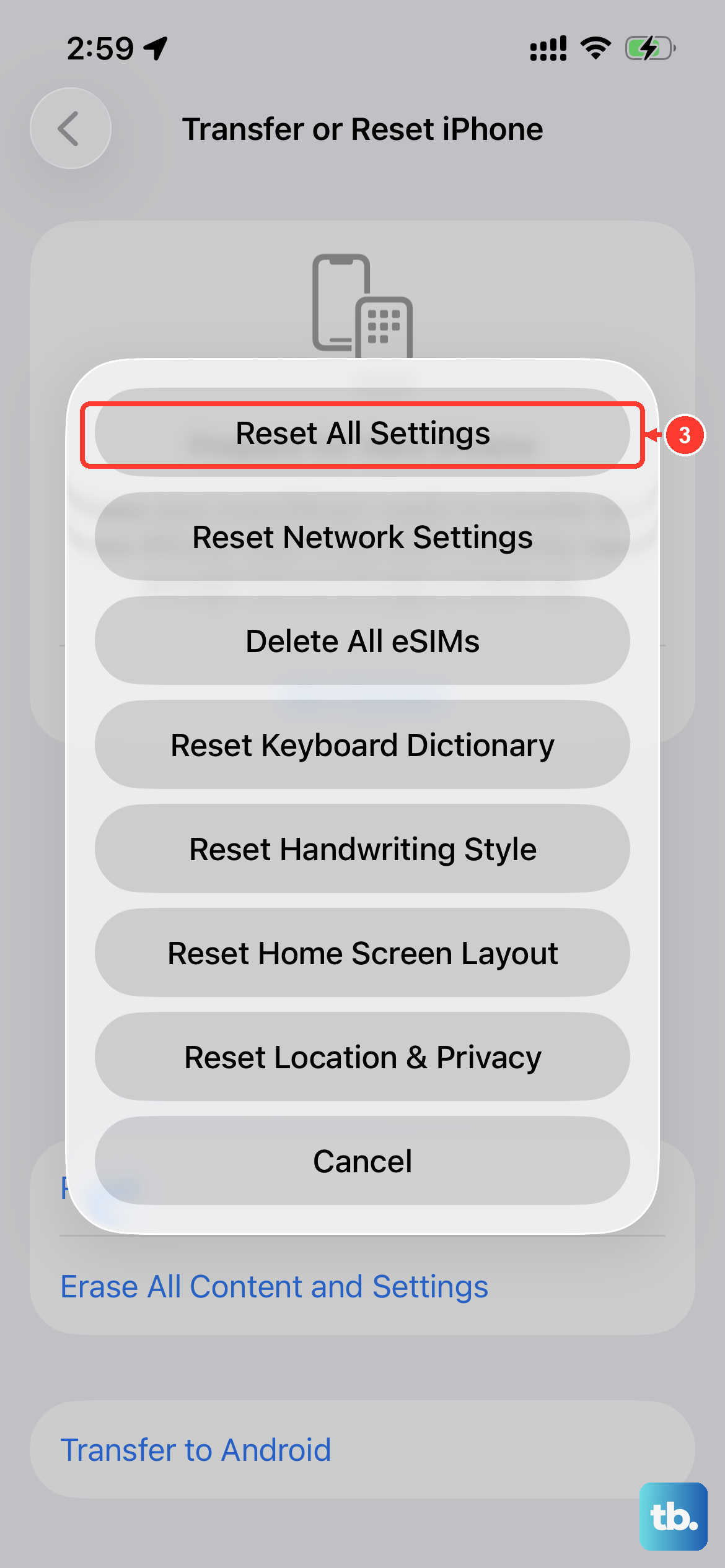
This is a more involved step, but it can fix weird glitches caused by a corrupted system setting. It won't delete any of your personal data like photos or messages, but it will reset all your preferences. Your Wi-Fi passwords, wallpaper, and privacy settings will all revert to defaults.
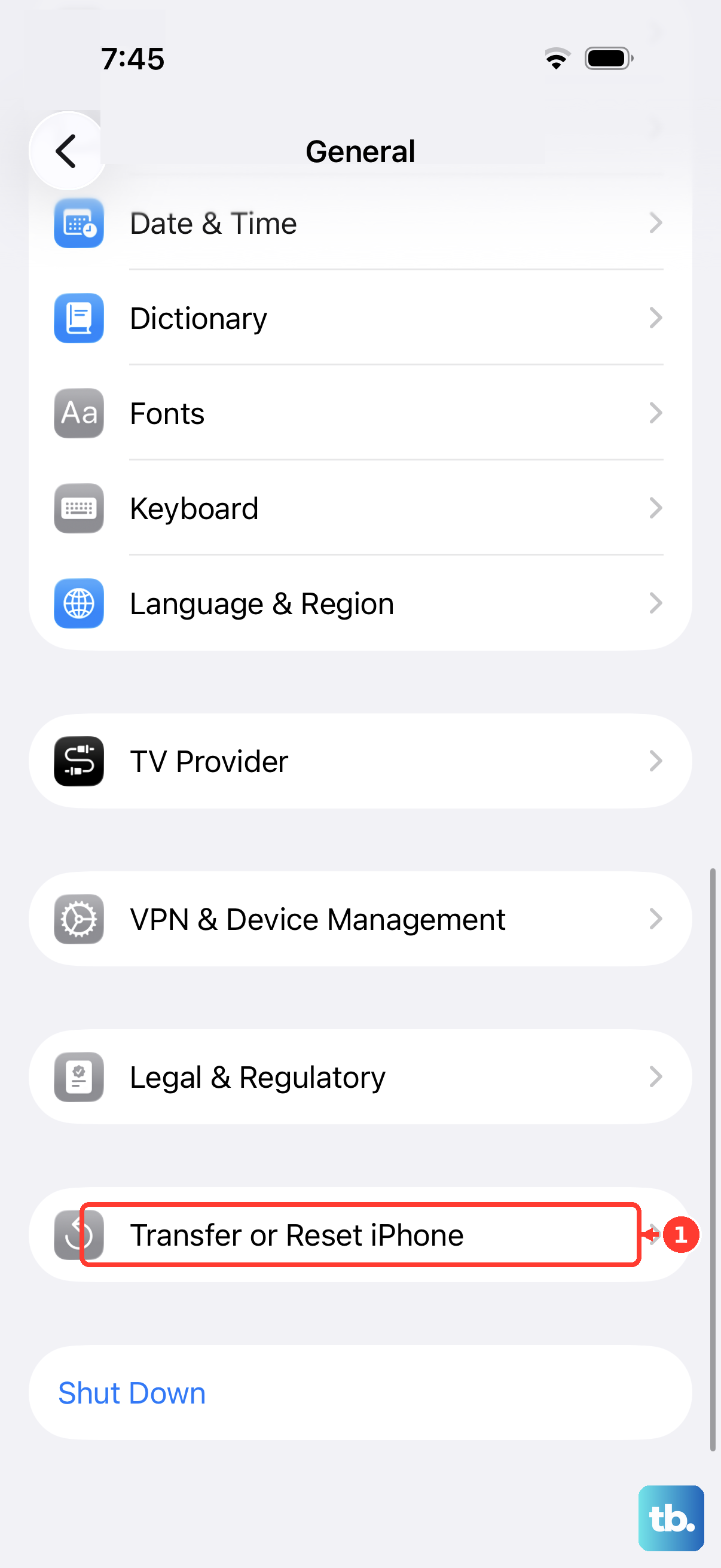
To do this, go to Settings > General > Transfer or Reset iPhone. Tap "Reset" at the bottom, then choose "Reset All Settings." You'll need to enter your passcode. After the phone reboots, you'll have to reconnect to Wi-Fi and set up things like Face ID again, but your apps should all still be there.
Check for Overheating
The iPhone 15 can sometimes get warm during intensive tasks or fast charging. If the device gets too hot, iOS will automatically throttle performance or even shut down certain functions to cool down, which can cause apps to stutter or close. This is more common if you're using a thick case while charging.
If your phone feels unusually hot to the touch, take it out of its case and let it cool down on a flat, hard surface. Avoid charging it until the temperature returns to normal. Using an official MagSafe charger or a certified USB-C cable can help prevent excessive heat during charging.
Restore via Computer (Last Resort)
If every other fix has failed, the final step is to restore your iPhone using a computer. This will install a completely clean, fresh copy of iOS. You have two options: a standard restore, which erases everything, or a restore from a backup you make first.
First, make sure you have a recent iCloud or computer backup. Then, connect your iPhone 15 to your Mac or PC using a USB-C cable. Open Finder (on Mac) or iTunes (on Windows), select your device, and choose "Restore iPhone." This process takes some time, but it will eliminate any deep-seated software corruption causing the crashes.