
When an app on your iPhone 17 Pro suddenly quits to the home screen, it's usually a temporary software hiccup. I'd start with a simple restart, as that clears out the phone's working memory and often resolves the issue right away. To restart, press and hold the side button with either volume button, then slide the power off slider, wait 30 seconds, and turn it back on.
Update the Problem App
App developers are constantly pushing updates to squash bugs that cause crashes. Head to the App Store and tap your profile icon in the top right corner. Scroll down to see if there's an update available for the app that's misbehaving. Tap "Update" next to it, or tap "Update All" to get everything current at once.
Check for an iOS Update
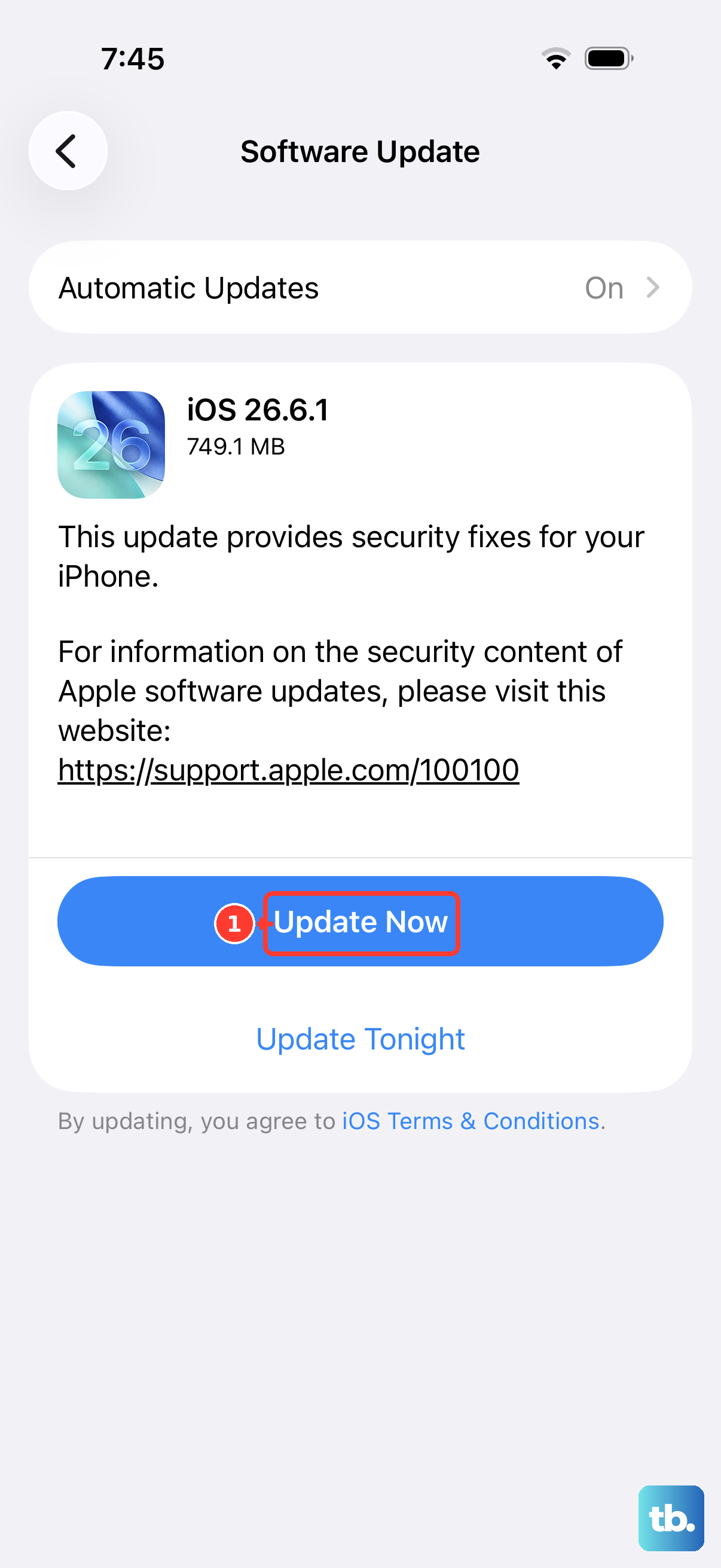
Sometimes, the issue is with iOS 26 itself, not the individual app. Apple releases updates that include important stability fixes. Go to Settings > General > Software Update. If an update is available, I'd recommend installing it, preferably while your phone is connected to Wi-Fi and power.
Force Close and Reopen the App
If an app is frozen or acting up, force closing it gives it a clean slate. Swipe up from the bottom of the screen and pause in the middle to enter the app switcher. Find the problematic app's preview and swipe it all the way up off the top of the screen to close it. Wait a moment, then tap the app icon again to relaunch it.
Offload and Reinstall the App
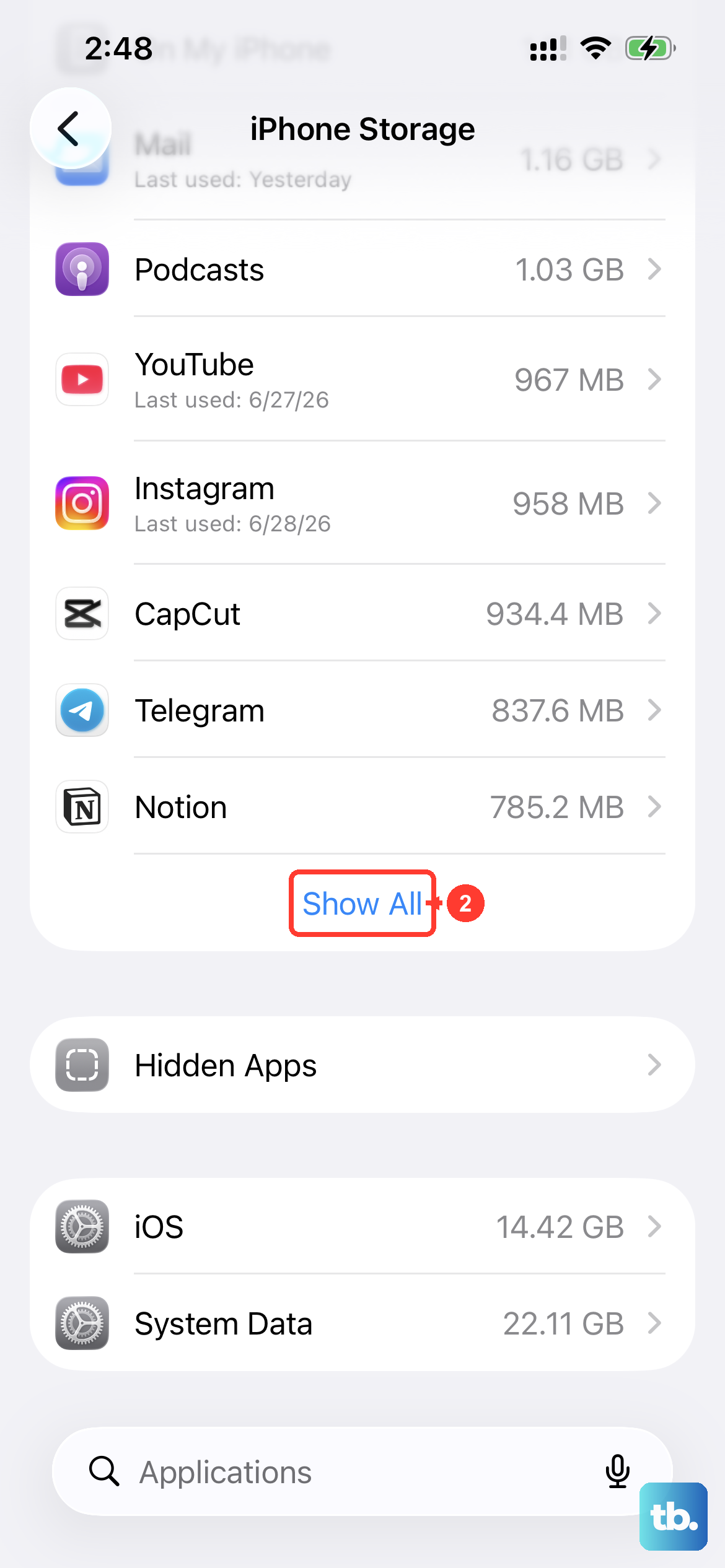
This is a handy iOS feature that removes the app but keeps its documents and data. If you reinstall it later, your information comes back. Go to Settings > General > iPhone Storage. Find the app in the list and tap on it. Select "Offload App," then confirm. After it's offloaded, the option will change to "Reinstall App." Tap that to get a fresh copy from the App Store.
Free Up Storage Space
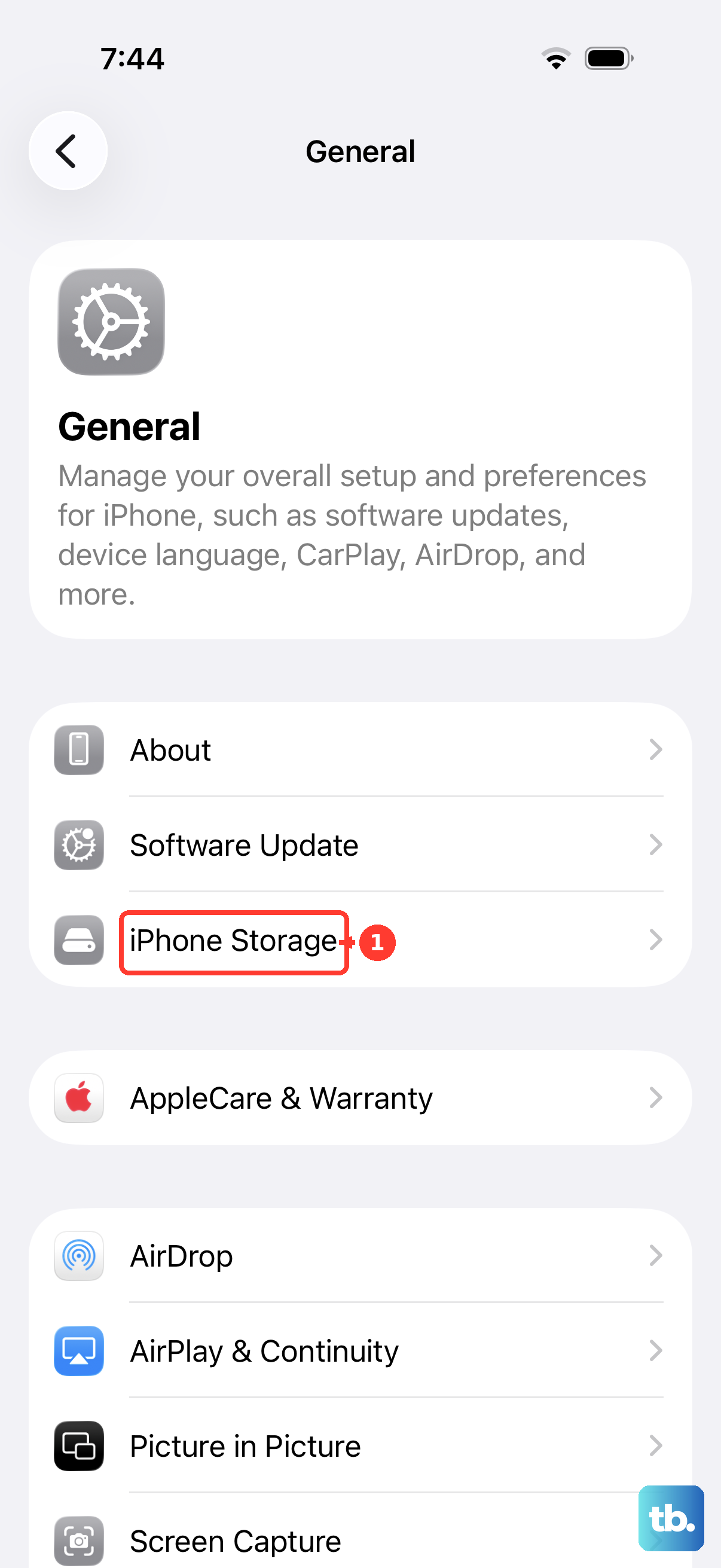
When your iPhone 17 Pro gets too full, apps can struggle to operate properly. Head back to Settings > General > iPhone Storage. iOS will show you recommendations and a breakdown of what's using space. Look for large apps you don't use, old messages, and photos or videos you can move to iCloud. Aim to keep at least 5-10GB free for the system to work comfortably.
Reset All Settings
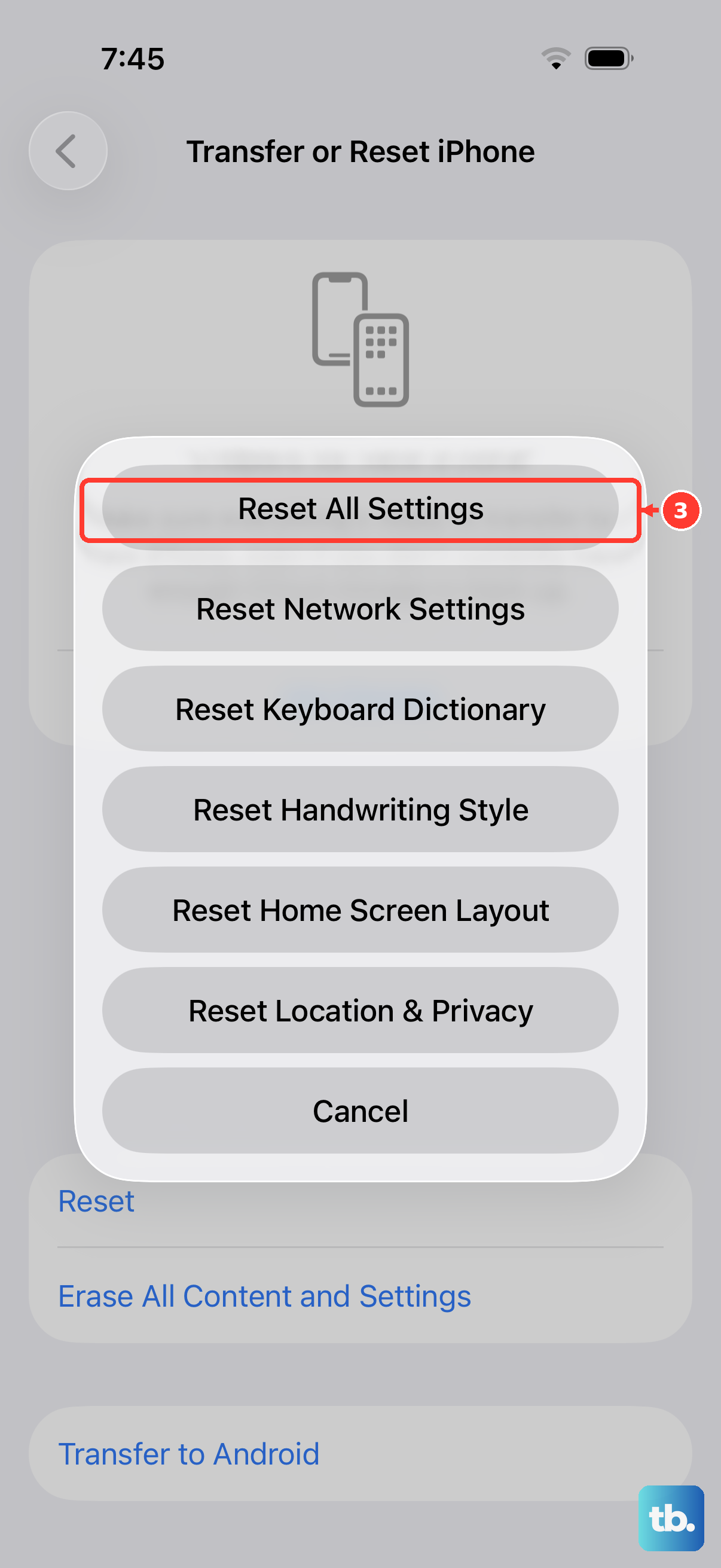
This won't erase your personal data like photos or messages, but it will reset all your system settings to their defaults. Things like Wi-Fi passwords, wallpaper, and privacy permissions will be cleared. It can fix deeper software conflicts. Go to Settings > General > Transfer or Reset iPhone > Reset > Reset All Settings. You'll need to enter your passcode to confirm.
Check for Overheating
The iPhone 17 Pro can get warm during intensive tasks like 60W fast charging or long gaming sessions. If the device gets too hot, iOS will throttle performance or even shut down apps to protect the hardware. If your apps are crashing and the phone feels very warm, set it down in a cool place, out of direct sunlight, and let it cool off for a few minutes before trying again.
Perform a Force Restart
A force restart is a step beyond a normal restart and can clear more stubborn glitches. On the iPhone 17 Pro, quickly press and release the Volume Up button, then quickly press and release the Volume Down button. Finally, press and hold the Side button. Keep holding it until you see the Apple logo appear, then let go. This process takes about 10-15 seconds.