
When apps on your iPhone 17 Pro Max start closing unexpectedly or freezing up, it pulls you right out of whatever you were doing. An app or system software issue may be the cause. The fixes are often straightforward, so start with the simple checks below.
Start with a force restart if your iPhone is unresponsive. Then open the app again to see if it works. Press and quickly release the Volume Up button, then quickly press and release the Volume Down button. Finally, press and hold the Side button until you see the Apple logo appear, then let go.
Update the Problem App
Developers are constantly pushing out updates to squash bugs and improve compatibility with new iOS versions. Head to the App Store and tap the My Account button or your photo at the top of the screen. Tap App Updates, then tap Update next to the app that's been acting up, or Update All.
If you see an update for it, install it and then give the app another try. An update can help resolve app crashes.
Check for an iOS Update
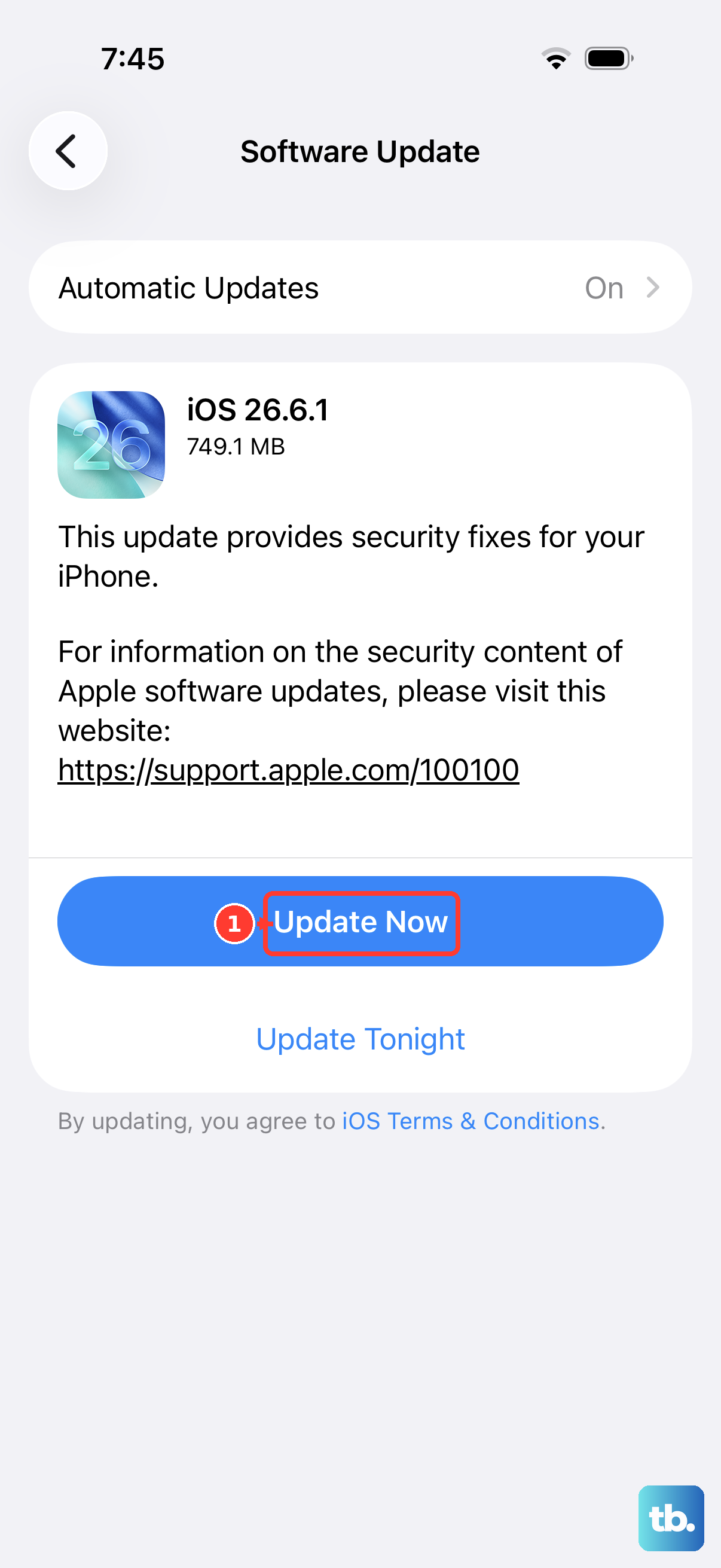
Sometimes, the issue isn't with the app itself but with the underlying system software. Apple releases iOS updates to patch known issues that can affect app stability. Go to Settings > General > Software Update.
If an iOS update is available, it's a good idea to install it. Make sure your iPhone 17 Pro Max is connected to Wi-Fi and has sufficient battery, or plug it into your charger.
Offload and Reinstall the App
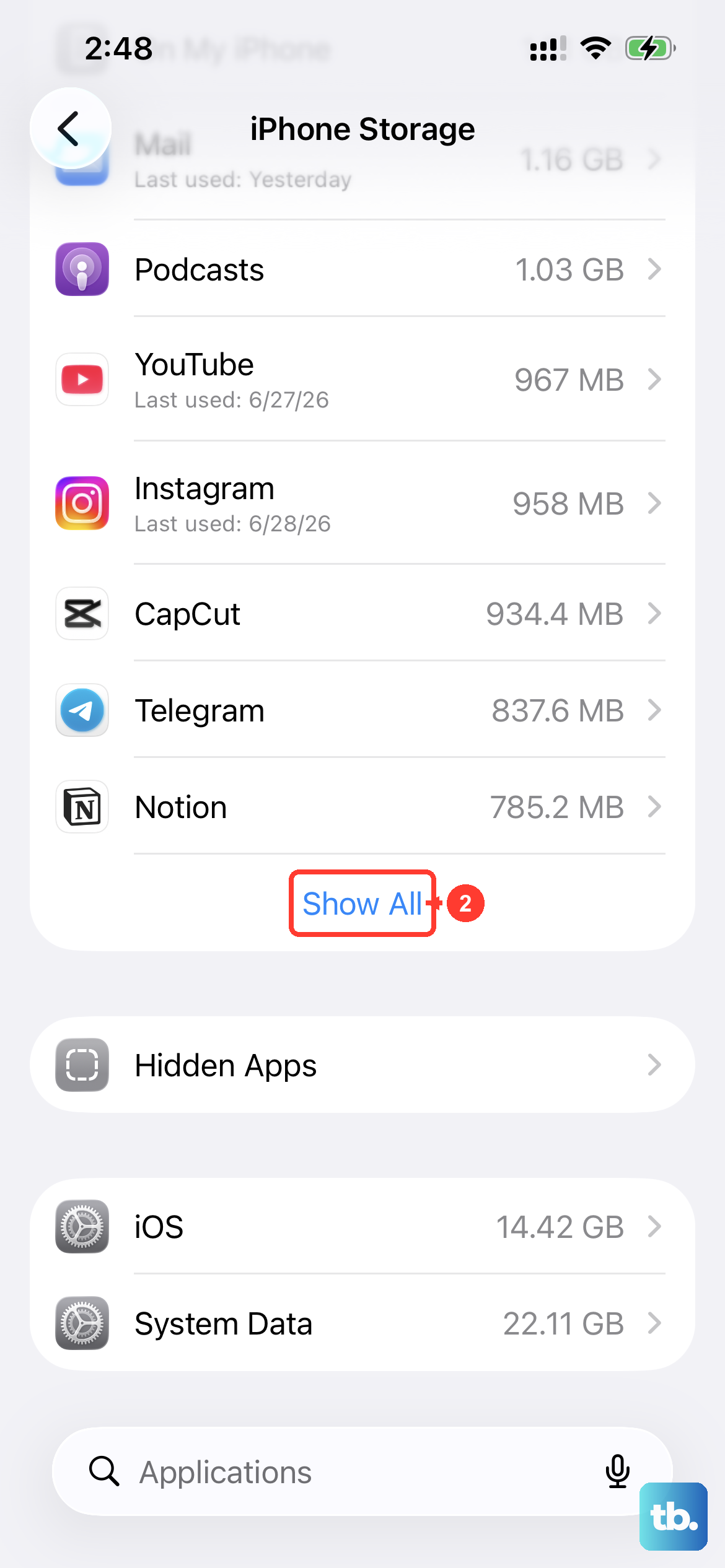
If updating doesn't help, the next step is to reinstall the app while keeping its documents and data. iOS has a handy feature called Offload App that removes the app but keeps its documents and data. Go to Settings > General > iPhone Storage.
Find the problematic app in the list and tap on it. Choose "Offload App," then confirm. Once it's offloaded, you can tap "Reinstall App" right from that same screen, or find it again in the App Store. This reinstalls the application files while keeping its documents and data.
Close and Reopen the App from the App Switcher
For a single misbehaving app, try fully closing it from the app switcher. Swipe up from the bottom of the screen and pause in the middle to bring up the card view of your recent apps. Find the app's card and swipe it all the way up and off the top of the screen to close it.
Then, tap its icon on the Home Screen to launch it fresh. This is different from just going back to the Home Screen, as it forces the app to restart its processes from scratch.
Check Your Network Connection
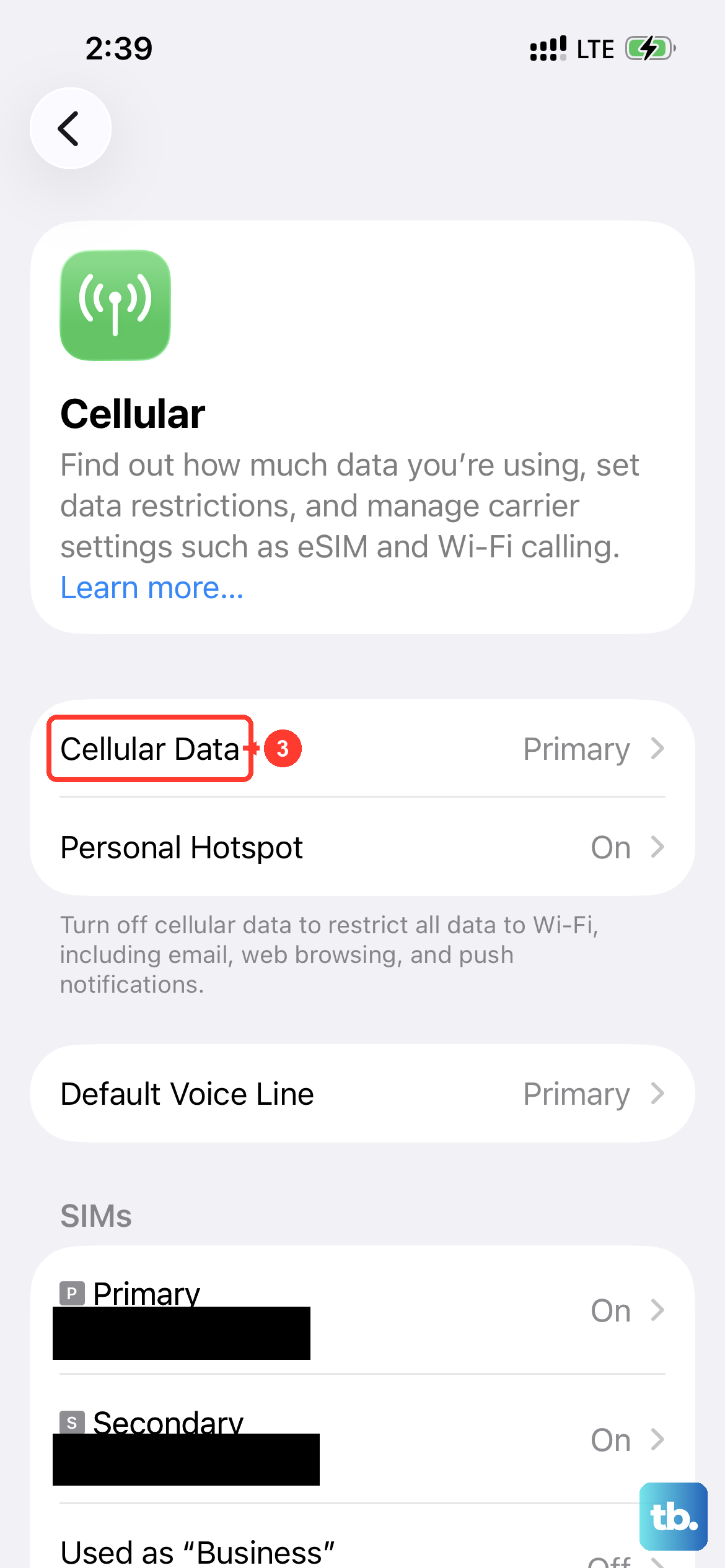
Apps that rely heavily on a live internet connection, like social media or streaming services, can freeze or crash if your connection is unstable. Try turning on Airplane Mode in Settings for at least 15 seconds, then turning it off, to reconnect to your cellular network.
You can also try switching between Wi-Fi and your cellular data to see if the problem is specific to one network. A weak signal can sometimes cause the app to hang while it waits for data.
Free Up Storage Space on Your iPhone
While the iPhone 17 Pro Max comes with a lot of storage, if you're getting critically low, it can affect system performance and app stability. iOS needs free space to create temporary files and cache data. Go back to Settings > General > iPhone Storage.
The system will show you recommendations for optimizing storage. You can review large attachments in Messages, enable iCloud Photos, or delete unused apps and their data. Freeing up space may help if your storage is almost full.
Reset All Settings
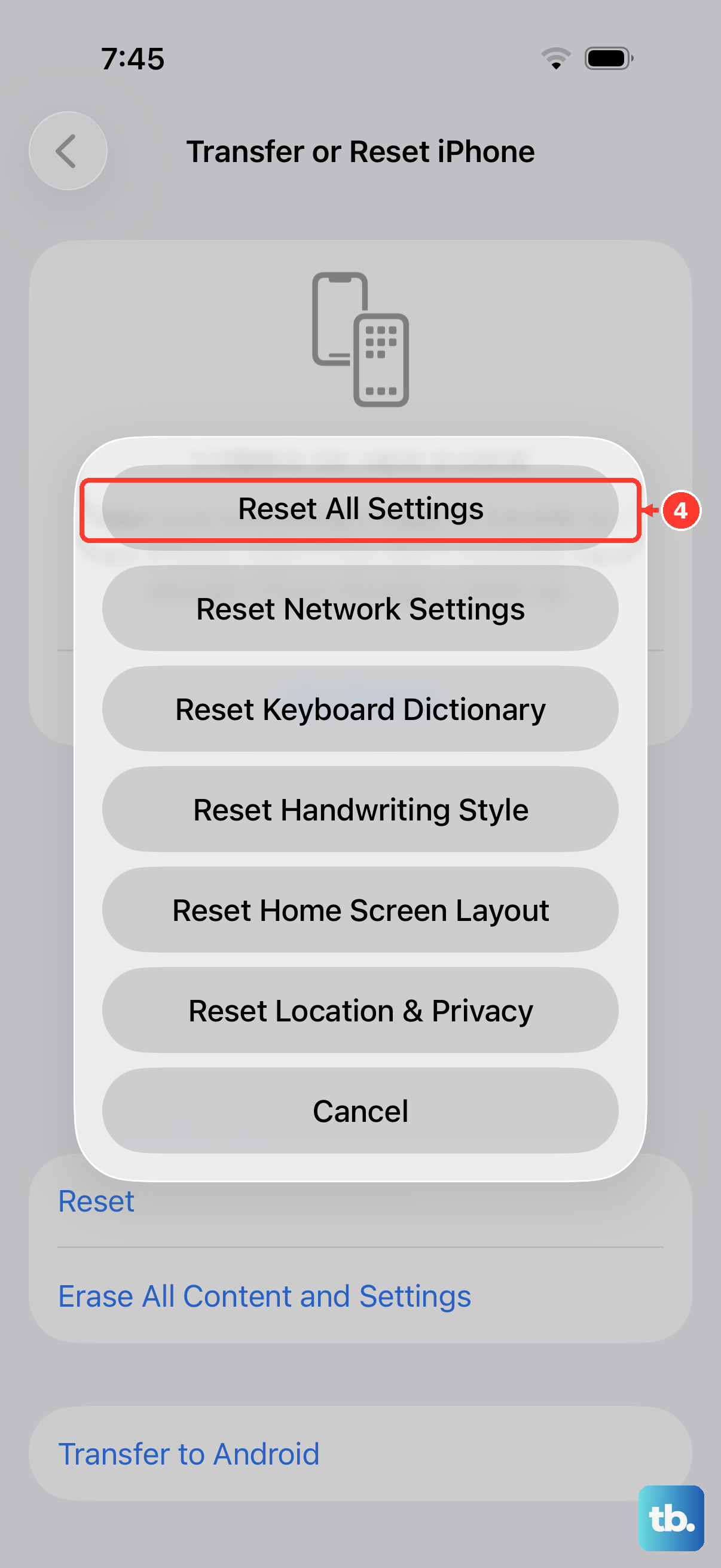
This is a more substantial step, but it won't delete your personal data like photos or messages. It resets all your system settings, like Wi-Fi passwords, wallpaper, and privacy permissions, back to their defaults. This may help if a changed setting is causing problems.
Go to Settings > General > Transfer or Reset iPhone. Tap "Reset" and then choose "Reset All Settings." You'll need to enter your passcode. After the phone restarts, you'll have to reconnect to Wi-Fi networks, re-pair Bluetooth devices and any Apple Watch, set up Face ID again, and re-customize some settings, but your apps and data remain.
Restore Your iPhone via a Computer
If you're still facing persistent crashes across multiple apps, restoring the iPhone software is an option. First, make sure you have a recent backup in iCloud or on your computer. Connect your iPhone 17 Pro Max to a Mac or PC using a USB-C cable.
Open the Finder on a Mac with macOS Catalina or later, or the Apple Devices app on a PC. Quickly press and release the Volume Up button, quickly press and release the Volume Down button, then hold the Side button until the "Connect to computer" screen appears. Choose "Update" first if you haven't tried it. If that doesn't help, "Restore" reinstalls iOS and erases all data on the iPhone.
After the restore is complete, you can set up the phone as new to test if the crashes are gone, or restore from your backup. Setting up as new can help you check whether the crashes continue before restoring your backup.